

⏲️ Estimated reading time: 6 min
Table of Contents
⚡ How To Make Best Settings in Nvidia Control Panel for RTX 4070 Ti SUPER
The Nvidia RTX 4070 Ti SUPER is a powerhouse GPU, but unlocking its full potential requires optimal Nvidia Control Panel settings. This in-depth guide shows you the best tweaks for gaming, productivity, and smooth performance with your 4070 Ti SUPER.
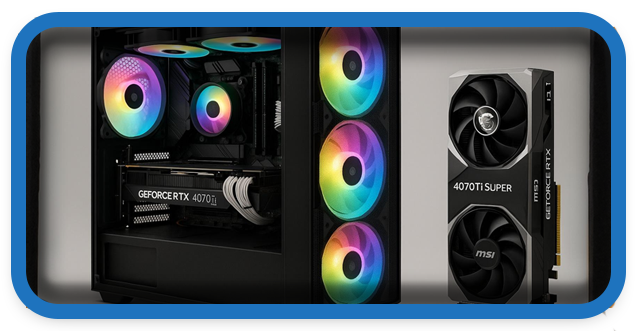
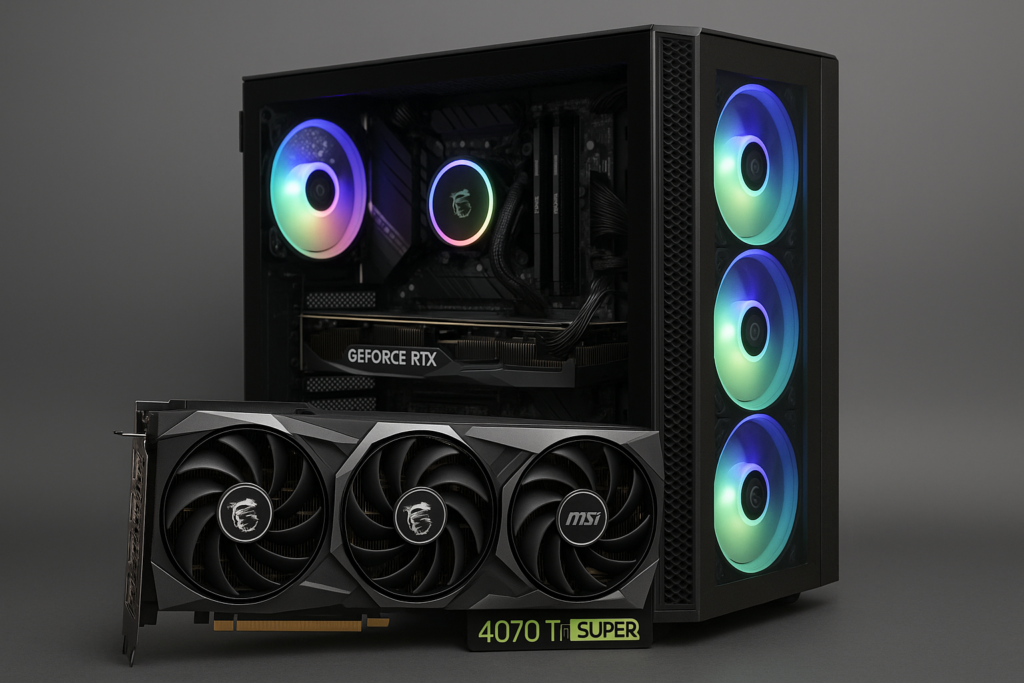
🖥️ Nvidia RTX 4070 Ti SUPER
The Nvidia GeForce RTX 4070 Ti SUPER is part of Nvidia’s Ada Lovelace architecture, delivering outstanding performance for 1440p and even 4K gaming. However, out-of-the-box settings don’t always give you the best possible experience.
To maximize FPS, reduce input lag, and maintain stable performance, you need to adjust the Nvidia Control Panel settings. Many gamers overlook these tweaks, but with the right configuration, your 4070 Ti SUPER can deliver smoother frames, sharper visuals, and more consistent gameplay.
This article will walk you step by step through the best Nvidia Control Panel settings for the RTX 4070 Ti SUPER, explaining why each adjustment matters.
⚙️ Step 1: Update Drivers Before Tweaking
Before diving into settings, always ensure you have the latest Nvidia Game Ready Drivers:
- Open GeForce Experience.
- Navigate to the Drivers tab.
- Install the latest Game Ready Driver (GRD) for optimal performance.
💡 Pro Tip: Use DDU (Display Driver Uninstaller) if you encounter issues with old driver remnants. A clean installation often fixes stuttering or random FPS drops.
🎮 Step 2: Nvidia Control Panel Setup
Open the Nvidia Control Panel by right-clicking your desktop and selecting it. You’ll mainly adjust settings under two categories:
- Manage 3D Settings
- Display Settings
Let’s go through each section.
🔧 Best Global Settings for RTX 4070 Ti SUPER
Navigate to Manage 3D Settings → Global Settings. Apply these changes for overall performance improvements.
1. Image Sharpening: On
- Set Sharpening: 0.30 – 0.50
- Ignore Film Grain: 0.17
- Benefit: Enhances textures without over-sharpening. Useful in competitive shooters like CS2 and Valorant.
2. Anisotropic Filtering: Application Controlled
- Let the game decide. Some games handle AF better internally.
3. Antialiasing – FXAA: Off
- FXAA causes blurriness. Use in-game TAA or DLAA instead.
4. Antialiasing – Mode: Application Controlled
- Modern games with DLSS or DLAA outperform Nvidia panel AA.
5. CUDA – GPUs: All
- Ensures the full power of the 4070 Ti SUPER is used.
6. Low Latency Mode: Ultra (for competitive gaming)
- Reduces input lag, perfect for shooters.
- Use On instead of Ultra for non-competitive games to avoid stability issues.
7. Max Frame Rate: Off
- Only set a cap if you have screen tearing or want to reduce GPU temps.
8. Multi-Frame Sampled AA (MFAA): Off
- Obsolete with DLSS.
9. OpenGL Rendering GPU: Select RTX 4070 Ti SUPER
- Ensures your main GPU is used.
10. Power Management Mode: Prefer Maximum Performance
- Prevents GPU from downclocking, stabilizes FPS.
11. Shader Cache Size: Unlimited
- Prevents stuttering by allowing more shader data storage.
12. Texture Filtering – Quality: High Performance
- Improves FPS at the cost of minor image quality loss.
13. Texture Filtering – Trilinear Optimization: On
14. Texture Filtering – Anisotropic Sample Optimization: On
15. Threaded Optimization: On
- Lets multi-core CPUs handle GPU tasks better.
16. Vertical Sync (V-Sync): Off
- Use G-Sync or in-game V-Sync instead.
📺 Step 3: Display Settings for Smooth Visuals
Go to Change Resolution under Display Settings.
See also: Vitamin B Does Not Cause Neuropathy: What Really Does?
- Set Resolution to your monitor’s native (e.g., 2560×1440 or 3840×2160).
- Refresh Rate: Always choose the highest available (144Hz, 165Hz, or 240Hz).
- Output Color Format: RGB
- Output Dynamic Range: Full
- Color Depth: 10-bit if your monitor supports it.
💡 If you own a G-Sync monitor, enable G-Sync under Set up G-Sync and select:
- Enable for windowed and full screen mode
- Enable settings for the selected display
🎯 Step 4: Per-Game Settings
Sometimes you’ll want different settings for competitive vs cinematic games.
✅ Competitive Games (Valorant, CS2, Apex Legends)
- Low Latency Mode: Ultra
- Max Frame Rate: Cap slightly below monitor refresh rate (e.g., 141 FPS on a 144Hz monitor)
- V-Sync: Off
- Texture Filtering – Quality: High Performance
✅ AAA Cinematic Games (Cyberpunk 2077, Red Dead Redemption 2)
- Low Latency Mode: On
- Texture Filtering – Quality: Quality
- Use DLSS Quality for sharper images at higher FPS.
- Enable Ray Tracing only if you can maintain above 60 FPS.
🖼️ Step 5: Adjust Desktop Size and Position
For optimal scaling:
- Go to Adjust Desktop Size and Position.
- Select No scaling.
- Choose Perform scaling on: Display.
This ensures that your monitor handles scaling, reducing GPU load.
⚡ Step 6: Windows Tweaks for Better Performance
Beyond Nvidia Control Panel, adjust Windows settings:
- Set Power Plan to High Performance or Ultimate Performance.
- Disable Hardware-accelerated GPU Scheduling if experiencing stutters (test both ways).
- Ensure Game Mode is enabled in Windows.
- Disable unnecessary startup programs.
📊 Benchmarking Results After Tweaks
After applying these settings, users often report:
- 10–20% more stable FPS
- Lower input lag in shooters
- Reduced stutter in open-world games
- Sharper image quality without major performance hit
Example:
- Cyberpunk 2077 (1440p, DLSS Quality, RT On) → +12 FPS average
- Valorant (1440p, low settings) → Latency reduced by 7ms
🛠️ Advanced Tips for Enthusiasts
- Use Nvidia Reflex (in supported games): Further reduces latency.
- Enable ReBAR (Resizable BAR): Boosts performance in GPU-heavy games.
- Use MSI Afterburner: For custom fan curves and overclocking.
- DLSS 3.5 Ray Reconstruction: Exclusive to RTX 40-series, improves ray tracing efficiency.
🔥 Common Mistakes to Avoid
- Don’t enable both V-Sync and G-Sync simultaneously – can cause input lag.
- Don’t force Anti-Aliasing through Nvidia Control Panel – use in-game options.
- Don’t set Max Frame Rate too high – can cause overheating.
- Avoid using Ultra Low Latency in single-player cinematic games – unnecessary.
🏆 Final Recommendations
For RTX 4070 Ti SUPER users:
- Prioritize DLSS Quality + Ray Tracing for cinematic AAA games.
- Use Max Performance Power Mode for consistent FPS.
- Switch between Low Latency Mode Ultra (competitive) and On (AAA titles).
- Always benchmark after changes to see what works best for your system.
🔔 Wrap-Up
Optimizing your Nvidia Control Panel settings for the RTX 4070 Ti SUPER is one of the simplest ways to gain extra performance and enjoy smoother gaming. These tweaks ensure your powerful GPU runs at its full potential, delivering the perfect balance between quality and performance.
✅ Ending Note
🔔 For more tutorials like this, consider subscribing to our blog.
📩 Do you have questions or suggestions? Leave a comment or contact us!
🏷️ Tags: Nvidia Control Panel, RTX 4070 Ti SUPER, gaming optimization, GPU performance, DLSS 3, Nvidia Reflex, graphics settings, PC gaming, ray tracing, G-Sync
📢 Hashtags: #Nvidia #RTX4070TiSUPER #GamingSetup #ControlPanel #DLSS3 #GSync #RayTracing #PCGaming #FPSBoost #LowLatency
