


⏲️ Estimated reading time: 3 min
Table of Contents
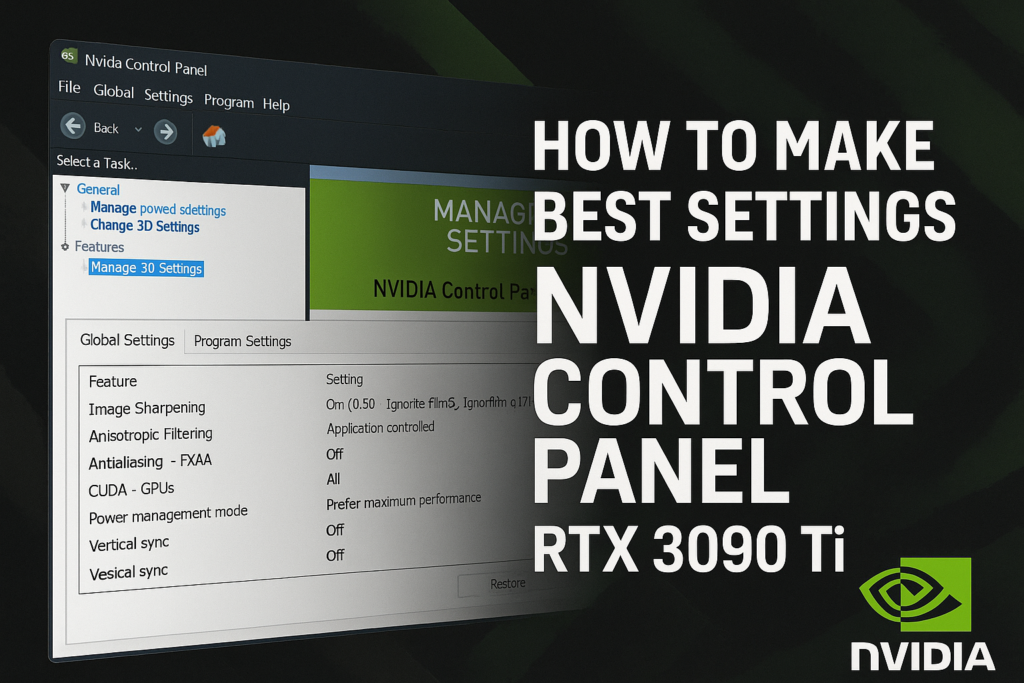
How To Make Best Settings Nvidia Control Panel RTX 3090 Ti. Want to unlock the full power of your RTX 3090 Ti? Learn the best Nvidia Control Panel settings for performance, visuals, and stability. This guide covers step-by-step tweaks to maximize FPS, image quality, and smooth gaming experience.
🎮 Nvidia RTX 3090 Ti
The Nvidia RTX 3090 Ti is a beast of a graphics card, designed for gamers, streamers, and creators who demand top-tier performance. But even with its power, you can squeeze more out of it by optimizing the Nvidia Control Panel settings. In this guide, we’ll walk you through the best settings for performance, image quality, and smooth gameplay on the RTX 3090 Ti.
🖥️ Step 1: Accessing Nvidia Control Panel
- Right-click on your desktop.
- Select Nvidia Control Panel.
- Navigate to Manage 3D Settings.
⚙️ Step 2: Global Settings for RTX 3090 Ti
Here are the optimal settings to maximize performance and stability:
- Image Sharpening: On (0.50, Ignore film grain: 0.17)
- Ambient Occlusion: Performance
- Anisotropic Filtering: Application-controlled
- Antialiasing – FXAA: Off
- Antialiasing – Mode: Application-controlled
- Antialiasing – Transparency: Off
- CUDA – GPUs: All
- Low Latency Mode: On
- Max Frame Rate: Off (Optional: cap to monitor refresh for smoother gameplay)
- Power Management Mode: Prefer maximum performance
- Shader Cache Size: Unlimited
- Texture Filtering – Quality: High performance
- Threaded Optimization: On
- Triple Buffering: Off
- Vertical Sync: Off (enable in-game or via G-Sync/FreeSync if needed)
🎯 Step 3: Display Settings for Smooth Gameplay
- Change Resolution: Set to native resolution + highest refresh rate.
- Adjust Desktop Size and Position: Select No scaling and perform scaling on Display.
- G-Sync: Enable if your monitor supports it (fullscreen + windowed).
🔥 Step 4: Optimize for Specific Games
For heavy titles like Cyberpunk 2077, Red Dead Redemption 2, or Flight Simulator, create per-game profiles:
- Lower anisotropic filtering.
- Enable DLSS for better FPS.
- Use Reflex Low Latency where supported.
🚀 Step 5: Additional Tips for Maximum Performance
- Keep your GPU drivers updated via GeForce Experience.
- Use Game Ready Drivers for new titles.
- Enable Hardware-accelerated GPU scheduling in Windows settings.
- Monitor temps and performance with MSI Afterburner.
✅ Final Optimized Setup Overview
For most users, the best balance with RTX 3090 Ti is:
- Power Mode: Maximum performance
- Latency: Low Latency Mode ON
- Texture Quality: High performance
- V-Sync/G-Sync: Use monitor sync options
- Resolution: Native with DLSS enabled in supported games
🔔For more tutorials like this, consider subscribing to our blog.
📩 Do you have questions or suggestions? Leave a comment or contact us!
🏷️ Tags: Nvidia RTX 3090 Ti, Nvidia Control Panel settings, best GPU settings, gaming performance, PC optimization, FPS boost RTX 3090 Ti, Nvidia drivers, graphics card tuning, G-Sync optimization, DLSS settings
📢 Hashtags: #Nvidia3090Ti, #RTX3090Ti, #PCGaming, #NvidiaSettings, #ControlPanel, #FPSBoost, #GamingPerformance, #PCOptimization, #DLSS, #GSync
🔮 Wrap-Up
Read also: Every man dies, but not every man truly lives
Tweaking the Nvidia Control Panel can take your RTX 3090 Ti from great to unbeatable. With the right mix of power management, low latency, and resolution scaling, you’ll enjoy higher FPS, smoother visuals, and an overall better experience.
