


⏲️ Estimated reading time: 4 min
Table of Contents
How To Make Best Settings in Nvidia Control Panel for RTX 3050. Want the best performance from your RTX 3050? Optimizing Nvidia Control Panel settings can significantly improve FPS, visuals, and smoothness. This guide shows you the ultimate configuration for gaming, rendering, and daily use to unlock your GPU’s full potential.
🎮 The Nvidia GeForce RTX 3050 is one of the most popular entry-level RTX cards, combining affordability with ray tracing and DLSS support. However, to maximize its performance, you need to fine-tune the Nvidia Control Panel settings.
Whether you’re gaming, streaming, or just want smoother visuals, this guide will show you step-by-step how to set up the Nvidia Control Panel for the best results.
⚙️ Step 1: Access Nvidia Control Panel
- Right-click on your desktop.
- Select Nvidia Control Panel.
- If you don’t see it, reinstall or update your GPU drivers via GeForce Experience.
🖼️ Step 2: Adjust Image Settings
- Go to Adjust Image Settings with Preview.
- Select Use the Advanced 3D Image Settings.
- Then click Take me there to proceed to 3D settings.
This ensures you take full control instead of letting Windows or Nvidia auto-manage your graphics.
🎯 Step 3: Best 3D Settings for RTX 3050
Head to Manage 3D Settings → Global Settings.
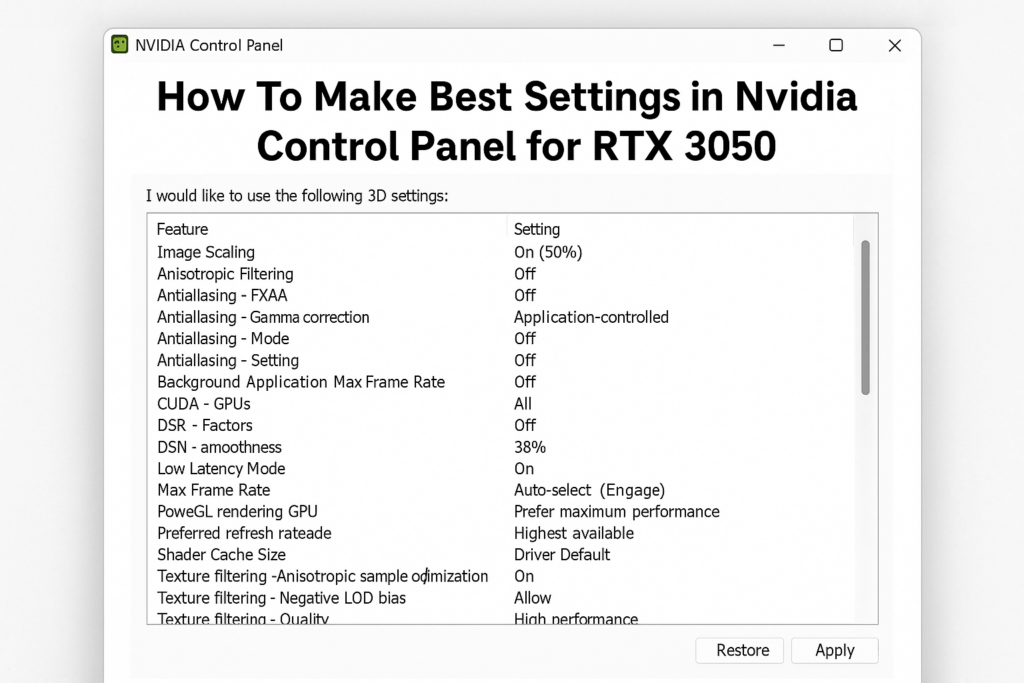
Here’s the recommended configuration:
- Image Sharpening: Off (enable in-game if needed).
- Anisotropic Filtering: 16x (better textures).
- Antialiasing – FXAA: Off (use TAA/DLSS in games).
- Antialiasing – Mode: Application-Controlled.
- CUDA – GPUs: All.
- Low Latency Mode: On (Ultra for esports titles).
- Max Frame Rate: Off (set in-game if needed).
- Monitor Technology: G-SYNC (if available).
- Multi-Frame Sampled AA (MFAA): On.
- OpenGL Rendering GPU: Select your RTX 3050.
- Power Management Mode: Prefer Maximum Performance.
- Shader Cache Size: Driver Default.
- Texture Filtering – Quality: High Performance.
- Texture Filtering – Anisotropic Sample Optimization: On.
- Threaded Optimization: Auto.
- Triple Buffering: Off (unless using V-Sync).
- Vertical Sync: Off (enable G-Sync or FreeSync instead).
🖥️ Step 4: Configure Display Settings
Go to Display → Change Resolution:
- Set Native Resolution (usually 1920×1080 or 2560×1440).
- Refresh Rate: Highest available (e.g., 144Hz).
- Output Color Depth: Highest (10 bpc if supported).
- Output Dynamic Range: Full.
🔥 Step 5: G-Sync Setup (if monitor supports it)
- Enable G-Sync, G-Sync Compatible.
- Check “Enable for full-screen mode” (or full-screen + windowed if needed).
- Apply settings for smooth, tear-free gameplay.
🎥 Step 6: Adjust Video Settings
- Go to Adjust Video Color Settings.
- Select “With the Nvidia Settings.”
- Adjust Dynamic Range to Full (0-255).
- This improves video clarity and color vibrancy.
⚡ Extra Tips for RTX 3050 Owners
- Keep your GPU drivers updated via GeForce Experience.
- Use DLSS in supported games for higher FPS.
- If gaming on a laptop with RTX 3050, enable High-Performance Mode in Windows Power Settings.
- Consider undervolting for lower temps and stable performance.
📊 Expected Performance Boost
By applying these settings, you can expect:
- +10–20% FPS increase in many games.
- Smoother frame pacing with reduced stuttering.
- Sharper textures with minimal performance loss.
- More consistent GPU usage.
📝 Final Thoughts
You may also be interested in: Kenshin Himura The Samurai Legend
Your RTX 3050 has more power than most people realize. With the right Nvidia Control Panel settings, you can balance visuals and performance while enjoying smooth gameplay and sharp graphics.
Don’t rely on default configurations optimize your card and unleash its true potential!
🔔 For more tutorials like this, consider subscribing to our blog.
📩 Do you have questions or suggestions? Leave a comment or contact us!
🏷️ Tags: Nvidia Control Panel settings, RTX 3050 performance, best Nvidia settings, optimize RTX 3050, gaming FPS boost, Nvidia tutorial, Nvidia RTX guide, PC gaming setup, RTX 3050 laptop, Nvidia optimization
📢 Hashtags: #Nvidia #RTX3050 #PCGaming #GamingSetup #FPSBoost #NvidiaControlPanel #TechTips #GamingOptimization #GPUGuide #DLSS
