

⏲️ Estimated reading time: 28 min
Table of Contents
Create a Clear-History.cmd file to clear Windows recent item usage data directly from your desktop. This beginner-friendly guide explains the script, shows how to save and run it, and helps you troubleshoot common problems without confusing File Explorer history with browser history or your actual documents.
Clear-History.cmd: A Simple Desktop Tool for Windows
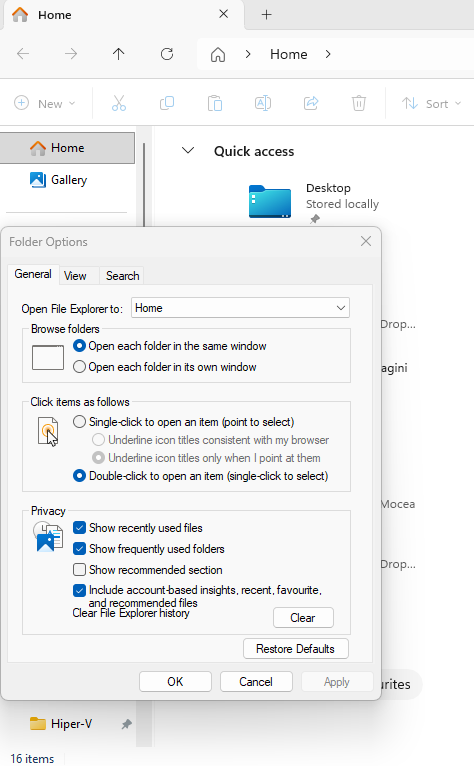
Opening File Explorer, finding the options menu, and pressing Clear is manageable when you do it occasionally. However, repeating the same steps becomes frustrating when you want a quick cleanup before sharing your screen or starting a presentation. A small desktop file can make that task more convenient. Instead of opening the Folder Options dialog each time, you double-click a file named Clear-History.cmd. Windows then runs the instructions stored inside it. The name describes the purpose, while the .cmd extension tells Windows that the file contains commands.
This guide explains how to create that file, understand its contents, and check the result. It also makes an important distinction: clearing recent item usage data does not erase your documents or remove every record of computer activity. Furthermore, the method described here should not be presented as a guaranteed replica of every action performed by the File Explorer Clear button on every Windows release. It uses a documented Windows Shell function. You should verify how the relevant recent lists respond on your own computer before depending on it.
What You Will Create
The finished tool is a small text file that you save with a .cmd extension. Its job is to launch Windows PowerShell, make a Windows Shell function available, and request a cleanup of recent item usage data. You do not need to install a commercial cleaner or create an account. During normal use, a console window may appear briefly and close. If the script encounters a detectable error, the improved version below keeps the window open so you can read the message. That makes troubleshooting easier than using a completely hidden command from the beginning.
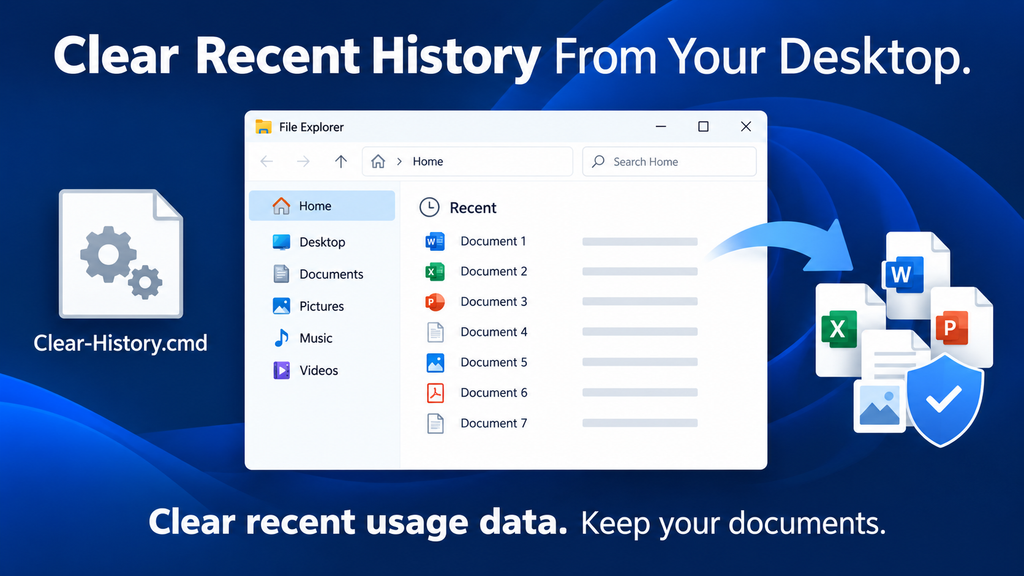
For example, imagine that you opened several sample documents while preparing a tutorial. Before recording the next video, you want to reduce the clutter in the relevant recent lists. You run the desktop file, refresh File Explorer, and inspect the result. Your sample documents remain in their original folders. If a particular recommendation remains visible, you investigate its source instead of assuming the script should remove it. This approach gives you a useful convenience tool while keeping your expectations realistic.
Understand What “History” Means Before You Clear It
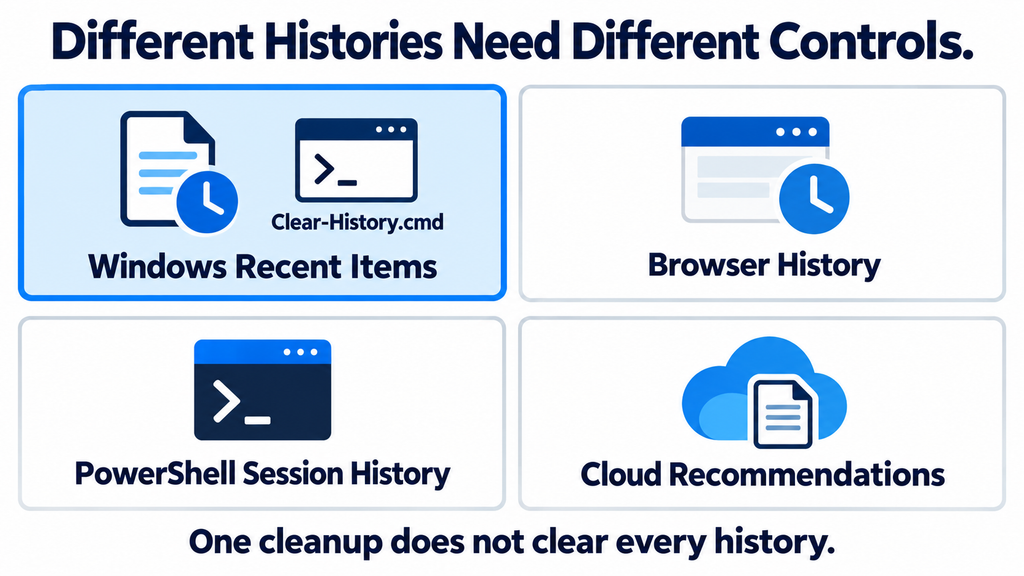
Windows uses the word “history” for several different features. File Explorer can display recently accessed items, while a browser maintains its own record of visited pages. Office applications may show recent documents inside their interfaces. PowerShell also maintains command history. These features can look related because they all help you return to previous work, but they do not share one universal cleanup button. Choosing the correct tool starts with identifying the list you actually want to change. Otherwise, a command may work correctly while leaving the particular information you care about untouched.
Consider a document named Meeting-Notes.docx. You might see it inside File Explorer, inside Word, and in a browser connected to an online document service. Clearing one recent-items mechanism does not establish that every other appearance will disappear. Similarly, removing a shortcut from a list does not remove the underlying document. Think of these lists as different directories of references. This tutorial focuses on a Windows Shell cleanup request, rather than promising to erase every recent-document list maintained by every application.
Clear-History.cmd Is Different From PowerShell Clear-History
The filename Clear-History.cmd is a name you choose for your own script. PowerShell also includes a command named Clear-History, but that command serves a different purpose. Microsoft documents it as a way to remove entries from the current PowerShell session’s command history. It does not clear the PSReadLine history file, either. Therefore, a desktop shortcut that simply runs powershell.exe -Command Clear-History is not a suitable replacement for the Windows Shell operation used in this guide. The similar names can easily mislead beginners. Microsoft Learn
For a practical comparison, imagine typing several commands into a PowerShell window and then running its built-in Clear-History command. That operation concerns the session you are using. By contrast, the .cmd file below contains additional instructions that call a Windows function. Renaming the file to Clear-Recent-Items.cmd would not change those instructions or their purpose. What matters is the content, not the filename. When reviewing a tutorial, always inspect the commands themselves instead of relying on a reassuring name.
What This Windows History Cleanup Can Actually Do
The script uses SHAddToRecentDocs, a Windows Shell function documented by Microsoft. Its documentation explains that passing a null pointer requests removal of usage data for the tracked items. Microsoft also connects this mechanism with recent and frequent item tracking, including application Jump Lists. That makes it relevant to this task, but its scope deserves careful wording. It concerns Shell usage data rather than every independent history database on the computer. Avoid describing it as a universal privacy eraser. Microsoft Learn
There is also a practical limitation: a function call completing without a reported error does not prove that every visible area has changed. File Explorer may need refreshing, and a remaining item may originate elsewhere. For that reason, this tutorial includes a verification step after the script runs. If your goal is specifically to reproduce the File Explorer button, compare the results on your Windows installation. When the desktop script does not affect a particular list, use the appropriate Windows setting rather than adding increasingly broad deletion commands.
What You Should Expect to Remain
Your actual documents should remain in their normal locations because the supplied script does not contain file deletion instructions. It does not include commands to format a drive, empty the Recycle Bin, remove browser databases, or delete folders. Nevertheless, clearing usage data can remove convenient references that you previously used to reopen work. Before running it, make sure you know where important files are stored. A recent-items list is helpful for navigation, but it should never be your only way to locate something important.
You should also expect separate account and application features to require separate attention. A browser history page, an online account activity page, and a local recent-items panel are different interfaces. If a sensitive filename appears in a cloud application, investigate that application’s own controls. Likewise, do not use this script as evidence that a device is ready for sale or transfer. Its purpose is everyday interface cleanup. Preparing a computer for another owner involves a much broader process than removing recent usage references.
Prepare Windows Before Creating Clear-History.cmd
Start by choosing a location where you can easily find the file. The desktop works well when your main goal is direct access. If you prefer a cleaner desktop, you can store the script in a dedicated folder and create a normal shortcut later. Either choice is reasonable. What matters is keeping the file somewhere predictable. Avoid placing it inside a temporary download folder that you regularly empty, because any shortcut pointing to it will stop working if the original file disappears.
Next, make filename extensions visible in File Explorer. This helps you distinguish a command file from an ordinary text file. In many Windows 11 layouts, you can open File Explorer, choose View, then Show, and enable File name extensions. Menu wording may vary with the Windows version and display language. The important result is that you can see the end of a filename. You want to confirm that your file ends in .cmd, rather than accidentally creating Clear-History.cmd.txt.
Why Seeing the Extension Matters
A filename can be misleading when Windows hides its final extension. For example, Notepad may save a text document as Clear-History.cmd.txt if you leave the default text-file setting selected. With extensions hidden, the desktop label may appear convincing even though the file still opens as a document. A double-click then launches Notepad instead of executing the commands. This is one of the first things to check when someone says that a command file “does nothing.” The instructions may be correct while the saved file type is wrong.
Before continuing, open a harmless sample document and remember its location. You can use a new text file containing a sentence such as “This is a history cleanup test.” This gives you a simple item to look for during verification. Keep the example free of personal information, especially if you plan to capture screenshots. The aim is to observe a change in a list, not to expose real documents while testing. You can delete the sample manually later if you no longer need it.
Create Clear-History.cmd in Notepad
Open Start, type Notepad, and launch the application. Create a new blank document so you do not accidentally overwrite an existing note. Copy the complete code block below into that document. Keep the long PowerShell command on one physical line, even if Notepad wraps it across the screen for readability. Visual wrapping is harmless; inserting an actual line break halfway through the command can change how the batch file runs. Copying the whole block at once usually reduces that risk.
This version includes basic error handling and a descriptive console title. It exits quietly after the command completes without a reported error. If PowerShell reports a failure, the batch file displays a short explanation and pauses. That does not turn the script into a complete diagnostic tool, but it prevents a common frustration: an error appearing briefly before the window vanishes. The script deliberately avoids administrator elevation, broad cleanup commands, and changes to system-wide security settings.
@echo off
setlocal
title Clear Windows Recent Item Usage Data

powershell.exe -NoLogo -NoProfile -NonInteractive -Command "$ErrorActionPreference = 'Stop'; try { Add-Type -Namespace Win32 -Name Recent -MemberDefinition '[System.Runtime.InteropServices.DllImport(\"shell32.dll\")] public static extern void SHAddToRecentDocs(uint flags, System.IntPtr data);'; [Win32.Recent]::SHAddToRecentDocs(0, [System.IntPtr]::Zero); exit 0 } catch { Write-Error -ErrorRecord $_ -ErrorAction Continue; exit 1 }"

if errorlevel 1 (
    echo.
    echo The cleanup command could not complete.
    echo Read the PowerShell error above before closing this window.
    pause
    exit /b 1
)

exit /b 0
Save It as a Command File
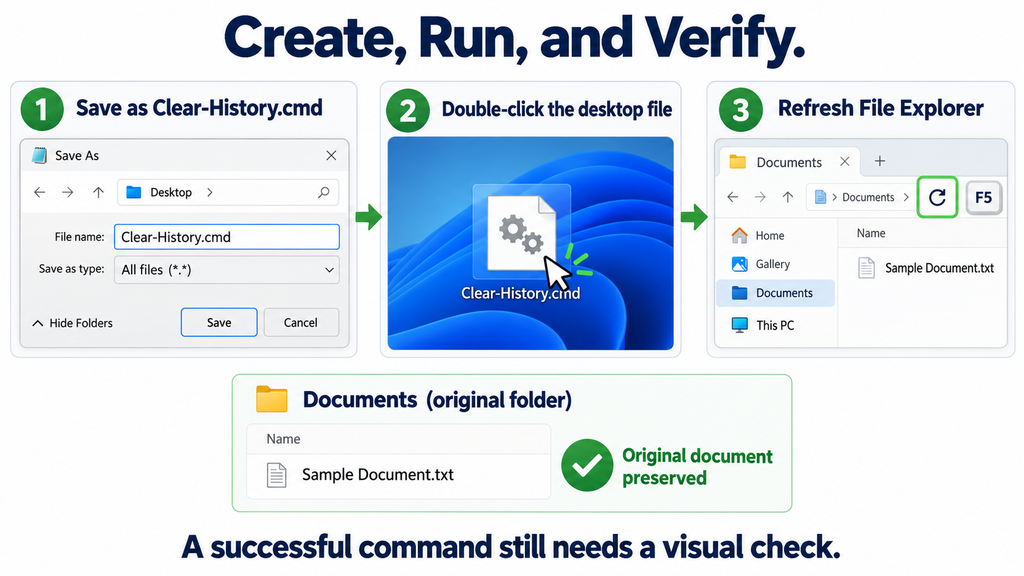
In Notepad, choose File → Save As. Select Desktop as the destination. In the filename field, enter Clear-History.cmd. Change Save as type to All files, then save the document. If Notepad offers an encoding choice, UTF-8 is suitable for this example. The script uses ordinary English characters, so there is no need to add special symbols or decorative quotation marks. After saving, return to the desktop and inspect the filename carefully before trying to run it.
If another file with the same name already exists, open that file and compare its contents before replacing it. This is particularly useful if you copied an earlier version from another tutorial. You want to know which instructions you are about to execute. Once the file is saved, right-click it and choose Properties if you need to confirm its type. The description should indicate a Windows command script or equivalent wording. A text-document description usually means the filename still ends in .txt.
Run the Desktop File and Check the Result
Double-click Clear-History.cmd from the desktop. A console window may appear while Windows launches PowerShell and prepares the function call. The window should close after the command finishes without a reported error. You do not need to open Folder Options or click its Clear button during this process. However, this batch-file approach is not completely invisible. A brief console appearance is normal. Describing it as “no Folder Options dialog” is accurate; promising that no window can ever appear would be misleading.
After the window closes, open File Explorer and visit the area you intended to clean. If it was already open, press F5 to refresh the current view. Compare the result with the sample document you opened earlier. Also confirm that the document remains in its original folder. Those are two separate checks: one concerns the reference in the interface, while the other concerns the real file. Checking both helps you understand the difference between clearing a recent list and deleting stored work.
Interpret the Result Without Guessing
If the sample reference disappears from the relevant list and the original file remains available, the script has produced the expected result for that test. If the reference remains, do not immediately assume that administrator rights are required. First refresh the view, then close and reopen the File Explorer window. Check whether the item appears as a pinned location, a recommendation, or a locally generated recent entry. These categories can look similar, but they do not necessarily respond to the same action.
If you need an exact comparison with the built-in interface, inspect the list before and after using Folder Options’ Clear button as a separate test. Record which visible items change. That comparison is more useful than assuming that two actions are identical because both mention history. This article does not claim that the script has been tested on your particular Windows build. Its reliability for your workflow should come from a small, repeatable check on the computer where you intend to use it.
Understand the Script Without Becoming a Programmer
The first line, @echo off, keeps the batch window from displaying every instruction as it runs. The title line gives the console a more descriptive name. These lines affect presentation rather than the cleanup itself. The PowerShell line performs the main operation, while the final batch instructions decide whether to close or leave an error visible. Reading the script in these small pieces makes it less intimidating. You do not need to memorize the syntax to understand its overall structure.
The PowerShell launch uses -NoProfile to avoid loading a personal PowerShell profile. It also uses -NonInteractive because this command should not ask for interactive input. The -Command parameter supplies the instructions to execute. Microsoft documents these startup options for powershell.exe. Keeping the launch explicit makes the example easier to review than relying on an existing terminal session with unknown settings or previously loaded functions. Microsoft Learn
Why the Error Handling Is Included
The try and catch structure gives PowerShell a place to handle failures. If preparing or invoking the function raises an error, the command writes the error and exits with a failure code. The batch file then checks that code using if errorlevel 1. This is why the window pauses when something goes wrong. Without that arrangement, a failed command could disappear so quickly that a beginner would have no useful information to report. Clear feedback is more helpful than an attractive but silent failure.
There is still a boundary to what this feedback proves. The script can detect certain command failures, but it does not inspect every recent-items interface afterward. Its success exit code means the command completed without a reported exception through this route. It does not certify that a particular recommendation vanished or that all activity records were erased. That distinction matters when writing instructions for other people. Good troubleshooting separates “the command failed,” “the view did not refresh,” and “this item comes from another feature” into different questions.
Why a Long Shortcut Command May Fail
It can be tempting to paste the entire PowerShell instruction into the location field of the Windows shortcut wizard. That looks convenient because it avoids creating a separate script. Unfortunately, long command strings are harder to inspect and easier to damage while copying. Depending on the field or interface, length handling may also become a problem. A shortened or altered command can produce unexpected behavior. Therefore, a failed shortcut should be investigated rather than automatically blamed on Windows permissions.
The .cmd approach moves the instructions into a file that you can open and review. This makes maintenance easier. If you need to correct a quotation mark, you edit the document rather than searching through a cramped shortcut field. You can also share the code as readable text in a tutorial. The benefit is practical clarity, not a guarantee that every batch file will work. Saving the wrong extension or copying incomplete code can still cause trouble, which is why the earlier preparation steps matter.
Create a Short Shortcut to the Script Instead
If you prefer a conventional shortcut icon, keep the script in a permanent folder and point a shortcut to that file. For example, you might create a folder named Desktop Tools inside Documents and store Clear-History.cmd there. Right-click the file and use the available shortcut creation option. In some Windows menus, you may need Show more options before finding the relevant action. The resulting shortcut contains a path to your file rather than the entire PowerShell program.
Give that shortcut a clear name, such as Clear Recent Item History. If you move the original script later, update the shortcut target. Otherwise, Windows will look for a file that no longer exists at the saved location. You can test the arrangement by opening the shortcut’s properties and confirming the target path. Keep paths containing spaces properly quoted when editing them manually. Once the shortcut works, you can use it from the desktop without leaving the actual script among your everyday documents.
Troubleshoot Clear-History.cmd Step by Step
When the script does not appear to work, begin with the simplest observation: what happens after the double-click? If Notepad opens, inspect the extension and file association. If a console appears and remains open, read the error message. If the console closes but the list looks unchanged, investigate the view and the source of the displayed item. These are different symptoms. Treating them as one problem often leads people to make unnecessary changes that obscure the original cause.
Keep a short record of your test. Note the Windows version, where the script is saved, what the visible list is called, and whether an error appeared. You do not need to publish personal paths or screenshots containing private filenames. A description such as “the file opens in Notepad” or “PowerShell reports that Add-Type is blocked” is already useful. Specific observations make it much easier to choose the next step than a general statement that the cleanup is broken.
If the File Opens in Notepad
Check whether the filename is actually Clear-History.cmd.txt. Enable visible extensions if necessary, then save the file again using All files. Do not solve the problem by changing the default application for every text document on your computer. The immediate task is to save one command file correctly. If the extension is already .cmd but double-clicking still opens an editor, the file association may have changed. On a managed device, ask the administrator before altering associations or execution rules.
You can also inspect the saved contents by opening Notepad first and loading the file through its Open dialog. That gives you a way to review the commands without executing them. Compare the beginning and end with the example above. Missing quotation marks, extra formatting characters, and incomplete lines are common copying mistakes. If you copied from a visually styled page, make sure the text contains straight quotation marks rather than typographic replacements. Small punctuation changes can matter in command syntax.
If an Error Window Stays Open
Read the first meaningful error rather than focusing only on the final line. For example, a message about a blocked operation points toward a policy restriction, while a parsing error suggests damaged command text. Take a screenshot or copy the error before closing the window. Avoid adding -ExecutionPolicy Bypass simply because you saw it in another tutorial. This example does not require that switch, and adding it does not resolve every kind of restriction or quoting problem.
On an organization-managed computer, application controls may restrict PowerShell or runtime compilation. The appropriate response is to use the supported Windows interface or contact the administrator. On your own computer, first compare the script with the original code and check that powershell.exe can launch normally. Do not disable security software as a routine troubleshooting step. A history cleanup tool should remain a small convenience feature, not become a reason to weaken broader protections just to make an example run.
Handle Recent Items That Keep Reappearing
A cleared list can begin filling again when you resume normal work. That does not necessarily mean the cleanup failed. Recent-item features are designed to help you return to files you open afterward. If you run the script, open the sample document again, and then see it listed, you have created new activity. Test cleanup before reopening the file. This simple sequencing detail prevents a common misunderstanding: checking whether a document still opens can itself produce another recent-item reference.
If you want a consistently quieter File Explorer interface, consider its display settings instead of repeatedly clearing history. Microsoft explains that File Explorer’s options let you turn off recent files or frequent folders in the relevant view. This is a different choice from clearing existing information once. One changes what the interface displays going forward, while the other performs an occasional cleanup. Choose the approach that matches how you use the computer rather than assuming that repeated manual clearing is always necessary. Microsoft Support
Check Pinned and Account-Based Content Separately
A pinned folder is something you intentionally keep accessible. Its continued appearance should not automatically be treated as evidence of leftover recent history. Similarly, account-based recommendations may follow their own settings. Inspect the label and context menu before trying to remove an item. If you recognize a location that you deliberately pinned, decide whether you still want that shortcut. Avoid deleting the actual folder merely because its reference remains visible in File Explorer.
For example, a user may keep Documents pinned while expecting a sample invoice to disappear from a recent list. Those are two different expectations, and only one concerns the test document’s recent usage. Separating them keeps the cleanup focused. The same reasoning applies when an application maintains its own list inside its start screen. Check that application’s controls rather than expanding this script to remove unrelated files. A precise solution is easier to understand and less likely to disrupt useful settings.
Use the Built-In Clear Button When You Need a Comparison
The built-in interface remains useful even when your main goal is desktop access. To open Folder Options quickly, press Windows + R, enter control.exe folders, and press Enter. Look for the General tab and its Privacy area. Depending on your Windows layout, you should find the control for clearing File Explorer history there. This route opens the settings dialog; it does not perform an automatic cleanup by itself. That is why it differs from the command file created earlier.
Use this interface when you want to compare behavior or adjust the related display options. Before pressing Clear, observe which lists and references are visible. Afterward, refresh the relevant view and inspect the same areas. Microsoft’s explanation of Quick access distinguishes clearing history from disabling recent or frequent displays. Keeping those choices separate helps you describe the result accurately in your own notes or tutorial. Windows Insider Blog
Choose Convenience Without Overstating the Benefits
The desktop script is useful because it reduces repeated navigation. It should not be promoted as a system speed booster, a storage recovery tool, or a complete privacy solution. Clearing recent references is unlikely to transform the performance of a healthy computer. The practical benefit is a tidier interface and quicker access to a specific maintenance action. Readers deserve that straightforward explanation instead of exaggerated claims about acceleration or deep cleaning.
For a home computer, occasional manual use may be enough. Before a screen-sharing session, inspect the entire screen rather than relying only on one cleanup action. Desktop filenames, notification previews, and open application tabs can still reveal information. You do not need a complicated maintenance routine to manage this thoughtfully. A short visual check, combined with a clear understanding of what the script targets, is usually more useful than adding automatic tasks that run without a specific need.
Frequently Asked Questions
Does Clear-History.cmd Delete My Documents?
The supplied script does not include commands that delete your documents. Its purpose is to request cleanup of Windows Shell usage data. Still, you should understand where your files are stored before clearing convenient references. If you normally locate a document only through a recent-items list, open its folder and note the location first. After testing, confirm that the original file remains available. This gives you a practical check of the difference between a reference disappearing and the document itself being removed.
Does It Clear Chrome, Edge, or Firefox History?
No. The code in this guide does not call a browser cleanup function or remove browser history databases. Use the browser’s own settings when you want to manage visited pages, cookies, or other browsing information. Be specific about the category you select, because browser cleanup menus often contain several options. Clearing a browsing list and signing out of a website are different outcomes. Do not assume that running a Windows desktop command changes information maintained by a separate browser profile.
Is It Exactly the Same as Clicking Clear in Folder Options?
This article does not guarantee identical behavior across every Windows release and File Explorer feature. The script uses a documented Shell function, while the visible Clear button belongs to a Windows interface whose complete behavior should not be inferred from that function alone. If exact equivalence matters, compare the results on your computer. Observe the same sample items before and after each method. If one list responds only to the built-in control, use that control for the specific task.
Do I Need Administrator Rights to Run It?
Start by running the file normally in your own Windows account. The example does not request elevation or attempt to clean another person’s profile. If it fails, read the error before trying a different privilege level. A damaged command, incorrect extension, or organization policy will not necessarily be resolved by choosing Run as administrator. On a managed device, follow the administrator’s guidance. Keeping the task within your normal account also makes it easier to understand which user’s interface you are checking.
Why Does a Black Window Appear Briefly?
A .cmd file runs through the Windows command processor, so a console window can appear. The script then starts PowerShell to perform its operation. This is expected for the method shown here. It avoids opening Folder Options, but it does not guarantee a completely invisible launch. Keeping the console behavior visible during initial testing is useful because errors remain easier to diagnose. Once the tool behaves as expected, you can decide whether the brief appearance is acceptable for your workflow.
Why Does the Script Seem Successful While Items Remain?
First refresh File Explorer and check whether the remaining item belongs to the category you intended to clean. It may be pinned, generated from new activity, or supplied by another feature. A successful command exit does not independently verify every visible recommendation. Try the controlled sample-document test rather than judging the result from an unfamiliar list. If the built-in Clear button produces a different outcome, use that observation to guide your next step instead of adding broad deletion commands.
Can I Rename the File?
Yes. You can call it Clear-Recent-Items.cmd or another descriptive name, provided the extension remains .cmd and the contents stay intact. A more specific filename may help distinguish it from PowerShell’s built-in Clear-History command. If a desktop shortcut points to the original name, update that shortcut after renaming the file. Otherwise, the link may continue searching for the old path. Choose a name that describes the limited task rather than suggesting complete removal of all computer activity.
Can I Remove the Script After Using It?
Yes. Once you no longer want the convenience tool, delete the .cmd file and any shortcut you created for it. The supplied code does not install a background service or create a recurring scheduled task. Removing the file simply removes your easy way to launch those instructions again. It does not restore previously cleared references. If you want to reopen an earlier document afterward, navigate to its saved location and open it normally through File Explorer or its associated application.
Should I Run It Every Time Windows Starts?
There is no need to add automatic execution just to use this guide. Begin with manual operation so you can observe the effect and decide whether the tool is useful. Automatic cleanup can remove navigation references before you have finished using them. If your main preference is to avoid seeing recent items, review the relevant display settings instead. A clear choice between occasional cleanup and a quieter interface is easier to maintain than a startup action whose purpose you later forget.
Will It Make My Computer Faster?
Treat this as an interface cleanup tool rather than a performance optimization. The script does not diagnose slow storage, repair Windows components, reduce startup applications, or resolve memory pressure. If your computer is slow, investigate the actual symptom separately. For example, a slow program launch requires a different check from an overcrowded recent-items panel. The main advantage here is convenience: you can request a limited cleanup directly from a desktop file and verify the result without repeatedly navigating through options.
A Cleaner Desktop Routine With Clear Expectations
A useful desktop tool does not need to be complicated. Clear-History.cmd packages a specific Windows operation into a file you can inspect, edit, and run when needed. The most important steps are saving the correct extension, copying the complete command, and checking the result with a harmless sample. Those habits also make future troubleshooting much easier. Instead of wondering whether something happened, you have a repeatable way to observe the outcome.
Keep the purpose narrow and the explanation honest. This method concerns recent item usage data, may affect related Shell lists, and does not replace every application’s privacy controls. It also does not prove that every visible File Explorer feature has been reset. Used with those limits in mind, it offers a practical shortcut for everyday housekeeping. Your documents remain something you manage in their actual folders, while recent lists remain convenient references rather than the only map to your work.
⚠️ Disclaimer and Source Hygiene
This article provides educational guidance for creating a small Windows command file. Review commands before running them and consult a qualified IT professional or your organization’s administrator when device policies or unfamiliar errors are involved. The technical scope is based on Microsoft documentation and support material. Interface details can vary, and the example has not been executed on every Windows build. It should not be described as a certified replica of all File Explorer cleanup behavior or as a complete privacy-erasure tool.
Sources and References
- Microsoft Learn: SHAddToRecentDocs function – Documents the Windows Shell function and its usage-data cleanup parameter.
- Microsoft Learn: about_PowerShell_exe – Explains Windows PowerShell startup parameters.
- Microsoft Learn: Clear-History – Explains the separate PowerShell session-history command.
- Microsoft Support: File Explorer in Windows – Provides guidance about File Explorer and its display options.
Secondary Sources and Testimonials
Microsoft Windows Insider Blog: Get your work done faster with Quick access provides historical context about recent files, frequent folders, and clearing history. Its older screenshots should not be treated as an exact representation of current Windows interfaces. No user testimonials or independent performance results are claimed in this article.
