

⏲️ Estimated reading time: 6 min
Table of Contents
How To Make Best Settings in Nvidia Control Panel for Nvidia GeForce RTX 4070 SUPER. The Nvidia GeForce RTX 4070 SUPER is one of the most balanced GPUs in Nvidia’s 40-series lineup. To unleash its true potential, you need more than powerful hardware you need the right Nvidia Control Panel settings. In this guide, we’ll walk you through every step to maximize performance and visual fidelity.
Why Control Panel Settings Matter
The Nvidia GeForce RTX 4070 SUPER is built on Nvidia’s Ada Lovelace architecture, offering excellent ray tracing, DLSS 3.5 support, and strong performance for 1440p and even 4K gaming. But out of the box, Windows and the Nvidia driver don’t always use the most optimized settings.
That’s where the Nvidia Control Panel comes in. This tool gives you direct access to GPU-level optimizations for latency, image quality, and performance. With proper tuning, you can:
- Improve FPS in demanding games.
- Reduce input lag for competitive play.
- Achieve sharper images with minimal performance loss.
- Balance power consumption and cooling.
Let’s dive step by step into the best Nvidia Control Panel settings for the RTX 4070 SUPER.
1: Accessing Nvidia Control Panel
Before we tweak anything, you need to access the Control Panel.
- Right-click your desktop.
- Select Nvidia Control Panel from the context menu.
- If it doesn’t appear, ensure drivers are installed from Nvidia’s official website or via GeForce Experience.
Once opened, you’ll see a sidebar with categories like 3D Settings, Display, Video. Our main focus will be on Manage 3D settings.
2: Global Settings vs. Program Settings
The Control Panel offers two customization levels:
- Global Settings – apply to every application and game.
- Program Settings – fine-tune per game for maximum optimization.
For the RTX 4070 SUPER, we’ll configure global settings first, then mention program tweaks for popular titles.
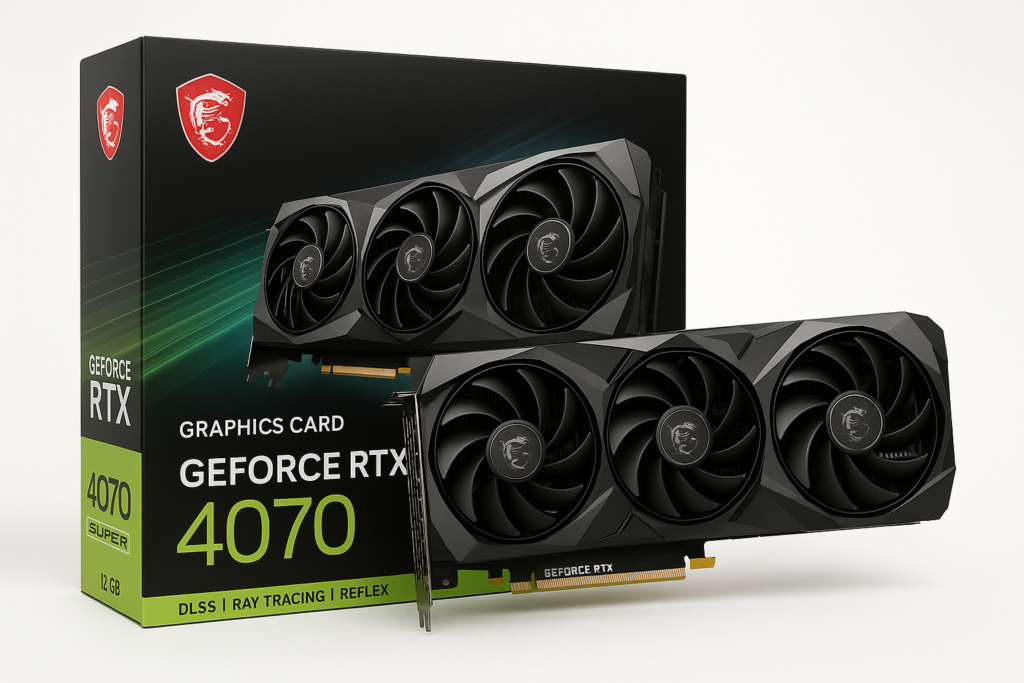
3: Best Nvidia Control Panel Global 3D Settings for Nvidia GeForce RTX 4070 SUPER
Here’s a breakdown of each setting and the recommended option:
1. Image Sharpening
- Recommended: On (Sharpen 0.3–0.5, Ignore Film Grain 0.17)
This enhances textures without major FPS impact, especially useful for 1440p and 4K gaming.
2. Anisotropic Filtering
- Recommended: Application-Controlled
Let the game decide unless you play older titles.
3. Antialiasing – FXAA
- Recommended: Off
FXAA is outdated; rely on TAA or DLSS inside games.
4. Antialiasing – Mode
- Recommended: Application-Controlled
5. CUDA – GPUs
- Recommended: All
Ensures full GPU utilization.
6. Low Latency Mode
- Recommended: On (for most games) / Ultra (for competitive shooters)
Reduces input lag significantly.
7. Max Frame Rate
- Recommended: Off (unless you want to cap FPS for thermals or G-Sync)
8. Monitor Technology
- Recommended: G-Sync (if supported)
9. Multi-Frame Sampled AA (MFAA)
- Recommended: On
Slightly improves visuals with minimal cost.
10. OpenGL Rendering GPU
- Recommended: Select RTX 4070 SUPER
11. Power Management Mode
- Recommended: Prefer Maximum Performance
Keeps GPU clocks high for consistent performance.
12. Shader Cache Size
- Recommended: Unlimited
Prevents stutters in modern titles.
13. Texture Filtering – Quality
- Recommended: High Performance
Prioritizes FPS. For visual fidelity, set to Quality.
14. Texture Filtering – Trilinear Optimization
- Recommended: On
15. Threaded Optimization
- Recommended: Auto
Lets Nvidia manage CPU threading.
16. Triple Buffering
- Recommended: Off (unless using V-Sync)
17. Vertical Sync (V-Sync)
- Recommended: Off (if using G-Sync) / On (without G-Sync)
4: Configure G-Sync for Smooth Gameplay
If your monitor supports G-Sync or G-Sync Compatible, enable it for tear-free gaming:
- In Nvidia Control Panel, go to Display → Set up G-Sync.
- Check Enable G-Sync, G-Sync Compatible.
- Select Enable for full-screen mode (or windowed + fullscreen if supported).
This ensures buttery-smooth visuals without input lag.
5: Adjusting Display Settings
Change Resolution
- Set to native resolution (1440p or 4K).
- Refresh rate: Highest available (120Hz, 144Hz, or 165Hz).
Adjust Desktop Color Settings
- Digital Vibrance: 55–60% for richer colors in games.
6: Optimize Video Settings
For streaming and media playback:
- Adjust Video Image Settings → Use Nvidia settings
- Apply: Edge enhancement Off, Noise reduction Off
- This ensures raw, accurate playback without filters.
7: Best Program Settings (Per Game)
While global settings cover most needs, fine-tuning for games like Valorant, CS2, Cyberpunk 2077, and Starfield can make a difference.
- Competitive Shooters (Valorant, Apex, CS2):
- Low Latency Mode: Ultra
- Max Frame Rate: Cap slightly below monitor’s refresh (e.g., 141 on 144Hz).
- Texture Filtering – Quality: High Performance
- Cinematic Games (Cyberpunk 2077, Hogwarts Legacy):
- Low Latency Mode: On
- Texture Filtering – Quality: Quality
- Max Frame Rate: Off
- Enable DLSS 3 in-game for max FPS.
8: Windows & Driver Settings to Complement Control Panel
To maximize RTX 4070 SUPER performance, combine Nvidia tweaks with Windows optimizations:
- Enable Hardware Accelerated GPU Scheduling (HAGS)
- Settings → System → Display → Graphics → Default Settings.
- Game Mode: On
- Improves system resource allocation for games.
- Update Drivers Regularly
- Use GeForce Experience or manual downloads.
- Background Apps: Disable
- Prevents unnecessary CPU/GPU usage.
9: Cooling and Power Optimization
The RTX 4070 SUPER runs cooler than higher-end models, but optimal cooling is still key.
- Use MSI Afterburner or similar to monitor temps.
- Adjust fan curve for better cooling under load.
- Keep GPU under 75–78°C for best longevity.
10: Common Mistakes to Avoid
- Don’t force 8x MSAA in Control Panel for modern games it wastes performance.
- Avoid mixing V-Sync and G-Sync incorrectly.
- Don’t set Power Saving Mode, it cripples performance.
- Don’t ignore driver updates; performance gains are frequent with new releases.
Extra: Benchmarking Your Optimizations
After applying these settings, benchmark your system:
- Use 3DMark Time Spy / Fire Strike for synthetic tests.
- Use in-game benchmarks (Cyberpunk 2077, Horizon Zero Dawn, Forza Horizon 5).
- Compare FPS before and after optimization.
Most users report a 5–12% FPS improvement with these settings, along with reduced stutter and latency.
Final Thoughts
The RTX 4070 SUPER is an incredibly versatile GPU that balances efficiency with performance. With the right Nvidia Control Panel settings, you can:
- Push higher FPS in competitive gaming.
- Enhance image quality for immersive titles.
- Ensure smooth gameplay with G-Sync and reduced input lag.
Take the time to test these settings on your system, then adjust based on your personal preferences and monitor specs. With just 15 – 20 minutes of configuration, you’ll unlock the true potential of your RTX 4070 SUPER.
🔔 For more tutorials like this, consider subscribing to our blog.
📩 Do you have questions or suggestions? Leave a comment or contact us!
🏷️ Tags: Nvidia Control Panel, RTX 4070 SUPER, gaming optimization, PC performance, G-Sync setup, DLSS 3, Nvidia settings, low latency, GPU tuning, Windows gaming tweaks
📢 Hashtags: #Nvidia #RTX4070SUPER #GamingPC #ControlPanel #DLSS3 #GSync #FPSBoost #PCGaming #LowLatency #GraphicsSettings
Wrap-Up
The Nvidia Control Panel may look overwhelming, but once you know what each option does, the RTX 4070 SUPER becomes even more powerful. Whether you’re chasing max frames in competitive shooters or stunning visuals in cinematic adventures, these settings strike the perfect balance.
See also: Every man dies, but not every man truly lives
