

⏲️ Estimated reading time: 6 min
Table of Contents
🎮 How To Make the Best Settings in Control Panel for Nvidia GeForce RTX 4060 Ti. Optimizing your Nvidia Control Panel settings for the RTX 4060 Ti can dramatically improve gaming performance and visual quality. This detailed guide covers step-by-step tweaks, recommended features, and advanced tips to get the most out of your graphics card.
You may also be interested in: International Day for the Total Elimination of Nuclear Weapons 2026 (UN)
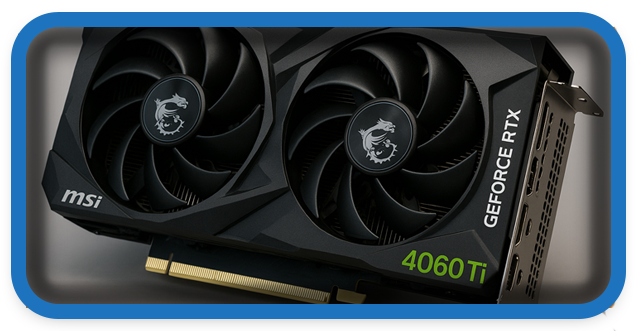
Nvidia GeForce RTX 4060 Ti
The Nvidia GeForce RTX 4060 Ti is one of the most popular graphics cards of the Ada Lovelace generation, offering incredible performance at a relatively affordable price. Whether you’re gaming, streaming, or working with demanding creative applications, getting the best Nvidia Control Panel settings can make a world of difference.
While the GPU itself is powerful, Nvidia Control Panel allows users to fine-tune performance and visuals. The right configuration can improve frame rates, reduce latency, and provide a smoother gaming experience without compromising image quality.
In this guide, we’ll go step by step through the best settings for the RTX 4060 Ti inside the Nvidia Control Panel. By the end, you’ll have an optimized setup for maximum performance and smooth gameplay.
1: Open the Nvidia Control Panel
Before making changes, ensure your graphics drivers are updated via Nvidia’s official website or GeForce Experience. Outdated drivers can cause issues or limit access to new features.
- Right-click on your desktop.
- Select Nvidia Control Panel.
- If it’s missing, reinstall drivers or update from GeForce Experience.
2: Adjust Image Settings with Preview
- In the left sidebar, click Adjust Image Settings with Preview.
- Select Use the advanced 3D image settings.
- Apply changes.
This ensures that all optimizations are handled manually, giving you full control.
3: Manage 3D Settings – Global Settings
The Manage 3D Settings tab is the most important part. Here we configure settings that affect all games and applications.
Recommended Global Settings for RTX 4060 Ti
- Image Scaling: Off (unless you use Nvidia Image Scaling for performance).
- Ambient Occlusion: Off (controlled in-game).
- Anisotropic Filtering: Off (let games manage this).
- Antialiasing – FXAA: Off (FXAA can blur textures).
- Antialiasing – Gamma Correction: On.
- Antialiasing – Mode: Application-controlled.
- Background Application Max Frame Rate: 30 (helps reduce background GPU usage).
- CUDA GPUs: All.
- DSR Factors: Off (unless you want downsampling for quality).
- Low Latency Mode: On or Ultra (for competitive games like CS2, Valorant, Fortnite).
- Max Frame Rate: Off (or cap via in-game settings to reduce input lag).
- Multi-Frame Sampled AA (MFAA): Off (can cause inconsistencies).
- OpenGL Rendering GPU: Select RTX 4060 Ti.
- Power Management Mode: Prefer Maximum Performance (ensures full GPU usage).
- Preferred Refresh Rate: Highest available.
- Shader Cache Size: Driver Default.
- Texture Filtering – Anisotropic Sample Optimization: On.
- Texture Filtering – Negative LOD Bias: Allow.
- Texture Filtering – Quality: High Performance (best FPS) or Quality (if visuals matter more).
- Threaded Optimization: Auto.
- Triple Buffering: Off (use V-Sync instead if needed).
- Vertical Sync: Off (unless screen tearing bothers you).
- Virtual Reality pre-rendered frames: 1 (reduces latency in VR).
4: Configure Surround, PhysX
- Go to Configure Surround, PhysX.
- Under PhysX Processor, select RTX 4060 Ti.
This ensures that PhysX effects are handled by the GPU, not the CPU.
5: Adjust Display Settings
Change Resolution
- Use your monitor’s native resolution.
- Set refresh rate to highest available (e.g., 144Hz, 165Hz, or 240Hz).
Adjust Desktop Color Settings
- Increase Digital Vibrance (60–70%) for more vivid colors in games.
- Set Gamma and Brightness based on your preference and monitor calibration.
6: Setup G-Sync (if supported)
If your monitor supports G-Sync, enable it for smooth, tear-free gaming.
- Go to Set up G-SYNC.
- Check Enable G-SYNC, G-SYNC Compatible.
- Select Enable for full screen mode (or windowed + full screen if you multitask).
7: Configure Video Settings
- Go to Adjust Video Image Settings.
- Use With the Nvidia settings.
- Under Dynamic Range, select Full (0-255) for the best color depth.
Step 8: Game-Specific Tweaks
While global settings apply universally, some games benefit from specific tweaks:
- Competitive Games (Valorant, CS2, Fortnite): Prioritize Low Latency Mode Ultra, V-Sync off, G-Sync on.
- AAA Single-Player Games (Cyberpunk 2077, Hogwarts Legacy): Enable DLSS in-game, keep Texture Filtering – Quality at Quality for better visuals.
- Emulators/Older Games: Use DSR Factors to upscale resolution for sharper visuals.
9: Windows and System Settings
Nvidia Control Panel settings work best with optimized Windows configurations:
- Windows Power Plan: Set to High Performance or Ultimate Performance.
- Hardware-Accelerated GPU Scheduling (HAGS): On (Windows Settings → System → Display → Graphics → Default settings).
- Game Mode: On.
- Background Apps: Disable unnecessary ones during gaming.
10: Testing and Monitoring
After applying settings:
- Use GeForce Experience performance overlay or MSI Afterburner to monitor FPS, temps, and GPU usage.
- Adjust based on performance vs visuals.
Common Mistakes to Avoid
- Forcing unnecessary antialiasing – can reduce FPS without noticeable improvement.
- Leaving PhysX on Auto – may default to CPU, lowering performance.
- Using Quality over Performance in competitive games – can add input lag.
- Ignoring Windows power settings – bottlenecks GPU performance.
RTX 4060 Ti Benchmark Examples
With optimized settings, here’s what you can expect at 1080p Ultra (DLSS where available):
- Cyberpunk 2077: ~75–90 FPS
- Fortnite (Performance Mode): 200+ FPS
- Call of Duty: Warzone: ~120–150 FPS
- Valorant: 250+ FPS
- Hogwarts Legacy: ~100–120 FPS
These numbers vary by system, but the right Nvidia Control Panel settings ensure stable and smooth gameplay.
⚡ Final Thoughts
The Nvidia RTX 4060 Ti is a strong GPU that thrives with proper tuning. By following the best Nvidia Control Panel settings above, you’ll unlock higher FPS, smoother gameplay, and better visuals without unnecessary compromises.
Remember: every setup is unique. Monitor your results and tweak as needed. With the right balance, your RTX 4060 Ti will deliver top-tier gaming performance for years to come.
🔔 For more tutorials like this, consider subscribing to our blog.
📩 Do you have questions or suggestions? Leave a comment or contact us!
🏷️ Tags: Nvidia Control Panel, RTX 4060 Ti, GPU optimization, Nvidia settings, gaming performance, best FPS settings, G-Sync setup, DLSS optimization, PC gaming, graphics tuning
📢 Hashtags: #Nvidia #RTX4060Ti #GamingSetup #FPSBoost #PCGaming #GSync #DLSS #GPUSettings #NvidiaControlPanel #GameOptimization
✅ Conclusion
Optimizing the Nvidia Control Panel for the RTX 4060 Ti is one of the easiest and most effective ways to maximize your system’s potential. From global 3D settings to display tweaks and G-Sync, every adjustment contributes to smoother and faster gameplay.
