


⏲️ Estimated reading time: 5 min
Table of Contents
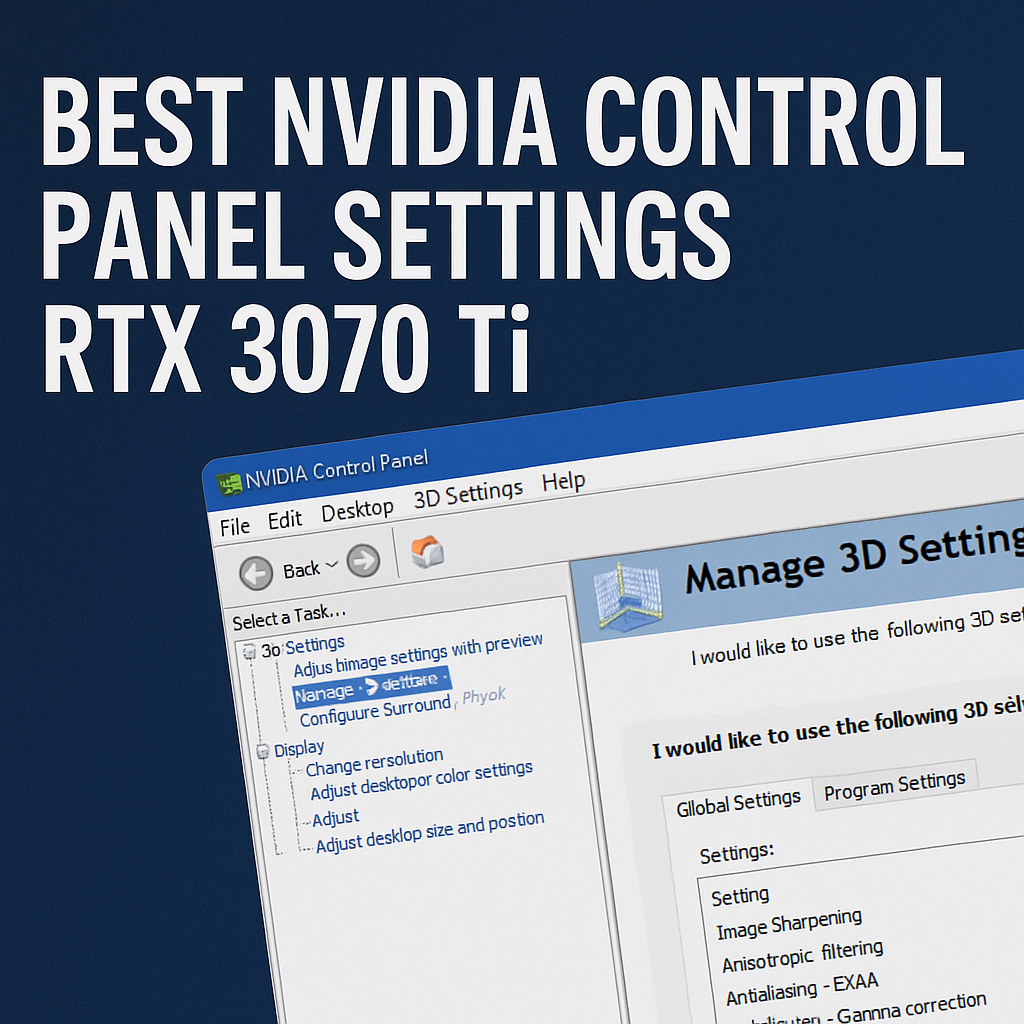
How To Make Best Settings Nvidia Control Panel RTX 3070 Ti. Unlock the full potential of your RTX 3070 Ti with the right Nvidia Control Panel settings. This step-by-step guide shows you the best configurations for performance, visuals, and smooth gaming perfect for both casual players and competitive gamers.
See also: How to Earn 100K Coins Every Hour in FC 26
🎮 Nvidia GeForce RTX 3070 Ti
The Nvidia GeForce RTX 3070 Ti is a powerful graphics card designed for high-performance gaming and creative workloads. But did you know that out-of-the-box settings aren’t always optimized for your system? By fine-tuning the Nvidia Control Panel, you can achieve smoother gameplay, higher FPS, and better visual clarity.
This guide will walk you through the best Nvidia Control Panel settings for the RTX 3070 Ti, including performance tweaks, display configurations, and advanced options tailored for both gaming and productivity.
🖥️ Why Nvidia Control Panel Settings Matter
The Nvidia Control Panel is a software interface that lets users customize how their GPU processes graphics. While most gamers focus on in-game settings, driver-level adjustments often make a bigger impact. With the right settings, you can:
- Reduce input lag
- Improve FPS stability
- Enhance image quality
- Optimize GPU usage
- Lower stuttering and screen tearing
For a card as powerful as the RTX 3070 Ti, proper tuning ensures you’re not leaving performance on the table.
⚡ General Setup Before Tweaking
Before adjusting Nvidia Control Panel:
- Update Drivers – Always install the latest Game Ready Driver from Nvidia.
- Windows Power Plan – Set to High Performance or Ultimate Performance.
- Monitor Setup – Ensure your display is running at its maximum refresh rate (144Hz, 165Hz, or higher).
- G-Sync/FreeSync – If supported by your monitor, enable adaptive sync for smoother gameplay.
🛠️ Best Nvidia Control Panel Settings for RTX 3070 Ti
1. Adjust Image Settings with Preview
- Go to: 3D Settings → Adjust Image Settings with Preview
- Select: Use the advanced 3D image settings
- Click Take me there
This ensures full manual control.
2. Manage 3D Settings
Here’s where the real optimization begins.
Global Settings (applies to all games):
- Image Sharpening: On, with default values
- Anisotropic Filtering: Application-controlled
- FXAA: Off (use in-game instead)
- Gamma Correction: On
- Low Latency Mode: On (or Ultra for competitive shooters)
- Max Frame Rate: Off (except if you want to limit FPS for thermals)
- Multi-Frame Sampled AA (MFAA): Off
- OpenGL Rendering GPU: Select your RTX 3070 Ti
- Power Management Mode: Prefer maximum performance
- Shader Cache Size: Unlimited
- Texture Filtering – Anisotropic Sample Optimization: On
- Texture Filtering – Negative LOD Bias: Allow
- Texture Filtering – Quality: High Performance
- Threaded Optimization: Auto
- Triple Buffering: Off (unless using V-Sync)
- Vertical Sync (V-Sync): Off (enable only if tearing is unbearable, preferably use G-Sync/FreeSync)
3. Configure Surround, PhysX
- Go to: 3D Settings → Configure Surround, PhysX
- PhysX Processor: RTX 3070 Ti
This ensures your GPU handles physics calculations instead of the CPU.
4. Change Resolution
- Set to native resolution of your monitor
- Refresh Rate: Choose maximum (e.g., 165Hz or 240Hz)
5. Adjust Desktop Color Settings
For better visibility and color accuracy:
- Digital Vibrance: 60–70% (enhances clarity in games like Warzone, Apex Legends)
- Gamma: 1.0 (default, adjust if needed)
6. Adjust Desktop Size and Position
- Scaling Mode: No Scaling (or Aspect Ratio if using ultrawide/older titles)
- Perform Scaling on: GPU
- Override the scaling mode set by games and programs: Checked
🎯 Game-Specific Adjustments
For competitive titles:
- Enable Low Latency Mode: Ultra
- Cap FPS just below monitor refresh rate for smoother frame pacing
For AAA single-player games:
- Prioritize visuals → set Texture Filtering Quality: Quality instead of High Performance
- Consider enabling DSR (Dynamic Super Resolution) for sharper visuals
📊 Benchmarks: Before vs After
On an RTX 3070 Ti, these settings typically deliver:
- +10–20 FPS in competitive shooters (CS2, Valorant, Fortnite)
- Reduced latency in fast-paced games
- Smoother frame pacing with G-Sync/FreeSync enabled
- Improved color clarity for spotting enemies
⚙️ Bonus Tips
- Use Nvidia GeForce Experience to apply optimized settings, then fine-tune manually.
- Enable Resizable BAR in BIOS if your motherboard supports it for extra performance.
- Keep background apps minimal (Discord overlays, Chrome tabs, etc.).
📌 Optimized Settings for Specific Scenarios
- Streaming + Gaming: Lock FPS slightly below refresh rate to prevent stutters.
- 4K Gaming: Prioritize visuals, enable DSR, and use DLSS where supported.
- Esports Competitive: Absolute focus on FPS, disable all extras, keep latency at Ultra.
🏆 The Perfect Balance
The RTX 3070 Ti can handle most modern games at 1440p Ultra settings with ease. With these Nvidia Control Panel optimizations, you’ll enjoy a balance of performance and image quality whether you’re fragging in CS2, exploring in Cyberpunk 2077, or streaming to Twitch.
🔚 Final Thoughts
Tuning your Nvidia Control Panel for the RTX 3070 Ti is one of the easiest yet most effective ways to boost gaming performance. The right tweaks reduce latency, increase FPS, and improve your overall experience without extra hardware.
If you want the best gaming performance possible, don’t just rely on in-game settings leverage the power of Nvidia’s driver-level controls.
📝 Epilogue
🔔 For more tutorials like this, consider subscribing to our blog.
📩 Do you have questions or suggestions? Leave a comment or contact us!
🏷️ Tags: RTX 3070 Ti, Nvidia Control Panel, Best GPU Settings, Gaming Performance, High FPS, Competitive Gaming, DLSS, Nvidia Drivers, Graphics Optimization, PC Gaming
📢 Hashtags: #RTX3070Ti, #NvidiaControlPanel, #BestSettings, #PCGaming, #FPSBoost, #GamingPerformance, #DLSS, #NvidiaDrivers, #Esports, #GamerSetup
