


⏲️ Estimated reading time: 3 min
Table of Contents
How To Make Best Settings Nvidia Control Panel RTX 3080 Ti. Want maximum performance from your RTX 3080 Ti? Learn the best Nvidia Control Panel settings for gaming, streaming, and overall PC performance. This step-by-step guide helps you optimize visuals and FPS without overheating or unnecessary lag.
You may also be interested in: International Coffee Day History, Rituals, Ways to Celebrate
🎮 Nvidia GeForce RTX 3080 Ti
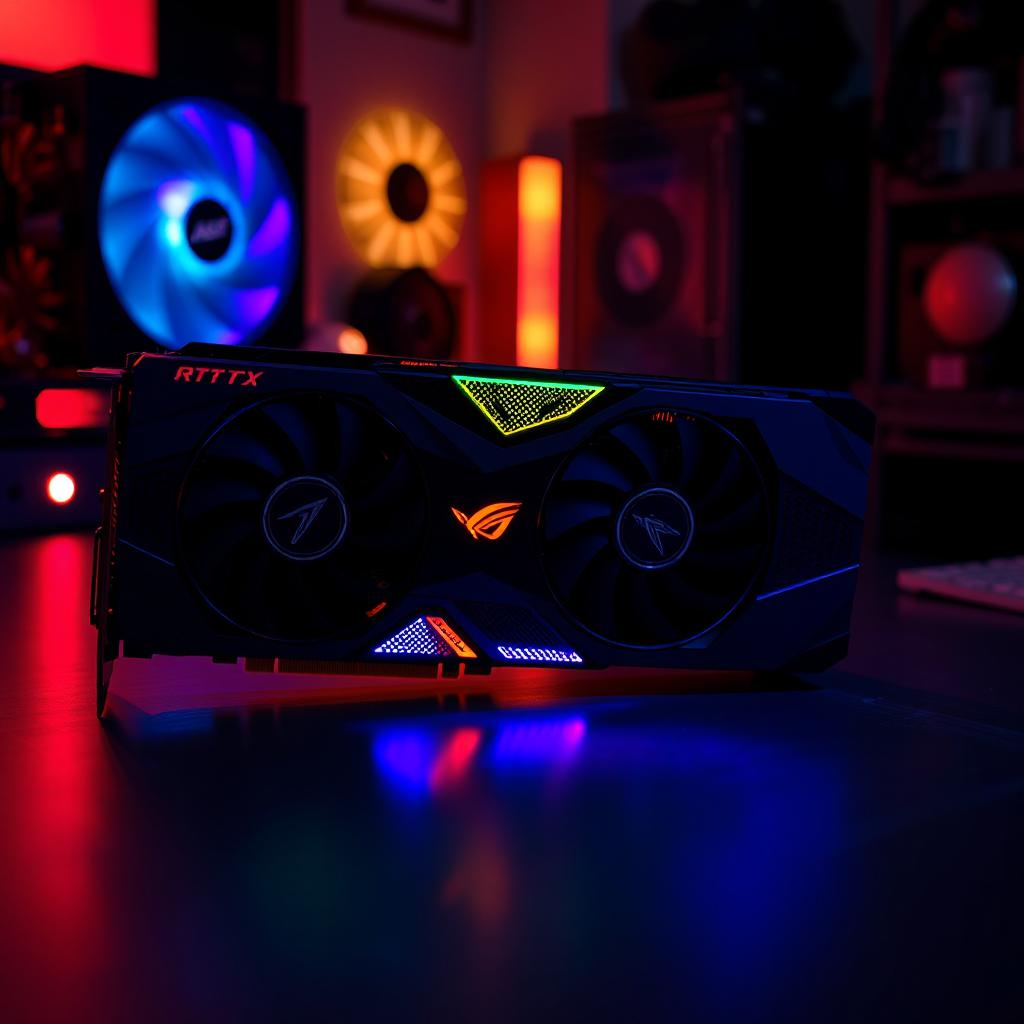
The Nvidia GeForce RTX 3080 Ti is one of the most powerful GPUs ever created, offering incredible performance for 4K gaming, streaming, and content creation. But even the best hardware needs proper software optimization. By fine-tuning your Nvidia Control Panel settings, you can unlock smoother gameplay, higher FPS, and improved system stability.
In this guide, we’ll go step by step through the best settings for the Nvidia Control Panel on an RTX 3080 Ti.
🛠️ How to Open Nvidia Control Panel
- Right-click on your desktop.
- Select Nvidia Control Panel.
- If it doesn’t appear, install/update your drivers via GeForce Experience.
⚡ Best Settings for RTX 3080 Ti
1. Adjust Image Settings with Preview
- Go to 3D Settings > Adjust Image Settings with Preview.
- Select Use the advanced 3D image settings.
2. Manage 3D Settings (Global Settings)
Here are the optimal settings for the RTX 3080 Ti:
- Image Sharpening: Off (enable in-game if needed).
- Anisotropic Filtering: 16x (best visual clarity).
- Antialiasing – FXAA: Off (use in-game TAA/DLSS).
- Antialiasing – Mode: Application-controlled.
- CUDA – GPUs: All.
- DSR Factors: Off (unless you want higher resolution scaling).
- Low Latency Mode: On (set to Ultra for competitive gaming).
- Max Frame Rate: Off (enable only if you want to cap FPS).
- Multi-Frame Sampled AA (MFAA): Off.
- OpenGL Rendering GPU: RTX 3080 Ti.
- Power Management Mode: Prefer Maximum Performance.
- Preferred Refresh Rate: Highest available.
- Shader Cache Size: Driver default.
- Texture Filtering – Quality: High Performance.
- Threaded Optimization: On.
- Vertical Sync (V-Sync): Off (enable G-Sync instead).
- Virtual Reality pre-rendered frames: 1.
3. Configure Surround, PhysX
- Set PhysX Processor to RTX 3080 Ti (not Auto).
🎯 Display Settings
- Go to Change Resolution → Set to your monitor’s native resolution and highest refresh rate (144Hz/240Hz if available).
- Output color format: RGB.
- Output dynamic range: Full.
🖥️ G-Sync Setup
If your monitor supports it:
- Enable G-Sync for fullscreen and windowed mode.
- Keep V-Sync off in games and in the control panel.
🔥 Bonus Tips for Gamers
- Use DLSS in supported games for a big FPS boost.
- Keep your drivers updated for new optimizations.
- Monitor temps with MSI Afterburner to avoid throttling.
📌 Final Thoughts
By applying these Nvidia Control Panel settings, your RTX 3080 Ti will run smoother, cooler, and faster. Whether you’re gaming at 4K, streaming, or editing, these tweaks ensure the best balance between performance and visual quality.
🔔 For more tutorials like this, consider subscribing to our blog.
📩 Do you have questions or suggestions? Leave a comment or contact us!
🏷️ Tags: RTX 3080 Ti, Nvidia Control Panel, Gaming Optimization, GPU Settings, PC Performance, Graphics Card, 4K Gaming, Nvidia Settings, FPS Boost, G-Sync
📢 Hashtags: #RTX3080Ti, #Nvidia, #GamingPC, #PCGaming, #FPSBoost, #GSync, #DLSS, #NvidiaSettings, #4KGaming, #TechTips
