


⏲️ Estimated reading time: 4 min
Table of Contents
How To Make Best Settings Nvidia Control Panel RTX 3090. Unlock the full power of your NVIDIA GeForce RTX 3090 by optimizing the Control Panel settings. This guide walks you through the best configurations for gaming, performance, and visuals, helping you achieve smoother gameplay and maximum graphics quality.
🎮 NVIDIA GeForce RTX 3090
The NVIDIA GeForce RTX 3090 is a powerhouse graphics card built for enthusiasts, gamers, and creators who demand unmatched performance. However, to get the best out of it, you need to configure the NVIDIA Control Panel settings correctly.
In this step-by-step guide, we’ll cover the best settings for performance, visuals, and latency reduction, ensuring your RTX 3090 delivers the smoothest experience possible.
🖥️ How to Access the NVIDIA Control Panel
- Right-click on your desktop.
- Select NVIDIA Control Panel from the menu.
- If it’s missing, reinstall your GPU drivers via GeForce Experience.
⚡ Best Global Settings for RTX 3090
1. Adjust Image Settings with Preview
- Go to: 3D Settings → Adjust Image Settings with Preview
- Select Use the advanced 3D image settings.
- This gives you full control.
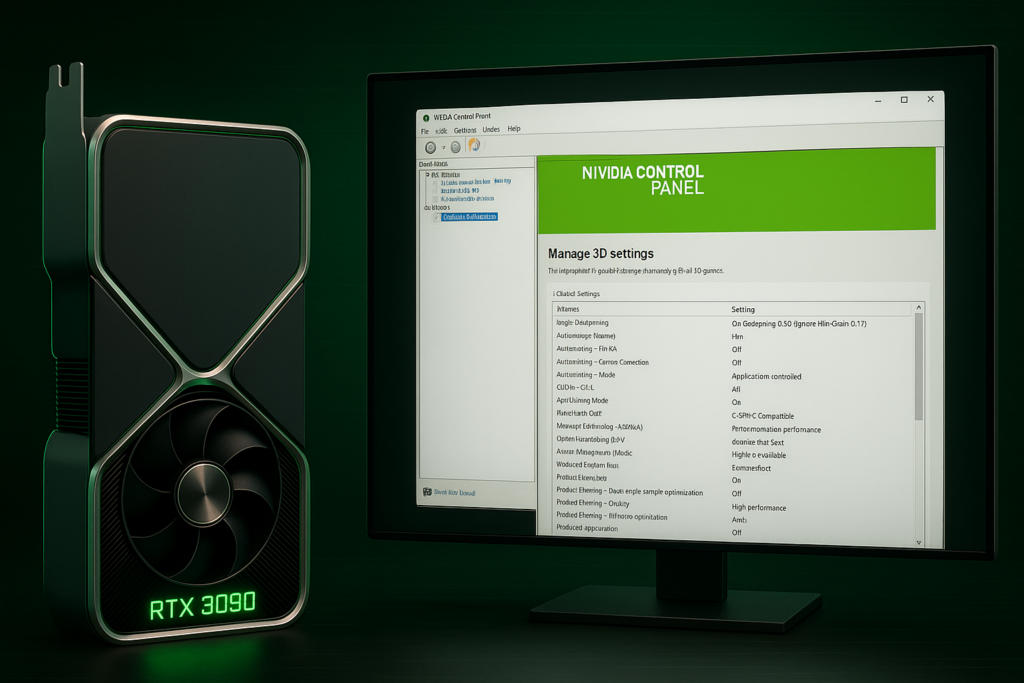
2. Manage 3D Settings
Navigate to 3D Settings → Manage 3D Settings and apply the following:
- Image Sharpening: On (Sharpening 0.50, Ignore Film Grain 0.17)
- Anisotropic Filtering: 16x
- Antialiasing – FXAA: Off (enable only in games that need it)
- Antialiasing – Gamma Correction: On
- Antialiasing – Mode: Application-Controlled
- CUDA GPUs: All
- Low Latency Mode: On (or Ultra for competitive games)
- Max Frame Rate: Off (enable if you want to limit FPS)
- Monitor Technology: G-SYNC Compatible (if available)
- Multi-Frame Sampled AA (MFAA): On
- OpenGL Rendering GPU: RTX 3090
- Power Management Mode: Prefer Maximum Performance
- Preferred Refresh Rate: Highest Available
- Shader Cache Size: Driver Default (or Unlimited if available)
- Texture Filtering – Anisotropic Sample Optimization: Off
- Texture Filtering – Negative LOD Bias: Allow
- Texture Filtering – Quality: High Performance
- Texture Filtering – Trilinear Optimization: On
- Threaded Optimization: Auto
- Triple Buffering: Off (unless using V-Sync)
- Vertical Sync (V-Sync): Off (enable G-SYNC instead)
- Virtual Reality Pre-Rendered Frames: 1
🖼️ Display Settings
- Change Resolution → set to your monitor’s native resolution and highest refresh rate.
- Adjust Desktop Color Settings → enable NVIDIA Color Settings, select Full (0–255) RGB range.
- Set up G-SYNC (if supported) → enable for fullscreen and windowed mode.
🎯 Best Settings for Gaming
If you’re playing competitive esports titles (Valorant, CS2, Fortnite):
- Enable Low Latency Mode (Ultra).
- Turn V-Sync Off and rely on G-SYNC.
- Set Power Management to Maximum Performance.
For AAA single-player games (Cyberpunk 2077, Red Dead Redemption 2):
- Enable DLSS in-game for higher FPS.
- Use Ray Tracing where possible, as the RTX 3090 handles it well.
- Keep Anisotropic Filtering at 16x for sharper textures.
📹 Best Settings for Creators (Video Editing & 3D Rendering)
- In Manage 3D Settings → OpenGL Rendering GPU: select RTX 3090.
- Enable CUDA – All GPUs for faster rendering.
- Set Texture Filtering – Quality to High Quality.
- Keep Vertical Sync Off to avoid unnecessary frame caps.
🛠️ Extra Optimization Tips
- Update drivers regularly via GeForce Experience.
- Use DLSS (Deep Learning Super Sampling) for supported games.
- Enable Resizable BAR in BIOS and NVIDIA settings for performance boosts.
- Pair with a high-refresh-rate G-SYNC monitor to maximize smoothness.
✅ Final Thoughts
Read also: When Motherhood Feels Lonely in a Relationship
The NVIDIA GeForce RTX 3090 is still a beast in 2025, but without the right settings, you won’t experience its full power. By applying these NVIDIA Control Panel optimizations, you’ll enjoy smoother gameplay, higher FPS, and more immersive visuals.
🔔For more tutorials like this, consider subscribing to our blog.
📩 Do you have questions or suggestions? Leave a comment or contact us!
🏷️ Tags: Nvidia Control Panel, RTX 3090, Gaming Performance, Graphics Settings, Best Nvidia Settings, PC Optimization, G-SYNC, DLSS, Ray Tracing, GeForce Experience
📢 Hashtags: #Nvidia #RTX3090 #GamingPC #PCPerformance #BestSettings #ControlPanel #GeForce #DLSS #RayTracing #PCGaming
