


⏲️ Estimated reading time: 4 min
Table of Contents
How To Make Best Settings Nvidia Control Panel RTX 3080. Unlock the full power of your RTX 3080 by tweaking the Nvidia Control Panel. This guide shows you the best settings for gaming, performance, and visuals, ensuring smooth frame rates, reduced latency, and sharper image quality across your favorite titles.
🎮 Nvidia GeForce RTX 3080
The Nvidia GeForce RTX 3080 is a powerhouse GPU, capable of delivering high frame rates and stunning visuals in 1440p and 4K gaming. However, out-of-the-box settings aren’t always optimized for maximum performance. By fine-tuning the Nvidia Control Panel, you can strike the perfect balance between performance and quality.
This article covers step-by-step Nvidia Control Panel settings for the RTX 3080, tailored for gaming, streaming, and everyday use.
⚙️ How To Access Nvidia Control Panel
- Right-click on your desktop and select Nvidia Control Panel.
- If it’s missing, install/update it via the Microsoft Store or GeForce Experience.
- Once opened, you’ll see multiple sections like 3D Settings, Display, and Video.
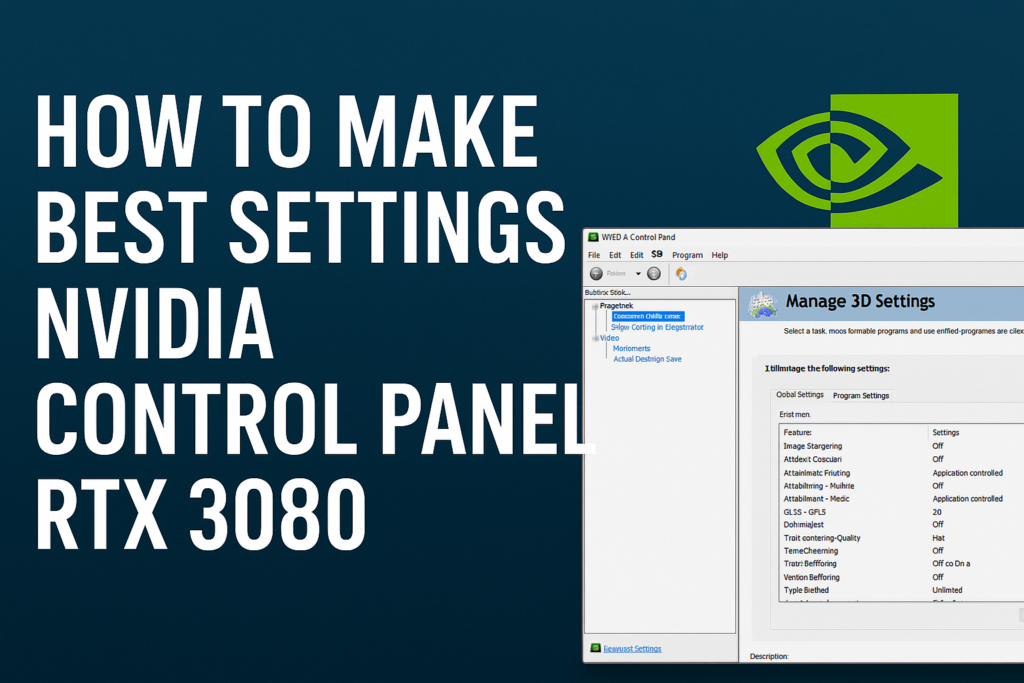
🖥️ Best Global 3D Settings for RTX 3080
Head to: Manage 3D Settings → Global Settings
- Image Sharpening: On (0.50 – 0.70 strength, ignore film grain ~17%)
- Ambient Occlusion: Off (use in-game settings instead)
- Anisotropic Filtering: Application-controlled
- Antialiasing – FXAA: Off
- Antialiasing – Mode: Application-controlled
- CUDA – GPUs: All
- DSR Factors: Off (unless you want downsampling for sharper visuals)
- Low Latency Mode: On (set to Ultra for esports titles)
- Max Frame Rate: Off (or cap to monitor refresh for smoother pacing)
- Power Management Mode: Prefer maximum performance
- Shader Cache Size: Unlimited
- Texture Filtering – Quality: High Performance
- Threaded Optimization: On
- Vertical Sync: Off (use G-Sync/FreeSync instead)
- Triple Buffering: Off
👉 These settings prioritize FPS, low input lag, and smoother rendering.
🎯 Program-Specific Settings (Optional)
Under Program Settings, you can customize per game:
- Esports (CS2, Valorant, Fortnite):
- Low Latency Mode = Ultra
- Max Frame Rate = Match your monitor refresh
- Texture Filtering = High Performance
- AAA Games (Cyberpunk 2077, Horizon Zero Dawn, Red Dead Redemption 2):
- Keep Low Latency Mode = On
- Texture Filtering = Quality
- Let the game handle Ray Tracing and DLSS.
🖼️ Display Settings for RTX 3080
- Go to Change Resolution:
- Use native monitor resolution (1440p/4K).
- Refresh rate: Highest supported (144Hz / 240Hz if available).
- Output color format: RGB
- Output dynamic range: Full
- Go to Adjust Desktop Size and Position:
- Scaling = No scaling (or GPU scaling for stretched resolution in esports).
- Perform scaling on: Display.
🎬 Video Settings for RTX 3080
- Adjust Video Color Settings:
- With Nvidia Settings → Dynamic Range = Full (0-255).
- Adjust Video Image Settings:
- Enable edge enhancement (10-15%) if desired.
- Noise reduction = Off (let the game handle it).
🚀 Extra Tips to Boost RTX 3080 Performance
- Keep GeForce Experience updated for Game Ready Drivers.
- Use DLSS/Frame Generation in supported games for higher FPS.
- Enable Resizable BAR in BIOS for small performance gains.
- Regularly clean your system and ensure proper airflow to avoid thermal throttling.
✅ Final Thoughts
Read also: Steve Jobs – 71 Years Since the Birth of a Visionary
The RTX 3080 shines when paired with the right settings. By using the best Nvidia Control Panel configuration, you’ll reduce stutters, maximize frame rates, and get sharper visuals without unnecessary input lag. Whether you’re into competitive esports or cinematic single-player games, these tweaks ensure you get the most out of your GPU.
🔔 For more tutorials like this, consider subscribing to our blog.
📩 Do you have questions or suggestions? Leave a comment or contact us!
🏷️ Tags: RTX 3080 settings, Nvidia Control Panel, best GPU settings, optimize RTX 3080, gaming performance tips, Nvidia tweaks, 4K gaming RTX 3080, low latency mode RTX 3080, Nvidia display settings, best FPS settings
📢 Hashtags: #RTX3080 #Nvidia #GamingPC #GPUSettings #PCGaming #NvidiaControlPanel #FPSBoost #4KGaming #GamerTips #TechGuide
