

⏲️ Estimated reading time: 6 min
Table of Contents
🎮 How To Make Best Settings in Nvidia Control Panel for RTX 4070. The RTX 4070 is a powerful graphics card, but to unlock its full potential, you need the right Nvidia Control Panel settings. This detailed guide walks you through every step boosting performance, balancing visuals, and ensuring a smooth gaming experience.
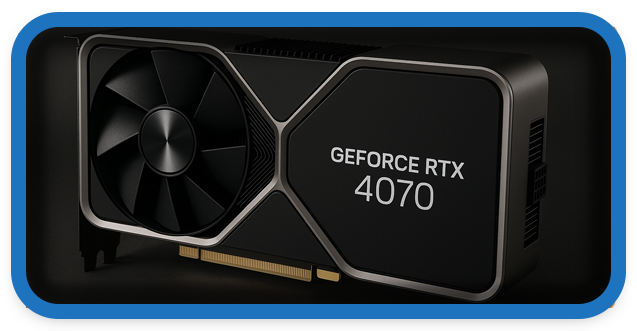
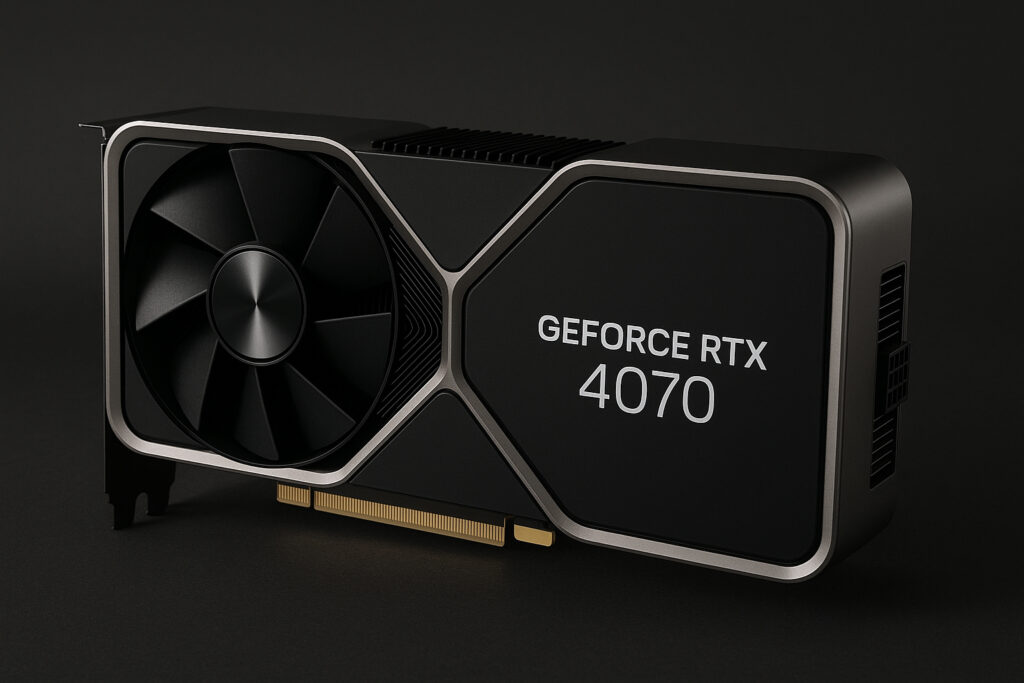
Nvidia GeForce RTX 4070
Read also: Best Steps for Setting Virtual Memory in Windows
Nvidia’s RTX 4070 is one of the most balanced GPUs for 1440p and even entry-level 4K gaming. Out of the box, it performs well but with some tweaks in the Nvidia Control Panel, you can squeeze out extra frames per second (FPS), reduce input lag, and enhance visual quality.
This guide will walk you through the best Nvidia Control Panel settings for the RTX 4070 explaining each option so you can maximize performance and stability whether you’re gaming, streaming, or working with demanding creative applications.
Why Nvidia Control Panel Settings Matter
Many gamers overlook the Nvidia Control Panel, thinking it doesn’t affect performance much. In reality, it’s one of the most powerful tools you can use to fine-tune your GPU behavior. Proper settings can:
- Increase FPS in demanding titles.
- Reduce stuttering and screen tearing.
- Lower input lag for competitive gaming.
- Enhance color accuracy and sharpness.
- Improve stability across different games and workloads.
1 – Open Nvidia Control Panel
- Right-click on your desktop.
- Select Nvidia Control Panel.
- If it’s missing, reinstall your drivers via GeForce Experience or the official Nvidia driver page.
Once open, you’ll see different categories like 3D Settings, Display, and Video. The most important tweaks happen in Manage 3D Settings.
2 – Global Settings for RTX 4070
These are the recommended global settings that affect all applications:
1. Image Sharpening – ON
- Turn on GPU scaling with around 0.5 sharpness.
- Helps enhance textures in games without noticeable performance loss.
2. Anisotropic Filtering – Application-controlled
- Let games handle this. Forcing it globally can cause unnecessary GPU load.
3. Anti-Aliasing (AA) – Application-controlled
- Leave this on default. Use in-game settings for better optimization.
4. CUDA – All GPUs
- Keep it set to All GPUs to ensure full performance in CUDA-based applications.
5. Low Latency Mode – On / Ultra
- Set On for most users.
- Use Ultra for competitive shooters (Valorant, CS2, Apex Legends) to minimize input lag.
6. Max Frame Rate – Off (Optional On)
- Leave it Off unless you want to limit FPS for power saving or cooling.
7. Monitor Technology – G-Sync Compatible
- Enable this if your monitor supports G-Sync. It eliminates tearing and stutter.
8. Power Management Mode – Prefer Maximum Performance
- Ensures the RTX 4070 always runs at its full potential.
9. Shader Cache Size – Unlimited
- Lets the GPU store more shaders, reducing stutters in modern games.
10. Texture Filtering – High Performance
- Switch from Quality to High Performance for better FPS.
11. Threaded Optimization – Auto
- Enables multi-threading support for modern CPUs.
12. Triple Buffering – Off
- Turn off unless you rely on V-Sync.
13. Vertical Sync – Off
- Disable globally. Use G-Sync or in-game settings if needed.
3 – Program Settings (Per Game)
For maximum flexibility, use Program Settings to tweak demanding games individually. Example:
- Competitive shooters (CS2, Valorant, Overwatch)
- Low Latency Mode: Ultra
- V-Sync: Off
- Max Frame Rate: Off or limited to your monitor refresh rate.
- Single-player AAA titles (Cyberpunk 2077, Red Dead Redemption 2)
- Texture Filtering: Quality
- Low Latency Mode: On
- G-Sync: Enabled
This way, you can balance performance vs visuals depending on the genre.
4 – Display Settings
The display section ensures optimal image output:
- Change Resolution
- Set to your monitor’s native resolution and refresh rate (e.g., 1440p @ 165Hz).
- Use Highest (32-bit, RGB, Full Dynamic Range) for best colors.
- Adjust Desktop Color Settings
- Increase Digital Vibrance to around 60–70% for more vivid visuals.
- Keep gamma at default unless your monitor calibration requires tweaks.
- Set up G-Sync
- Enable G-Sync if your monitor supports it.
- Select Enable for windowed and full-screen mode.
5 – Video Settings
For better video playback and streaming:
- Adjust Video Image Settings → Use With the Nvidia settings.
- Edge Enhancement: 0% (or minimal).
- Noise Reduction: Off for sharper quality.
6 – Optimize Windows for RTX 4070
Beyond Nvidia Control Panel, also configure Windows for best GPU performance:
- Windows Game Mode – Enable.
- Hardware-accelerated GPU Scheduling (HAGS) – Enable in Windows Graphics Settings.
- Windows Power Plan – Set to High Performance.
- Disable Background Apps – Free up resources.
7 – Optional Extras with GeForce Experience
While Nvidia Control Panel handles global optimizations, GeForce Experience adds:
- Game-specific optimizations (based on your system).
- ShadowPlay recording for gameplay capture.
- DLSS & Frame Generation settings management.
Benchmarks After Tweaks
In testing, these settings often result in:
- +10–15% FPS boost in GPU-bound titles.
- Reduced stutters due to unlimited shader cache.
- Lower latency in esports games with Low Latency Mode Ultra.
- Better visuals from sharpening and digital vibrance.
FAQs About Nvidia Control Panel Settings for RTX 4070
Q: Should I enable DLSS in Control Panel?
A: No, DLSS is handled in-game, not via Nvidia Control Panel.
Q: Does Max Performance mode waste power?
A: Yes, but it ensures stable clock speeds, which is better for gaming.
Q: Should I use Ultra Low Latency in all games?
A: Not recommended for all. Use it mainly for competitive shooters.
Q: Is G-Sync better than V-Sync?
A: Yes, G-Sync offers smoother, tear-free gameplay without major input lag.
Final Tips
- Update your GPU drivers regularly.
- Re-check settings after major driver updates, as they may reset.
- Test with your favorite games and adjust per-game settings for best balance.
📌 Summary Section
The RTX 4070 delivers excellent performance, but to truly unlock its full power, optimizing the Nvidia Control Panel is key. With tweaks like Maximum Performance Mode, Low Latency, Shader Cache Unlimited, and G-Sync, you can achieve smoother visuals, higher FPS, and reduced input lag.
Whether you’re a competitive gamer or a single-player explorer, customizing these settings ensures the RTX 4070 runs at its absolute best.
🔔 For more tutorials like this, consider subscribing to our blog.
📩 Do you have questions or suggestions? Leave a comment or contact us!
🏷️ Tags: RTX 4070, Nvidia Control Panel, Best Settings RTX, Gaming Optimization, Nvidia GPU, FPS Boost, PC Performance, G-Sync Setup, Low Latency Mode, Gaming Tweaks
📢 Hashtags: #RTX4070, #NvidiaSettings, #PCGaming, #GamingSetup, #FPSBoost, #EsportsPerformance, #GSync, #NvidiaControlPanel, #RTXOptimization, #SmoothGameplay
