

⏲️ Estimated reading time: 6 min
Table of Contents
⚡ How To Make the Best Settings in Nvidia Control Panel for RTX 4060. Unlock maximum performance and visuals on your RTX 4060 with the best Nvidia Control Panel settings. Step-by-step optimization guide for gamers and creators. The Nvidia RTX 4060 is a powerful GPU for gamers and creators alike, but its performance depends heavily on correct configuration. In this guide, you’ll discover the best Nvidia Control Panel settings for the RTX 4060 to maximize FPS, visual clarity, and stability.
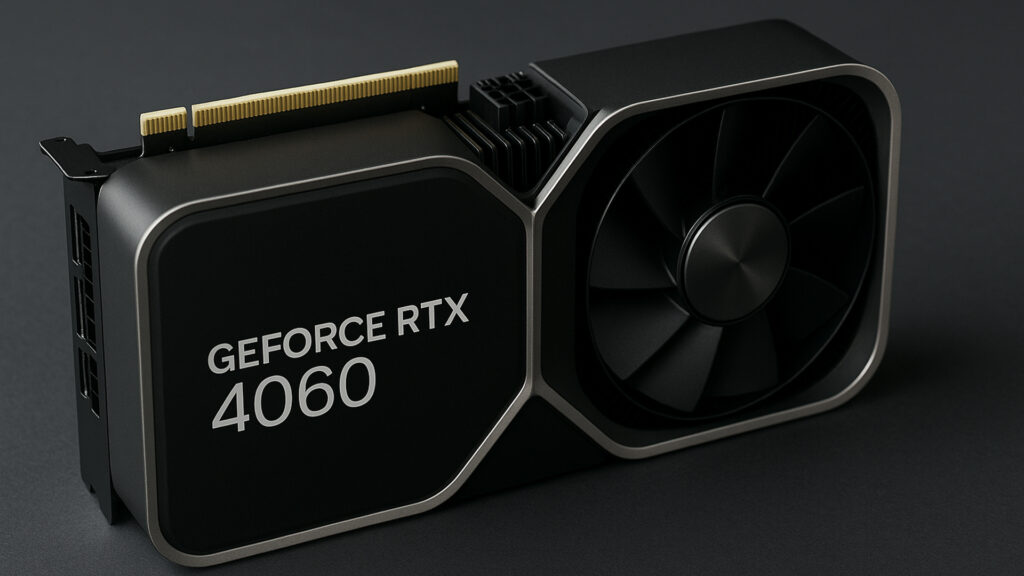
🎮 Nvidia GeForce RTX 4060
The Nvidia GeForce RTX 4060 is part of Nvidia’s Ada Lovelace lineup, designed to balance affordability and power. Whether you are gaming at 1080p, streaming, or doing creative workloads, getting the best performance and visuals out of your GPU requires fine-tuning the Nvidia Control Panel.
By default, Nvidia sets most options to balanced or automatic. While that ensures general stability, it’s far from optimal for enthusiasts who want higher FPS, smoother frame times, and crisper visuals. The good news? With a few tweaks inside the Control Panel, you can unlock the true potential of your RTX 4060.
This post will walk you through:
- Where to find the Nvidia Control Panel
- Global vs. per-game settings
- Best 3D settings for performance and visuals
- Display configuration tweaks
- Extra tips for streamers and content creators
- Troubleshooting common issues
Let’s dive in step by step.
🖥️ Accessing the Nvidia Control Panel
Before we adjust settings, let’s ensure you can open the Control Panel:
- Right-click on your desktop.
- Select Nvidia Control Panel from the context menu.
- If missing, reinstall or update your Nvidia drivers via GeForce Experience or the Nvidia website.
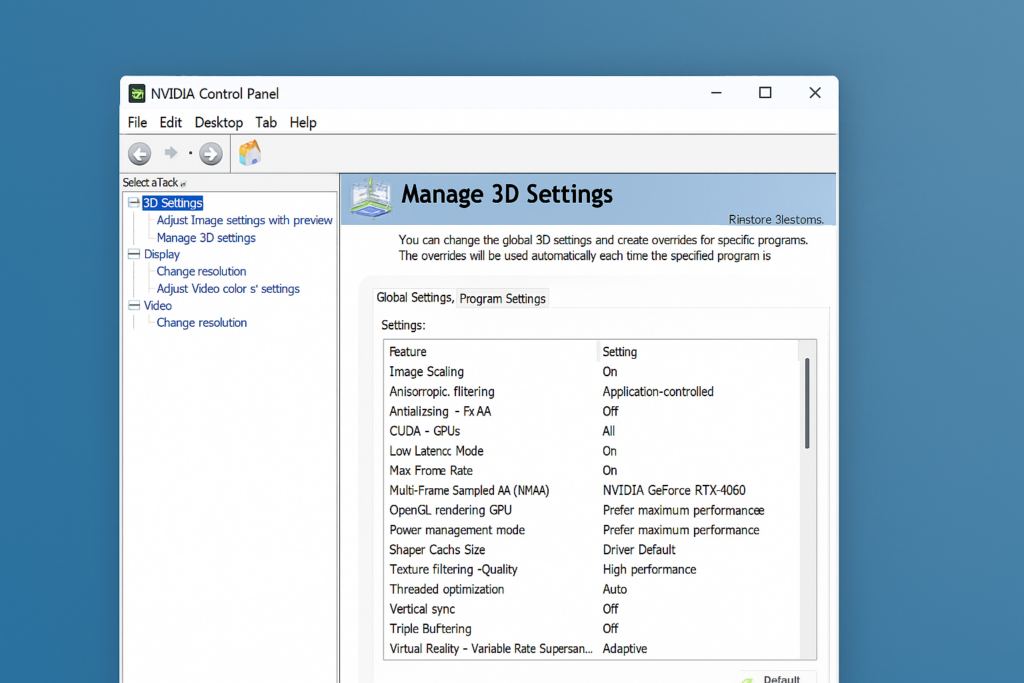
Inside, you’ll see a navigation tree with major categories:
- 3D Settings
- Display
- Video
Our focus will be mainly on 3D Settings and Display.
⚙️ Global vs. Program Settings
Nvidia Control Panel offers two levels of adjustments:
- Global Settings: Affect all applications. Useful for general optimizations.
- Program Settings: Apply tweaks to specific games or software. Perfect for handling demanding titles differently than lightweight ones.
💡 Pro tip: Always configure Global Settings first, then override with Program Settings for games like Cyberpunk 2077, Call of Duty, or competitive shooters.
See also: HZ Post Enhancer: Subtitle + Featured Meta Box
🚀 Best 3D Settings for RTX 4060
This is where performance magic happens. Let’s go through the most critical options.
1. Image Scaling
- Set to ON.
- Enable the overlay indicator only if you want to check scaling.
- Helps upscale lower resolutions while maintaining sharp visuals.
2. Anisotropic Filtering
- Application-controlled (global).
- For per-game settings, force 16x in RPGs or open-world games for sharper textures.
3. Antialiasing – FXAA
- Off globally.
- Some games handle anti-aliasing better internally. Turn ON only if a game lacks built-in AA.
4. CUDA – GPUs
- All.
- Ensures your RTX 4060 is fully utilized.
5. Low Latency Mode
- On for general gaming.
- Ultra for competitive shooters (CS2, Valorant, Apex Legends).
- Off if doing GPU-heavy tasks like rendering.
6. Max Frame Rate
- Optional. Set a limit to reduce heat/power usage. Example: cap at 144 FPS for a 144 Hz monitor.
7. Multi-Frame Sampled AA (MFAA)
- On.
- Works well with MSAA in supported games, offering better visuals with little performance cost.
8. OpenGL Rendering GPU
- Choose RTX 4060. Prevents Windows from defaulting to integrated graphics.
9. Power Management Mode
- Prefer Maximum Performance.
- Ensures GPU runs at higher clock speeds.
10. Shader Cache Size
- Driver Default (or 10 GB+ if you have a large SSD).
- Helps store shaders and reduce stuttering.
11. Texture Filtering – Quality
- High Performance.
- If you prioritize visuals over FPS, set to Quality.
12. Threaded Optimization
- Auto.
- Lets Nvidia handle CPU multi-threading.
13. Vertical Sync (V-Sync)
- Off globally.
- Use in-game V-Sync or Nvidia G-Sync instead.
14. Triple Buffering
- Off globally.
- Only useful with V-Sync on.
15. Virtual Reality – Variable Rate Super Sampling (VRSS)
- Adaptive.
- If you use VR, this ensures balance between sharpness and FPS.
📺 Best Display Settings for RTX 4060
Besides 3D settings, display tweaks make a huge difference.
1. Change Resolution
- Set to your monitor’s native resolution (e.g., 1920×1080, 2560×1440).
- Refresh rate: select maximum supported (e.g., 144Hz or 240Hz).
2. Adjust Desktop Color Settings
- Increase Digital Vibrance to 60–70% for richer visuals.
- Gamma: leave at default (1.0).
3. Set Up G-Sync
- If your monitor supports G-Sync or FreeSync (compatible), enable G-Sync for full-screen and windowed mode.
- This reduces tearing without the input lag of V-Sync.
4. Adjust Desktop Size and Position
- Scaling mode: Aspect ratio.
- Perform scaling on: GPU.
🎥 Video Settings Optimization
For creators and streamers:
- Adjust video color settings → With Nvidia settings.
- Dynamic range: Full (0–255).
- This ensures accurate color reproduction for editing and playback.
🏆 Recommended Per-Game Adjustments
Some games need special care. Examples:
- Competitive Shooters (CS2, Valorant, Apex Legends):
- Low Latency Mode: Ultra
- Max Frame Rate: Match refresh rate
- Texture filtering: High Performance
- AAA Games (Cyberpunk 2077, Red Dead Redemption 2, Starfield):
- Low Latency Mode: On
- Texture filtering: Quality
- Enable DLSS or Frame Generation in-game
- VR Games:
- VRSS: Adaptive
- V-Sync: Off
- Max Performance Mode enabled
🔧 Extra Tips for Maximum Performance
- Update drivers regularly – new drivers bring optimizations.
- Enable Hardware-Accelerated GPU Scheduling (HAGS) in Windows 11.
- Use Nvidia GeForce Experience for optimal in-game settings recommendations.
- Keep your system clean of bloatware to reduce CPU bottlenecks.
⚠️ Common Problems & Fixes
- Control Panel missing? → Reinstall Nvidia drivers.
- Games running on iGPU instead of RTX 4060? → Check “Preferred Graphics Processor” in 3D Settings.
- Screen tearing persists with G-Sync? → Disable V-Sync globally and enable in-game.
- Low FPS after update? → Reset Control Panel to defaults and reapply tweaks.
Final Thoughts
Configuring your Nvidia Control Panel for the RTX 4060 is one of the easiest and most effective ways to enhance both performance and visuals. These optimizations help unlock smooth frame rates, vivid colors, and stability across games and creative workflows.
Whether you’re a competitive gamer chasing every millisecond, or a casual player wanting eye-candy visuals, these settings provide a solid foundation.
✅ Closing Notes
🔔 For more tutorials like this, consider subscribing to our blog.
📩 Do you have questions or suggestions? Leave a comment or contact us!
🏷️ Tags: Nvidia Control Panel, RTX 4060, Nvidia RTX, gaming optimization, FPS boost, graphics settings, PC gaming, G-Sync, GeForce Experience, performance tweaks
📢 Hashtags: #Nvidia #RTX4060 #GamingPC #FPSBoost #GraphicsSettings #PCGaming #GeForce #GSync #PerformanceTips #GamingOptimization
