

⏲️ Estimated reading time: 27 min
Table of Contents
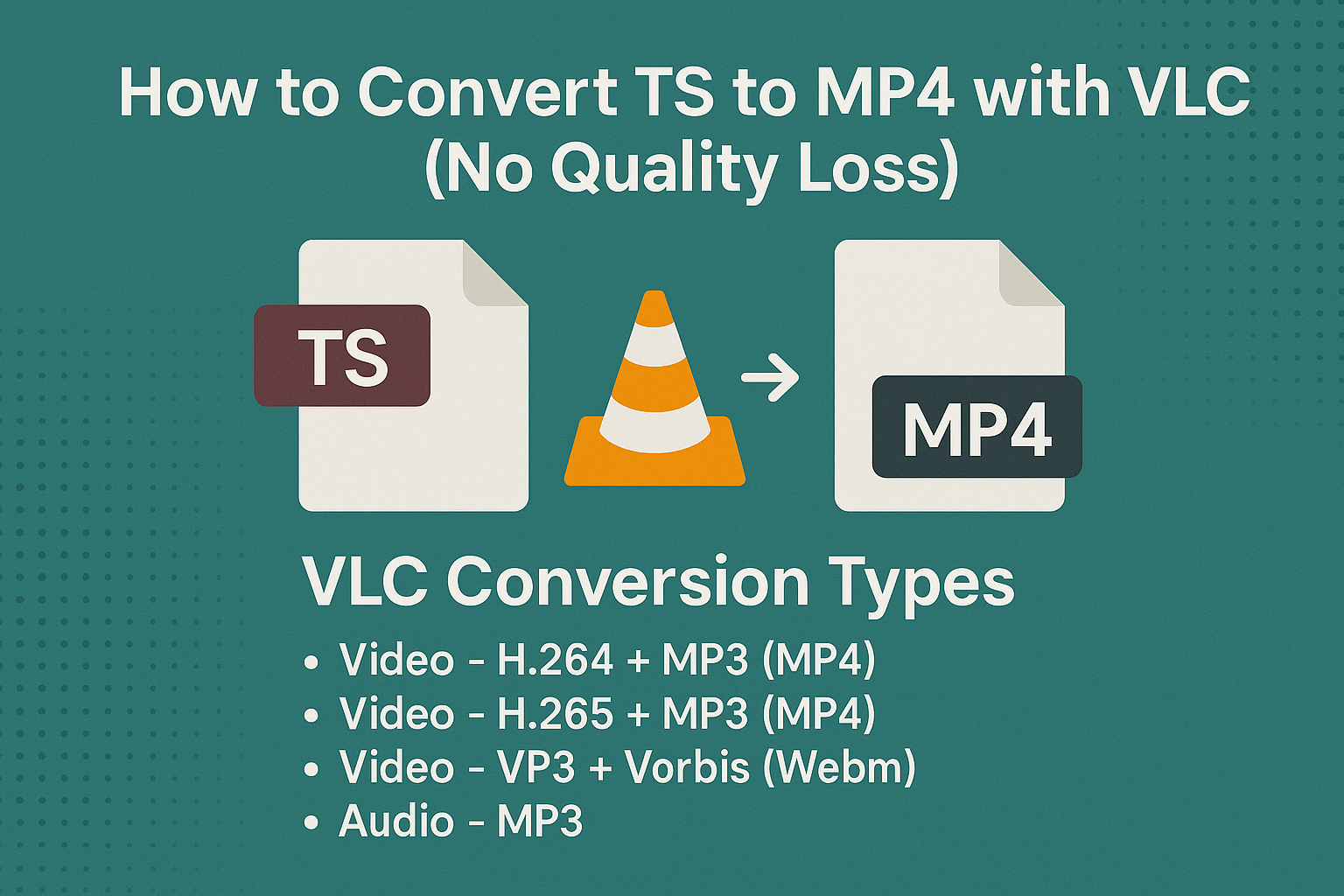
Types of File Conversions VLC Supports
VLC supports a wide range of conversions. Here are the main types:
1. Video to Video
Convert between formats like:
- TS → MP4, AVI, MKV, MOV, FLV
- MP4 → AVI, WebM, MKV
- MKV → MP4, etc.
2. Audio to Audio
Convert audio files such as:
- MP3 ↔ OGG
- FLAC ↔ MP3
- AAC ↔ WAV
3. Video to Audio
Extract audio from video:
- MP4 → MP3
- MKV → AAC
- AVI → FLAC
4. Streaming Format Conversions
Stream and convert to:
- RTP
- RTSP
- HTTP
- MPEG-TS streams
5. Subtitles and Overlays
While not a “conversion,” VLC allows for subtitle embedding and visual overlays during encoding.
How to Convert TS to MP4 With VLC Without Quality Loss
TS files are common when recording television broadcasts, capturing video streams, working with digital receivers, or saving footage from certain cameras and recording applications. They are reliable for recording, but they are not always convenient when you want to edit, upload, archive, or play the video on another device. MP4 is usually much easier to handle.
Fortunately, you do not necessarily need expensive video conversion software. VLC Media Player includes conversion and streaming tools that can process TS files and create MP4 output. VLC supports writing MP4 to files, although whether you can preserve the original streams depends on the codecs stored inside your TS container.
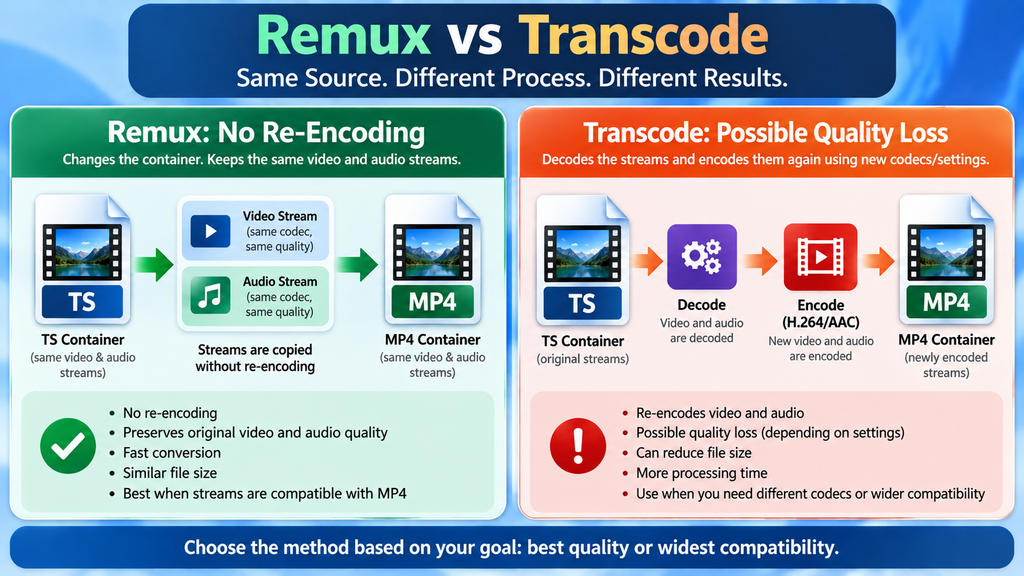
The important detail is that changing a TS file into MP4 can mean two different things. You can remux compatible audio and video streams into another container, or you can transcode them into different codecs. Remuxing avoids re-encoding and therefore avoids generation loss. Transcoding creates newly encoded video and can introduce some quality loss, depending on your settings.
This distinction matters because simply selecting an MP4 conversion profile does not automatically guarantee mathematically lossless conversion. In this tutorial, we will walk through the normal VLC method, explain the settings that affect quality, and show you how to choose the right approach for your TS file.
What Is a TS Video File?
A TS file normally uses the MPEG Transport Stream container. The format was designed with reliable transmission in mind and is widely associated with digital television, broadcasting, IPTV, recording equipment, and other video delivery systems. Instead of assuming the entire recording will arrive as one uninterrupted file, a transport stream organizes data in packets.
That characteristic makes TS useful for broadcasting. A small transmission error does not necessarily make the entire recording unusable. However, the same properties that make TS practical for broadcast applications can make the format less convenient for everyday use.
For example, some editing programs, websites, mobile devices, smart televisions, and media-management applications work more naturally with MP4 files. Even when a program can open TS files, seeking through the video or reading its duration may occasionally behave differently. VLC itself has received fixes over the years related to seeking and timestamp handling in MPEG transport streams.
Converting or remuxing the recording to MP4 can therefore make your video easier to organize and use. However, the container is only one part of the file. Understanding what is inside that container helps you choose the correct conversion method.
TS Is a Container, Not a Video Quality Setting
One of the most important things to understand is that .ts does not tell you the complete video format. A container can hold video, audio, subtitles, timestamps, and other information. The actual video inside could use one codec while another TS recording could use something completely different.
MP4 works in a similar way. The .mp4 extension identifies the container rather than one specific video codec. Consequently, changing the container does not automatically require changing the underlying video.
This is where remuxing becomes useful. If the existing streams are compatible with your desired MP4 container and playback environment, software can sometimes move them into a different container without decoding and re-encoding every frame.
Why Convert TS to MP4?
Compatibility is usually the biggest reason for converting TS to MP4. MP4 has become one of the most convenient containers for video stored on computers, phones, tablets, televisions, websites, cloud services, and many other platforms.
A TS recording may play perfectly in VLC but become awkward when you transfer it to another application. Your video editor may not import it correctly. A television may display the recording but handle seeking poorly. A website may reject the extension entirely. Converting the recording into an appropriate MP4 file can solve many of these practical problems.
MP4 also makes file management simpler when the rest of your video library already uses the format. Instead of keeping several container types, you can maintain a more consistent collection. However, conversion should never be treated as an automatic quality improvement. Converting a video cannot restore detail that does not exist in the original recording.
MP4 Does Not Automatically Mean Smaller
Another common misconception is that converting TS to MP4 will always produce a dramatically smaller file. The final size depends heavily on whether VLC copies the existing streams or encodes them again.
If the streams are remuxed without transcoding, the video and audio data remain largely unchanged. The resulting file size may therefore remain relatively close to the original, although container overhead can differ.
Transcoding is different. When VLC re-encodes the video at another bitrate, codec, resolution, or frame rate, the final file can become considerably smaller. That reduction is not free. Aggressive compression can remove visible detail and introduce compression artifacts.
For that reason, decide what you actually want before starting. If preserving the original encoded quality matters most, avoid unnecessary transcoding. If reducing the file size or maximizing device compatibility matters more, carefully controlled transcoding may be the better choice.
Install VLC Media Player Before Starting
Once you download and install the free VLC Media Player, open it normally. VLC is available from the VideoLAN project and provides much more than basic video playback. Its conversion and streaming components can process many media formats and create output files using different containers and codecs.
For safety, download VLC from the official VideoLAN website rather than an unknown download portal. Third-party download websites may package applications differently, offer outdated versions, or display misleading download buttons.
Official VLC Media Player website
After installation, launch VLC and make sure the TS recording itself plays correctly before trying to convert it. Watch several sections of the video and confirm that both picture and sound work. This quick test helps separate problems with the original recording from problems introduced during conversion.
If VLC cannot correctly play the source file, converting it immediately may not solve the underlying issue. The TS recording could be incomplete, damaged, encrypted, or contain streams that need additional investigation.
How to Convert TS to MP4 With VLC
The standard VLC conversion process is straightforward. You first select your TS source through the Media menu and then tell VLC what type of output you want to create. The exact appearance of the interface can vary slightly between VLC versions and operating systems, but the overall workflow remains familiar.
Before starting, consider making a copy of an important recording. VLC should create a separate output file rather than replacing your source when you choose another destination, but keeping an untouched original is always sensible.
You should also verify that your destination drive has enough free storage space. A long high-resolution recording can require several gigabytes, particularly when you select a high-quality conversion profile.
Step 1: Open the Media Menu
Launch VLC Media Player. At the top of the application window, click Media. VLC will display several options for opening, streaming, and processing media.
Choose Convert / Save.
This opens the Open Media window. From here, you can select the video that you want VLC to process.
You may notice several tabs because VLC can work with more than ordinary local files. For this tutorial, remain on the File tab because we are converting an existing TS recording stored on the computer.
Step 2: Add Your TS File
Click the Add button inside the Open Media window. Browse to the folder containing your TS recording and select it.
The file should now appear in VLC’s file selection area. Check the filename before continuing, especially if the folder contains several recordings with similar names.
If you selected the wrong file, remove it and choose the correct recording. There is no advantage to rushing this stage because conversion can take time when transcoding a large video.
Once the correct TS file appears in the list, look toward the bottom of the window for the Convert / Save button.
Step 3: Select Convert
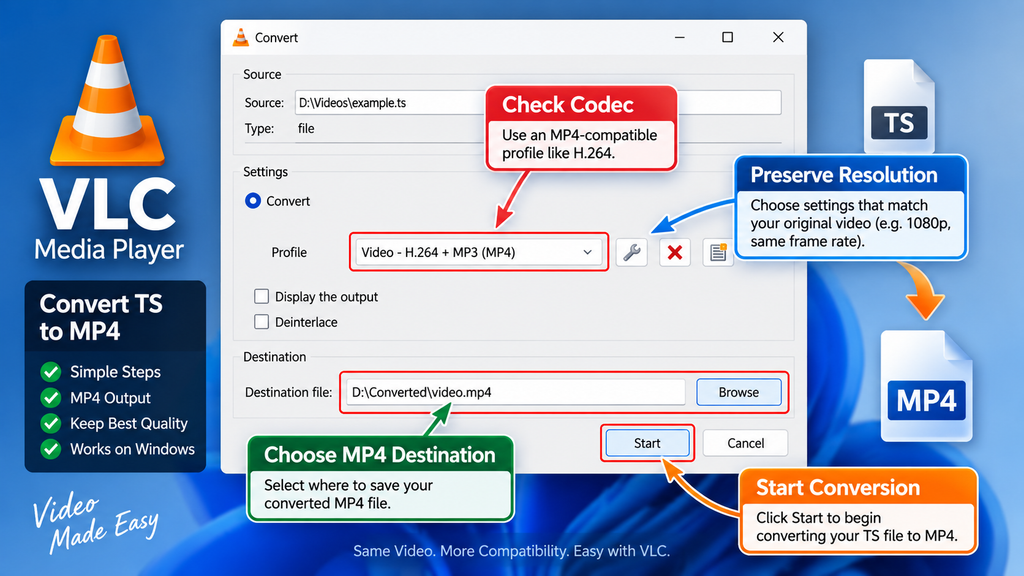
Click the small drop-down control beside Convert / Save if necessary and choose Convert.
VLC will now open the conversion configuration window. This is the important stage because your profile determines how VLC handles the video and audio.
You will normally see a Profile section together with destination controls. VLC includes predefined profiles intended for common video and audio combinations.
Do not assume that every profile produces identical quality. A profile that transcodes the source is asking VLC to decode the original media and encode a new version. Different codecs and bitrate settings can therefore produce different results.
Choosing the Correct VLC Profile for MP4
For broad compatibility, a profile based on H.264 video and MP4 output is commonly practical. H.264 remains widely supported by players, browsers, editing software, televisions, mobile devices, and other consumer hardware.
However, selecting an H.264 profile usually means that VLC may transcode video rather than simply copy the original stream. If your primary objective is literally no additional video quality loss, remuxing compatible streams is preferable to transcoding.
VideoLAN’s own technical material distinguishes these operations. When no transcoding module is used, the codec and bitrate can remain the same while the stream is remultiplexed. Transcoding, by contrast, allows codecs and bitrates to change and requires considerably more processing.
This distinction is why the phrase “convert TS to MP4 without quality loss” requires some care. A remux can preserve the encoded streams. A conventional VLC conversion profile that re-encodes the video cannot promise zero generational loss, even when the result looks identical during normal viewing.
When You Should Use H.264
H.264 is a sensible option when compatibility is more important than preserving the exact original encoded stream. For example, your TS file might contain a codec that your television or editing software does not handle well inside MP4.
In that situation, converting the video to H.264 can create a much more convenient file. The key is to avoid unnecessarily low bitrate settings.
If the original is Full HD, keeping the original resolution is generally preferable unless you intentionally need a smaller video. Similarly, avoid reducing the frame rate without a reason. A 50 fps or 60 fps recording converted to 25 or 30 fps will discard temporal information.
Good conversion settings should respect the characteristics of the original source rather than applying arbitrary reductions.
How to Preserve the Best Possible Video Quality
If VLC needs to transcode the recording, your goal changes slightly. Instead of achieving literal zero-loss conversion, you want to minimize visible quality degradation.
Start by keeping the original resolution. A 1920 × 1080 recording should normally remain 1920 × 1080 unless you specifically need a lower-resolution copy. Upscaling is equally unnecessary because increasing the pixel dimensions cannot recreate missing original detail.
Keep the original frame rate whenever practical. Also avoid extremely low video bitrates. Fine textures, movement, water, grass, smoke, gaming footage, and fast camera motion can reveal compression problems quickly when bitrate is insufficient.
Audio deserves similar attention. If you transcode audio, choose settings appropriate for the source and intended playback device rather than compressing it aggressively merely to save a relatively small amount of storage.
Why Re-Encoding Can Reduce Quality
Lossy video compression works partly by discarding information that an encoder considers less important. The first encoding has already performed that process. When you decode the compressed video and encode it again, another generation of compression occurs.
At high-quality settings, the difference may be difficult to notice. Nevertheless, that is different from saying no information changed.
Repeated transcoding can make the problem more obvious. Fine details may soften, block artifacts may become visible, gradients may develop banding, and fast-moving scenes can lose clarity.
Therefore, keep your original TS recording until you have checked the finished MP4. Storage permitting, the source file can serve as your archival master while the MP4 becomes the convenient playback or editing copy.
Set the Destination MP4 Filename
After selecting or configuring the conversion profile, choose where VLC should save the new video.
Click Browse beside the destination field. Navigate to your preferred folder and enter a descriptive filename ending in .mp4. For example, you might use holiday-video.mp4 rather than an unclear filename that becomes difficult to recognize later.
Make sure you do not accidentally select your original TS file as the destination. Keeping source and output files separate protects the original recording and makes comparison easier.
Once the destination path looks correct, review your profile one more time. A few seconds spent checking the destination and output configuration can save you from repeating a lengthy conversion.
Start the Conversion
Click Start when everything is ready.
VLC may return to its main interface while processing the video. Depending on the conversion method, you may see the playback progress indicator move while VLC works.
Do not immediately assume the application has frozen simply because the normal video is not playing on screen. Conversion is a processing operation rather than ordinary playback.
The required time depends on the file length, codecs, resolution, computer performance, storage speed, and whether VLC is transcoding the streams. Re-encoding high-resolution video is much more computationally expensive than simply moving compatible streams between containers.
VideoLAN documentation has long noted the significant processing requirements associated with transcoding.
Remuxing vs Transcoding: The Key to No Quality Loss
Remuxing is the ideal concept to understand when your priority is maintaining the existing encoded video quality. Instead of decoding every frame and creating a new compressed version, remuxing changes how compatible streams are packaged.
Imagine that your TS file is a box containing video and audio streams. Remuxing takes those streams out of one box and places them inside another compatible box. The contents themselves do not need to be recreated.
Transcoding works differently. VLC decodes the media and then creates newly encoded streams according to your selected profile. That process gives you much greater flexibility because you can change codec, bitrate, resolution, frame rate, and other characteristics.
However, that flexibility introduces the possibility of quality loss. Consequently, the most accurate rule is simple: remux when compatibility allows it; transcode when you need a different codec or playback characteristic.
Not Every TS Stream Can Simply Be Put Into MP4
This is where many simplified tutorials become misleading. You cannot assume that every codec found inside every TS recording can be copied directly into an MP4 container and remain universally compatible.
VideoLAN’s published format information shows that muxer compatibility depends on the underlying formats. For example, its documented matrix distinguishes between codecs that can be placed into MP4 and those that cannot.
Your source therefore matters. Two files can both end with .ts while requiring different treatment.
If your existing streams are compatible with MP4 and your intended player, remuxing can be excellent. When they are not compatible, transcoding becomes the practical solution.
This is also why testing the completed MP4 is essential. A successful conversion does not automatically mean every audio track, subtitle, timestamp, or metadata element survived exactly as expected.
How to Check Your Original TS Codec in VLC
Before choosing conversion settings, VLC can help you inspect the source recording.
Open the TS file normally and look for VLC’s media or codec information window. Depending on your VLC version and operating system, the exact menu wording can vary. The information displayed can include the video codec, resolution, frame rate, audio codec, channels, and other stream details.
Write down or take note of the important values before converting. Knowing that the original video is 1920 × 1080, for example, makes it much easier to recognize an accidental resolution change.
You can perform the same check after creating your MP4. Comparing the source and output provides more useful information than judging quality from the filename alone.
Compare More Than Resolution
Resolution is only one part of video quality. Two videos can both be 1920 × 1080 while having dramatically different visual quality.
Check the codec, frame rate, and other available stream information. Then actually watch the video. Choose scenes with movement, faces, text, detailed backgrounds, and dark gradients because compression problems can be easier to spot there.
Listen carefully to the audio as well. Make sure the correct track is present, synchronization remains accurate, and the sound continues through the entire recording.
If your source contains multiple audio tracks or subtitles, check those separately. Container conversion can involve more than a single video and audio stream.
Why VLC Conversion Sometimes Produces a Large MP4
A surprisingly large MP4 file usually comes down to encoding choices. If VLC transcodes the video using a bitrate significantly higher than necessary, the resulting file can become larger than the original without providing meaningful additional detail.
Remember that conversion cannot invent genuine source detail. A heavily compressed original does not become higher quality simply because you encode the new file at an enormous bitrate.
On the other hand, setting the bitrate too low can produce visible artifacts. The goal is not to choose the highest possible number or the smallest possible number. The goal is to choose settings suitable for your source and intended use.
If your original file already contains compatible, efficient streams, avoiding unnecessary transcoding may be preferable. You preserve the encoded content and avoid spending CPU time creating another generation.
Why the MP4 Can Be Smaller
A smaller output file does not automatically mean something went wrong. Modern compression settings, a different codec, reduced bitrate, removed streams, or differences in container overhead can all affect file size.
The important question is what changed.
If VLC re-encoded the video at a lower bitrate, some information was discarded even if the difference is difficult to see. If the application merely repackaged compatible streams, size differences can occur without the same kind of video-quality degradation.
Always evaluate the output based on both technical properties and actual playback rather than file size alone.
What to Do If the Converted MP4 Has No Sound
An MP4 with working video but missing audio often points to a problem involving the audio stream, selected profile, codec compatibility, or conversion configuration.
First, confirm that the original TS file actually contains working audio. Open it in VLC and play several parts of the recording. If the source is silent too, the MP4 conversion is probably not the cause.
Next, inspect your conversion profile. Make sure audio has not been disabled. If you created or edited a custom profile, review the audio codec settings carefully.
Try another compatible audio configuration if necessary. AAC is commonly used with MP4 and offers broad compatibility across modern devices and software.
Do not delete your original TS recording while troubleshooting. Having the source available allows you to retry the conversion without relying on an already processed file.
What to Do If VLC Creates a Broken or Unplayable MP4
Occasionally, a conversion may appear to complete but the output does not behave correctly. The file might refuse to open, report the wrong duration, stop early, lose audio, or seek incorrectly.
Start by testing the original TS file from beginning to end. Transport streams can contain timestamp irregularities or damaged sections, particularly when they originate from interrupted recordings or broadcasts.
VLC has historically needed specific fixes for seeking and timing behavior in some MPEG transport streams, demonstrating that TS files can present unusual timestamp situations.
Next, repeat the conversion with a standard profile rather than a heavily customized one. If that works, one of your custom settings was likely incompatible with the source or output container.
Also update VLC if you are running an old release. Media container and codec handling evolves, and VLC releases have included fixes affecting MP4 and transport-stream processing.
Can You Just Rename .TS to .MP4?
No. Renaming video.ts to video.mp4 does not actually convert the container.
Windows may display the new extension, but the data inside the file remains structured as the original transport stream. Some media players inspect file contents and may still manage to play it, which can make this trick appear successful. Other applications will reject it or behave unpredictably.
A genuine conversion or remux operation creates an output structured according to the target container.
This distinction is especially important when you want to upload the video to a service, import it into editing software, or transfer it to a device with strict format requirements. Those systems may inspect the actual container and codecs rather than trusting the filename extension.
Use VLC’s conversion tools instead of simply changing the extension.
Best VLC Settings for High-Quality TS to MP4 Conversion
There is no single perfect configuration for every TS recording because the source codecs, resolution, frame rate, bitrate, and intended playback environment can differ.
As a practical starting point, preserve the original resolution and frame rate. Use an MP4-compatible codec combination, and avoid aggressive compression. H.264 video with AAC audio remains a useful compatibility-oriented combination when transcoding is required.
If the source streams can be remuxed appropriately, that is preferable when your only goal is changing containers without re-encoding.
Keep in mind that “best quality” and “best compatibility” are not always identical goals. A stream that works perfectly on your desktop computer may not be accepted by an older television or editing application. In that situation, transcoding can be worthwhile even though it technically creates another encoded generation.
Quality Should Match Your Purpose
Think about what you plan to do with the finished MP4.
For archival purposes, preserving the original TS file is often wise. For editing, you need a format your editor handles reliably. For uploading, you may prioritize broad codec compatibility. For a television or mobile device, playback support may matter more than retaining every original stream.
This approach prevents unnecessary conversion.
Rather than blindly applying the same profile to every video, inspect the source and choose settings according to your actual objective. That small amount of preparation can improve quality and reduce processing time.
How Long Does VLC Take to Convert TS to MP4?
Conversion speed depends primarily on whether VLC is transcoding. A remux operation requires far less computational work because the application does not need to recreate every video frame.
Transcoding can take much longer. Resolution, frame rate, codec complexity, CPU performance, hardware acceleration support, source characteristics, and storage speed can all influence processing time.
A short 720p recording on a modern computer may finish quickly, while a long Full HD or 4K recording can require substantially more time.
Avoid interrupting VLC simply because the process takes longer than expected. Check whether progress continues and give the application time to finish writing the output file.
After completion, inspect the destination folder and verify the final MP4 before closing or deleting anything.
Verify the MP4 Before Deleting the TS File
This final check is one of the most important parts of the entire process.
Open the completed MP4 in VLC and watch the beginning. Jump to several positions throughout the recording and then watch the ending. Confirm that seeking works and the duration appears sensible.
Listen for audio synchronization problems. If the recording contains dialogue, compare lip movement with speech. Check scenes with fast movement for obvious compression artifacts.
When possible, test the MP4 in the application or device where you actually intend to use it. A file playing successfully in VLC does not guarantee identical compatibility everywhere because VLC supports an exceptionally broad range of media formats.
Only consider removing the original TS file after you are satisfied with the converted copy. For valuable recordings, keeping the original as an archive remains the safest option.
Common Mistakes When Converting TS to MP4
The most common mistake is assuming that an MP4 extension guarantees a specific codec or quality level. It does not. MP4 is a container, and the streams inside it determine much of the playback compatibility and quality.
Another mistake is reducing resolution or bitrate unnecessarily. Users sometimes select a low-quality profile because they expect every conversion to require compression. If the objective is preservation rather than reducing file size, aggressive compression works against that goal.
Deleting the TS source immediately is another avoidable risk. Conversion problems may not become obvious until you reach a particular section of the recording. Always verify the entire output strategically before removing your only original.
Finally, do not confuse remuxing with transcoding. Understanding this single distinction makes it much easier to choose the appropriate workflow and interpret what VLC is doing.
Is VLC Good for Converting TS to MP4?
VLC is an excellent first option because many users already have it installed, it is free, and it provides both playback and media-processing functionality in one application.
For occasional conversions, its graphical interface is usually enough. You can select a TS recording, choose Convert / Save, configure an output profile, set the destination, and process the video without buying dedicated software.
VLC also gives you a convenient way to inspect and test both the source and finished file. That makes troubleshooting easier because you can compare playback within the same application.
However, users who need large batch conversions, detailed stream mapping, highly controlled remuxing, or automation may eventually prefer specialized command-line media tools. VLC remains particularly attractive for users who want a familiar graphical workflow.
Frequently Asked Questions
Can VLC convert TS files to MP4?
Yes. VLC includes conversion and streaming functionality and can create MP4 files. Compatibility depends on the audio and video streams involved and on the profile you select. VideoLAN’s format information lists MP4 as a supported file output container.
Can VLC convert TS to MP4 without quality loss?
It depends on what VLC does with the streams. Remuxing compatible streams avoids re-encoding and therefore avoids generational video loss. If VLC transcodes the video into another codec or bitrate, the process is not strictly lossless.
What is the easiest way to convert TS to MP4 in VLC?
Open VLC and select Media → Convert / Save. Add your TS file, choose Convert, select an appropriate MP4-compatible profile, specify an .mp4 destination filename, and click Start.
Should I use H.264 when converting TS to MP4?
H.264 is a practical choice when you need broad compatibility. However, converting an existing stream to H.264 involves transcoding when the source is not already being copied directly. Preserve the source resolution and use suitable quality settings.
Does converting TS to MP4 improve video quality?
No. Conversion cannot restore details that are missing from the original recording. Poor-quality source material does not become genuinely higher quality merely because it is placed in an MP4 container or encoded at a higher bitrate.
Why is my converted MP4 larger than the TS file?
Your selected encoding profile may use a higher bitrate, different codec, or other settings that increase file size. A larger output does not necessarily contain more genuine visual detail than the source.
Can I rename a TS file to MP4?
Renaming the extension does not perform a real conversion. The internal container remains unchanged. Use a proper conversion or remuxing process instead.
Why does my MP4 have video but no audio?
The audio stream may not have been included correctly, or the selected codec may not work as expected with your target player. Check the source audio and review VLC’s audio settings in your conversion profile.
Should I delete the original TS after conversion?
Not immediately. Test the MP4 thoroughly first. For important recordings, keeping the original TS file provides an archival copy in case you need to convert it again later.
Is VLC free for TS to MP4 conversion?
Yes. VLC Media Player is provided by the VideoLAN project and can be downloaded from its official website. Use the official source whenever possible.
A Better Way to Think About TS to MP4 Conversion
Converting TS to MP4 with VLC is easy once you understand what happens behind the Convert / Save button. The basic workflow is simple: open VLC, choose Media → Convert / Save, add the TS recording, select Convert, configure your output, choose an MP4 destination, and start processing.
Preserving quality requires a little more thought. If compatible streams can be remuxed without re-encoding, you can change the container without introducing another generation of video compression. When transcoding is necessary, preserve the original resolution and frame rate and avoid unnecessarily aggressive compression.
Most importantly, keep your original recording until you have verified the new MP4. Watch several sections, check audio synchronization, confirm the duration, test seeking, and open the file on the device or software where you intend to use it.
With those precautions, VLC provides a convenient and accessible way to turn many TS recordings into easier-to-use MP4 files.
⚠️ Disclaimer and Source Hygiene
This tutorial is provided for general educational and technical guidance. VLC interfaces, codec support, conversion profiles, and media behavior can change between software versions and operating systems. Always keep a backup of important original video files before conversion or editing.
Technical statements in this guide were checked against information published by the VideoLAN project and its development resources. Codec and container compatibility can still vary according to the exact streams stored in a particular TS file, so users should verify their finished media before deleting source recordings.
🔔 For more tutorials like this, consider subscribing to our blog.
📩 Do you have questions or suggestions? Leave a comment or contact us!
🏷️ Tags: TS to MP4, convert TS to MP4, VLC Media Player, TS to MP4 VLC, video conversion, VLC converter, MP4 conversion, video quality, remux TS to MP4, VLC tutorial
📢 Hashtags: #VLC, #VLCMediaPlayer, #TStoMP4, #VideoConversion, #MP4, #VideoTutorial, #WindowsTutorial, #VideoEditing, #TechTutorial, #HowTo
Sources and References
VideoLAN – VLC Media Player
Official VLC downloads, project information, and current VLC releases:
VLC Media Player – Official VideoLAN Website
VideoLAN – Streaming Features
VideoLAN’s technical format and muxer information documents supported output containers and relationships between codecs and muxers. It confirms MP4 file output support while also showing that codec compatibility depends on the underlying media format.
VideoLAN Development Resources
VideoLAN development discussions distinguish transcoding from remultiplexing. They explain that streams can retain their codec and bitrate when transcoding is not used, while transcoding can change codec or bitrate and requires additional processing.
VLC development records also document improvements and fixes involving MPEG Transport Stream seeking and MP4 handling, which is relevant when troubleshooting unusual source recordings.
Secondary Sources and Testimonials
Read also: Top 20 Windows Disk Management Shortcuts You Must Know
Practical media-conversion workflows can vary because TS files may originate from television tuners, cameras, streaming systems, DVR software, or other recording equipment. Therefore, user reports about conversion speed, file size, or compatibility should be interpreted in the context of the codecs and streams contained in each source file.
For technical decisions about VLC capabilities, container compatibility, and application behavior, official VideoLAN documentation and development resources should take priority over anonymous download websites or unsupported conversion claims.
