

⏲️ Estimated reading time: 7 min
Table of Contents
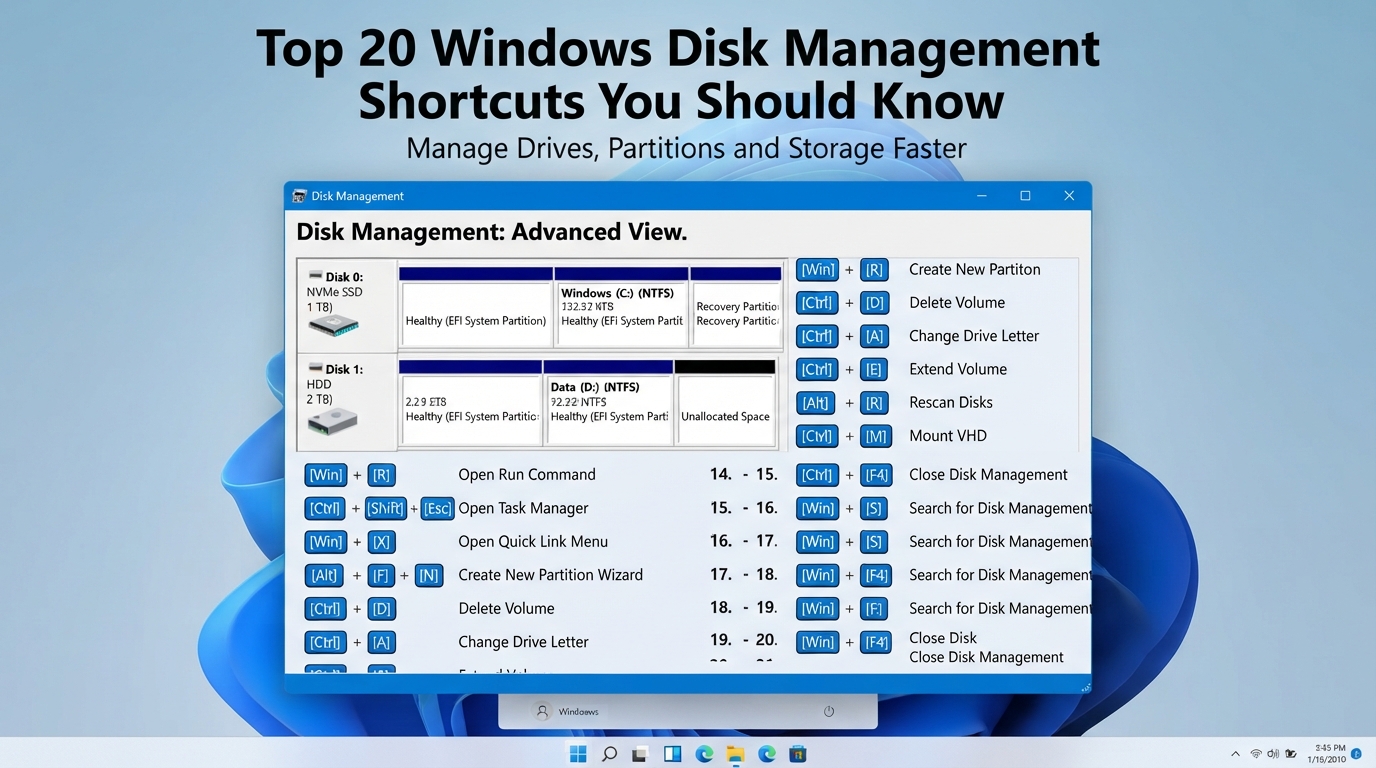
Discover the most useful Windows Disk Management shortcuts and commands. Learn how to access storage tools, troubleshoot disk issues, manage partitions, clean temporary files, and improve system performance with these essential Windows shortcuts.
Read also: Windows 11 2026 Update: What’s New in 26H2
Why Windows Disk Management Shortcuts Matter
Managing storage efficiently is an important part of maintaining a healthy Windows computer. Whether you are a beginner, power user, system administrator, or IT technician, knowing the right shortcuts can save time and help you troubleshoot problems quickly.
Windows includes many built-in tools that allow users to manage disks, partitions, temporary files, storage usage, and system performance without installing additional software.
This guide explains 20 essential Windows Disk Management shortcuts and commands, including what they do, when to use them, and practical examples.
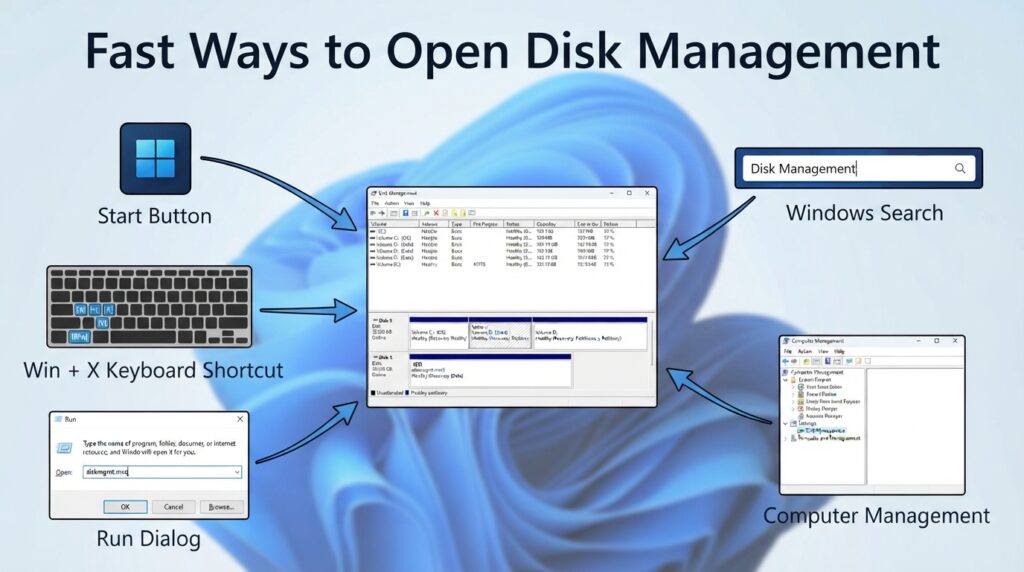
Open Disk Management with diskmgmt.msc
Shortcut
Win + R → diskmgmt.msc
What It Does
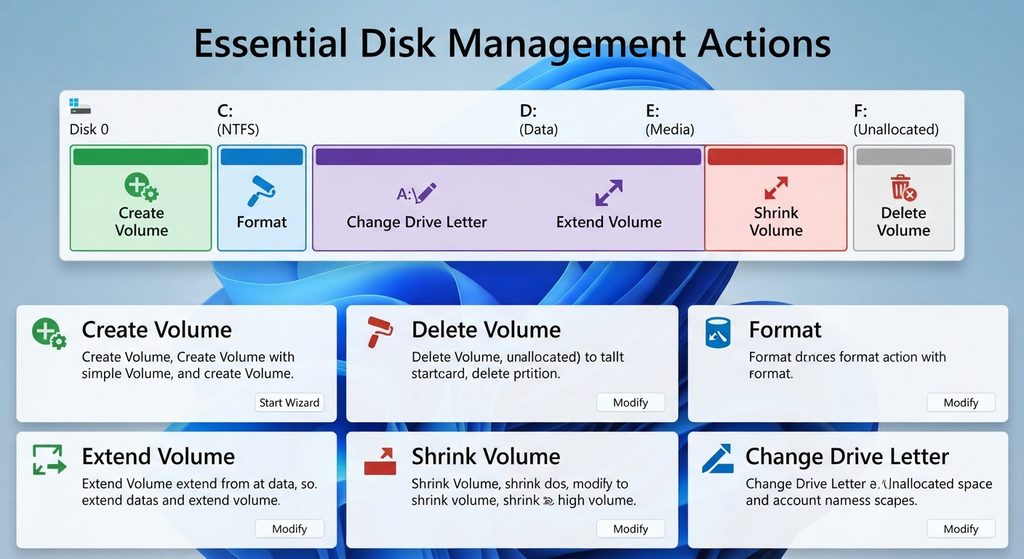
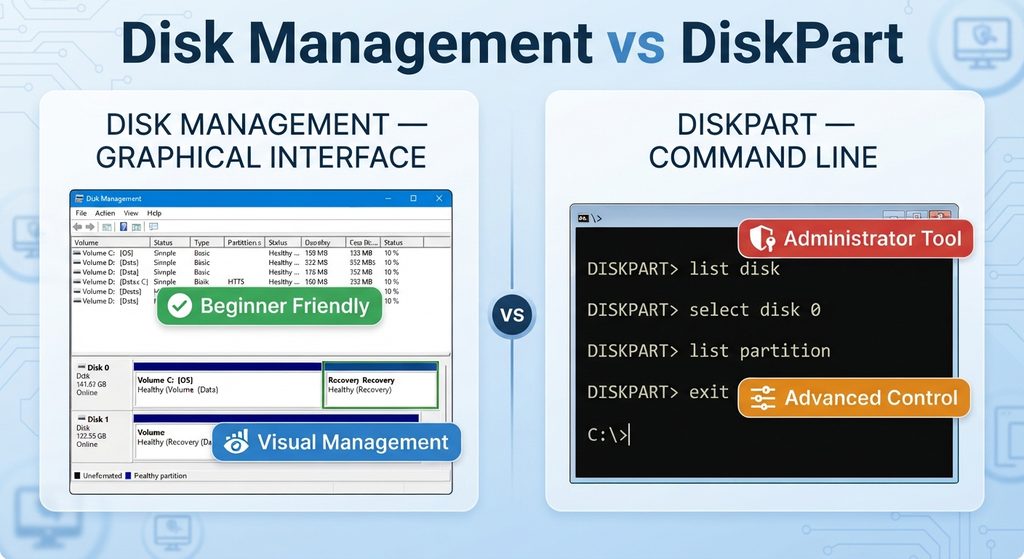
Disk Management is Windows’ graphical storage management tool.
It allows you to:
- View all connected drives
- Create partitions
- Delete partitions
- Format drives
- Assign drive letters
- Extend or shrink volumes
Example
If you install a new SSD and Windows does not show it in File Explorer, Disk Management can initialize and format the drive.
When to Use It
- Adding a new hard drive
- Creating partitions
- Changing drive letters
- Formatting storage devices
Open DiskPart Using diskpart
Shortcut
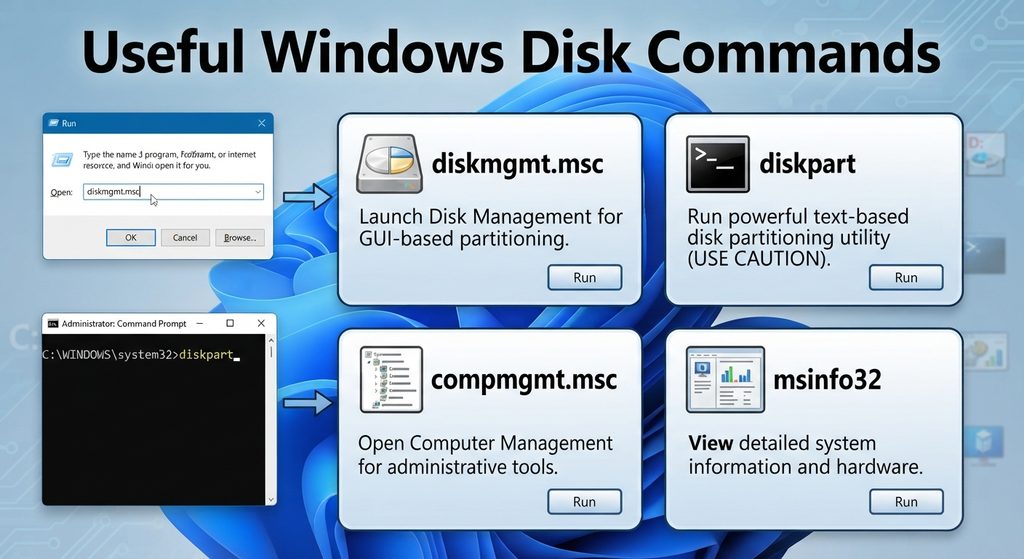
Win + R → diskpart
What It Does
DiskPart is a powerful command-line disk management utility.
It provides advanced control over:
- Partitions
- Volumes
- Disks
- Virtual disks
Example
You can completely clean a USB drive using:
diskpart
list disk
select disk X
clean
When to Use It
- Repairing partition issues
- Cleaning corrupted drives
- Advanced disk administration
Launch Disk Cleanup with cleanmgr
Shortcut
Win + R → cleanmgr
What It Does
Disk Cleanup removes unnecessary files such as:
- Temporary files
- Windows update leftovers
- Recycle Bin contents
- System logs
Benefits
- Frees storage space
- Improves system performance
- Removes clutter
Best Practice
Run Disk Cleanup monthly for optimal performance.
Open Disk Defragmenter Using dfrgui
Shortcut
Win + R → dfrgui
What It Does
Opens the Optimize Drives utility.
Functions
- Defragment HDDs
- Optimize SSDs
- Analyze fragmentation levels
Important Note
Modern SSDs should not be manually defragmented frequently. Windows automatically optimizes them.
When to Use
- Slow hard drives
- Performance maintenance
Check Disk Errors with chkdsk
Shortcut
Win + R → chkdsk
What It Does
Checks drives for:
- File system corruption
- Bad sectors
- Storage errors
Example
chkdsk C: /f
Benefits
- Detects drive issues early
- Repairs logical file system problems
Use When
- System crashes occur
- Files disappear unexpectedly
- Windows reports disk errors
Open Computer Management
Shortcut
Win + R → compmgmt.msc
What It Does
Computer Management combines multiple administrative tools into one interface.
Included Tools
- Disk Management
- Device Manager
- Event Viewer
- Services
- Shared Folders
Why It’s Useful
Provides centralized access to important system tools.
Access Disk Management from the Quick Menu
Shortcut
Win + X
What It Does
Opens the Windows Power User Menu.
Available Options
- Disk Management
- Device Manager
- Terminal
- Event Viewer
- Task Manager
Benefits
Provides fast access without typing commands.
Open File Explorer
Shortcut
Win + E
What It Does
Launches File Explorer instantly.
Benefits
- Browse drives
- Manage files
- View storage devices
Daily Use
One of the most frequently used Windows shortcuts.
Create a New Folder Quickly
Shortcut
Ctrl + Shift + N
What It Does
Creates a new folder instantly.
Benefits
Organizes files and storage efficiently.
Example
Create project folders while managing large datasets.
Delete Files Permanently
Shortcut
Shift + Delete
What It Does
Deletes files without sending them to the Recycle Bin.
Warning
Recovery may be difficult after permanent deletion.
Best Use
Removing unnecessary large files.
View File or Folder Properties
Shortcut
Alt + Enter
What It Does
Displays:
- File size
- Permissions
- Location
- Attributes
Why Useful
Quickly determine how much disk space a file uses.
Open Task Manager
Shortcut
Ctrl + Shift + Esc
What It Does
Launches Task Manager directly.
Storage Benefits
Monitor:
- Disk usage
- Resource consumption
- Background processes
Use When
Diagnosing slow system performance.
Open the Temp Folder
Shortcut
Win + R → temp
What It Does
Opens the current user’s temporary file directory.
Benefits
Removing old temporary files can recover storage space.
Tip
Delete only files not currently in use.
Open %temp% Folder
Shortcut
Win + R → %temp%
What It Does
Displays user-specific temporary files.
Why Important
Applications often leave behind unnecessary files.
Maintenance Tip
Clean this folder every few weeks.
Open the Prefetch Folder
Shortcut
Win + R → prefetch
What It Does
Stores application launch information.
Purpose
Helps Windows start programs faster.
Should You Delete It?
Usually no. Windows manages it automatically.
Open System Properties
Shortcut
Win + R → sysdm.cpl
What It Does
Provides access to:
- Performance settings
- Virtual memory
- System protection
- Advanced settings
Useful For
Performance optimization and troubleshooting.
Open Administrative Tools
Shortcut
Win + R → control admintools
What It Does
Provides access to advanced management tools.
Examples
- Services
- Event Viewer
- Task Scheduler
- Performance Monitor
Best For
System administration tasks.
Run Microsoft Malicious Software Removal Tool
Shortcut
Win + R → mrt
What It Does
Launches Microsoft’s malware scanning utility.
Benefits
- Detects common threats
- Removes malware
- Improves system security
Recommendation
Run periodically as part of routine maintenance.
Open PowerShell
Shortcut
Win + R → powershell
What It Does
Starts Microsoft’s powerful command-line environment.
Benefits
- Disk management
- Automation
- System monitoring
Advanced Example
Get-Volume
Displays available volumes and storage information.
Display Disk Capacity and Free Space
Command
wmic logicaldisk get size,freespace,caption
What It Does
Shows:
- Drive letters
- Total capacity
- Free space
Example Output
C:
D:
E:
With detailed storage information.
Modern Alternative
Get-PSDrive -PSProvider FileSystem
Why It Helps
Quickly identify drives running low on storage.
Tips for Effective Disk Management
Keep Storage Organized
Use folders and logical naming conventions.
Remove Temporary Files Regularly
Temporary files accumulate over time.
Monitor Disk Health
Run CHKDSK periodically.
Use SSDs When Possible
SSDs provide better performance than traditional HDDs.
Maintain Free Space
Keep at least 15–20% free space available.
Frequently Asked Questions
Q1: What is Disk Management in Windows?
Disk Management is a built-in utility that allows users to create, delete, format, and manage partitions.
Q2: Is DiskPart safe to use?
Yes, but incorrect commands can erase data. Always double-check before making changes.
Q3: How often should I run Disk Cleanup?
At least once per month.
Q4: Should SSDs be defragmented?
No. Windows automatically optimizes SSDs appropriately.
Q5: What does CHKDSK do?
It scans and repairs file system errors and disk problems.
Q6: Can temporary files be deleted safely?
Most temporary files can be safely removed.
Q7: What is the Prefetch folder?
It contains information Windows uses to speed up application launches.
Q8: Why is my disk always at 100% usage?
Possible causes include malware, background processes, indexing, or failing hardware.
Q9: Is WMIC still supported?
Microsoft has deprecated WMIC in newer Windows versions.
Q10: Which shortcut is most useful?
Win + X and diskmgmt.msc are among the most useful for storage management.
Master Your Windows Storage Like a Pro
Understanding these Windows Disk Management shortcuts can dramatically improve productivity, troubleshooting speed, and system maintenance. Whether you’re checking disk health, cleaning temporary files, managing partitions, or monitoring storage usage, these built-in tools provide everything needed to keep Windows running smoothly and efficiently.
⚠️ Disclaimer and Source Hygiene
This article is intended for educational and informational purposes only. Always back up important data before modifying partitions, formatting drives, or using advanced disk management tools. Information presented here is based on Microsoft documentation, Windows administrative resources, and established system administration best practices.
🔔 For more tutorials like this, consider subscribing to our blog.
📩 Do you have questions or suggestions? Leave a comment or contact us!
🏷️ Tags: Windows Disk Management, Windows Shortcuts, DiskPart Commands, Windows Storage Tools, Disk Cleanup, CHKDSK Guide, PowerShell Commands, Windows Administration, System Maintenance, Windows Tips
📢 Hashtags: #WindowsTips, #DiskManagement, #Windows11, #Windows10, #PowerShell, #SysAdmin, #StorageManagement, #TechTips, #WindowsShortcuts, #ComputerMaintenance
📚 Sources and References
- Microsoft Learn Documentation
- Microsoft Windows Support
- Microsoft PowerShell Documentation
- Microsoft Disk Management Documentation
- Microsoft DiskPart Command Reference
🕊️ Secondary Sources and Testimonials
- Windows System Administrator Best Practices
- IT Professional Community Recommendations
- Microsoft MVP Technical Guides
- Enterprise Windows Maintenance Documentation
