

⏲️ Estimated reading time: 2 min
Table of Contents
Learn how to set up and manage email filters in cPanel to automatically sort, forward, or delete emails based on custom rules. Keep your inbox organized and reduce spam effortlessly with this step-by-step guide.
How to Use cPanel Email Filters for Efficient Mail Management
Why Use Email Filters in cPanel?
cPanel’s email filtering feature allows you to automate email management. You can create rules to sort, forward, or delete emails based on sender, subject, or keywords. This is useful for:
- Blocking spam emails
- Organizing important messages
- Automating email forwarding

Setting Up Email Filters in cPanel
1. Log in to cPanel
- Go to
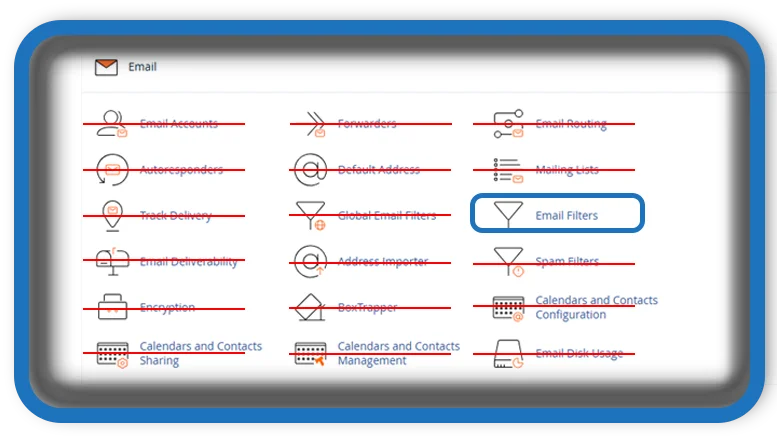
yourdomain.com/cpaneland log in. - Scroll down to the Email section.
- Click on Email Filters.
2. Select an Email Account
- Choose the email account for which you want to create a filter.
- Click Manage Filters.
3. Create a New Filter
- Click Create a New Filter.
- Enter a Filter Name (e.g., “Block Spam” or “Forward Invoices”).
- Define Rules:
- From – Filter emails from a specific sender.
- Subject – Filter emails with certain words in the subject line.
- Contains – Set keywords to trigger the filter.
4. Choose an Action
Decide what happens when an email matches the filter conditions:
See also: How to Cook Octopus Perfectly (No Rubber)
- Discard Message – Delete the email automatically.
- Redirect to Email – Forward to another email address.
- Deliver to Folder – Move it to a specific folder.
5. Save the Filter
- Click Create to activate the filter.
- Test the filter by sending an email that matches the criteria.
Managing and Editing Filters
- To edit or delete a filter, return to Email Filters > Manage Filters.
- Click Edit to modify existing rules.
- Click Delete to remove the filter.
Conclusion
cPanel email filters help you manage emails efficiently by automating sorting, forwarding, and spam blocking. Setting up filters is a simple way to keep your inbox clean and organized.
Tags: #cPanelemailfilters, #emailmanagement, #spamblocking, #automateemails, #webhosting, #cPaneltutorial, #emailforwarding, #wordpresshosting, #emailrules, #inboxorganization
