

⏲️ Estimated reading time: 4 min
Table of Contents
Want to speed up your Windows PC? Use this powerful batch script to Clean Windows temp files, cache, recent documents, and even restart Explorer in seconds no software needed!
🚀 Why Use a Batch Script to Clean Your PC?
Over time, your Windows PC accumulates a lot of unnecessary data like temporary files, old caches, and system leftovers. These slow down your system and take up valuable space. A batch script can help clean them up quickly no manual steps or third-party apps needed.
⚙️ What This Script Does
This batch script performs the following tasks:
- Deletes all temporary files from system and user folders
- Clears browser and system cache
- Empties the recycle bin
- Flushes DNS cache
- Frees up space instantly
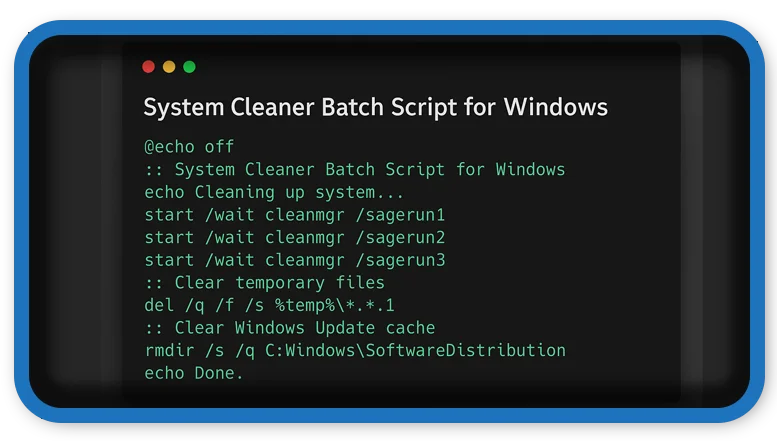
📄 The Batch Script Code
@echo off
title Windows System Cleaner
color 0a

echo Cleaning temporary files...
del /q /f /s %TEMP%*
del /q /f /s C:WindowsTemp*

echo Cleaning Windows cache...
cleanmgr /sagerun:1

echo Flushing DNS cache...
ipconfig /flushdns

echo Emptying recycle bin...
rd /s /q %systemdrive%$Recycle.Bin

echo All done! Your system is cleaner and faster.
pause
🛠️ How to Use It
- Open Notepad.
- Paste the code above.
- Save it as
cleaner.bat. - Right-click the file and choose Run as administrator.
- Wait for the cleanup to finish!
⚠️ Important Notes
- Make sure to close all programs before running the script.
- Always back up important data.
- Some actions require administrator privileges.
🧼 Bonus Tips for Better Performance
- Uninstall unused programs
- Disable startup apps
- Update Windows regularly
- Defragment your hard drive (for HDDs only)
🧹 Clean Windows with a Batch Script File: Delete Temp, Cache & Recycle Bin
Manually deleting temp files or cache folders can be tedious. This powerful Clean Windows bat script will automate the cleanup of:
- System and user temp folders
- Prefetch cache
- Recycle Bin
- Recent files and destinations
- Automatically restarts Windows Explorer for a smooth finish
📜 The Batch Script
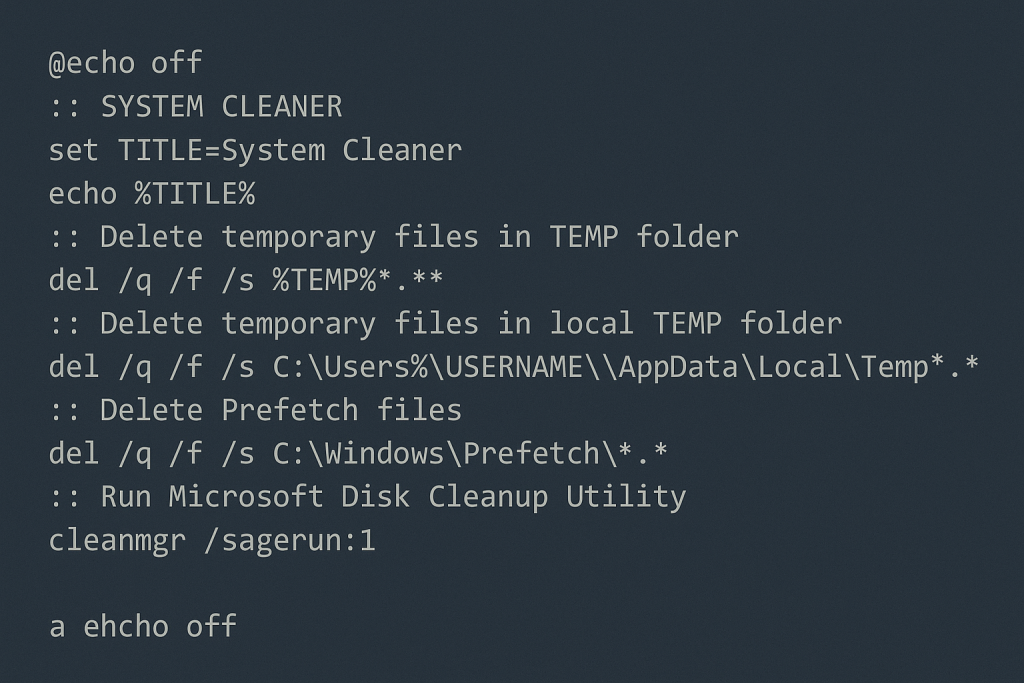
Copy the following code into a text file and save it with a .bat extension (e.g., Clean Windows.bat). Then, right-click and run as Administrator.
@echo off
cls
echo Cleaning temporary and cache files...

:: System Temp
del /s /f /q "%windir%Temp*.*" >nul 2>&1
rd /s /q "%windir%Temp" >nul 2>&1
md "%windir%Temp"

:: Prefetch
del /s /f /q "%windir%Prefetch*.*" >nul 2>&1
rd /s /q "%windir%Prefetch" >nul 2>&1
md "%windir%Prefetch"

:: Recycle Bin
del /s /f /q "%SystemDrive%$Recycle.bin*.*" >nul 2>&1
rd /s /q "%SystemDrive%$Recycle.bin" >nul 2>&1
md "%SystemDrive%$Recycle.bin"

:: User Temp
del /s /f /q "%temp%*.*" >nul 2>&1
rd /s /q "%temp%" >nul 2>&1
md "%temp%"

:: Recent Files
del /s /f /q "%APPDATA%MicrosoftWindowsRecent*.*" >nul 2>&1
rd /s /q "%APPDATA%MicrosoftWindowsRecent" >nul 2>&1
md "%APPDATA%MicrosoftWindowsRecent"

:: Automatic Destinations
del /s /f /q "%APPDATA%MicrosoftWindowsRecentAutomaticDestinations*.*" >nul 2>&1
rd /s /q "%APPDATA%MicrosoftWindowsRecentAutomaticDestinations" >nul 2>&1
md "%APPDATA%MicrosoftWindowsRecentAutomaticDestinations"

:: Custom Destinations
del /s /f /q "%APPDATA%MicrosoftWindowsRecentCustomDestinations*.*" >nul 2>&1
rd /s /q "%APPDATA%MicrosoftWindowsRecentCustomDestinations" >nul 2>&1
md "%APPDATA%MicrosoftWindowsRecentCustomDestinations"

:: Restart Explorer
taskkill /f /im explorer.exe >nul 2>&1
start explorer.exe

echo Cleanup complete.
pause
⚠️ Important Notes
- Always run the script as Administrator.
- Backup important data before using.
- Avoid using while critical tasks are running.
This script is great for periodic maintenance to keep your system running smoother and free up disk space.
📩 Do you have questions or suggestions? Leave a comment or contact us!
🏷️ Tags: windows cleanup, batch file, delete temp files, free up disk space, speed up pc, windows maintenance, recycle bin cleaner, cache cleaner, system script, tech tips
See also: Adults Fight Over a Child
