

⏲️ Estimated reading time: 5 min
Table of Contents
🌍 World Clock for All Continents
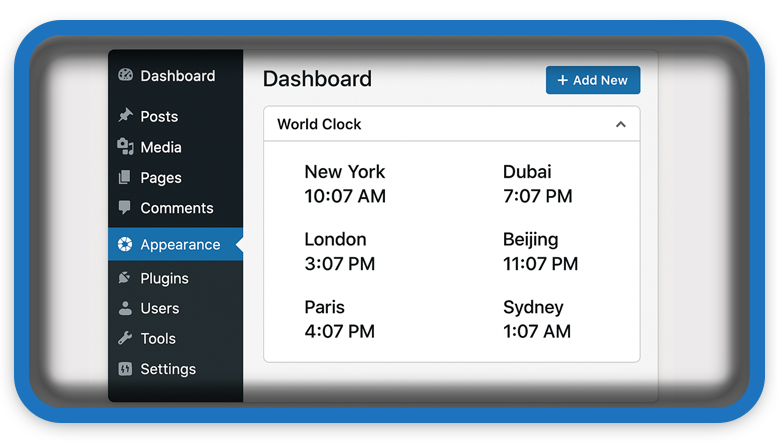
📝 Add a stylish, real-time world clock widget to your WordPress dashboard! This plugin displays current times for major cities across every continent. It’s a great way to stay globally aware while managing your website from any location.
You may also be interested in: Foods That Naturally Cleanse Your Organs
🌐 Add a World Clock Dashboard Widget in WordPress for All Continents
Managing a website with a global audience? Or simply want to keep an eye on the time in other major cities while working? This custom WordPress dashboard widget plugin lets you add real-time clocks for 7 important cities across all continents, right in your WordPress admin panel.
This tutorial walks you through the code, functionality, and how to install and activate your plugin manually. The widget includes time zones from Tokyo to New York to Antarctica’s McMurdo Station!
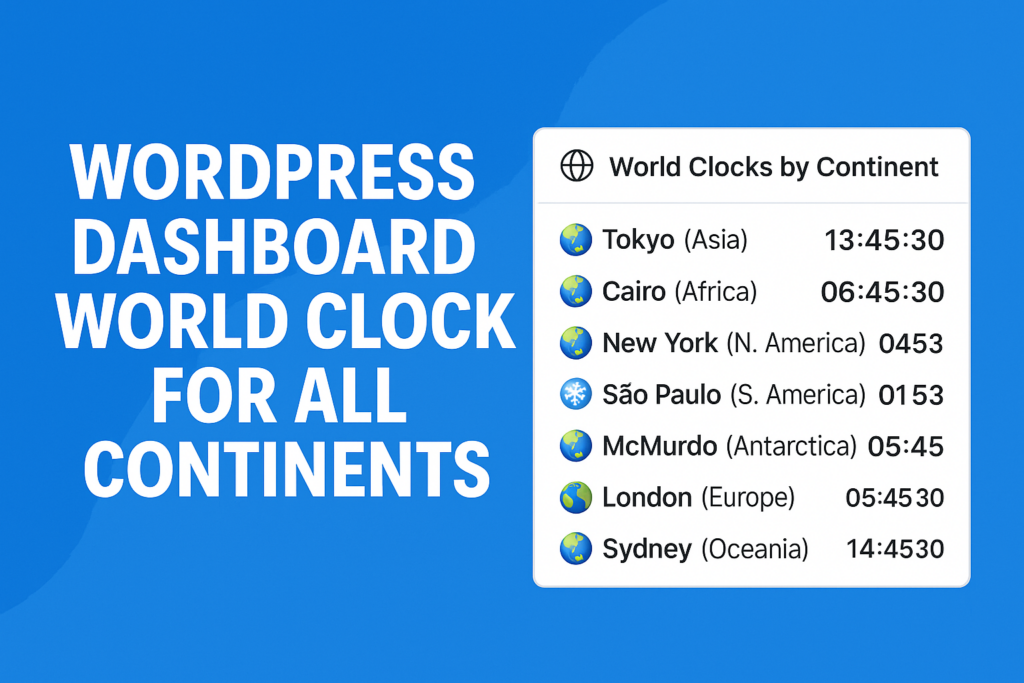
🛠️ Plugin Features
- Realtime display of digital clocks (updated every second)
- Covers all 7 continents with representative cities:
- Asia: Tokyo
- Africa: Cairo
- North America: New York City
- South America: São Paulo
- Antarctica: McMurdo Station
- Europe: London
- Australia/Oceania: Sydney
- Clean design with grid layout and modern styling
- 100% native with no external APIs needed
📥 Plugin Code (world-clock-dashboard-widget.php)
You can paste the code below into a new file in your WordPress wp-content/plugins directory:
<?php
/**
 * Plugin Name: World Clock Dashboard – 2 Column Layout with New York Header
 * Description: Displays global city clocks in a styled 2-column dashboard widget, with New York at the top.
 * Version: 1.2
 * Author: HelpZone
 */

add_action('wp_dashboard_setup', 'hz_add_2col_world_clock_widget');

function hz_add_2col_world_clock_widget() {
    wp_add_dashboard_widget(
        'hz_2col_world_clock',
        'World Clock Dashboard',
        'hz_render_2col_world_clock_widget'
    );
}

function hz_render_2col_world_clock_widget() {
    ?>
    <style>
        .hz-header-clock {
            text-align: center;
            background: #f0f0f0;
            padding: 12px;
            border-radius: 6px;
            margin-bottom: 15px;
            box-shadow: 0 1px 3px rgba(0,0,0,0.05);
        }
        .hz-header-clock .hz-city {
            font-size: 18px;
            font-weight: bold;
        }
        .hz-header-clock .hz-time {
            font-size: 26px;
            font-weight: bold;
        }
        .hz-header-clock .hz-date {
            font-size: 13px;
            color: #666;
        }

        .hz-clock-grid {
            display: grid;
            grid-template-columns: repeat(2, 1fr);
            gap: 14px;
        }

        .hz-clock-cell {
            background: #fafafa;
            padding: 10px;
            border-radius: 8px;
            text-align: center;
            box-shadow: 0 1px 2px rgba(0,0,0,0.04);
        }

        .hz-clock-cell .hz-city {
            font-weight: bold;
            font-size: 15px;
        }

        .hz-clock-cell .hz-time {
            font-size: 20px;
            font-weight: bold;
        }

        .hz-clock-cell .hz-date {
            font-size: 12px;
            color: #777;
        }
    </style>

    <div class="hz-header-clock">
        <div class="hz-city">New York</div>
        <div class="hz-time" id="clock-ny"></div>
        <div class="hz-date" id="date-ny"></div>
    </div>

    <div class="hz-clock-grid" id="hz-clock-grid">
        <!-- JS will insert other cities here -->
    </div>

    <script>
        const mainCity = { id: 'ny', tz: 'America/New_York' };
        const cities = [
            { id: 'tokyo', name: 'Tokyo', tz: 'Asia/Tokyo' },
            { id: 'cairo', name: 'Cairo', tz: 'Africa/Cairo' },
            { id: 'london', name: 'London', tz: 'Europe/London' },
            { id: 'sydney', name: 'Sydney', tz: 'Australia/Sydney' },
            { id: 'saopaulo', name: 'São Paulo', tz: 'America/Sao_Paulo' },
            { id: 'mcmurdo', name: 'McMurdo', tz: 'Antarctica/McMurdo' },
            { id: 'paris', name: 'Paris', tz: 'Europe/Paris' },
            { id: 'beijing', name: 'Beijing', tz: 'Asia/Shanghai' }
        ];

        function renderClocks() {
            const now = new Date();

            // Update New York (Header)
            const timeNY = new Intl.DateTimeFormat('en-US', {
                hour: 'numeric', minute: 'numeric', second: 'numeric',
                hour12: true, timeZone: mainCity.tz
            }).format(now);
            const dateNY = new Intl.DateTimeFormat('en-US', {
                weekday: 'short', year: 'numeric', month: 'short',
                day: 'numeric', timeZone: mainCity.tz
            }).format(now);

            document.getElementById(`clock-${mainCity.id}`).textContent = timeNY;
            document.getElementById(`date-${mainCity.id}`).textContent = dateNY;

            // Update Other Cities
            const container = document.getElementById('hz-clock-grid');
            container.innerHTML = '';

            cities.forEach(city => {
                const time = new Intl.DateTimeFormat('en-US', {
                    hour: 'numeric', minute: 'numeric', second: 'numeric',
                    hour12: true, timeZone: city.tz
                }).format(now);
                const date = new Intl.DateTimeFormat('en-US', {
                    weekday: 'short', year: 'numeric', month: 'short',
                    day: 'numeric', timeZone: city.tz
                }).format(now);

                container.innerHTML += `
                    <div class="hz-clock-cell">
                        <div class="hz-city">${city.name}</div>
                        <div class="hz-time">${time}</div>
                        <div class="hz-date">${date}</div>
                    </div>`;
            });
        }

        renderClocks();
        setInterval(renderClocks, 1000);
    </script>
    <?php
}
🚀 How to Use It
- Copy the code above into a new file named:
world-clock-dashboard-widget.php - Upload the file to your WordPress site under
wp-content/plugins/ - Log in to your WordPress admin panel
- Go to Plugins → Activate the plugin
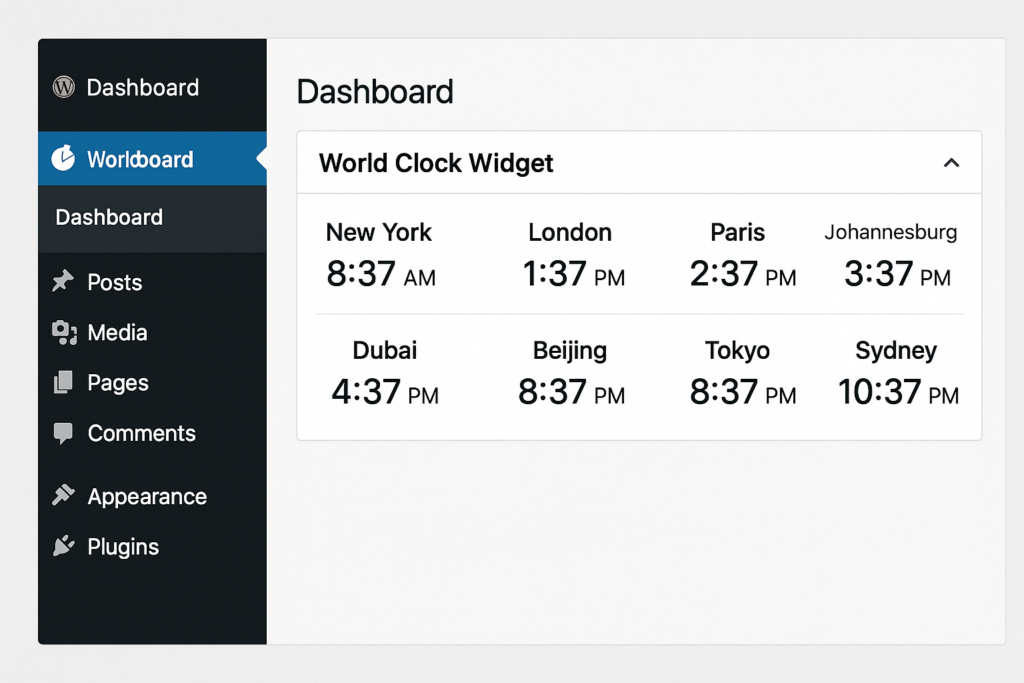
- You will now see the 🌐 World Clocks by Continent widget on your Dashboard
💡 Tips
- You can customize the time offsets if daylight saving time (DST) affects your region.
- You may add more cities by copying another
.hz-city-clockblock and adjusting itsoffset. - Add this plugin to your own child theme or core dashboard utility suite for consistent UI.
🔔For more tutorials like this, consider subscribing to our blog.
📩 Do you have questions or suggestions? Leave a comment or contact us!
🏷️ Tags: world clock, dashboard widget, wordpress plugin, timezones, admin widget, custom plugin, world time, web admin tools, wordpress tips, backend tools
📢 Hashtags: #WordPress, #DashboardWidget, #WorldClock, #WebDev, #TimeZones, #PHPPlugin, #AdminTools, #WPPlugin, #OpenSource, #HelpZone
🧭 Global Time Tracker for WordPress Admins
Having a quick glance at world clocks right inside your dashboard saves you time and supports remote teamwork. This widget is especially handy for global businesses, developers, or bloggers working with collaborators in different regions. Keep the world at your fingertips literally!
