


⏲️ Estimated reading time: 5 min
Table of Contents
This all-in-one batch script called “System Cleaner” helps Windows users perform essential maintenance tasks like cleaning temp files, deleting cookies, organizing files, and retrieving system info straight from the command line.
🧹 System Cleaner: The Ultimate Windows Maintenance Batch Script
If you’re looking for a simple yet powerful way to clean and optimize your Windows system, the System Cleaner batch file by Cz3 is a perfect solution. It offers an interactive menu with multiple system utilities accessible from one script.
🛠️ Key Features of the Script
- [0] Empty Recycle Bin
Securely delete all contents in the Recycle Bin. - [1] Delete Temporary Files
Remove internet and system drive temp files. - [2] Delete Prefetch Files
Clean up old prefetch files to boost performance. - [3] Delete Cookies
Remove user profile cookie data. - [4] Delete Local History
Clear history stored under local settings. - [5–7] Recent Items Cleanup
Deletes automatic, custom, and general “Recent” destinations. - [8] Disk Check
Useschkdskandsfc /scannowfor system integrity checks. - [9] Create File Organizer
Instantly create a desktop folder with pre-made scripts to sort media files. - [10] Reveal Windows Product Key
Use WMIC to retrieve your original Windows license key. - [11] List Installed Programs
Outputs a list of all programs installed on the system. - [12] About-me
Generates a local HTML file introducing the developer. - [13] Exit
Animated, speech-enabled exit sequence.
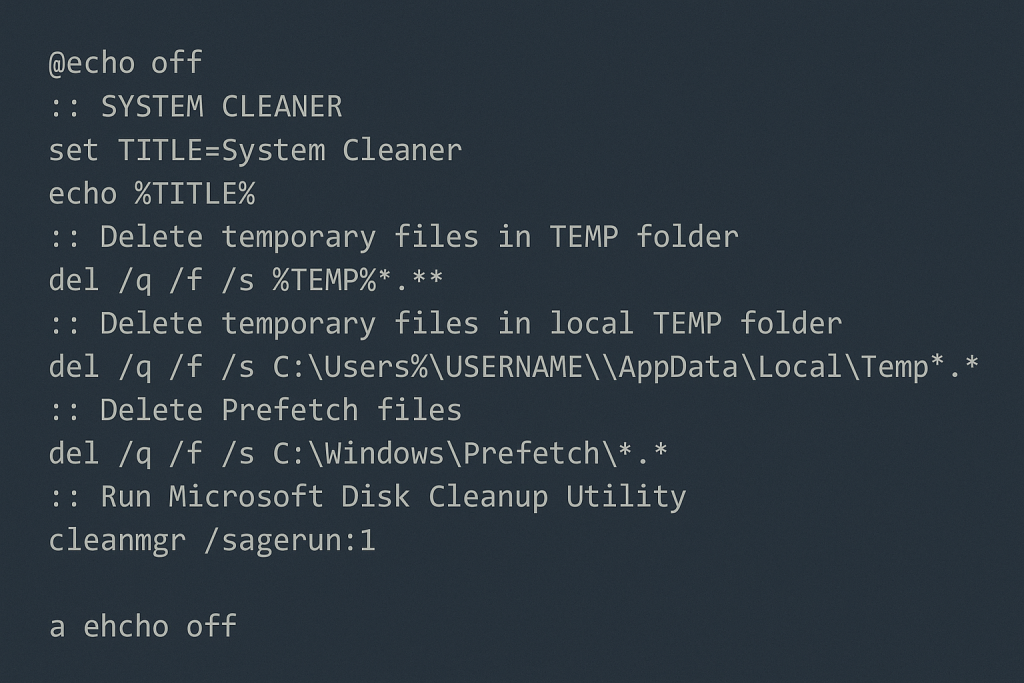
💾 Batch Script Code
@echo off
title System Cleaner (By : Cz3)
:menu
cls
echo ----------------
echo  System Cleaner
echo ----------------
echo.
echo Select a Tool menu number and press Enter
echo ==========================================
echo.
echo [0] Empty Recycle Bin
echo [1] Delete Temporary Files [SystemDrive] [Internet]
echo [2] Delete Prefetch Files
echo [3] Delete User Profile Cookies
echo [4] Delete Local Settings History
echo [5] Delete Recent Automatic Destinations
echo [6] Delete Recent Custom Destinations
echo [7] Delete Recent
echo [8] Check Disk for Errors
echo [9] Create File Organizer
echo [10] Windows Product Key
echo [11] List Installed Programs
echo [12] About-me
echo [13] Exit
echo.
set /p op=Run:
if %op%==0 goto 0
if %op%==1 goto 1
if %op%==2 goto 2
if %op%==3 goto 3
if %op%==4 goto 4
if %op%==5 goto 5
if %op%==6 goto 6
if %op%==7 goto 7
if %op%==8 goto 8
if %op%==9 goto 9
if %op%==10 goto 10
if %op%==11 goto 11
if %op%==12 goto 12
if %op%==13 goto 13
goto menu

:0
echo Emptying Recycle Bin...
set Drive=C:
if exist %Drive%$RECYCLE.BIN (
    pushd %Drive%$RECYCLE.BIN
    del /s /q .
    popd
)
echo Done.
pause
goto menu

:1
echo Deleting Temp Files...
del /s /f /q "%windir%temp*.*"
rd /s /q "%windir%temp"
md "%windir%temp"
del /s /f /q "%SystemDrive%Temp*.*"
rd /s /q "%SystemDrive%Temp"
md "%SystemDrive%Temp"
echo Done.
pause
goto menu

:2
echo Deleting Prefetch Files...
del /s /f /q "%windir%Prefetch*.*"
rd /s /q "%windir%Prefetch"
md "%windir%Prefetch"
echo Done.
pause
goto menu

:3
echo Deleting Cookies...
del /s /f /q "%USERPROFILE%Cookies*.*"
rd /s /q "%USERPROFILE%Cookies"
md "%USERPROFILE%Cookies"
echo Done.
pause
goto menu

:4
echo Deleting Local History...
del /s /f /q "%USERPROFILE%Local SettingsHistory*.*"
rd /s /q "%USERPROFILE%Local SettingsHistory"
md "%USERPROFILE%Local SettingsHistory"
echo Done.
pause
goto menu

:5
echo Deleting Automatic Destinations...
del /s /f /q "%APPDATA%MicrosoftWindowsRecentAutomaticDestinations*.*"
rd /s /q "%APPDATA%MicrosoftWindowsRecentAutomaticDestinations"
md "%APPDATA%MicrosoftWindowsRecentAutomaticDestinations"
pause
goto menu

:6
echo Deleting Custom Destinations...
del /s /f /q "%APPDATA%MicrosoftWindowsRecentCustomDestinations*.*"
rd /s /q "%APPDATA%MicrosoftWindowsRecentCustomDestinations"
md "%APPDATA%MicrosoftWindowsRecentCustomDestinations"
pause
goto menu

:7
echo Deleting All Recent Files...
del /s /f /q "%APPDATA%MicrosoftWindowsRecent*.*"
rd /s /q "%APPDATA%MicrosoftWindowsRecent"
md "%APPDATA%MicrosoftWindowsRecent"
pause
goto menu

:8
echo Running SFC scan...
sfc /scannow
pause
goto menu

:9
echo Creating FileOrganizer on Desktop...
mkdir "%USERPROFILE%DesktopFileOrganizer"
echo move *.png %USERPROFILE%PicturesPng > "%USERPROFILE%DesktopFileOrganizerFileOrganizerPng.bat"
echo move *.gif %USERPROFILE%PicturesGIFs > "%USERPROFILE%DesktopFileOrganizerFileOrganizerGif.bat"
echo move *.mp3 %USERPROFILE%Music > "%USERPROFILE%DesktopFileOrganizerFileOrganizerMp3.bat"
echo move *.mp4 %USERPROFILE%Videos > "%USERPROFILE%DesktopFileOrganizerFileOrganizerMp4.bat"
pause
goto menu

:10
echo Retrieving Windows Product Key...
wmic path softwarelicensingservice get OA3xOriginalProductKey
pause
goto menu

:11
echo Listing Installed Programs...
wmic product get name
pause
goto menu

:12
echo Creating 'About-me' folder...
mkdir About-me
echo <html><head><title>Help Zone</title></head><body><h1>About HZ</h1><p>Freelance Interactive Developer</p></body></html> > About-mereadme.html
pause
goto menu

:13
echo Goodbye!
timeout 2
exit
🧾 How to Use System Cleaner
- Open Notepad and paste the full code.
- Save as
SystemCleaner.bat. - Right-click the file and select Run as Administrator.
- Use the numeric menu to select your tool.
🎙️ Voice Prompts Included
This script leverages VBScript (SAPI.spVoice) to audibly narrate actions like “Emptying Recycle Bin” or “Goodbye,” giving it a unique interactive feel.
Read also: Kenshin Himura The Samurai Legend
🔐 Safe and Transparent
The batch script uses only native Windows commands no third-party tools. It’s a great resource for learning basic scripting or maintaining older systems.
📩 Do you have questions or suggestions? Leave a comment or contact us!
🏷️ Tags: Windows, batch script, system cleaner, temp files, disk cleanup, CMD tools, optimize PC, developer tools, VBScript, productivity
