

⏲️ Estimated reading time: 5 min
Table of Contents
🧾 Google AdSense Dashboard Explained for Beginners: Understanding Your Earnings and Tools. New to Google AdSense? This beginner-friendly guide explains every section of your AdSense dashboard earnings, balance, announcements, ads, sites, reports, and more. Start making sense of your revenue today!
🧾 Google AdSense Dashboard Explained for Beginners
Google AdSense is one of the most popular ways to monetize a website or YouTube channel. Once you’re approved and ads are running, it’s essential to understand how to read your AdSense dashboard.
In this post, we’ll go through each section visible on your dashboard and explain what it means perfect for beginners just starting out.
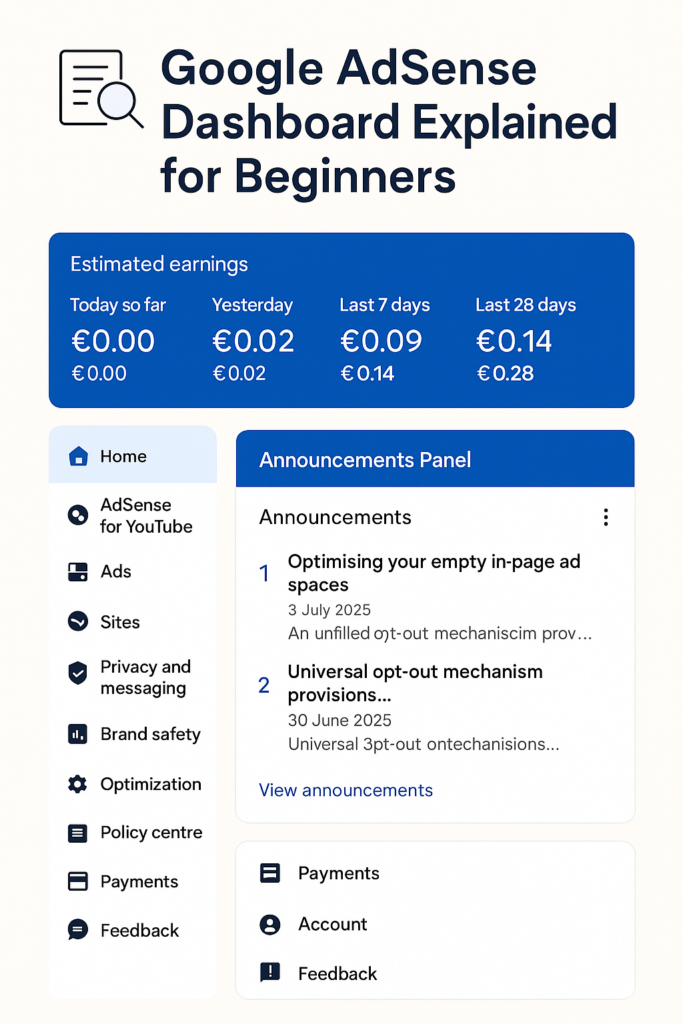
📊 Estimated Earnings (Blue Cards at the Top)
These are the core metrics that tell you how much money you’re earning:
- Today so far (€0.00):
This shows your earnings so far for the current day. It resets every 24 hours and updates in near real-time. - Yesterday (€0.02):
Displays the total earnings for the previous day. The small arrow and percentage (+100%) show how it compares to the same day last week. - Last 7 Days (€0.09):
Total amount earned over the last 7 days. The comparison indicates whether your performance is improving. - This Month (€0.14):
Cumulative earnings for the current calendar month, compared to the same period last year. - Last 28 Days (€0.28):
Total for the past 28 days, with a percentage showing whether you’re up or down compared to the previous 28-day period. - Balance (€1.45):
This is the money in your AdSense account that hasn’t yet been paid out. Once you hit the payment threshold (usually €70 or $100), you’ll be paid.
📢 Announcements Panel
This section gives you updates directly from Google about policy changes, feature releases, or suggestions for optimizing your earnings.
In your case:
- “Optimising your empty in-page ad spaces”
This alert helps you understand how to fix ad units that aren’t displaying due to lack of suitable ads. - “Universal opt-out mechanism provisions”
Related to privacy policies and user data preferences in the US and other regions. Important for compliance!
📂 Left Menu Navigation Explained
Each item in the sidebar helps you manage a different part of your AdSense account:
🏠 Home
This is your main dashboard (the screen you’re seeing). It gives you an overview of earnings and announcements.
📺 AdSense for YouTube
If your YouTube channel is monetized, you’ll see its stats and manage settings here. (Note: this only appears if your channel is linked.)
📦 Ads
This section lets you manage and customize the ad formats shown on your site or YouTube channel, including Auto Ads and ad styles.
🌐 Sites
Here you can add and verify new websites to show ads on. Each site must be reviewed and approved by AdSense.
🔐 Privacy and Messaging
Manage your privacy compliance settings like GDPR messages for European visitors and configure cookie consent banners.
🛡️ Brand Safety
Block certain ad categories or specific URLs if you don’t want certain ads appearing on your site.
See also: The Day We Lost Kurt Cobain
📈 Reports
A powerful analytics section. It lets you generate custom reports for earnings, impressions, click-through rates, and more.
🛠️ Optimisation
Google provides recommendations to improve ad performance, such as placing more units or changing formats.
⚖️ Policy Centre
If any of your sites violate AdSense policies, this section will inform you and guide you to fix issues.
💳 Payments
Track your earnings, see payment history, and manage your bank account details for payouts.
👤 Account
General settings related to your user profile, verification, and login information.
💬 Feedback
Use this option to send suggestions or report problems to the AdSense team.
🛠️ Tips for Beginners Using AdSense
- Don’t worry if your earnings are low at the start. Growth comes with traffic.
- Make sure your site complies with AdSense policies to avoid getting suspended.
- Use Auto Ads if you’re not confident with manual placement.
- Check the Optimization tab regularly for tips tailored to your website.
- Focus on increasing traffic and improving content quality this boosts your click-through rate (CTR) and cost per click (CPC).
🔁 What Happens When You Reach the Payment Threshold?
Once your balance reaches the threshold (usually €70 or equivalent), Google will issue a payment around the 21st of the following month, assuming your account is verified and payment details are correct.
🧩 Common Questions from Beginners
1. Why is my “Today” earnings still at €0.00?
If you don’t have a lot of visitors or ad clicks yet, it can take time to build up. It usually updates hourly.
2. Why do some days have no earnings at all?
This can happen if no ads were shown or clicked on that day.
3. Is YouTube revenue included in the same dashboard?
Yes, if your YouTube account is linked, it will show in the AdSense for YouTube section.
🟦 Final Thoughts
The AdSense dashboard may look overwhelming at first, but once you understand each section, it becomes a powerful tool to help you track, improve, and grow your earnings.
If you’re consistent in publishing quality content, driving traffic, and following Google’s best practices, the numbers on this dashboard will grow steadily over time.
🔔For more tutorials like this, consider subscribing to our blog.
📩 Do you have questions or suggestions? Leave a comment or contact us!
🏷️ Tags: Google AdSense, AdSense tutorial, website monetization, earnings dashboard, YouTube ads, SEO, beginners guide, ad revenue, blog income, Google tools
📢 Hashtags: #GoogleAdSense, #AdSenseGuide, #BlogMonetization, #AdRevenue, #WebsiteIncome, #YouTubeAds, #DigitalEarnings, #OnlineMonetization, #SEOforBeginners, #GoogleTools
🔍 Understanding the AdSense Dashboard: A Beginner’s Summary
In short, your AdSense dashboard is the heart of your ad earnings strategy. From seeing daily earnings to checking compliance issues, every panel offers insights that help you grow. Keep checking, learning, and tweaking!
