


⏲️ Estimated reading time: 5 min
Table of Contents
Introduction to Whisper AI
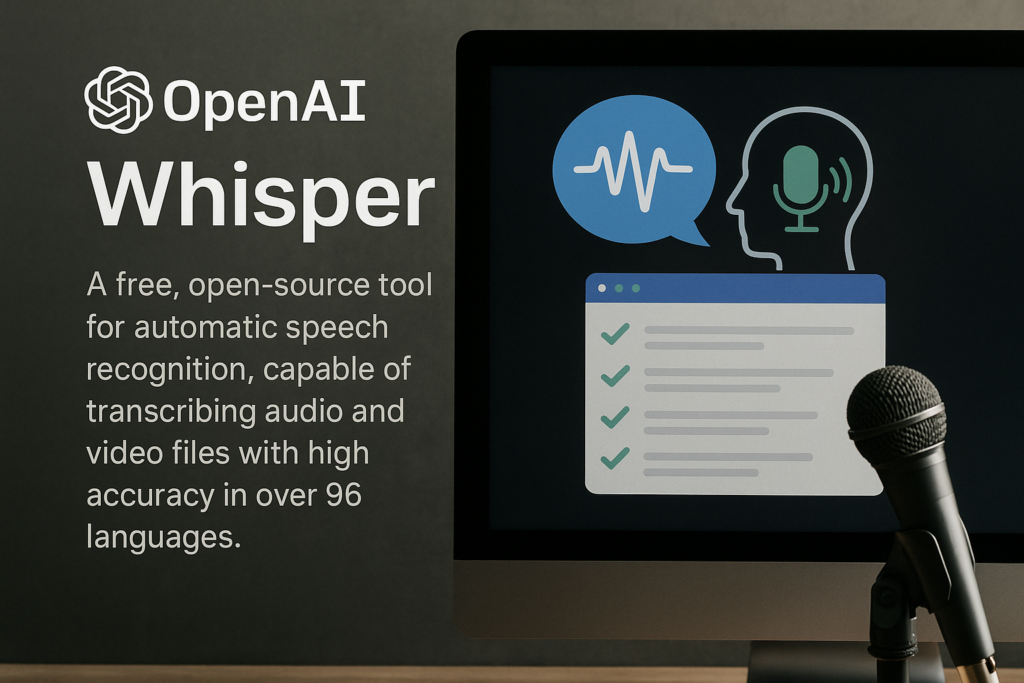
OpenAI’s Whisper AI is a free, open-source tool for automatic speech recognition, capable of transcribing audio and video files with high accuracy in over 96 languages. It supports formats like WAV, MP3, and MP4, and can even translate audio into English. This guide will show you how to install Whisper AI on your Windows PC and use it to transcribe audio files.
Prerequisites
To install Whisper AI, you’ll need to set up the following five components:
- Python: The programming language Whisper AI runs on.
- PyTorch: A machine learning library.
- Chocolaty: A package manager for Windows (or Homebrew for Mac).
- FFMPEG: A tool for handling audio and video files.
- Whisper AI: The main transcription tool.
Let’s go through each step in detail.
Step 1: Install Python
- Visit the Python downloads page.
- Choose Python version 3.7 to 3.10 (Whisper AI is not compatible with 3.11). For this guide, we’ll use version 3.10.10.
- Select the Windows installer (64-bit) for Windows users.
- Download and run the .exe file from your downloads folder.
- Important: Check the box labeled Add python.exe to PATH during installation. This allows you to run Python from the command prompt.
- Click Install Now and follow the prompts to complete the installation.
- Verify the installation:
- Open the Command Prompt (search for
cmdin the Windows taskbar). - Type
python -Vand press Enter. You should seePython 3.10.10(or your installed version).
- Open the Command Prompt (search for
Step 2: Install PyTorch
PyTorch is a machine learning library required for Whisper AI.
- Go to the PyTorch website.
- Scroll to the Start Locally section.
- Configure the following:
- Build: Select the stable version.
- Operating System: Choose Windows (or Linux/Mac as needed).
- Package: Select
Pip. - Language: Choose Python.
- Compute Platform: Select
CUDA 11.8if you have an NVIDIA GPU, orCPUfor non-GPU systems (note: CPU is slower).
- Copy the provided installation command (e.g.,
pip install torch torchvision torchaudio --index-url https://download.pytorch.org/whl/cu118). - Open Command Prompt, paste the command, and press Enter to install PyTorch.
Step 3: Install Chocolaty (Windows Package Manager)
Chocolaty simplifies package installations on Windows. Mac users should install Homebrew instead.
- Visit the Chocolaty installation page.
- Select the Individual installation option.
- Copy the installation command from the provided text box.
- Open PowerShell as an administrator:
- Search for
PowerShellin the Windows taskbar. - Right-click and select Run as administrator.
- Search for
- Paste the command and press Enter to install Chocolaty.
Step 4: Install FFMPEG
FFMPEG handles audio and video file processing for Whisper AI.
Read also: Nobody Seeks You Unless You’re Useful? The Truth
- In the same PowerShell window (running as administrator), type:
choco install ffmpeg. - Press Enter and confirm any prompts (e.g., select
Yes). - FFMPEG will install and be ready for use.
Step 5: Install Whisper AI
- Open Command Prompt as an administrator:
- Search for
cmdin the Windows taskbar. - Right-click and select Run as administrator.
- Search for
- Type:
pip install -U openai-whisperand press Enter. The-Uflag ensures you get the latest version. - Wait for the installation to complete.
Congratulations! You’ve installed all the prerequisites for Whisper AI.
Using Whisper AI
Now that everything is installed, let’s transcribe some audio files.
- Navigate to the folder containing your audio files (e.g., WAV, MP3, or MP4) using File Explorer.
- Click in the address bar, type
cmd, and press Enter to open Command Prompt in that directory. - Run Whisper AI with:
whisper "filename.wav"(use quotes if the filename contains spaces). - Press Enter to transcribe. By default, Whisper uses the
smallmodel and auto-detects the language.
Whisper will generate multiple output files (e.g., TXT, JSON, SRT) containing the transcribed text, some with timestamps for captions.
Advanced Options
- Using Different Models: Whisper offers five models (tiny, base, small, medium, large). Larger models provide better quality but require more processing power and time. Example:
whisper filename.wav --model medium. - Specifying Language: To skip auto-detection, specify the language:
whisper filename.wav --language German. - Translating to English: Translate non-English audio to English:
whisper filename.wav --task translate(only English translation is supported). - Viewing All Options: Run
whisper --helpto see all available arguments, such as output directory settings.
Supported Languages
Whisper AI supports over 96 languages. For a full list, check the official Whisper documentation. Languages with lower ID numbers typically yield higher transcription quality.
Tips for Best Results
- Always review the transcribed text against the audio for accuracy, as minor tweaks may be needed.
- Use a GPU (e.g., NVIDIA with CUDA 11.8) for faster processing.
- For batch processing, list multiple files:
whisper file1.wav file2.wav.
Uninstalling Whisper AI
If you no longer need Whisper AI, you can uninstall the components:
- Whisper AI: Run
pip uninstall openai-whisper. - FFMPEG: Run
choco uninstall ffmpegin PowerShell (admin mode). - Chocolaty: Follow the Chocolaty uninstallation guide.
- PyTorch: Run
pip uninstall torch torchvision torchaudio. - Python: Uninstall via the Windows Control Panel under Programs and Features.
Conclusion
Installing Whisper AI on your PC is a straightforward process when broken into clear steps. Once set up, it offers powerful transcription capabilities with wide language support and versatile output formats. Whether for professional or personal use, Whisper AI is an invaluable tool in the age of digital audio. By following this guide, you should now have Whisper AI up and running on your PC. Have you successfully transcribed audio with Whisper? Let us know in the comments below!
🔔 For more tutorials like this, consider subscribing to our blog. Happy transcribing!
📩 Do you have questions or suggestions? Leave a comment or contact us!
🏷️ Tags: whisper ai, whisper installation, openai, speech to text, transcription software, how to transcribe, install whisper windows, whisper tutorial, ffmpeg, pytorch
📢 Hashtags: #WhisperAI #OpenAI #SpeechToText #TranscriptionTool #PythonInstall #FFMPEG #PyTorch #AItools #WhisperTutorial #HowToTranscribe

I worked through this exact setup a while back and the GPU tip is the one that matters most — on CPU even a ten-minute audio file takes ages. I also ended up scripting the batch processing with a for-loop instead of listing files one by one, which saved me a lot of typing. For anyone on the fence about whether local Whisper is worth the effort versus an online service, the accuracy difference is worth testing on your own audio first.