

⏲️ Estimated reading time: 32 min
Table of Contents
Learn how to clear Quick Access history in Windows 11 and Windows 10, remove recent files and frequent folders, manage pinned locations, and disable File Explorer history. This step-by-step guide also explains advanced cleanup methods and important privacy differences without deleting your actual files.
Read also: Stop Burning Yourself to Keep Others Warm
Quick Access can save a surprising amount of time when you use File Explorer every day. Windows watches the locations and files you use regularly, then places useful shortcuts where you can reach them quickly. That convenience is helpful on a personal computer, but it can become a privacy concern when other people use the same Windows account or occasionally look over your computer.
The good news is that you have much more control over Quick Access than it first appears. You can clear recent File Explorer history, hide recently used files, stop frequent folders from appearing, remove individual entries, unpin folders, or reset troublesome Quick Access data. Most of these actions do not delete your actual documents, photos, videos, downloads, or folders.
This guide explains how to clear Quick Access history in Windows safely. It covers both Windows 11 and Windows 10, including the newer File Explorer Home interface found in current Windows 11 releases.
What Is Quick Access in Windows?
Quick Access is part of Windows File Explorer and is designed to reduce the time you spend navigating through folders. Instead of manually opening the same locations repeatedly, Windows can provide shortcuts to frequently used folders and recently accessed files. You can also pin important folders manually so they remain easy to reach.
The terminology can be slightly confusing because Microsoft has changed parts of File Explorer over time. On modern Windows 11 versions, File Explorer normally opens to Home, while Quick Access remains closely connected to the pinned folders and navigation experience. Older Windows 10 systems make the Quick Access name much more prominent.
Despite these interface differences, the basic idea remains the same. Windows tries to place useful files and folders within easy reach. However, automatic recommendations can also reveal what you recently worked on, which makes understanding the privacy controls worthwhile.
Recent Files, Frequent Folders, and Pinned Folders Are Different
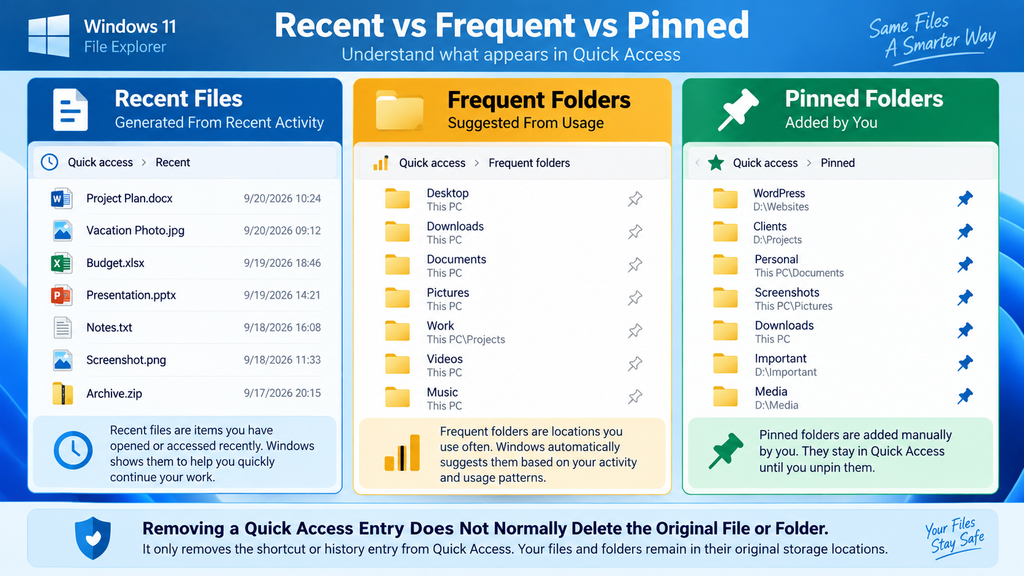
Before clearing anything, it helps to understand that File Explorer can display several different types of shortcuts. A recent file is typically a document or other file that Windows has identified as recently accessed. Frequent folders are locations that Windows determines you use regularly. Pinned folders, by contrast, are locations deliberately kept in Quick Access.
These categories should not be treated as identical. Clearing File Explorer history may remove dynamically generated recent or frequent entries, but manually pinned locations can remain. Likewise, removing one recent file from Quick Access does not mean the original file has been erased from its storage location.
That distinction is especially important for privacy. Clearing a shortcut list can make File Explorer look clean, but it does not securely erase the original data. If the original document still exists in Documents, Downloads, OneDrive, another drive, or another folder, it remains accessible through that location.
Why Quick Access Can Be Useful
For everyday Windows work, Quick Access can be extremely convenient. Imagine that you regularly use a Downloads folder, a WordPress project directory, a folder containing photographs, and another directory containing invoices. Pinning those locations can save several clicks every time you open File Explorer.
Recent files provide a similar benefit. If you worked on a document yesterday, Windows may make it available immediately without forcing you to remember its exact location. This becomes especially useful when your computer contains several drives or deeply nested folder structures.
Convenience, however, comes with a trade-off. The easier it is for you to see recently accessed material, the easier it may be for another person using your Windows session to see it too. Fortunately, Windows provides several ways to control that behavior.

Why Clear Quick Access History?
Privacy is probably the most common reason for clearing Quick Access. You may have recently opened personal photographs, financial documents, work files, client information, private PDFs, or other material that you do not want prominently displayed when somebody opens File Explorer.
Another reason is organization. Over time, File Explorer may begin displaying locations that are no longer useful. Perhaps you finished a project, moved a folder, disconnected an external drive, or reorganized your files. Old shortcuts can then become clutter rather than a productivity feature.
Quick Access cleanup can also be useful during troubleshooting. If File Explorer shows outdated entries, incorrect locations, or shortcuts that no longer work properly, clearing the history gives Windows an opportunity to rebuild its automatic lists as you continue using the computer.
Clearing History Does Not Normally Delete Your Files
This is the most important point in this entire tutorial. When you clear File Explorer history or remove an item from Quick Access, you are generally removing the history entry or shortcut, not deleting the actual file from its storage location.
For example, suppose Budget.xlsx exists in your Documents folder and appears under Recent. Removing that entry from Quick Access does not mean Budget.xlsx disappears from Documents. You can still navigate to its original folder and open it normally.
The same principle applies to frequent folders. Removing a folder from the Quick Access interface does not normally delete the folder or the files stored inside it. Always pay attention to the command you select, however. Delete and Remove from Quick access are very different actions.
When Clearing Quick Access Improves Privacy
Clearing Quick Access is useful when your main concern is preventing recent activity from being immediately visible in File Explorer. It is particularly practical before sharing your screen, allowing someone to temporarily use your Windows account, recording a tutorial, or taking screenshots.
However, Quick Access cleanup should not be mistaken for secure data destruction. Windows and individual applications can maintain other forms of history. Microsoft 365 applications, browsers, media players, search features, cloud services, and other software can have their own recent-item lists.
Therefore, think of this tutorial as a method for controlling File Explorer history and visibility. It is not a complete forensic privacy or secure-erasure procedure.
How to Open File Explorer Quickly
The fastest way to open File Explorer is to press Windows key + E. This keyboard shortcut works on both Windows 11 and Windows 10 and is useful enough to remember even if you normally use the taskbar.
You can also click the File Explorer folder icon on the taskbar if it is pinned there. Another option is to open Start, type File Explorer, and select the application from the search results.
Once File Explorer opens, the appearance depends on your Windows version and configuration. Modern Windows 11 versions generally use Home as the default starting location, while Windows 10 users may see Quick Access more directly.
Finding File Explorer Options in Windows 11
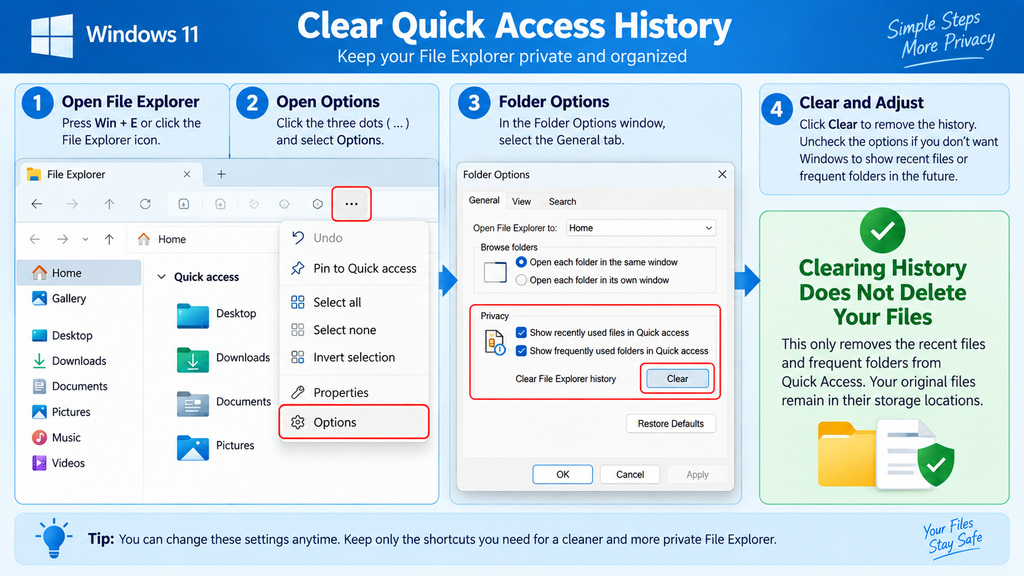
Windows 11 uses a simplified File Explorer toolbar. Open File Explorer, locate the three-dot menu (…) near the top of the window, and select Options.
A window called Folder Options should appear. Make sure the General tab is selected. Near the bottom of this window, look for the privacy-related controls.
Depending on your exact Windows version and configuration, the wording can vary slightly. The important controls concern recently used files, frequently used folders, File Explorer history, and, on newer configurations, additional account-based or recommended content.
Finding File Explorer Options in Windows 10
Windows 10 uses the older ribbon-style File Explorer interface. Open File Explorer and locate the View area. From there, open Options or Change folder and search options, depending on the build and interface shown on your computer.
The Folder Options window contains a General tab with a Privacy section. This is where Windows provides controls for recent files and frequently used folders.
Although Windows 10 and Windows 11 look different, the basic privacy concept is similar. You can clear existing File Explorer history and decide whether Windows should continue displaying automatically generated recent and frequent items.
How to Clear Recent Files from Quick Access
Start by opening File Explorer with Windows + E. On Windows 11, select the three-dot menu and choose Options. On Windows 10, open File Explorer Options through the View interface.
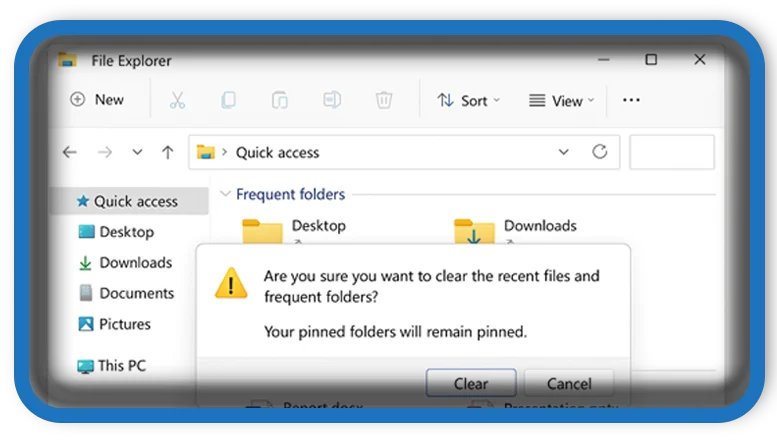
Stay on the General tab and locate the Privacy section. You should see a Clear button associated with File Explorer history. Select it to clear the stored File Explorer history used for recent and frequent content.
After clearing the history, close and reopen File Explorer if necessary. Automatically generated recent entries should be refreshed. Keep in mind that pinned or favorited content can behave differently because it is intended to remain available until you explicitly remove it.
What the Clear Button Actually Does
The Clear button should be understood as a history-cleaning control. It is not the same as selecting your documents and pressing Delete. Your files remain in their actual folders unless you separately delete them.
This distinction makes the built-in Clear option the preferred starting point for most users. It is simple, supported through the Windows interface, and does not require manually deleting system files.
If your goal is simply to stop a recently opened document from appearing prominently in File Explorer, start here before trying advanced commands or manually deleting Windows history databases.
Check the Result
After pressing Clear, select OK to close Folder Options. Close File Explorer and open it again using Windows + E.
Look at Home or Quick Access. Recent and automatically generated frequent content should be reduced or reset according to your Windows configuration.
If certain folders remain, do not immediately assume the cleanup failed. Those folders may be pinned rather than generated from usage history. Pinned locations require a separate action.
Remove a Single Recent File Without Clearing Everything
Sometimes clearing the entire list is unnecessary. Perhaps you only want to prevent one particular document from appearing while keeping the rest of your recent history intact.
Open File Explorer and locate the unwanted file in the recent area. Right-click the item and look for an option such as Remove from Quick access or the equivalent removal command available in your version of Windows.
This is useful when you rely heavily on recent-file suggestions but occasionally want to hide one entry from the automatic list. The original file should remain in its normal storage location.
Why Individual Removal Can Be Better
Clearing everything removes useful history along with the unwanted entry. Individual removal gives you more control and can preserve the convenience of File Explorer recommendations.
For example, you may regularly work with ten documents but want one temporary or private document removed from the visible list. Removing that single entry avoids rebuilding your entire recent-file history.
Microsoft also notes that removing an item from Quick Access can prevent that item from being displayed there again automatically, making this option more useful than a simple one-time visual cleanup in some situations.
Verify the Original File Still Exists
If you are concerned about accidentally deleting something, navigate to the original folder after removing the recent entry. The document should still be there.
This simple verification is useful when learning the difference between deleting an object and removing its shortcut or history entry.
When working with important data, maintaining a proper backup is still recommended. File Explorer history is not a backup system, and removing an entry does not affect whether the original file is safely backed up elsewhere.
How to Remove Frequently Used Folders
Frequently used folders are locations Windows automatically identifies based on your activity. They are different from recent files and can continue appearing depending on your privacy settings.
If you do not want automatically selected folders displayed, open File Explorer Options and look at the Privacy section. Disable the setting that allows Windows to show frequently used folders in Quick Access.
Click Apply, followed by OK. Windows should stop using frequent-folder activity to populate that part of File Explorer.
Removing a Folder Manually
If a specific folder appears in Quick Access and you no longer want it there, right-click it and inspect the available options.
For a pinned folder, select Unpin from Quick access. This removes the shortcut from the Quick Access area without deleting the actual folder.
Again, avoid confusing Unpin from Quick access with commands that delete the folder itself. Unpinning simply changes the File Explorer navigation interface.
Why Some Folders Stay After Clearing History
A common source of confusion occurs when a user presses Clear but still sees several folders in Quick Access. In many cases, those folders are pinned.
Pinned folders are deliberately persistent. Windows assumes you want them available until you explicitly unpin them.
Therefore, a complete visual cleanup may require two separate actions: clear the automatically generated history and manually unpin locations you no longer want displayed.
Stop Windows from Showing Recent Files
Clearing your existing history solves the immediate problem, but Windows can begin building new recent-file entries as you continue working. If you prefer a more private File Explorer experience, disable recent-file display entirely.
Open File Explorer → Options → General and locate the Privacy section. Disable the setting that allows recently used files to appear in Quick Access or File Explorer Home. Then select Apply and OK.
Windows should stop automatically displaying these recent-file entries. Your actual documents remain available in their normal folders, so you can continue opening them manually whenever needed.
Stop Frequently Used Folders Too
You can also disable the setting for frequently used folders. This is useful if you want Quick Access to contain primarily locations that you have deliberately pinned.
With both automatic options disabled, File Explorer becomes more predictable. Instead of changing according to your activity, the visible shortcuts are largely determined by your own selections.
This configuration works particularly well for users who prefer a clean navigation pane or who regularly share their screen during meetings, tutorials, livestreams, or remote-support sessions.
Re-Enabling the Features Later
These settings are not permanent. If you decide that recent files and frequent folders are useful after all, return to File Explorer Options and enable them again.
Windows can then resume populating File Explorer with activity-based suggestions.
Keep in mind that enabling history-related features again can cause Windows to begin displaying activity-based content. If privacy is important, review the visible lists after changing the settings.
Keep Only Pinned Folders in Quick Access
One of the cleanest File Explorer configurations is to disable automatically generated recent and frequent content while keeping only the folders you manually pin.
Open File Explorer Options and turn off recent files and frequent folders. Then return to File Explorer and review the remaining pinned locations.
Unpin anything you no longer need. Afterward, pin only the folders that provide real value, such as Documents, Downloads, a work folder, a website project directory, or another location you access frequently.
How to Pin a Folder
Navigate to the folder you want to keep accessible. Right-click it and select Pin to Quick access.
The folder should then remain available through the Quick Access navigation area even when automatic frequent-folder suggestions are disabled.
This provides a useful balance between privacy and convenience. Windows stops guessing which locations you want to see, while you maintain a short list of deliberately selected folders.
How to Unpin a Folder
Right-click the pinned location and select Unpin from Quick access.
The folder itself remains untouched. Only its shortcut disappears from the Quick Access area.
You can pin it again at any time. This makes Quick Access a convenient navigation tool rather than a permanent configuration.
Set File Explorer to Open to This PC
Some users do not want File Explorer Home or Quick Access as their starting page at all. If that describes you, Windows provides another useful option: make File Explorer open directly to This PC.
Open File Explorer, select the three-dot menu on Windows 11, and choose Options. Find the Open File Explorer to setting and select This PC when that option is available.
Click Apply and OK. The next time you open File Explorer, Windows should take you directly to the view containing your drives and primary storage locations instead of using Home as the landing page.
Why This PC Can Feel Cleaner
This PC emphasizes drives and storage locations rather than recent activity. For users who know exactly where their data is stored, this can create a simpler workflow.
It is also helpful on systems with several internal drives. If your computer has separate drives for Windows, games, backups, media, and projects, opening directly to This PC can be more practical than beginning with recent files.
Changing the landing page does not necessarily disable every recent-item feature. For stronger privacy, combine This PC as the starting location with the recent-file and frequent-folder privacy settings described earlier.
You Can Return to Home Later
Nothing prevents you from changing the setting back later. Open File Explorer Options again and select the preferred landing location.
This flexibility is useful because Windows workflows change. A new user might initially benefit from Home recommendations, while an experienced user may prefer direct access to drives and manually organized folders.
Choose the interface that makes your own navigation faster while still providing the level of privacy you want.
Clear Windows Recent Items with a Command
Windows also maintains a Recent items location associated with the current user profile. Advanced users sometimes clear its contents using Command Prompt or the Run dialog.
One commonly used command is:
del /F /Q "%AppData%MicrosoftWindowsRecent*"
The command targets entries inside the current user’s Windows Recent directory. It should not be treated as a replacement for understanding the File Explorer privacy settings, and it does not mean every possible Windows or application history list has been erased.
What the Command Means
del tells Windows to delete files matching the specified target. /F allows deletion of read-only files where applicable, while /Q enables quiet operation without asking for confirmation for each matching file.
%AppData% is an environment variable that points to the current user’s roaming application-data directory. Using the environment variable avoids hard-coding a username into the command.
Although this method can be useful, beginners should normally start with File Explorer’s built-in Clear button. Graphical controls reduce the chance of typing an incorrect path or deleting something unintended.
Do Not Modify the Path Carelessly
Command-line deletion deserves extra caution because the command performs an actual deletion operation against the specified target.
Do not change the path unless you understand exactly what the modified command will affect. Never copy a deletion command from an unknown website and run it with administrator privileges without reviewing it first.
For routine Quick Access cleanup, File Explorer Options remains the safer and easier approach.
How to Open the Recent Items Folder Manually
If you prefer to see the Recent items location before changing anything, press Windows + R to open Run.
Enter:
shell:recent
Press Enter. Windows should open the Recent Items location associated with your account.
This method is useful because you can inspect what Windows has stored there rather than immediately running a deletion command.
Why Manual Inspection Is Useful
Viewing the folder first helps you understand the difference between a recent-item reference and the original data.
You may notice entries corresponding to files that physically live somewhere else on your computer. Their presence in Recent does not mean Windows has created another full copy of each original document.
For cautious users, inspection is almost always better than blindly deleting system-related data. It also makes troubleshooting easier because you can see what exists before and after performing a cleanup.
Recent Items Are Only Part of the Picture
Do not assume that clearing this folder eliminates every recent-item list across Windows.
Applications can maintain their own history. Microsoft Office applications, for example, have their own Recent and Favorites behavior. Browsers maintain browsing and download histories. Media applications can remember recently played content.
File Explorer history should therefore be treated as one layer of Windows privacy rather than a universal history manager.
File Explorer History Is Not the Same as Windows Activity History
Windows includes several features with similar-sounding names, which can make privacy settings confusing. File Explorer history and Windows activity history are not necessarily the same thing.
File Explorer history relates to content shown through File Explorer, such as recent files and frequently used folders. Windows activity history is managed separately through Windows privacy settings and can involve broader device activity.
If you want to review Windows activity-history settings, open Settings → Privacy & security → Activity history on supported Windows 11 versions. Windows 10 places related controls under its Privacy settings.
Why This Difference Matters
A user might clear File Explorer and assume all Windows activity records have disappeared. That conclusion would be too broad.
Similarly, clearing another Windows privacy history does not automatically mean every application-specific Recent list has been cleared.
Privacy is easier to manage when you think in layers: File Explorer history, Windows activity settings, application history, browser history, cloud activity, and the original files themselves can all be separate.
Check Application-Specific History When Necessary
If a document continues appearing inside Word, Excel, PowerPoint, another application, or a cloud service after you clean File Explorer, check that application’s own Recent or history controls.
This behavior does not necessarily indicate that Quick Access failed to clear.
It simply means another application maintains a separate list. Modern software often does this because application-specific history improves productivity across multiple sessions and sometimes across multiple devices.
Does Clearing Quick Access Delete Documents?
No. Clearing File Explorer’s Quick Access history should not be confused with deleting the actual documents stored on your computer.
Consider a photograph stored at PicturesHolidayphoto.jpg. If Windows displays that photograph as a recent item and you remove the recent entry, the original image remains inside its Pictures folder.
The same concept applies to Word documents, PDFs, videos, archives, project files, and most other normal data displayed through recent-file shortcuts.
What About Folders?
Unpinning a folder from Quick Access also does not normally delete the folder.
If DocumentsWordPress Projects is pinned and you select Unpin from Quick access, Windows removes its convenient navigation shortcut. The WordPress Projects folder and everything stored inside it remain at the original path.
This is why the wording of the context-menu command matters. Unpin and Remove from Quick access are interface-management actions. Delete is a file-management action.
Always Check Before Using Delete
Windows often displays several commands in the same context menu. Read the selected command before clicking it, particularly when working with important folders.
If you accidentally delete a normal local file, it may be moved to the Recycle Bin depending on how it was deleted and where it was stored. However, relying on recovery is never a good workflow.
Maintain backups of important information and use the dedicated Quick Access commands when your intention is only to clean the File Explorer interface.
Troubleshooting Quick Access That Will Not Clear
Occasionally, Quick Access can behave unexpectedly. You may clear File Explorer history and still see an entry, find that a folder refuses to unpin, or notice that an old location returns.
Begin with the simplest approach. Restart File Explorer by closing its windows and reopening it. If the issue remains, restart Windows. Then return to Folder Options and confirm that the privacy settings actually saved.
Also determine whether the stubborn item is pinned. Clearing history does not necessarily remove deliberately pinned content.
Check Whether the File Comes From Another Service
Modern Windows systems can integrate local files with cloud services and account-based recommendations. A file appearing in Home may therefore have a different source from a traditional local Quick Access entry.
This is another reason not to treat every item visible on File Explorer Home as identical.
Review the available Privacy options in your current Windows build. Newer Windows versions can provide controls for account-based insights, recommended content, favorites, and recent files in addition to traditional Quick Access behavior.
Update Windows Before Deep Troubleshooting
If File Explorer behaves incorrectly, make sure Windows is updated before changing system databases or registry settings.
Updates can fix File Explorer bugs and can also change the interface itself. Instructions written for an older Windows 11 build may not perfectly match a newer one.
After updating, restart the computer and test Quick Access again before attempting more aggressive repairs.
Reset Quick Access Only When Normal Cleanup Fails
There are advanced methods for resetting data used by Windows destination lists and Quick Access. These methods can involve the AutomaticDestinations data associated with the Windows shell.
However, deleting those files should not be the first recommendation for normal privacy cleanup. The built-in File Explorer controls are safer and easier.
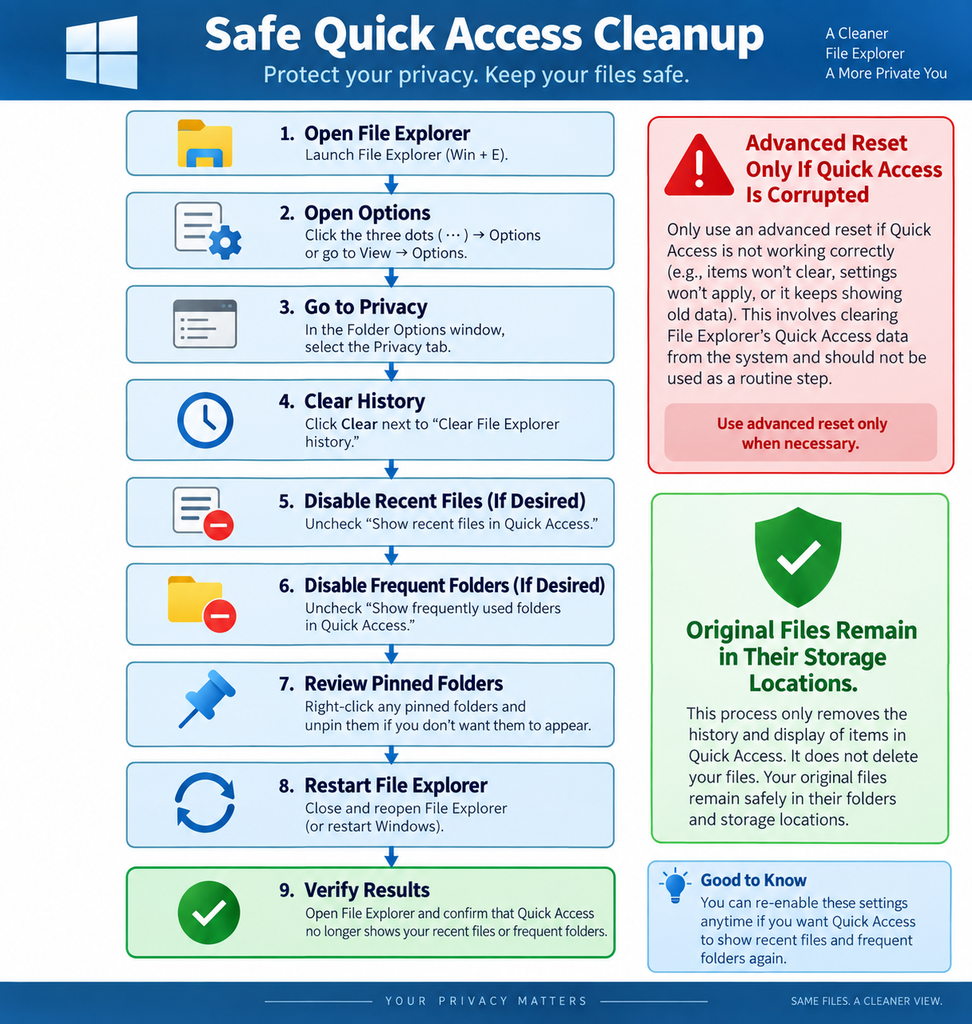
Consider a deeper reset only when Quick Access appears corrupted, refuses to update, or produces persistent errors that normal clearing, unpinning, and restarting do not solve.
Why Advanced Reset Methods Require Care
Windows uses destination lists for more than one convenient interface feature. Jump Lists and other recent-item functionality can rely on related shell data.
Deleting the wrong data can therefore reset more history or personalization than you expected.
Before performing an advanced reset, close applications, save your work, and understand that Windows may need to rebuild its lists afterward.
Use Built-In Controls First
A sensible troubleshooting order is straightforward: clear File Explorer history, disable and re-enable relevant privacy options if necessary, unpin problematic folders, restart File Explorer or Windows, install updates, and only then consider advanced reset methods.
This approach reduces unnecessary system changes.
It also makes troubleshooting easier because you can identify which action actually solved the problem instead of performing several aggressive changes simultaneously.
Quick Access Privacy Tips for Shared Computers
If several people regularly use the same computer, the best solution is usually separate Windows user accounts rather than repeatedly clearing Quick Access.
Separate accounts provide independent user profiles, application settings, personal folders, and many separate history lists. They offer much better separation than allowing everyone to use the same Windows session.
If temporary sharing is unavoidable, clearing recent File Explorer entries before handing over the computer can still reduce casual exposure of recently accessed files.
Lock Windows When You Walk Away
Quick Access privacy controls are useful, but the simplest privacy habit is also one of the most effective: lock the computer when you leave it unattended.
Press Windows + L to lock your current session.
This prevents another person from casually opening File Explorer, browsing documents, or accessing applications while your Windows account remains signed in.
Avoid Using Recent Lists as Security
Removing a filename from a recent list does not protect the underlying document.
If another person has full access to your Windows account, they may still navigate through Documents, Downloads, Desktop, other drives, cloud folders, search results, or application histories.
For truly sensitive information, use appropriate account permissions, encryption, secure authentication, backups, and organizational security policies rather than relying on history cleanup alone.
Quick Access vs File Explorer Home in Windows 11
Windows 11 has evolved since its initial release, and terminology from older tutorials can cause confusion. On newer Windows 11 versions, Home is generally the File Explorer landing page.
Quick Access has not simply become irrelevant. Pinned folders and quick navigation remain part of the File Explorer experience, but recent, favorite, recommended, cloud, and account-related content can now appear in ways that older Windows 10 tutorials did not cover.
For this reason, always check the actual Privacy controls available in your version of File Explorer rather than relying solely on screenshots from an older guide.
Why Old Tutorials May Look Different
Microsoft frequently updates Windows 11 through cumulative and feature updates. Buttons can move, names can change, and additional File Explorer features can appear.
An older tutorial may tell you to click the View ribbon even though your Windows 11 installation now uses a three-dot menu. The underlying concept may still be correct, but the navigation path has changed.
This article therefore focuses on the function of each setting rather than assuming every Windows installation looks exactly the same.
Windows 10 Users Can Still Follow the Main Principles
The interface is different, but Windows 10 users can still manage recent files, frequent folders, and pinned Quick Access locations.
Open Folder Options, find the General tab and Privacy controls, clear history, and adjust the recent and frequent settings as required.
Keep in mind that standard free support and security updates for Windows 10 ended on October 14, 2025. Users remaining on Windows 10 should review Microsoft’s current support and security options for their specific environment.
Best Quick Access Configuration for Better Privacy
There is no single configuration that suits everyone. If you are the only person using your computer and you value convenience, leaving recent files enabled can save time.
If you frequently share your screen or let other people use your Windows session, disabling recent files and frequent folders may provide a cleaner experience.
A balanced configuration is to disable automatic recent and frequent content while keeping several important folders manually pinned. This gives you predictable shortcuts without constantly displaying your latest activity.
Privacy-Focused Setup
For a privacy-focused configuration, disable recently used files and frequently used folders in File Explorer Options.
Next, review your pinned locations and remove anything that does not need to remain visible.
Finally, consider setting File Explorer to open to This PC rather than Home. This creates a relatively clean starting point centered on storage devices instead of activity-based recommendations.
Productivity-Focused Setup
For maximum convenience, keep recent files and frequent folders enabled.
Pin your most important folders manually so they remain available even when your usage patterns change.
Periodically remove unwanted recent entries or clear File Explorer history when the interface becomes cluttered. This approach retains the productivity benefits without allowing the lists to grow unchecked.
Common Mistakes When Clearing Quick Access
One common mistake is assuming the Clear button deletes the original files. It does not serve as a normal document-deletion tool.
Another mistake is expecting pinned folders to disappear when history is cleared. Pinned folders are deliberately persistent and normally need to be unpinned separately.
A third mistake is assuming File Explorer controls every recent-file list on the computer. Individual applications can maintain separate histories.
Do Not Run Random Registry Fixes First
Searching online for Quick Access problems often produces registry edits, PowerShell scripts, batch files, and deletion commands.
Some can be legitimate troubleshooting methods, but they should not be your first choice when Windows already provides a supported graphical control.
Start with File Explorer Options. Only move to advanced changes when you have a specific problem that the normal controls cannot solve.
Do Not Delete Unknown System Folders
Never delete an entire Windows system directory because a tutorial tells you it contains history.
System directories can contain configuration data required by Windows or installed applications.
If an advanced cleanup procedure becomes necessary, verify the exact target and understand what will be reset before executing the command.
Frequently Asked Questions
How do I clear Quick Access history in Windows 11?
Open File Explorer with Windows + E, select the three-dot menu, choose Options, and locate the Privacy section under the General tab. Use the Clear button associated with File Explorer history. Close and reopen File Explorer afterward if the visible list does not refresh immediately.
Does clearing Quick Access delete my files?
No. Clearing File Explorer history removes history or shortcut information rather than deleting your original documents from their normal folders. A document stored in Documents, Downloads, Desktop, another drive, or a cloud-synchronized folder remains there unless you explicitly delete the original file.
Why are folders still visible after I clear Quick Access?
They may be pinned. Clearing automatic history and removing pinned locations are separate actions. Right-click an unwanted pinned folder and select Unpin from Quick access. The shortcut will disappear, but the original folder and its contents remain intact.
Can I remove only one recent file?
Yes. Locate the unwanted entry in File Explorer, right-click it, and use the available Remove from Quick access or equivalent removal option. This is useful when you want to preserve the rest of your recent-file history instead of clearing everything.
Can I disable recent files permanently?
You can stop File Explorer from displaying automatically generated recent files by opening File Explorer Options and disabling the corresponding recent-file setting in the Privacy section. You can return to the same location and enable it again whenever you want.
How do I stop frequent folders from appearing?
Open File Explorer Options, go to General → Privacy, and disable the setting for frequently used folders. Apply the changes. You can still manually pin folders you want to keep accessible.
Can File Explorer open directly to This PC?
Yes. Open File Explorer Options and change Open File Explorer to from Home or Quick Access to This PC, when the option is available on your Windows version. This provides faster access to drives and can create a cleaner starting page.
Is Quick Access history the same as Windows Activity History?
No. They are separate privacy concepts. File Explorer history relates to recent and frequent content shown by File Explorer. Windows Activity History has its own controls under Windows privacy settings. Applications can also maintain separate recent-item lists.
Why does a recent document still appear in Word after clearing Quick Access?
Microsoft Word and other Microsoft 365 applications can maintain their own Recent lists. Clearing File Explorer history does not necessarily clear application-specific history. You need to manage the Recent list from the application itself if you want to remove those entries.
Should I delete AutomaticDestinations files?
Not for routine cleanup. Start with the built-in File Explorer Clear button, privacy settings, unpinning, and a Windows restart. Resetting destination-list data is an advanced troubleshooting step that is more appropriate when Quick Access appears corrupted or normal cleanup methods fail.
A Cleaner and More Private File Explorer
Quick Access is one of those Windows features that can feel invisible until it begins showing something you would rather keep private. Fortunately, you do not need complicated software to control it. File Explorer already provides options for clearing history, hiding recent files, disabling frequent folders, and managing pinned locations.
For most users, the safest approach is simple. Open File Explorer Options, clear the existing history, decide whether recent files and frequent folders should remain enabled, and manually review pinned folders. If you prefer a traditional storage-focused view, you can also make File Explorer open to This PC.
Most importantly, remember what these controls actually do. Removing an entry from Quick Access normally removes a shortcut or history reference. It does not erase the original document. That makes Quick Access cleanup useful for everyday privacy and organization, but it should not be confused with secure file deletion.
⚠️ Disclaimer and Source Hygiene
This tutorial is provided for educational and general Windows administration purposes. Windows interfaces, menu names, and File Explorer features can change through Microsoft updates, so some labels may differ slightly depending on your Windows edition and build.
Commands that delete files or reset Windows configuration data should always be reviewed before execution. Back up important information before performing advanced troubleshooting. For managed workplace computers, follow your organization’s IT policies or consult the system administrator before modifying privacy, shell, or history settings.
The technical guidance in this article was reviewed against Microsoft documentation covering Windows File Explorer, Quick Access, File Explorer Home, recent files, frequently used folders, Windows activity history, and application-specific Recent lists.
🔔 For more tutorials like this, consider subscribing to our blog.
📩 Do you have questions or suggestions? Leave a comment or contact us!
🏷️ Tags: Windows Tips, Quick Access, File Explorer, Windows 11, Windows 10, Recent Files, Frequent Folders, Windows Privacy, Clear File Explorer History, Windows Tutorials
📢 Hashtags: #Windows, #Windows11, #Windows10, #QuickAccess, #FileExplorer, #WindowsTips, #WindowsPrivacy, #TechTips, #WindowsTutorial, #PCtips
Sources and References
Microsoft Support – File Explorer in Windows
Microsoft’s File Explorer documentation explains how Quick Access works, how folders can be pinned and unpinned, how recent files and frequent folders can be disabled, and how File Explorer can be configured to open to This PC.
Microsoft Support – Find Your Files and Apps in Windows
Microsoft’s current File Explorer documentation describes Home search and privacy controls for account-based insights, recent, favorite, and recommended files in modern Windows versions.
Microsoft Support – Windows Activity History and Your Privacy
Microsoft documents Windows Activity History separately from File Explorer history. This distinction is important because clearing File Explorer does not automatically mean every form of Windows activity history has been erased.
Microsoft Support – Customize Recently Used Files
Microsoft documents separate Recent and Favorites lists within Microsoft 365 applications. These lists help explain why a document can remain visible inside an application even after File Explorer history has been cleared.
Secondary Sources and Testimonials
This guide prioritizes Microsoft’s official documentation for Windows behavior and uses general Windows administration practices only to provide additional explanation and troubleshooting context.
User experiences reported across Windows support communities show that Quick Access problems are often related to pinned entries, corrupted destination-list data, or confusion between File Explorer history and application-specific Recent lists. Community fixes can be useful for troubleshooting, but official Windows controls should remain the first option whenever they solve the problem safely.
