

⏲️ Estimated reading time: 7 min
Table of Contents
Energy-Efficient Ethernet: Enable or Disable? Energy-Efficient Ethernet (EEE) can reduce power usage, but it may affect network performance. Learn when to enable or disable it, how it works, and whether it’s the right choice for gaming, streaming, business networks, and everyday home use.
You may also be interested in: The Quality of People Around You Defines You
Energy-Efficient Ethernet
Energy efficiency has become a major focus in modern technology. From smartphones to servers, reducing power consumption is no longer optional it’s essential.
One feature that often goes unnoticed is Energy-Efficient Ethernet (EEE). While it promises lower energy use, many users wonder if it impacts performance. Should you enable it? Or is it better to turn it off? This guide explains everything in simple terms so you can make the right decision.
What Is Energy-Efficient Ethernet (EEE)?
Energy-Efficient Ethernet (EEE) is a technology defined by the IEEE under the 802.3az standard.
Its main goal is simple:
👉 Reduce power consumption when your network is idle
Instead of running at full power all the time, your Ethernet adapter enters a low-power idle state when there is no data activity.
Think of it like this:
- Your CPU has sleep mode
- Your screen turns off when inactive
- Your Ethernet connection also “rests” when unused
This helps save electricity, especially in environments with many connected devices.
How Energy-Efficient Ethernet Works
EEE operates by dynamically adjusting power usage based on network traffic.
🔹 Normal Mode
- Full power usage
- Instant data transmission
- No delays
🔹 Low Power Idle (LPI) Mode
- Reduced power consumption
- Activated during inactivity
- Slight delay when waking up
When new data arrives, the connection wakes up instantly but not perfectly instantly. That tiny delay is what concerns some users.
How to Enable or Disable EEE in Windows
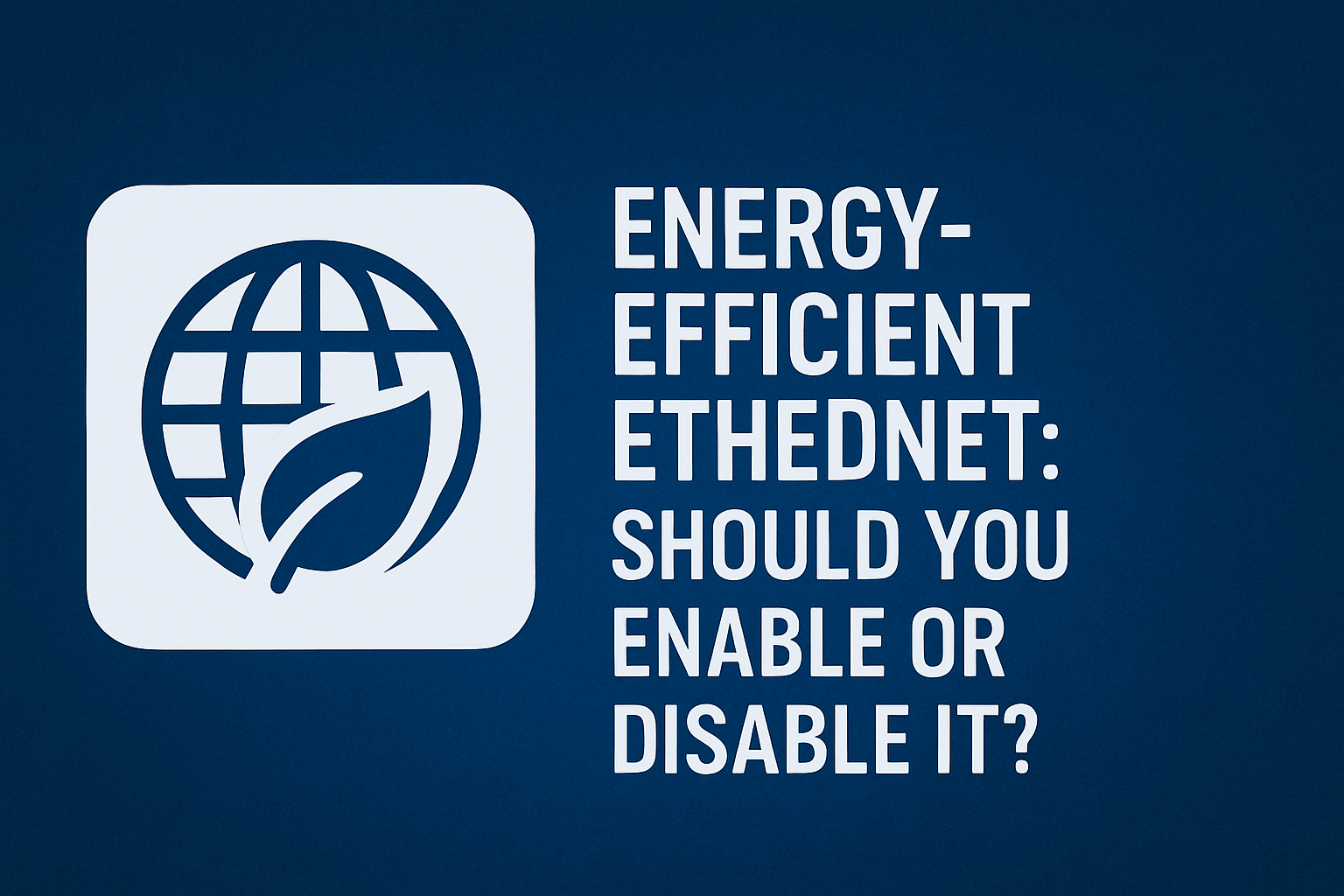
Follow these simple steps:
Step-by-Step Guide
- Press Win + X
- Open Device Manager
- Expand Network Adapters
- Right-click your Ethernet adapter
- Select Properties
- Go to the Advanced tab
- Find Energy-Efficient Ethernet (EEE)
- Choose:
- Enabled → Power saving
- Disabled → Maximum performance
⚠️ Note: The exact name may vary (e.g., “Green Ethernet” or “Power Saving Mode”).
When You Should Enable Energy-Efficient Ethernet
EEE is useful in many scenarios, especially where power efficiency matters.
✅ Best Cases for Enabling EEE
1. Laptops and Battery Devices
- Saves battery life
- Reduces heat
- Improves energy efficiency
2. Office Environments
- Many computers running all day
- Lower electricity bills
- Eco-friendly operations
3. Data Centers
- Thousands of network ports
- Small savings per device = huge total savings
4. Low-Traffic Usage
- Browsing, emails, light downloads
- No need for constant high performance
When You Should Disable Energy-Efficient Ethernet
EEE can introduce tiny delays. In some cases, that matters a lot.
❌ Best Cases for Disabling EEE
1. Gaming
- Reduces latency spikes
- Improves responsiveness
- Essential for competitive play
2. Streaming (Twitch / YouTube)
- Stable connection is critical
- Prevents buffering or drops
3. VoIP & Video Calls
- Apps like Zoom or Skype need real-time stability
- Even small delays can affect quality
4. Desktop PCs (Always Plugged In)
- Power saving is negligible
- Performance matters more
5. Servers & Always-On Systems
- Require constant readiness
- No room for delays
Performance vs Power Savings
Here’s a quick comparison:
| Scenario | Recommendation |
|---|---|
| Gaming / Esports | ❌ Disable EEE |
| Streaming / Content Creation | ❌ Disable EEE |
| Office PCs | ✅ Enable EEE |
| Laptops | ✅ Enable EEE |
| Servers | ❌ Disable EEE |
| IoT Devices | ✅ Enable EEE |
Key Insight
EEE saves only a few watts per device.
👉 On one PC, that’s negligible
👉 On 1000 devices, that’s huge
Does Energy-Efficient Ethernet Affect Internet Speed?
This is one of the most common questions.
🔍 The Truth:
- ❌ EEE does NOT reduce bandwidth
- ⚠️ It can introduce micro-delays
These delays happen when:
- The adapter wakes from low-power mode
- Data transmission resumes
Real Impact:
- Normal browsing → No noticeable difference
- Gaming → Possible lag spikes
- Streaming → Potential instability
Common Problems Caused by EEE
Some users report issues when EEE is enabled.
⚠️ Possible Problems
- Random lag spikes
- Connection drops
- Slow wake-up response
- Inconsistent ping
These problems depend on:
- Network card quality
- Drivers
- Router compatibility
EEE and Gaming: What You Need to Know
Gamers are the most affected by EEE.
Why?
Gaming requires:
- Constant data flow
- Low latency
- Zero interruptions
EEE interrupts this flow by:
- Entering idle mode
- Adding wake-up delay
Even a few milliseconds can affect:
- Reaction time
- Hit detection
- Competitive performance
👉 That’s why most pro gamers disable it.
EEE and Streaming Performance
Streaming platforms like:
- Twitch
- YouTube
require a stable connection.
EEE can:
- Interrupt data flow
- Cause bitrate drops
- Trigger buffering
For content creators:
👉 Disable EEE for best results
Business and Enterprise Use of EEE
In large environments, EEE shines.
Why Businesses Use It
- Reduces energy costs
- Improves sustainability
- Supports green IT policies
Large organizations often follow standards from IEEE to optimize efficiency.
Even small savings per device can lead to:
👉 Thousands of euros saved annually
Should You Enable or Disable EEE?
🔥 Final Recommendation
- Enable EEE if:
- You use a laptop
- You want energy savings
- You have light network usage
- Disable EEE if:
- You are a gamer
- You stream or use VoIP
- You want maximum performance
Simple Rule:
👉 Performance → Disable
👉 Power Saving → Enable
Frequently Asked Questions
1. What does Energy-Efficient Ethernet do?
EEE reduces power consumption by putting your Ethernet adapter into a low-power state during inactivity.
2. Does EEE slow down internet speed?
No, it doesn’t reduce speed, but it may introduce small delays.
3. Is EEE good for gaming?
No. It’s better to disable it for stable and low-latency gameplay.
4. Should I enable EEE on a laptop?
Yes. It helps save battery life and reduce power consumption.
5. Why do I experience lag with EEE enabled?
Because the network adapter takes time to wake from low-power mode.
6. Is EEE enabled by default?
On many systems, yes but it depends on your network adapter and drivers.
7. Can EEE cause connection drops?
In some cases, yes especially with older drivers or hardware.
8. Is EEE useful for servers?
Usually no, because servers require constant performance.
9. How much power does EEE save?
Typically a few watts per device, but it adds up in large networks.
10. What is another name for EEE?
It may appear as “Green Ethernet” or “Power Saving Ethernet.”
Power or Performance?
- Choosing whether to enable Energy-Efficient Ethernet comes down to your priorities.
- If you want efficiency and lower power bills, EEE is a smart feature.
- However, if you demand speed, stability, and real-time responsiveness, disabling it is the better choice.
- In most home desktop setups, performance wins.
⚠️ Disclaimer and Source Hygiene
This article is for informational purposes only. Network configurations may vary depending on hardware, drivers, and system settings. Always consult your device manufacturer or IT professional before making advanced changes. Information is based on general research and standards from recognized organizations.
🔔 For more tutorials like this, consider subscribing to our blog.
📩 Do you have questions or suggestions? Leave a comment or contact us!
🏷️ Tags: energy-efficient ethernet, EEE, network settings, ethernet performance, gaming optimization, windows networking, latency issues, power saving, network adapter, internet speed
📢 Hashtags: #EEE #Ethernet #Networking #GamingTips #LowLatency #TechGuide #WindowsTips #Performance #ITSupport #NetworkOptimization
📚 Sources and References
- IEEE – Official IEEE 802.3az documentation
- Microsoft Documentation – Network Adapter Settings
- Hardware Manufacturer Guides (Intel, Realtek)
- Network engineers in enterprise environments
- IT professionals and system administrators
- Gaming community feedback on latency
