

⏲️ Estimated reading time: 6 min
Table of Contents
🔐 cPanel Remote Database Access and How to Use It. Want to connect to your website’s MySQL database from a remote computer or external server? cPanel’s Remote MySQL feature makes it possible. This guide explains what remote database access is, why you might need it, and how to set it up safely using cPanel.
📘 What Is Remote Database Access?
Remote Database Access allows you to connect to a MySQL database hosted on your web server from a computer or server that is not part of your hosting environment. Normally, MySQL access is limited to localhost (the server that the database resides on). But with remote access, you can manage databases through applications such as:
- MySQL Workbench
- HeidiSQL
- Navicat
- Remote scripts on other servers
- External business applications
This can be incredibly useful for developers and administrators who want to manage or query data from a local machine or synchronize data across systems.
🎯 Common Use Cases
Here are some real-world situations where cPanel’s Remote Database Access proves useful:
- Local Development: Developers working on a local copy of the site that needs access to the live database.
- Remote Application: Applications hosted on another server needing access to your database.
- Data Synchronization: Sharing data between two websites or migrating data using SQL clients.
- Business Intelligence: Connecting business analysis tools (e.g., Tableau, Power BI) to a live MySQL database.
🔒 Is It Safe to Use?
Remote access can expose your MySQL database to external threats if not configured correctly. That’s why:
- Only allow IP addresses you trust.
- Never use the wildcard
%unless absolutely necessary. - Use strong, unique passwords for database users.
- Restrict user privileges only to what’s needed.
- Use firewall rules or VPNs for extra protection.
cPanel provides a secure way to manage this by allowing you to allowlist specific IPs.
🛠️ How to Enable Remote Database Access in cPanel
Let’s walk through the exact steps:
Step 1: Log into cPanel
First, log into your cPanel account using your hosting credentials (usually found at yourdomain.com/cpanel).
Step 2: Locate Remote MySQL®
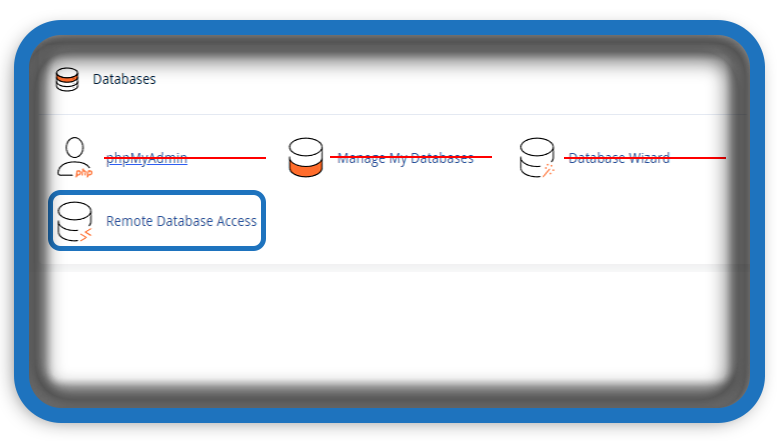
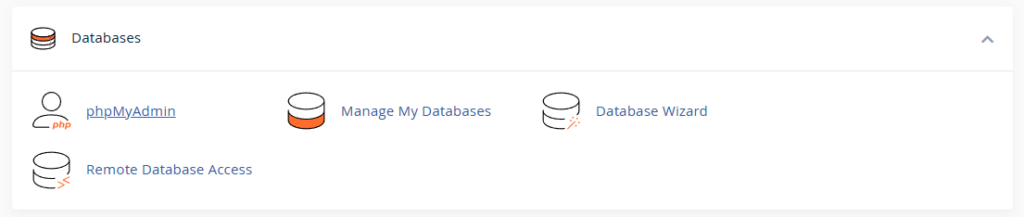
Scroll down to the Databases section and click on Remote MySQL®.
This is the tool you will use to configure access permissions for remote hosts.
Step 3: Add Access Host (IP Address)
In the Remote MySQL® interface:
- Under Add Access Host, type the IP address of the remote computer or server you want to allow.
- You may also use
%as a wildcard, but this is not recommended unless for testing. - Click Add Host.
You should see the IP listed under Access Hosts once added.
Step 4: Get Your MySQL Database Credentials
Ensure you have the following details:
- Database name
- Database username
- Database password
- Server address – this is usually your domain name or the server’s IP (e.g.,
yourdomain.com, or a specific IP if DNS is not pointing).
Step 5: Test the Remote Connection
Use a MySQL client (e.g., MySQL Workbench):
- Open your client and click to add a new connection.
- Enter the following:
- Connection Name: Any name
- Hostname: Your domain name or IP address
- Port: 3306 (default MySQL port)
- Username: Your MySQL user
- Password: Your password
- Click Test Connection.
If successful, you’ll see a confirmation. If not, check for:
- Firewall blocking port 3306
- Incorrect user privileges
- Wrong IP address
- cPanel not allowing your IP
🔄 How to Revoke or Modify Access
To remove or edit access:
- Return to Remote MySQL® in cPanel.
- Under Access Hosts, you’ll see a list of added IPs.
- Click Delete next to any IP to revoke access.
This helps in maintaining security and keeping old unused entries out.
⚙️ Troubleshooting Common Issues
If your connection fails, here are some common causes and solutions:
1. MySQL User Permissions
Make sure the user has permissions to access the specific database from a remote host. You may need to update this in MySQL Databases in cPanel.
2. Incorrect Hostname
Use your server’s external IP or your domain. Some setups require exact matches.
3. Firewall Restrictions
If your hosting provider blocks port 3306 or uses a firewall, you may need to request port access.
4. IP Not Allowlisted
Ensure the IP address you’re connecting from is allowlisted in Remote MySQL.
5. Using the Wrong Port
Default is 3306, but some hosts use a different port. Check with your provider.
🧠 Tips for Using Remote MySQL Efficiently
- Use SSH Tunnels if your host allows, for more secure connections.
- Limit Access only to necessary databases and operations.
- Schedule Backups regularly in case something goes wrong during remote operations.
- Monitor Logs to track any suspicious access or failed login attempts.
✅ Security Best Practices
Remote access opens a potential attack vector, so follow these recommendations:
| Tip | Description |
|---|---|
| 🔐 Use Strong Passwords | Never use “123456” or “admin123” |
| 🔎 Limit Access | Add only trusted IPs, not the whole internet |
| 🚧 Monitor Access | Regularly review allowlisted IPs |
| 🔄 Rotate Credentials | Change DB user passwords periodically |
| 🔥 Use VPN | For extra protection if possible |
🌐 Alternatives to Remote MySQL
If you don’t want to expose your MySQL port to the internet:
- Use phpMyAdmin in cPanel: Handy for manual queries.
- Export/Import SQL Files: Use backup tools to move data.
- SSH Tunneling: Access remote MySQL via secure encrypted tunnel.
💡 Summary Table
| Feature | Description |
|---|---|
| Remote MySQL in cPanel | Allows access from external IPs |
| Port Used | 3306 (default MySQL port) |
| Security Risk | Medium to High if misconfigured |
| Allowlist Format | Single IPs or wildcards (e.g., %) |
| Tools to Use | MySQL Workbench, Navicat, HeidiSQL |
| Alternative Access | phpMyAdmin, SSH tunneling |
📝 Final Thoughts
Setting up remote MySQL access in cPanel is a powerful way to work more efficiently, especially for developers and teams managing multiple servers. But with great power comes great responsibility so make sure you always prioritize security, access control, and data integrity when working with live databases.
🔔For more tutorials like this, consider subscribing to our blog.
📩 Do you have questions or suggestions? Leave a comment or contact us!
🏷️ Tags: cPanel, remote database, MySQL access, cPanel tutorial, web hosting, database management, MySQL Workbench, site optimization, phpMyAdmin, WordPress
📢 Hashtags: #cPanel, #RemoteAccess, #MySQL, #DatabaseManagement, #WebHosting, #WordPress, #TechTutorial, #MySQLWorkbench, #HostingTips, #SecureAccess
🧭 Closing Guide
Now you know how to enable remote database access securely and efficiently through cPanel. Whether you’re managing data across platforms or building a cloud-connected app, Remote MySQL gives you the flexibility you need with the power to control who gets in and what they can do.
See also: Blog Hits Counter: Automatic Site & Post Hits
