


⏲️ Estimated reading time: 5 min
Table of Contents
Some users refresh their desktop frequently, thinking it improves performance. But is that really true? Learn the real reasons behind constant desktop refreshes and whether it’s necessary.
Many Windows users habitually right-click and refresh their desktop sometimes every few minutes. While this may seem harmless, it’s important to understand what refreshing the desktop actually does and whether doing it repeatedly has any real benefit. Let’s dive into the reasons behind frequent desktop refreshing and when it’s actually useful.
What Does Refreshing the Desktop Do?
Refreshing the desktop in Windows simply tells the operating system to redraw the icons and update the desktop view. It does not:
- Improve performance
- Clear RAM or cache
- Fix system errors
In short, it just updates what’s visually shown like new files, folders, or icon changes not how your system performs in the background.
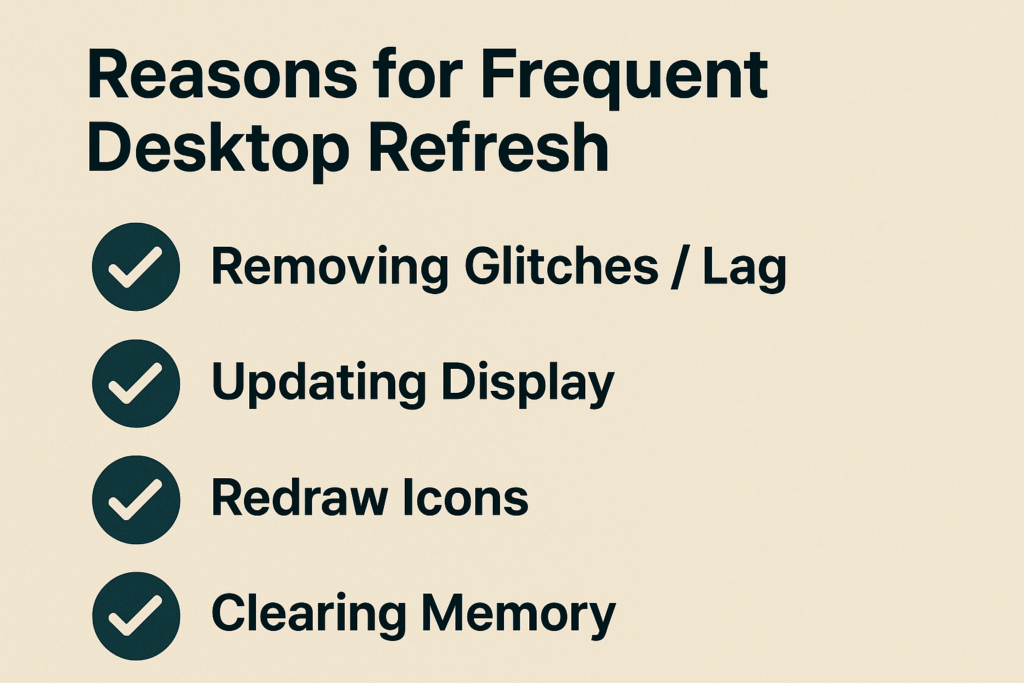
Common Reasons People Refresh Constantly
1. Habit or Misconception
Many users refresh their desktop out of habit or due to a long-standing myth that it “speeds up” the computer. In reality, there’s no performance boost. It’s a placebo effect the system just redraws the screen.
2. Icons Not Updating Properly
Sometimes, newly created or deleted files don’t immediately show on the desktop. Refreshing helps update the view, especially in older versions of Windows or after using third-party software that alters the desktop contents.
3. Software or Script Issues
Some applications or custom scripts generate files on the desktop but don’t trigger a refresh automatically. For example, screenshots, downloads, or extracted files may require a manual refresh to appear. Users working with such tools often refresh to check for updates.
4. System Glitches or Display Bugs
Occasionally, Windows Explorer (which controls the desktop interface) may lag or glitch. Icons might overlap, or visual artifacts might appear. Refreshing helps clear up these minor graphical issues.
5. Working in Remote Desktop Environments
In remote desktop or virtual machine setups, the desktop may not sync properly between host and client. Refreshing ensures the UI is up to date across both sessions.
6. Development or Testing Environment
In developer environments, especially when testing software that creates or manipulates desktop files, frequent refreshes may be needed to observe changes immediately.
Read also: Nobody Seeks You Unless You’re Useful? The Truth
7. Using Explorer Restart Scripts
Power users sometimes use batch files to restart explorer.exe, which in turn refreshes the desktop. This is usually done to apply changes to Windows Explorer, themes, or system settings.
8. Corrupt Icon Cache
When the icon cache is corrupted, icons may appear blank or outdated. Users might keep refreshing the desktop hoping it will fix the issue although a deeper fix like rebuilding the cache is required.
9. Misconfigured Auto-Refresh Settings
Some users install third-party tools or registry tweaks that automatically refresh the desktop every few minutes. This might be useful in kiosk setups but not for general use.
10. Mental Satisfaction
Refreshing can give users a false sense of control or “cleaning up.” Just like organizing a cluttered room, some users feel mentally clearer after a desktop refresh even if it does nothing technically.
Should You Stop Refreshing Frequently?
Yes, unless you have a valid technical reason (like missing icons or buggy software), there is no need to refresh your desktop every few minutes. It does not affect performance, system speed, or memory usage.
If you’re noticing delays or visual glitches, it’s better to troubleshoot the actual cause such as outdated drivers, system lag, or corrupted desktop settings.
Bonus Trick
Windows does not provide a direct command to “refresh the desktop” via batch, but you can simulate a full refresh by restarting explorer.exe, which controls the desktop and taskbar. Here’s a simple batch script to do that:
✅ Batch Script: auto_refresh_desktop.bat
@echo off
setlocal EnableDelayedExpansion

:: Interval between refreshes in seconds
set interval=100

:loop
cls
echo ================================
echo   Automatic Desktop Refresher
echo ================================
echo.

:: Countdown loop
for /L %%i in (%interval%,-1,1) do (
    cls
    echo ================================
    echo   Automatic Desktop Refresher
    echo ================================
    echo.
    echo Refreshing in %%i seconds...
    timeout /t 1 /nobreak >nul
)

:: Trigger desktop refresh (simulate F5 key)
echo Set WshShell = WScript.CreateObject("WScript.Shell") > "%temp%refresh.vbs"
echo WshShell.SendKeys "{F5}" >> "%temp%refresh.vbs"
cscript //nologo "%temp%refresh.vbs" >nul
del "%temp%refresh.vbs"

goto loop
🧾 What It Does:
- 100 seconds timer
- Creates a VBScript that uses
Shell.Applicationto callRefreshDesktop. - Runs it in a loop with a delay (
timeout) between each refresh. - Deletes the VBScript after each run to avoid clutter.
🛠️ How to Use:
- Copy and paste the script into Notepad.
- Save it as
auto_refresh_desktop.bat. - Right-click it and Run as Administrator (optional if access issues).
- To stop it, simply close the Command Prompt window.
⏲️ Optional: Auto-Refresh Every 5 Minutes
To make this run automatically every 5 minutes, use Task Scheduler:
- Open Task Scheduler (
taskschd.msc). - Click Create Basic Task.
- Name it something like “Auto Desktop Refresh”.
- Set Trigger to repeat every 5 minutes.
- Set Action to “Start a program” and browse to your
.batfile. - Finish and save.
⚠️ Warning: Restarting explorer.exe can briefly close the taskbar and file windows. Use with caution.
📩 Do you have questions or suggestions? Leave a comment or contact us!
🏷️ Tags: desktop refresh, Windows tips, icon update, PC performance, system glitches, explorer.exe, remote desktop, developer tools, display issues, desktop habits
