


⏲️ Estimated reading time: 5 min
Table of Contents
Windows 11 looks modern and promises speed, but many users face daily frustrations. From Blue Screen errors and failed updates to frozen taskbars and missing sound, this guide explains the 10 most common Windows 11 errors, what triggers them, and how to recognize them quickly.
🔴 TOP 10 Most Common Windows 11 Errors and How to Recognize Them Fast. Why So Many Errors in Windows 11?
You may also be interested in: Coke Zero vs Regular Coke: What the Debate Reveals
Windows 11 introduced major architectural changes.
This is not just a visual redesign. It includes stricter hardware requirements, enforced security features, and aggressive updates.
Many users upgraded from Windows 10 without knowing what to expect.
The result? Bugs, crashes, slowdowns, and daily frustration.
Let’s connect the dots 👇
Below you’ll find the Top 10 most common Windows 11 errors, explained clearly and without unnecessary technical jargon.
🔟 TOP 10 Most Common Windows 11 Errors
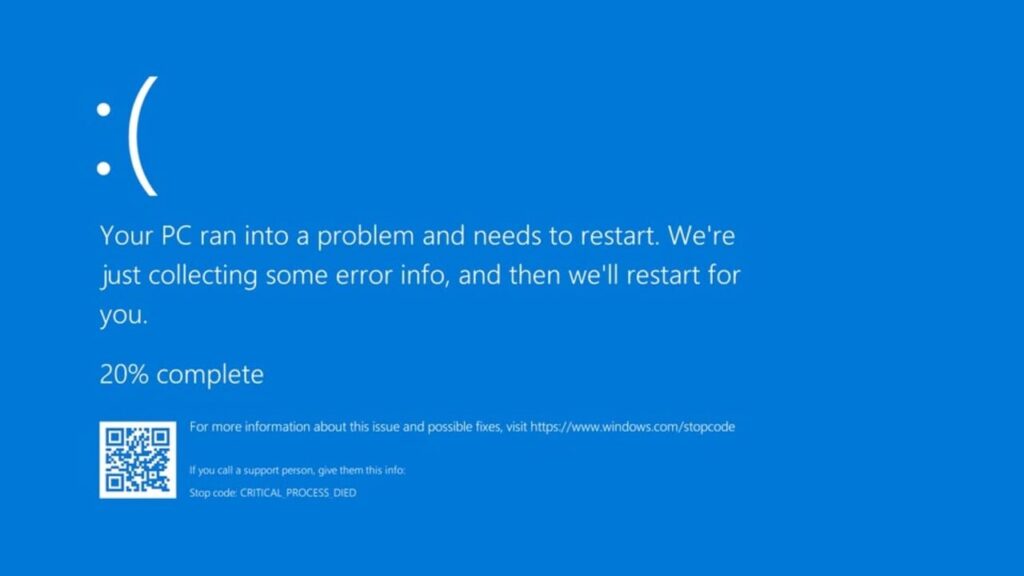
1️⃣ Blue Screen of Death (BSOD)
🔵 The classic blue screen is still present in Windows 11.
It appears suddenly and forces a system restart.
What Triggers It
- incompatible drivers
- faulty RAM
- failed Windows updates
- unstable overclocking
How to Recognize It
- sudden system crash
- blue screen with an error code
Common codes include:
IRQL_NOT_LESS_OR_EQUALCRITICAL_PROCESS_DIEDPAGE_FAULT_IN_NONPAGED_AREA
2️⃣ Windows Update Errors (0x800f, 0x8024…)
🔄 Updates are one of the biggest sources of issues.
Installation freezes or fails repeatedly.
Common Causes
- corrupted system files
- insufficient disk space
- third-party antivirus conflicts
Signs
- update stuck at 0% or 100%
- numeric error codes
This often happens after upgrading from Windows 10.
3️⃣ Incompatible or Missing Drivers
🚫 Sound, Wi-Fi, or display may suddenly stop working.
This is extremely common.
Why It Happens
- outdated Windows 10 drivers
- clean installation without OEM drivers
- Windows update replacing correct drivers
Clear Symptoms
- yellow warning signs in Device Manager
- no sound or no internet
- locked resolution
Graphics cards and network adapters are most affected.
4️⃣ Extremely Slow Boot Time
🐢 Windows 11 starts very slowly, even on decent hardware.
Common Causes
- too many Startup apps
- using HDD instead of SSD
- unnecessary background services
How to Tell
- desktop appears but freezes
- laggy mouse movement
- delayed app launches
⚠️ Windows 11 is optimized for SSD. Performance suffers on HDD.
5️⃣ Frozen or Unresponsive Taskbar
📍 The bottom taskbar stops working or disappears.
This is a widely reported bug.
Main Causes
- Explorer.exe crash
- incomplete update
- incompatible customization apps
Symptoms
- Start menu not clickable
- taskbar disappears temporarily
- icons don’t respond
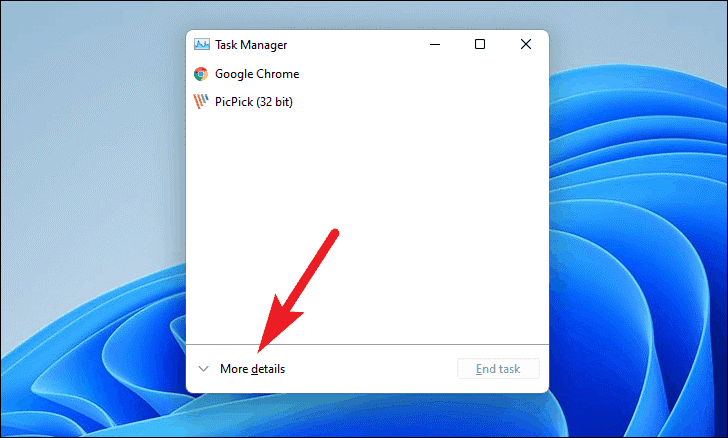
Restarting Explorer usually fixes it temporarily.
6️⃣ Microsoft Store Not Working
🛒 Apps won’t download or show errors.
Why It Happens
- corrupted cache
- disabled services
- Microsoft account sync issues
Signs
- download stuck
- Install button not responding
- app update failures
Very common on fresh installations.
7️⃣ Windows 11 Activation Error
🔑 “Windows is not activated” appears suddenly.
Possible Causes
- license tied to old hardware
- motherboard replacement
- invalid or duplicated key
How to Recognize It
- watermark on desktop
- personalization options locked
Often happens after hardware upgrades.
8️⃣ TPM and Secure Boot Issues
🔐 “This PC can’t run Windows 11”.
One of the most frustrating errors.
What Triggers It
- TPM disabled in BIOS
- Secure Boot turned off
- outdated BIOS firmware
When It Appears
- during installation
- after BIOS reset
- after firmware update
Very common on older systems.
9️⃣ Sound Not Working
🔇 No audio after an update.
Frequent Causes
- problematic Realtek driver
- automatic device switching
- faulty Windows update
Signs
- speaker icon with an X
- volume active but no sound
- missing audio device
Common after major updates.
🔟 Random Lag, Freezes, or Crashes
🧊 System instability without clear reason.
Why It Happens
- unoptimized apps
- hardware incompatibility
- bugs in newer builds
How It Shows
- random freezes
- apps closing unexpectedly
- short system hangs
Windows 11 still receives large patches regularly.
Frequently Asked Questions / FAQ
Why does Windows 11 have more errors than Windows 10?
Because it enforces stricter hardware requirements and more aggressive updates.
Does BSOD mean my PC is broken?
Usually not. It is often caused by drivers or update conflicts.
Can I avoid problems by disabling updates?
Short term, maybe. Long term, it is not recommended.
Does Windows 11 work well on HDD?
It works, but performance is noticeably slower.
Is TPM mandatory?
Yes, officially required for Windows 11.
Why does the taskbar disappear?
It is usually related to Explorer crashes or update bugs.
Is Microsoft Store necessary?
Yes, for modern apps and built-in updates.
Should I downgrade to Windows 10?
It depends on your hardware stability and needs.
🔍 What You Should Remember About Windows 11
Windows 11 is modern and fast, but:
- it demands compatible hardware
- updates may introduce new bugs
- outdated drivers are the main enemy
With proper setup, it can be stable and efficient.
⚠️ Disclaimer and Source Hygiene
This article is for informational purposes only.
For critical system failures, consult a certified IT professional.
The information is based on official documentation, user reports, and practical experience.
🔔 For more tutorials like this, consider subscribing to our blog.
📩 Do you have questions or suggestions? Leave a comment or contact us!
🏷️ Tags: Windows 11, Windows errors, BSOD, Windows Update issues, Windows drivers, TPM Windows 11, Microsoft Store problems, Windows optimization, PC troubleshooting, Windows crashes
📢 Hashtags: #Windows11 #BSOD #WindowsErrors #Microsoft #PCFix #TechSupport #SystemErrors #ITGuide #WindowsTips #UpdateProblems
