


⏲️ Estimated reading time: 8 min
Table of Contents
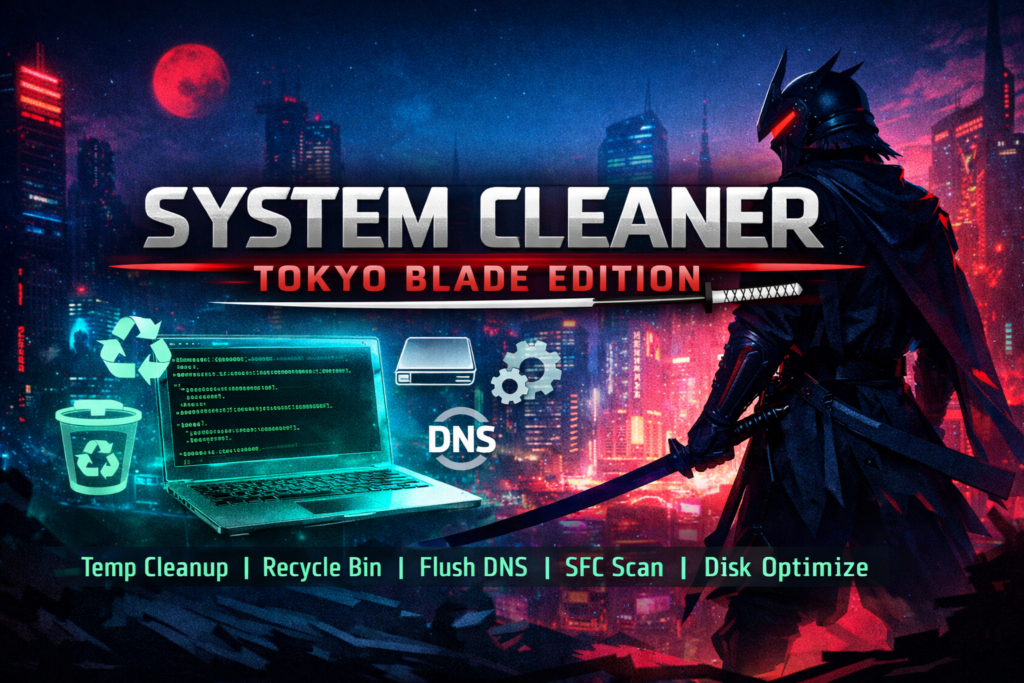
Discover “System Cleaner – Tokyo Blade Edition”, a Windows .BAT script that cleans temporary files, empties the Recycle Bin, flushes DNS, runs Disk Cleanup, performs SFC scans, and safely optimizes your drive. Includes explanations, safety tips, and best practices.
What Is “System Cleaner – Tokyo Blade Edition” and What It Does
You may also be interested in: João Ferreira da Silva: The Controversial Case That Ended
“System Cleaner – Tokyo Blade Edition” is a Windows Batch (.BAT) script designed to automate several system maintenance tasks in a single run. In simple terms, it helps free disk space, remove temporary clutter, refresh the DNS cache, and launch standard system checks and optimizations.
Why You Might Want a Script Like This
A cleaner script makes sense when:
- your PC feels bloated over time
- you need to quickly free disk space
- you want a one-click solution for repetitive tasks
- you want to run SFC without remembering the command
However, a cleaner is not magic. If your PC is slow due to drivers, malware, a failing HDD, or too many startup programs, cleaning TEMP folders alone will not fix everything.
Full Script (Copy/Paste)
System Cleaner – Tokyo Blade Edition
@echo off
title System Cleaner - Tokyo Blade Edition
color 0A

:: Administrator rights check
net session >nul 2>&1
if %errorLevel% neq 0 (
    echo [ERROR] Please run this script as Administrator!
    pause
    exit
)

echo ================================
echo   SYSTEM CLEANER - WINDOWS
echo ================================
echo.

:: 1. Clean user TEMP
echo [1/8] Cleaning user TEMP...
del /s /q "%temp%*" >nul 2>&1
for /d %%p in ("%temp%*") do rmdir "%%p" /s /q >nul 2>&1

:: 2. Clean Windows TEMP
echo [2/8] Cleaning Windows TEMP...
del /s /q "C:WindowsTemp*" >nul 2>&1
for /d %%p in ("C:WindowsTemp*") do rmdir "%%p" /s /q >nul 2>&1

:: 3. Clean Prefetch
echo [3/8] Cleaning Prefetch...
del /s /q "C:WindowsPrefetch*" >nul 2>&1

:: 4. Empty Recycle Bin
echo [4/8] Emptying Recycle Bin...
PowerShell -Command "Clear-RecycleBin -Force" >nul 2>&1

:: 5. Flush DNS
echo [5/8] Flushing DNS cache...
ipconfig /flushdns >nul

:: 6. Disk Cleanup (silent)
echo [6/8] Disk Cleanup...
cleanmgr /sagerun:1 >nul 2>&1

:: 7. System File Check
echo [7/8] Running SFC scan...
sfc /scannow

:: 8. Disk optimization (SSD safe)
echo [8/8] Optimizing disk...
defrag C: /O >nul 2>&1

echo.
echo ================================
echo   Cleaning completed successfully!
echo ================================
pause
exit
What Each Step Does (Explained Clearly)
Administrator Rights Check
The script starts by verifying administrator privileges:
- if not run as admin, it stops immediately and shows an error message
This is essential because:
- access to
C:WindowsTempis restricted - some system commands require elevated privileges
User TEMP Cleanup
The TEMP folder in your user profile collects:
- installer cache files
- temporary browser and app data
- crash leftovers
The script deletes files and attempts to remove subfolders. Files currently in use will remain, which is expected behavior.
Windows TEMP Cleanup
C:WindowsTemp stores system-level temporary files. Cleaning it can free disk space, especially after updates or software installations.
Note: files in use during installations or updates will not be deleted.
Prefetch Cleanup
Prefetch helps Windows launch programs faster by storing launch data.
Deleting Prefetch:
- does NOT damage Windows
- may cause slightly slower first launches afterward
- is automatically rebuilt over time
Many users clean it out of habit. It is safe, but do not expect dramatic performance gains.
Emptying the Recycle Bin
The PowerShell command Clear-RecycleBin -Force empties the Recycle Bin without confirmation. Make sure there is nothing important inside before running the script.
DNS Flush
ipconfig /flushdns clears the DNS resolver cache. It helps when:
- websites fail to load after DNS changes
- you experience strange name resolution issues
- you changed networks or routers
It does not permanently speed up the internet, but it can fix connectivity glitches.
Disk Cleanup (cleanmgr /sagerun:1)
Important detail:
/sagerun:1runs settings previously saved with/sageset:1- if you never configured
sageset:1, cleanup may be minimal
Recommended setup:
- Press Win + R →
cleanmgr /sageset:1 - Select the items you want cleaned
- From then on, the script runs those options silently
SFC /scannow
System File Checker scans and repairs protected Windows system files. It is very safe, but:
- it can take a long time
- progress percentage may appear slow
- detected issues are repaired automatically when possible
If SFC fails, DISM may be required beforehand (see improvements section).
Defrag C: /O (SSD Safe)
The command defrag C: /O:
- automatically selects the correct optimization method
- performs TRIM and maintenance on SSDs
- runs classic defragmentation only on HDDs
This makes it safe and suitable for mixed systems.
How to Save and Run the Script Correctly
Step 1: Create the .BAT File
- Right-click Desktop → New → Text Document
- Rename it to
SystemCleaner_TokyoBlade.bat - Open it with Notepad
- Paste the script
- Save
Step 2: Run as Administrator
- Right-click the file → Run as administrator
If not run as admin, the script will stop automatically.
Safety Recommendations Before Running
Even though this is a standard cleaner:
- close open applications
- save important work
- avoid running during installations or updates
SFC and TEMP cleanup may interact with active processes.
Pros & Cons of This Cleaner Script
Advantages
- one-click maintenance workflow
- frees space from temporary folders
- clear admin check and progress messages
- includes system file integrity scanning
Disadvantages
- Disk Cleanup depends on prior
sagesetconfiguration - Prefetch cleanup offers limited real-world benefit
- silent output hides detailed error messages
- not ideal for troubleshooting without logs
Useful Improvements (If You Want a “Pro” Version)
Log File Support
- write output to a log file for diagnostics
DISM Before SFC
DISM /Online /Cleanup-Image /RestoreHealth- followed by
sfc /scannow
Windows Update Cache Cleanup (Optional)
- can free space, but must be done carefully
Automatic System Drive Detection
- use
%SystemDrive%instead of hardcodingC:
Clear Disk Cleanup Instructions
- small reminder inside the script to run
cleanmgr /sageset:1once
If you want, I can instantly create Tokyo Blade Edition v2 with:
- logging + timestamps
- DISM + SFC workflow
- menu-based interface (Quick Clean / Full Clean)
- automatic system drive detection
Frequently Asked Questions
1) Is it safe to delete files from %temp%?
Yes. Windows and applications recreate temporary files automatically. Files in use will not be deleted.
2) Can cleaning C:WindowsTemp cause issues?
Generally no. Avoid running it during active installations or updates.
3) What happens if I delete Prefetch?
Windows rebuilds it. Initial app launches may be slightly slower.
4) Does Clear-RecycleBin permanently delete files?
Yes. Recovery afterward is difficult and not guaranteed.
5) Does flushing DNS make the internet faster?
Not permanently. It mainly resolves access and DNS resolution problems.
6) Why does cleanmgr /sagerun:1 seem to do nothing?
Because you must configure it first using cleanmgr /sageset:1.
7) Is it normal for SFC to take a long time?
Yes. Duration depends on disk speed and system health.
8) Is defragging an SSD dangerous?
No, not when using defrag /O. Windows applies the correct optimization.
9) Can I run this script daily?
Yes, but it is usually unnecessary. Weekly or occasional use is enough.
10) Does it work on Windows 11?
Yes. Commands are generally compatible, with minor behavioral differences.
Key Takeaways
- Always run the script as Administrator
- Close apps before cleaning
- Configure Disk Cleanup once with
sageset - SFC is the most intensive step
- TEMP cleanup frees space but does not fix all performance issues
Final Note (Tokyo Blade Edition)
A clean system is more than deleting files. It also means smart habits: regular updates, minimal startup programs, and careful software installation.
⚠️ Disclaimer and Source Hygiene
This article is for informational purposes only and does not replace professional IT advice. Running scripts on Windows is done at your own risk. Information is based on standard Windows tools and generally accepted maintenance practices.
🔔 For more tutorials like this, consider subscribing to our blog.
📩 Do you have questions or suggestions? Leave a comment or contact us!
🏷️ Tags: system cleaner, windows batch script, windows cleanup, temp cleanup, clear recycle bin, flush dns, sfc scannow, disk cleanup, ssd optimization, windows maintenance
📢 Hashtags: #SystemCleaner #WindowsTips #BatchScript #PCMaintenance #TokyoBlade #WindowsCleanup #TechGuide #OptimizeWindows #SFC #DiskCleanup
📚 Sources and References
- Standard Windows utilities: Disk Cleanup (cleanmgr), System File Checker (SFC), Defrag/Optimize Drives, ipconfig /flushdns
- Microsoft documentation and Windows maintenance best practices
🕊️ Secondary Sources and Practical Experience
- Common real-world Windows administration practices and user experiences related to TEMP cleanup, system integrity checks, and disk optimization
