


⏲️ Estimated reading time: 8 min
Table of Contents
Softaculous Backups is one of the easiest ways to create full WordPress backups directly from cPanel. In this complete guide, you will learn how to create, download, and restore backups, how to configure remote backup locations, what a proper backup includes, and how to avoid common mistakes that can break your website.
What Softaculous Is and Why It Matters for Backups
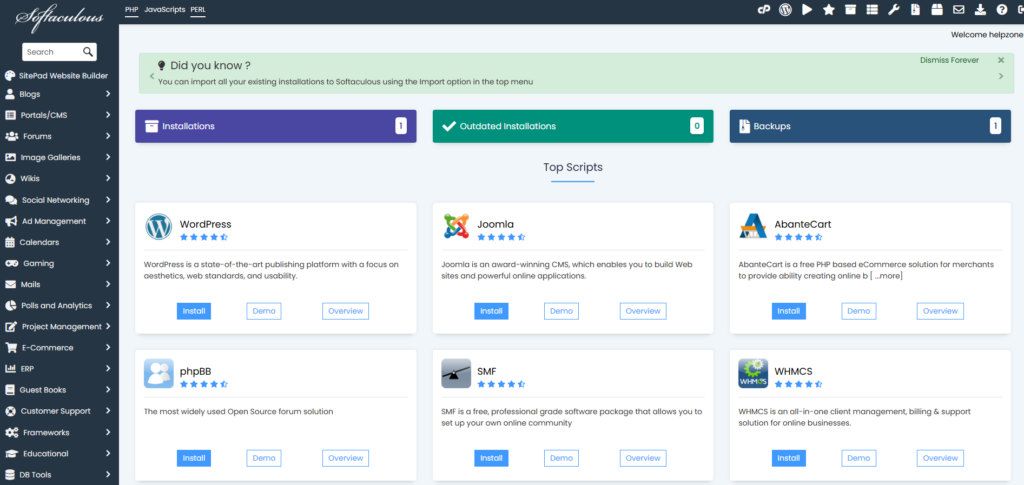
Softaculous is an auto-installer integrated into many hosting control panels, especially cPanel. Most users know it for installing WordPress with a few clicks, but one of its most powerful features is the backup and restore system for installed applications, including WordPress.
Why Backups Are the Safety Net of Any WordPress Site
A WordPress website can break even when you follow best practices.
Updates That Conflict With Each Other
Theme or plugin updates can cause conflicts, layout issues, or complete admin lockouts.
Server Errors and Wrong Settings
PHP changes, memory limits, file permissions, or caching rules can trigger critical errors.
Hacks, Malware, and Injected Code
WordPress popularity makes it a frequent target. Without backups, cleanup becomes complex and risky.
Human Errors
Accidentally deleting files, editing the wrong PHP function, or running unsafe database operations can break everything. A backup saves time, money, and stress.
What a Proper WordPress Backup Must Include
A real backup has two essential components.
Website Files
These include WordPress core files, themes, plugins, images, uploads, and the wp-config.php file.
Database
The database stores posts, pages, settings, users, comments, WooCommerce orders, and products. Without it, your site has no content.
Advantages of Softaculous Backups Compared to Other Methods
Softaculous is not the only backup solution, but it offers strong advantages.
No WordPress Plugin Required
Backups run at the hosting level, even if WordPress is broken.
Fast Restore Without Manual Migration
Restoration is straightforward, with no export/import steps.
Support for Remote Backup Locations
Many hosting setups allow external storage, increasing data safety.
Application-Level Control
You can back up a single WordPress installation without affecting the entire hosting account.
When Softaculous Is the Right Backup Solution
Softaculous is ideal in common scenarios.
Before Major WordPress, Theme, or Plugin Updates
This is the golden rule. Always back up before updates.
Before Changing Themes or Builders
Theme changes affect layouts, widgets, and styles.
Before Editing Child Theme Files
A small typo in functions.php can crash your site.
Before Database Optimization or Structural Changes
Database operations always carry risk.
Where to Find Softaculous Backups in cPanel
Most hosting providers show Softaculous in two places.
Softaculous Apps Installer
Access it directly from cPanel.
WordPress Manager by Softaculous
Some hosts include a dedicated WordPress manager with backup and restore options.
How to Check If Your WordPress Site Is Managed by Softaculous
Not every WordPress site is installed via Softaculous.
Installation Detection
Softaculous often detects existing WordPress installations automatically.
When Your Site Does Not Appear
Possible reasons include manual installation, permission issues, or hosting restrictions. In such cases, you may need alternative backup methods.
Types of WordPress Backups in Softaculous
Full Backup
Includes both files and database. Recommended in most cases.
Files-Only Backup
Useful for theme or plugin changes but not sufficient alone.
Database-Only Backup
Best for content changes, WooCommerce updates, or configuration edits.
How to Create a Manual Backup With Softaculous
Step 1: Select the WordPress Installation
Locate your site by domain or path.
Step 2: Click Backup
Use the Backup option inside the installation panel.
Step 3: Choose Backup Components
Select files, database, or both. Full backup is recommended.
Step 4: Start the Backup
Wait for completion. Time depends on media size.
Step 5: Confirm Backup Creation
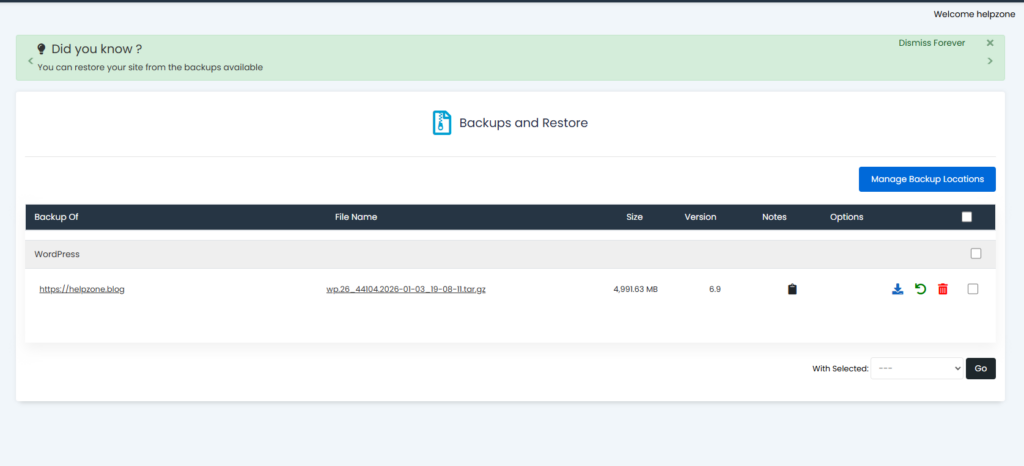
Verify the backup appears in the list with correct size and date.
How to Download Your Backup Locally
Why Local Copies Matter
If the server fails or the account is compromised, local backups remain safe.
Download Best Practices
Use the download icon and store backups in organized folders.
Naming Convention Example
helpzone_2026-01-03_full_backup.tar.gz
How to Restore a Backup Using Softaculous
Critical Rule Before Restoring
Always create a new backup of the current state first.
Step 1: Choose the Correct Backup
Verify date and backup type.
Step 2: Select Restore Type
Choose Files, Database, or Full Restore.
Step 3: Confirm Restore
Softaculous will overwrite existing data.
Step 4: Post-Restore Checks
Test homepage, admin login, forms, WooCommerce, and media.
Common Post-Restore Issues and Fixes
404 Errors
Re-save permalinks in WordPress settings.
Cache Issues
Clear plugin cache, server cache, and CDN cache.
Missing Images
Verify the uploads folder was included.
Read also: Transient Cleaner Plugin – Clean WordPress Cache Safely
Login Problems
Check database credentials in wp-config.php.
What “Backup Locations” Mean in Softaculous
Why Backup Location Matters
Backups stored on the same server are vulnerable.
Local vs Remote Storage
Remote storage adds an extra security layer.
When Remote Storage Is Essential
For revenue-generating sites, frequent updates, or high traffic.
How to Configure Manage Backup Locations
Supported Remote Storage Options
Depending on hosting:
- FTP / SFTP
- Google Drive
- Dropbox
- Amazon S3
- WebDAV
Security Best Practices
Use unique passwords and enable two-factor authentication.
Recommended Backup Strategy for WordPress
Low-Update Blogs
Weekly full backup plus pre-update backups.
Daily Publishing Sites
Daily full backups and frequent database backups.
WooCommerce or Membership Sites
Daily or multiple daily database backups plus remote storage.
How Many Backups to Keep
Retention Strategy
- 7 daily backups
- 4 weekly backups
- 3 monthly backups
Why Older Backups Matter
Some issues remain hidden for weeks.
Reducing Backup Size
Media Cleanup
Remove duplicate or unused images.
Cache Folder Exclusion
Clear cache before backups when possible.
Backup Security Best Practices
Never Leave Backups Public
Avoid public directories.
Encrypt Local Backups
Especially for sites with user data.
Use Secure Cloud Accounts
Enable 2FA for cloud storage.
Softaculous vs Hosting Provider Backups
Hosting Backups Limitations
Unclear schedules, limited retention, slower restore.
Softaculous Advantages
Immediate control and quick recovery.
Best Practice
Use both hosting and Softaculous backups together.
Using Softaculous Backups for WordPress Migration
When It Works Well
Same server, staging to live, domain folder changes.
What to Check After Migration
URLs, SSL, cache, sitemap, and redirects.
Restore Safety Checklist
Verify Backup Date
Confirm correct version.
Confirm Files and Database
Both are required for full recovery.
Ensure cPanel Access
For emergency fixes.
Disable Aggressive Cache
Before restoring.
Common Softaculous Backup Mistakes
Storing Backups Only on Server
Always keep an external copy.
No Regular Backup Routine
Manual backups alone are not enough.
Never Testing Restore
Test at least once on staging.
Keeping Too Many Backups
Disk space issues can cause failures.
How to Quickly Validate a Backup
Check Backup Size
Sudden size drops indicate missing data.
Verify wp-content Folder
Must be present.
Confirm Database Dump
Required for content recovery.
Integrating Softaculous Backups Into Your Workflow
Weekly Maintenance Routine
Backup, update, test, download.
Pre-Change Routine
Backup, document changes, update safely.
Frequently Asked Questions
Is Softaculous backup enough for serious WordPress sites?
Yes for many blogs, especially with remote storage. Large stores may need extra layers.
Does Softaculous backup include the database automatically?
Only if selected. Always choose full backup.
Can I restore only the database?
Yes, useful for content or order issues.
Why are my backups so large?
Media files and cache folders usually cause size growth.
What if restore finishes but nothing changes?
Clear all caches and check again.
Does Softaculous support scheduled backups?
Depends on hosting configuration.
Where is the safest place to store backups?
Remote storage with strong security.
Can I restore a site even if WordPress is broken?
Yes, restore works from cPanel.
Key Takeaways That Save Your Website
Softaculous Backups is simple yet powerful when used correctly. Create backups before updates, store copies outside the server, test restores occasionally, and maintain a clear backup routine. With the right habits, a website crash becomes a minor inconvenience instead of a disaster.
⚠️ DISCLAIMER
This article is for informational purposes only and does not replace professional server or security consulting. Hosting configurations vary. Information is based on general WordPress and Softaculous documentation and industry best practices.
🔔 For more tutorials like this, consider subscribing to our blog.
📩 Do you have questions or suggestions? Leave a comment or contact us!
🏷️ Tags: softaculous backups, wordpress backup cpanel, restore wordpress softaculous, cpanel backup guide, wordpress backup strategy, backup and restore, softaculous restore, remote backup locations, wordpress security backups, hosting wordpress
📢 Hashtags: #Softaculous #WordPressBackup #cPanel #BackupAndRestore #WordPressSecurity #WebsiteMaintenance #HostingTips #WPAdmin #SiteRecovery #BloggingTips
📚 Sources and References
Official Softaculous documentation, cPanel documentation, WordPress file and database guidelines, and widely accepted WordPress backup and security best practices.
🕊️ Secondary Sources and User Experiences
Practical experiences from WordPress administrators using cPanel and Softaculous for backups before updates, recovery after plugin conflicts, server errors, and WordPress migrations.
