

⏲️ Estimated reading time: 5 min
Table of Contents
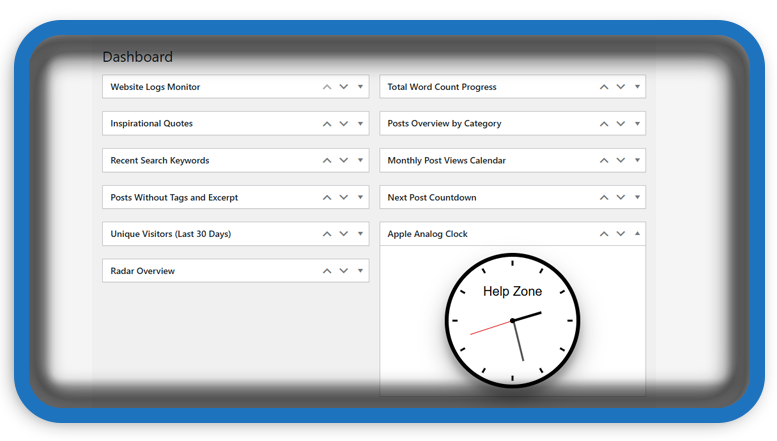
🕰 Add a Live Apple Analog Clock to Your WordPress Dashboard (Brussels Time). Bring life to your WordPress dashboard with a beautiful Apple-style analog clock that shows the current time in Brussels – and proudly displays your website’s name. This custom widget uses CSS and JavaScript to deliver a live, brand-personalized experience in your admin area.
🧩 This plugin adds an analog Apple-style clock widget to your WordPress dashboard, showing Brussels time and your site title. Learn how to install it, customize it, and understand how it works step-by-step.
🛠️ What This Plugin Does
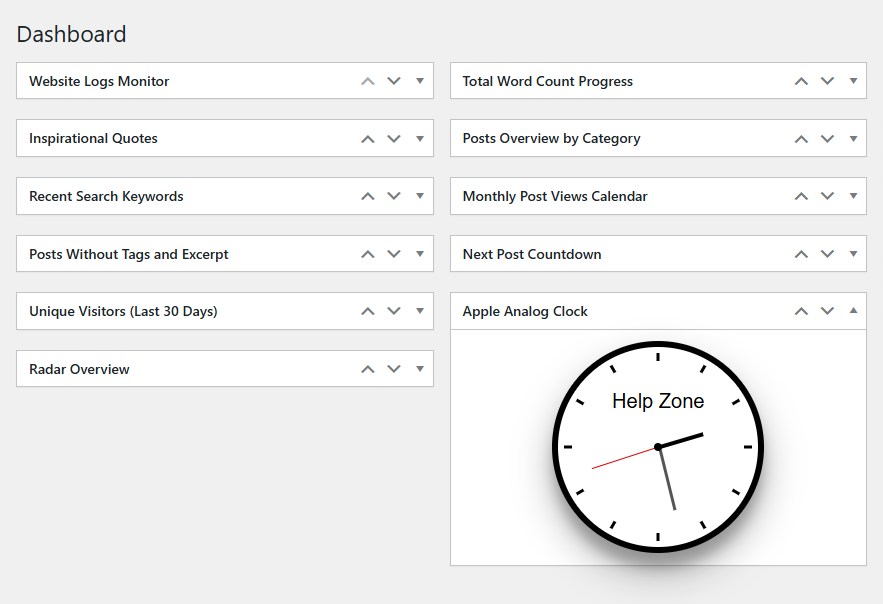
This plugin creates a dynamic, live analog clock styled after Apple’s signature design. It displays:
- The current Brussels time, updated every second
- Animated second, minute, and hour hands
- 12 hourly tick marks
- Your WordPress site title, centered on the clock face
- Your site title also appears in the widget title for branding consistency
🔄 Why the Site Name is Displayed
The plugin uses WordPress’s native function get_bloginfo('name') to retrieve the title of your website as defined in Settings → General → Site Title. This ensures your brand appears:
Read also: Top 10 Best Perfumes for Women
- Inside the clock face (beneath the center point)
- In the widget title (shown at the top of the widget box)
This reinforces your brand identity and gives the widget a personalized feel.
🧩 Full Plugin Code
Save the following code in a file called apple-analog-clock.php inside /wp-content/plugins/apple-analog-clock/:
<?php
/**
 * Plugin Name: Apple Analog Clock Dashboard Widget (Brussels Time)
 * Description: A custom dashboard widget displaying an Apple-style analog clock showing Brussels time.
 * Version: 1.1
 * Author: HelpZone
 */

add_action('wp_dashboard_setup', 'hz_apple_clock_add_dashboard_widget');

function hz_apple_clock_add_dashboard_widget() {
    wp_add_dashboard_widget(
        'hz_apple_clock_widget',
        get_bloginfo('name') . ' – Apple Analog Clock',
        'hz_apple_clock_widget_display'
    );
}

function hz_apple_clock_widget_display() {
    $site_name = get_bloginfo('name');
    ?>
    <style>
        .hz-clock {
            width: 200px;
            height: 200px;
            background: #fff;
            border: 6px solid #000;
            border-radius: 50%;
            box-shadow: rgba(0, 0, 0, 0.3) 0px 19px 38px, rgba(0, 0, 0, 0.22) 0px 15px 12px;
            position: relative;
            margin: 0 auto;
        }

        .hz-clock .center {
            width: 8px;
            height: 8px;
            background: #000;
            border-radius: 50%;
            position: absolute;
            top: 50%;
            left: 50%;
            transform: translate(-50%, -50%);
            z-index: 10;
        }

        .hz-hand {
            position: absolute;
            bottom: 50%;
            left: 50%;
            transform-origin: bottom;
        }

        .hz-hand.hour { height: 45px; width: 4px; background: #000; z-index: 4; }
        .hz-hand.minute { height: 65px; width: 3px; background: #555; z-index: 3; }
        .hz-hand.second { height: 70px; width: 1px; background: #d00; z-index: 2; }

        .hz-tick {
            position: absolute;
            width: 3px;
            height: 8px;
            background: #000;
            top: 6px;
            left: 50%;
            transform-origin: center 94px;
            transform: translateX(-50%) rotate(0deg);
        }

        .hz-brand-text {
            position: absolute;
            top: 40px;
            left: 50%;
            transform: translateX(-50%);
            font-size: 20px;
            color: #000;
            font-weight: 500;
            font-family: "Audiowide", sans-serif;
            white-space: nowrap;
        }
    </style>

    <div class="hz-clock" id="hz-clock">
        <div class="center"></div>
        <div class="hz-hand hour" id="hz-hourHand"></div>
        <div class="hz-hand minute" id="hz-minuteHand"></div>
        <div class="hz-hand second" id="hz-secondHand"></div>
        <div class="hz-brand-text"><?php echo esc_html($site_name); ?></div>
    </div>

    <script>
        (function(){
            const clock = document.getElementById('hz-clock');
            for (let i = 0; i < 12; i++) {
                const tick = document.createElement('div');
                tick.className = 'hz-tick';
                tick.style.transform = `translateX(-50%) rotate(${i * 30}deg)`;
                clock.appendChild(tick);
            }

            const hourHand = document.getElementById('hz-hourHand');
            const minuteHand = document.getElementById('hz-minuteHand');
            const secondHand = document.getElementById('hz-secondHand');

            function updateClock() {
                const now = new Date();
                const brusselsTime = new Date(now.toLocaleString("en-US", {timeZone: "Europe/Brussels"}));

                const sec = brusselsTime.getSeconds();
                const min = brusselsTime.getMinutes();
                const hr = brusselsTime.getHours();

                const secDeg = sec * 6;
                const minDeg = min * 6 + sec * 0.1;
                const hrDeg = ((hr % 12) + min / 60) * 30;

                secondHand.style.transform = `rotate(${secDeg}deg)`;
                minuteHand.style.transform = `rotate(${minDeg}deg)`;
                hourHand.style.transform = `rotate(${hrDeg}deg)`;
            }

            setInterval(updateClock, 1000);
            updateClock();
        })();
    </script>
    <?php
}
🧰 How to Install It (Step by Step)
- Open your WordPress directory →
wp-content/plugins/ - Create a folder named:
apple-analog-clock - Inside it, create a file:
apple-analog-clock.php - Paste the full plugin code into that file
- Go to WordPress Dashboard → Plugins → Activate "Apple Analog Clock"
- Navigate to Dashboard → Home, and you'll see the live clock in action
🌐 Customize Time Zone or Appearance
- Change the time zone by editing
"Europe/Brussels"in the JavaScript to any valid time zone ID (like"America/New_York"). - Modify the
.hz-clock,.hz-hand, or.hz-brand-textclasses for different styles.
✅ Use Case Ideas
- Dashboard branding for clients or agencies
- Easily monitor the time zone of your primary audience
- Visual appeal for admin users and editors
🧭 Final Thoughts
This analog clock widget is more than just functional it brings a custom, brand-enhancing feel to your WordPress backend. By displaying your site name both in the title and in the clock face, it reinforces identity while serving a practical purpose. Clean, lightweight, and beautiful exactly how a widget should be.
🔔 For more tutorials like this, consider subscribing to our blog.
📩 Do you have questions or suggestions? Leave a comment or contact us!
🏷️ Tags: WordPress plugin, dashboard widget, analog clock, time zone clock, custom branding, JavaScript clock, Apple-style UI, admin customization, wp_dashboard_widget, HelpZone
📢 Hashtags: #WordPressPlugins, #DashboardWidgets, #AnalogClock, #BrusselsTime, #CustomBranding, #WPAdmin, #SiteNameIntegration, #JavaScriptWidgets, #MinimalUI, #HelpZoneTips
