

⏲️ Estimated reading time: 3 min
Table of Contents
Here’s a complete guide on how to set up Additional Command Line Arguments on VALORANT to optimize performance, troubleshoot, or enable specific launch settings:
🎮 How to Set Up Additional Command Line Arguments on VALORANT
See also: Who Would Look for You If You Disappeared for a Week?
Looking to tweak VALORANT’s launch behavior for better performance or fixes? Here’s how to apply additional command line arguments using Riot’s launcher and Windows shortcuts.
🔧 What Are Command Line Arguments?
Command line arguments are extra instructions you can provide to a program before it launches. For VALORANT, they can help in:
- Improving performance
- Skipping intro videos
- Adjusting display settings
- Debugging
🛠️ Method 1: Add Launch Options via Windows Shortcut
VALORANT doesn’t have a built-in “Launch Options” box like Steam games, but you can manually configure them through a shortcut.
Step-by-Step Guide:
- Create a Shortcut for VALORANT
- Go to your desktop or folder
- Right-click → New → Shortcut
- Browse to:
C:Riot GamesVALORANTliveVALORANT.exe - Click Next and name the shortcut.
- Add Command Line Arguments
- Right-click the shortcut → Properties
- In the Target field, add your arguments after the quotes.
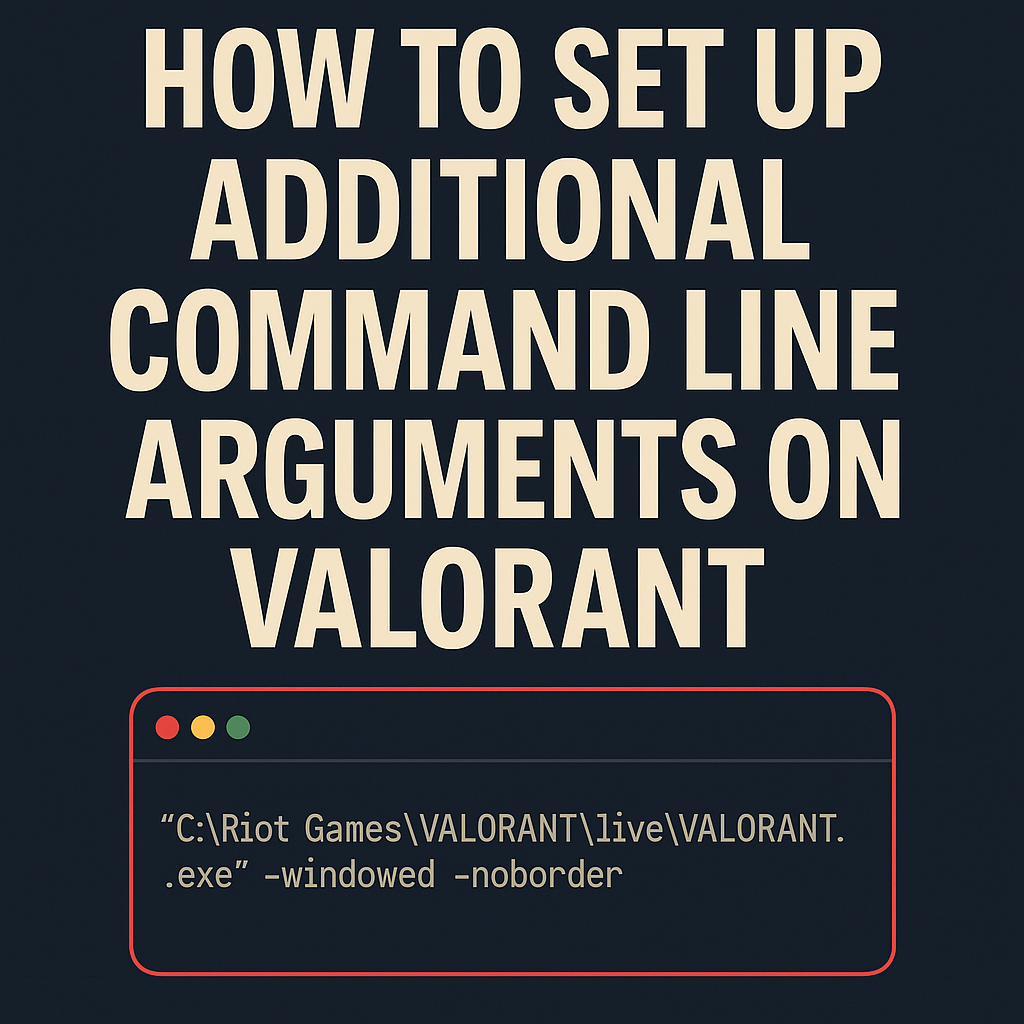
Example:"C:Riot GamesVALORANTliveVALORANT.exe" -windowed -noborder
- Apply and Launch
- Click Apply then OK
- Use this shortcut to launch VALORANT with the specified options
🛠️ Method 2: Use Riot Client Parameters
You can also launch via the RiotClientServices.exe (indirect method).
- Create a shortcut for Riot Client:
C:Riot GamesRiot ClientRiotClientServices.exe - Add this to the shortcut’s target:
--launch-product=valorant --launch-patchline=live - Combine with extra args like:
--launch-product=valorant --launch-patchline=live -windowed -noborder
🧪 Common Launch Arguments for VALORANT
| Argument | Function |
|---|---|
-windowed | Launch in windowed mode |
-fullscreen | Force fullscreen |
-noborder | Removes borders from windowed mode |
-dx11 | Use DirectX 11 rendering |
-novid | Skip intro videos (not always effective) |
-high | Launch with high CPU priority |
⚠️ Note: Some arguments may not work due to Riot’s anti-cheat or locked client behavior.
🚫 Limitations & Warnings
- Vanguard (Riot’s anti-cheat) might ignore or restrict some flags.
- These tweaks won’t allow cheats or unfair advantages and are mostly visual/performance related.
- Make sure you run the shortcut as Administrator if needed.
✅ Tips for Better Performance
- Use
-windowed -noborderto reduce alt-tab delay - Force DirectX mode using
-dx11if you face rendering issues - Keep GPU drivers updated and disable unnecessary overlays
📩 Do you have questions or suggestions? Leave a comment or contact us!
🏷️ Tags: VALORANT, command line, game tweaks, PC gaming, FPS optimization, Riot Games, Windows shortcut, Vanguard, directx11, launch options
