


⏲️ Estimated reading time: 10 min
Table of Contents
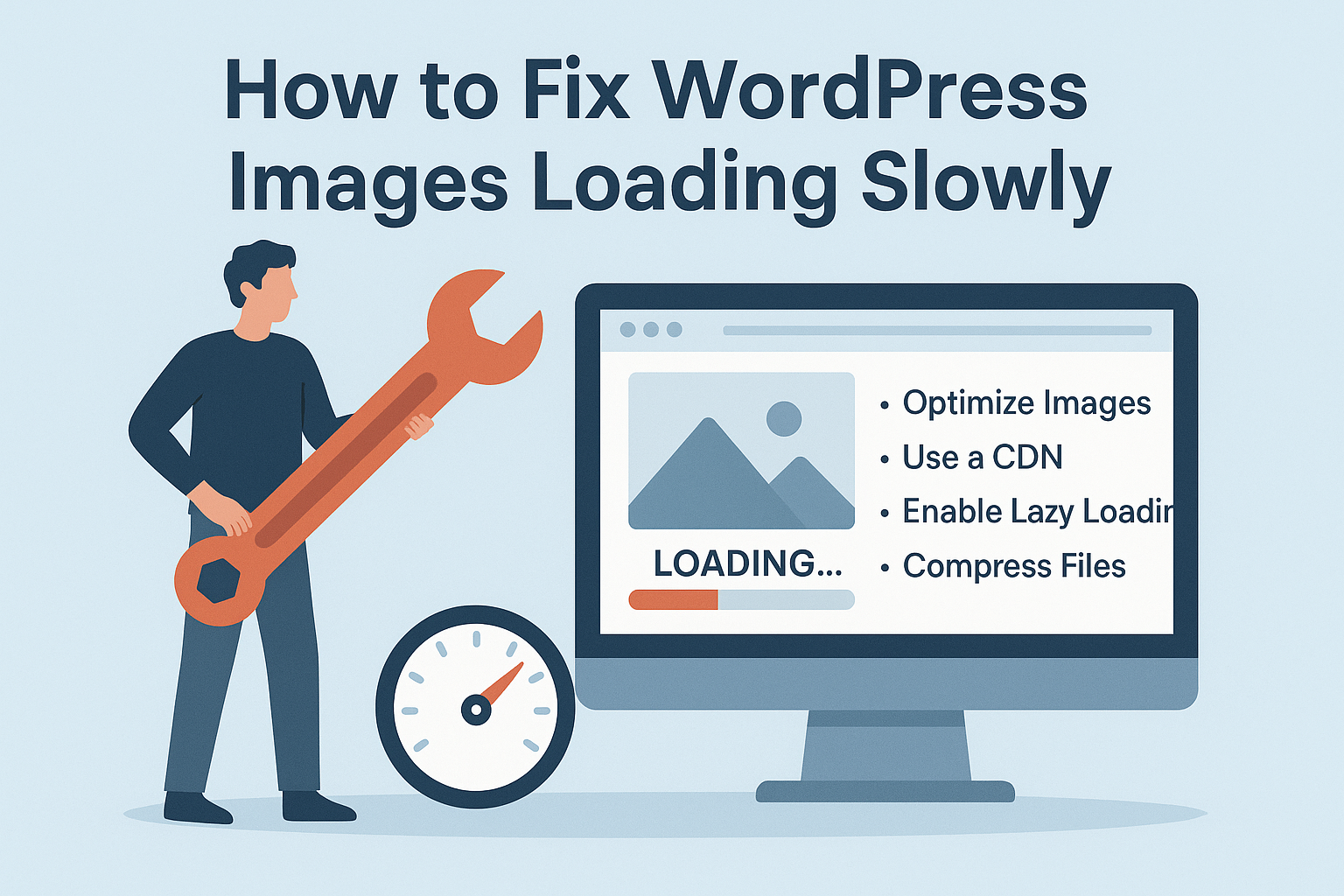
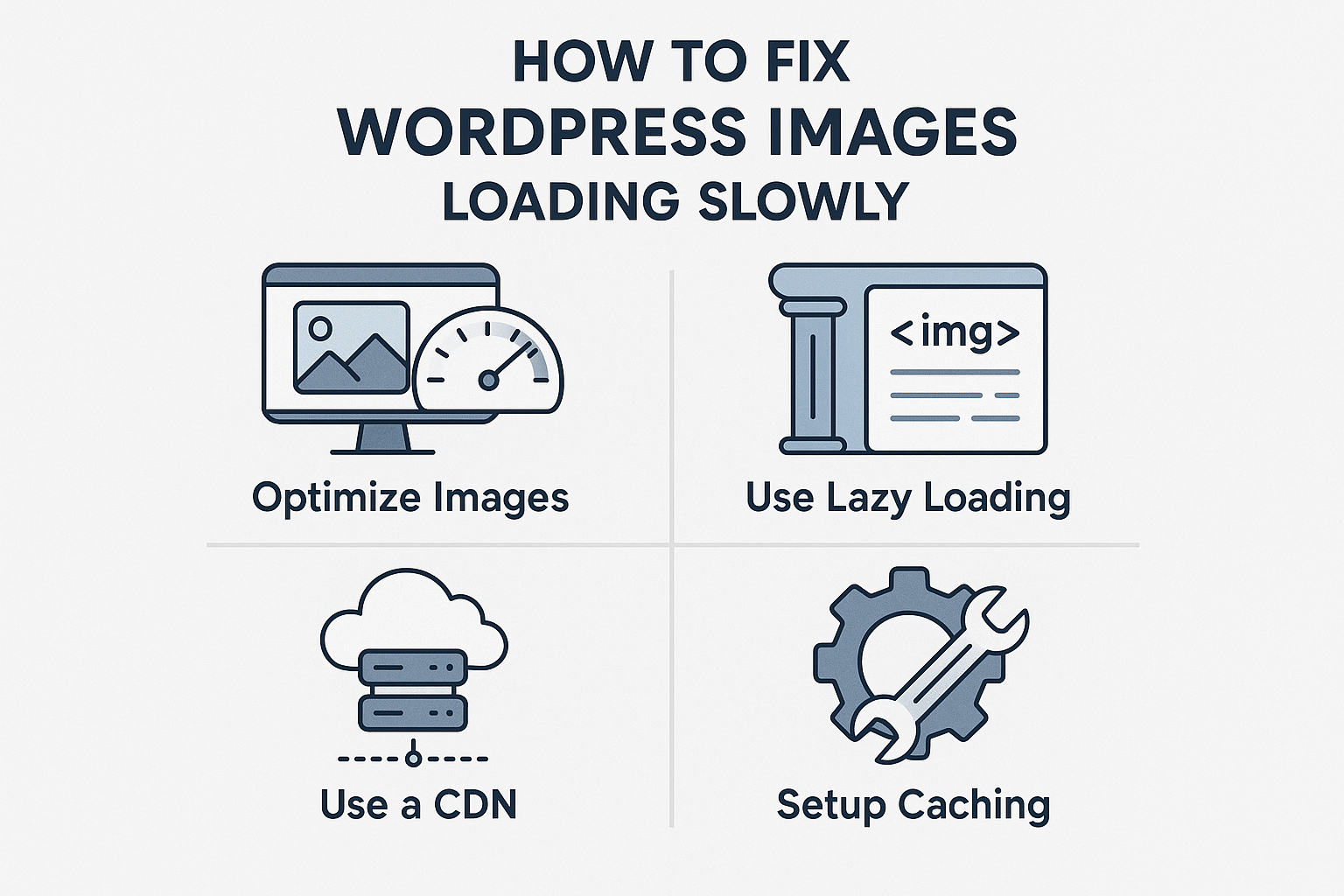
Why WordPress Images Load Slowly (and How to Fix Them Fast). Slow-loading images crush SEO, Core Web Vitals, and conversions. This practical guide shows you exactly why WordPress images are sluggish and how to fix them with WebP/AVIF, responsive sizes, smart lazy-loading, CDN setup, and a clean theme configuration that boosts LCP instantly.
Table of Contents
- Understanding why images slow down WordPress
- Quick diagnostic checklist (5 minutes)
- Image formats: JPEG/PNG vs WebP/AVIF
- Compress the right way (without looking ugly)
- Get srcset and sizes right for true responsiveness
- Stop sabotaging your LCP: prioritize the hero image
- Lazy-load the smart way (not blindly)
- Serve images via a CDN (and cache them properly)
- Tame sliders, galleries, and page builders
- Control how many thumbnails WordPress generates
- Eliminate layout shift with width/height and aspect ratios
- Optimize background images and CSS images
- Clean up EXIF/ICC and invisible bloat
- Measure, iterate, and automate
- Key Takeaways (final section)
1) Understanding why images slow down WordPress
Images usually account for the largest portion of page weight. If they are oversized, uncompressed, or served without responsive variants, users especially on mobile download far more data than they need. Add in lazy-loading mistakes, missing caching, and heavy sliders, and your Core Web Vitals (LCP, CLS) suffer. The good news: a handful of targeted fixes can transform perceived speed without redesigning your site.
Primary culprits:
- Uploading 4–20 MB photos directly from phones/cameras.
- Serving desktop-sized assets to mobile (no
srcset/sizes). - Lazy-loading the hero image (hurts LCP).
- No CDN, or misconfigured CDN/cache headers.
- Sliders that load 10+ images above the fold.
- Background images used for content-critical visuals.
- Too many thumbnail sizes generated by theme/plugins.
2) Quick diagnostic checklist (5 minutes)
Open Chrome DevTools → Network → filter Img:
- Transferred size of hero/featured image > 300 KB? → compress + WebP/AVIF.
<img>for the hero hasloading="lazy"? → change toloading="eager"+fetchpriority="high".<img>missingsrcset/sizes? → usewp_get_attachment_image()or Gutenberg Image block with proper size.- Images coming from your origin only? → add a CDN (Cloudflare/Bunny/KeyCDN).
- TTFB ridiculously high (>600 ms)? → hosting/object cache issues; fix server first.
Take a Lighthouse/PageSpeed run and note LCP, CLS, and Total size. These three metrics will guide your priorities.
3) Image formats: JPEG/PNG vs WebP/AVIF
When to use what:
- WebP: modern default. Great balance of size and quality for photos and illustrations.
- AVIF: even smaller than WebP at similar quality, but with broader CPU cost and mixed browser support on older devices.
- JPEG: legacy fallback for photographic content if you can’t serve modern formats.
- PNG: only when you truly need lossless transparency or crisp UI art (logos, icons).
- SVG: for vector logos/icons where possible (tiny + crisp at any size).
Rule of thumb: Serve WebP first, optionally AVIF for supporting browsers, and keep JPEG/PNG as a transparent fallback when needed.
4) Compress the right way (without looking ugly)
Aim for:
- Featured images: ≤ 200–250 KB
- Content images: ≤ 80–150 KB
- Thumbnails: ≤ 60–100 KB
Use a reputable optimizer that pre-generates files on upload (don’t convert “on the fly” for every request):
- LiteSpeed Cache (if on LiteSpeed/OpenLiteSpeed hosting),
- ShortPixel, Imagify, or EWWW Image Optimizer.
Enable lossy compression with a balanced setting. Strip EXIF/metadata unless you truly need it (photography portfolios sometimes do). Always preview before bulk-optimizing to calibrate your settings.
5) Get srcset and sizes right for true responsiveness
When you embed images the WordPress way, WP generates multiple sizes and populates srcset. Browsers then pick the best-fit variant. The sizes attribute tells the browser how wide the image will render in different viewports; if it’s missing or wrong, mobile devices may download larger files than necessary.
Use WordPress helpers (template example):
echo wp_get_attachment_image(
  $image_id,
  'large',
  false,
  [
    'sizes' => '(max-width: 768px) 100vw, (max-width: 1200px) 768px, 1200px'
  ]
);
In Gutenberg, simply choose the correct Image size (not “Full size”) and the block will emit responsive markup. For themes, use the_post_thumbnail() or wp_get_attachment_image() instead of hand-coded <img> tags.
6) Stop sabotaging your LCP: prioritize the hero image
Your Largest Contentful Paint (LCP) is often the featured image or hero image. If you lazy-load it, browsers wait too long before fetching it LCP gets worse.
Do this:
- For the hero/LCP image only, set
loading="eager"andfetchpriority="high". - Preload the exact image URL the browser should grab first.
Snippet (remove lazy + boost priority for single-post featured):
add_filter('wp_get_attachment_image_attributes', function($attr, $attachment, $size){
  if (is_singular() && !is_admin()) {
    $attr['loading'] = 'eager';
    $attr['fetchpriority'] = 'high';
  }
  return $attr;
}, 10, 3);
Preload (inside <head>):
add_action('wp_head', function(){
  if (is_singular() && has_post_thumbnail()) {
    $id  = get_post_thumbnail_id();
    $src = wp_get_attachment_image_src($id, 'large');
    $set = wp_get_attachment_image_srcset($id, 'large');
    if (!empty($src[0])) {
      echo '<link rel="preload" as="image" href="'.esc_url($src[0]).'" imagesrcset="'.esc_attr($set).'" imagesizes="(max-width: 768px) 100vw, 1200px" fetchpriority="high">';
    }
  }
});
7) Lazy-load the smart way (not blindly)
Lazy-loading is powerful but not for everything above the fold. Use it for images that appear later down the page (galleries, related posts, comments).
- Keep hero/LCP eager.
- For everything else, ensure
loading="lazy"is present (WordPress does this by default). - Consider native lazy-loading plus intersection observer only if you need finer control.
8) Serve images via a CDN (and cache them properly)
A CDN shortens the physical distance between your users and your assets. That means lower latency and faster downloads.
Steps:
- Pick a CDN (Cloudflare, BunnyCDN, KeyCDN).
- Map a pull zone (e.g.,
cdn.yoursite.com). - Rewrite image URLs to the CDN domain (most caching/optimization plugins can do this).
- Set long-lived Cache-Control headers for static images.
Apache (.htaccess) example:
Read also: Why Some Women Cheat and Show No Guilt
<FilesMatch ".(avif|webp|png|jpe?g|gif|svg)$">
  Header set Cache-Control "public, max-age=31536000, immutable"
</FilesMatch>
On Nginx:
location ~* .(avif|webp|png|jpe?g|gif|svg)$ {
  add_header Cache-Control "public, max-age=31536000, immutable";
}
9) Tame sliders, galleries, and page builders
Carousels and heavy galleries often load many images immediately even if hidden in slides two and three.
Best practices:
- Load only the first slide eagerly; lazy-load the rest.
- Reduce initial slide count to 1–2 above the fold.
- Avoid using sliders for critical LCP visuals; use a single, well-optimized hero.
- In page builders, disable effects that trigger re-layout (parallax with large images can be expensive).
10) Control how many thumbnails WordPress generates
Themes and plugins can register a dozen or more sizes, inflating storage and slowing backups. Unused sizes can also confuse editors into selecting oversized variants.
Action plan:
- Audit sizes via
add_image_size()calls in your theme/plugins. - Remove sizes you never use.
- Regenerate thumbnails once you finalize the list (
regenerate-thumbnailsor the CLI equivalent). - Keep 3–5 sensible sizes (e.g., thumbnail, medium, large, 1536, 2048 for lightboxes).
11) Eliminate layout shift with width/height and aspect ratios
CLS (Cumulative Layout Shift) increases when images don’t reserve space before they load.
Ensure:
- All
<img>elements includewidthandheightattributes (WP core does this when using its helpers). - Consider CSS
aspect-ratioon wrappers for background visuals. - Avoid injecting images dynamically above the fold without reserved space.
12) Optimize background images and CSS images
Background images are often used for hero sections, but browsers can’t apply srcset/sizes to CSS backgrounds.
Solutions:
- If the image is content-critical (e.g., the hero photo), use an
<img>in the markup. - If you must use a background image, provide media queries to swap to smaller backgrounds on mobile, and compress aggressively.
Example:
.hero {
  background-image: url('/images/hero-mobile.webp');
}
@media (min-width: 768px) {
  .hero {
    background-image: url('/images/hero-desktop.webp');
  }
}
13) Clean up EXIF/ICC and invisible bloat
Camera files carry EXIF metadata (shutter, GPS, lens) and ICC profiles that rarely help on the web. They inflate file size.
- Configure your optimizer to strip EXIF/ICC.
- Keep color profiles only if color accuracy is business-critical (e.g., product photography with strict branding).
14) Measure, iterate, and automate
Speed work isn’t “set and forget.” As your content library grows, keep your process tight:
- Pre-publish checklist: correct size, WebP/AVIF, descriptive filename, alt text, and appropriate size selection.
- Automation: enable automatic compression + WebP/AVIF generation on upload; schedule monthly bulk optimization for legacy images.
- Monitoring: run Lighthouse/PageSpeed periodically; track LCP on key templates (home, single, category, landing).
WP-CLI ideas (if you use the terminal):
- Bulk regenerate thumbnails after changing image sizes.
- Clear caches after big media changes.
- Run cron to pre-warm CDN caches for top posts.
15) Key Takeaways
- Use modern formats (WebP/AVIF) and keep files lean (featured ≤ 250 KB; content ≤ 150 KB).
- Never lazy-load your LCP image. Mark it
eagerandfetchpriority="high", and preload it. - Serve responsive images with
srcset/sizesby using WP’s native helpers or Gutenberg Image blocks. - Add a CDN and long cache headers for images.
- Limit sliders and background heroes; keep above-the-fold visuals simple and optimized.
- Eliminate CLS with explicit width/height and reserved space.
- Automate compression at upload and periodically optimize legacy media.
Practical Snippet Pack (copy & use)
Prioritize featured image (single posts/pages):
add_filter('wp_get_attachment_image_attributes', function($attr, $attachment, $size){
  if (is_singular() && !is_admin()) {
    $attr['loading'] = 'eager';
    $attr['fetchpriority'] = 'high';
  }
  return $attr;
}, 10, 3);
Preload featured in <head>:
add_action('wp_head', function(){
  if (is_singular() && has_post_thumbnail()) {
    $id  = get_post_thumbnail_id();
    $src = wp_get_attachment_image_src($id, 'large');
    $set = wp_get_attachment_image_srcset($id, 'large');
    if ($src && $src[0]) {
      echo '<link rel="preload" as="image" href="'.esc_url($src[0]).'" imagesrcset="'.esc_attr($set).'" imagesizes="(max-width: 768px) 100vw, 1200px" fetchpriority="high">';
    }
  }
});
Responsive embed (template usage):
echo wp_get_attachment_image(
  $image_id,
  'large',
  false,
  ['sizes' => '(max-width: 768px) 100vw, (max-width: 1200px) 768px, 1200px']
);
Long cache headers (Apache):
<FilesMatch ".(avif|webp|png|jpe?g|gif|svg)$">
  Header set Cache-Control "public, max-age=31536000, immutable"
</FilesMatch>
Long cache headers (Nginx):
location ~* .(avif|webp|png|jpe?g|gif|svg)$ {
  add_header Cache-Control "public, max-age=31536000, immutable";
}
🔔For more tutorials like this, consider subscribing to our blog.
📩 Do you have questions or suggestions? Leave a comment or contact us!
🏷️ Tags: WordPress speed, image optimization, WebP, AVIF, Core Web Vitals, LCP, lazy loading, CDN, responsive images, performance
📢 Hashtags: #WordPress #Performance #ImageOptimization #WebP #AVIF #CoreWebVitals #LCP #CDN #SEO #PageSpeed
