


⏲️ Estimated reading time: 10 min
Table of Contents
Fix iqvw64e.sys Driver Error on Windows 11
You may also be interested in: How To Set Virtual Memory in Windows
🖥️ How to Fix: A Driver Cannot Load on This Device (iqvw64e.sys) on Windows 11. Seeing “A driver cannot load on this device” for iqvw64e.sys on Windows 11? This Intel network diagnostic driver is often outdated or unsigned. Use this practical, step-by-step guide to remove remnants, install the right package, and re-enable Memory Integrity safely.
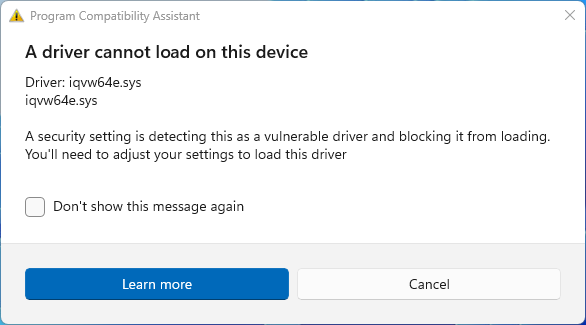
The message “A driver cannot load on this device” tied to iqvw64e.sys looks scary. It often appears after Windows updates or network driver changes. The good news is simple. This is usually a compatibility and signing problem, not malware.
You will fix it by removing old components, installing a signed Intel package, and restoring Windows security features. Follow this guide in order. Each step is safe and reversible.
What iqvw64e.sys Actually Is
iqvw64e.sys belongs to Intel’s Network Adapter Diagnostic Driver. You may see it bundled with Intel PROSet/Wireless or Intel Ethernet packages. The file helps with diagnostics and virtual network functions. It is not a Windows core file.
Windows 11 enforces stricter kernel driver signing via Memory Integrity (HVCI). Therefore, older or test-signed builds get blocked. When blocked, Windows shows the warning under Windows Security → Device Security → Core isolation.
Why You See “A Driver Cannot Load on This Device”
There are a few common causes:
- Outdated Intel network packages. Old installers ship an older iqvw64e.sys.
- Leftover files after upgrades. Remnants in
System32driverskeep triggering blocks. - Memory Integrity (HVCI) now enabled. Windows now refuses to load unsigned kernel modules.
- Registry references to the old path. Services can still point to removed files.
- Windows Update rollbacks. A cumulative update may reintroduce a legacy component.
You will confirm the cause, remove the remnants, and install a fully signed package. Then you will re-enable security.
Quick Fix Checklist (At a Glance)
- Confirm the exact driver flagged under Core isolation details.
- Uninstall legacy Intel PROSet/Wireless or Intel Network Connections.
- Delete any iqvw64e.sys leftovers from
C:WindowsSystem32drivers. - Install the latest Windows 11-compatible Intel driver.
- Re-enable Memory Integrity and reboot.
- Verify no iqvw64e.sys entries remain with Autoruns.
- Optionally clean registry references if warnings persist.
Use the full walkthrough below for safe execution.
Before You Start: Create a Restore Point
Mistakes are rare here. Still, create a restore point.
- Open Start and type Create a restore point.
- Select your system drive. Click Create.
- Name it “Before iqvw64e.sys fix.”
- Click Create and wait.
If anything goes wrong, you can roll back quickly.
Step 1: Confirm the Flagged Driver
Check Core Isolation Details
- Open Windows Security from Start.
- Click Device Security.
- Click Core isolation details.
- Note entries under Incompatible drivers.
- Confirm iqvw64e.sys is listed.
If it is there, you have the right target. Continue.
Optional: Temporarily Disable Memory Integrity
You can toggle Memory Integrity off to test. Only do this for diagnosis. You will turn it back on later.
- In Core isolation details, set Memory Integrity to Off.
- Reboot.
- Confirm the message disappears.
- Proceed with the permanent fix.
Step 2: Identify Current Intel Network Components
Inspect Device Manager
- Press Win + X → Device Manager.
- Expand Network adapters.
- Find your Intel device, such as Intel(R) Wi-Fi 6 or Intel I219-V.
- Right-click → Properties → Driver tab.
- Note Driver Version and Driver Date.
If you see a driver dated before 2022, plan to update. Old helpers commonly pull an outdated diagnostic driver.
Step 3: Uninstall Legacy Intel Packages
Remove Intel PROSet/Wireless or Intel Network Connections
- Open Control Panel → Programs and Features.
- Locate Intel PROSet/Wireless Software.
- Locate Intel Network Connections (Ethernet package).
- Right-click each entry → Uninstall.
- Follow prompts. Reboot when asked.
This removes services and helper modules that depend on the legacy diagnostic driver.
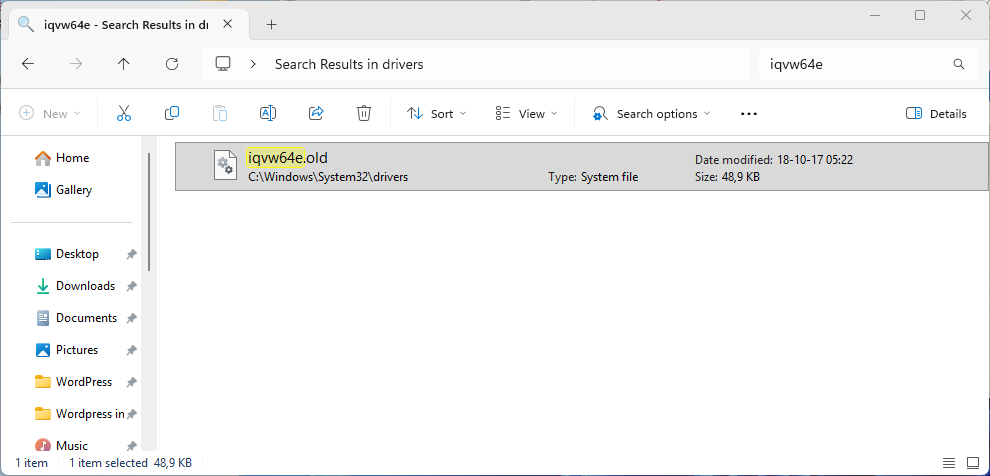
Manually Check for Leftovers
Open File Explorer and browse to:
C:WindowsSystem32drivers
Search for iqvw64e.sys. If found:
- Right-click → Delete (Admin permission).
- If deletion fails, boot to Safe Mode and try again.
Note: If a newer Intel package later installs a signed iqvw64e.sys, that is fine. The goal is to remove the unsigned or legacy copy.
Step 4: Install a Proper Windows 11–Compatible Intel Package
Use Official Downloads Only
Do not trust third-party driver sites. Use Intel’s official sources. Choose the package that matches your adapter model:
- Intel Driver & Support Assistant (DSA) for automatic detection.
- Intel Ethernet Adapter Complete Driver Pack for wired NICs.
- Intel PROSet/Wireless for Wi-Fi adapters (latest build).
Install with Admin Rights
- Run the installer as Administrator.
- Complete the setup.
- Reboot your PC.
Signed drivers will now pass Kernel Mode Code Signing and Memory Integrity checks.
Step 5: Re-Enable Memory Integrity (HVCI)
Security matters. Turn Memory Integrity back on:
- Open Windows Security → Device Security.
- Select Core isolation details.
- Toggle Memory Integrity On.
- Reboot.
If the warning no longer appears, you have resolved the issue. If it still appears, continue with verification steps.
Step 6: Verify No Startup References Remain
Use Microsoft Autoruns
- Download Autoruns from Microsoft Sysinternals.
- Run Autoruns64.exe as Administrator.
- In the search box, type iqvw64e.sys.
- If any entries appear, right-click → Delete.
- Close Autoruns and reboot.
This ensures no auto-start services or drivers still reference the old file.
Step 7: Optional Advanced Clean-Up (Registry)
Only do this if the warning persists and you are comfortable with regedit.
- Press Win + R, type
regedit, press Enter. - Navigate to:
HKEY_LOCAL_MACHINESYSTEMCurrentControlSetServices
- Press Ctrl + F, search iqvw64e.sys.
- Delete entries that reference the old path.
- Close Registry Editor.
- Reboot.
Tip: Export a full registry backup first: File → Export → All.
Step 8: Health Checks with Built-In Tools
Check for Unsigned Drivers
Run the legacy verifier to scan driver signatures:
sigverif
Follow the wizard. Review the results. Replace anything unsigned with vendor-signed builds.
Repair Windows Image if Needed
Run these commands in an elevated Command Prompt:
DISM /Online /Cleanup-Image /RestoreHealth
sfc /scannow
Let both complete. Reboot afterward. This clears system corruption that could block driver updates.
Step 9: Confirm with Event Viewer
Event Viewer offers details when drivers fail to load.
- Press Win + X → Event Viewer.
- Expand Windows Logs → System.
- Click Filter Current Log. Choose Error and Critical.
- Look for Code Integrity messages and Service Control Manager events.
- Typical clues: Event ID 7000–7026 relate to driver load failures.
If messages vanish after your changes, your fix is complete.
Alternative Path: Keep Memory Integrity Off (Not Recommended)
You may disable Memory Integrity permanently. This hides the message. However, it lowers protection against kernel-level attacks. Use only as a last resort or for confirmed legacy apps.
To disable:
- Windows Security → Device Security → Core isolation details → Memory Integrity → Off, then reboot.
Return to a supported driver path as soon as possible.
Prevent the Error from Returning
Use Intel Driver & Support Assistant
Automate driver maintenance:
- Install DSA.
- Let it scan your hardware.
- Apply offered updates.
- Reboot after installation.
Prefer Windows Update for Optional Drivers
Open Settings → Windows Update → Advanced options → Optional updates. Install vendor-signed drivers offered here when appropriate.
Keep Firmware Current
Update BIOS/UEFI and Intel Management Engine firmware when the OEM provides a newer build. Firmware fixes often improve driver reliability.
Schedule a Monthly Check
- Review Windows Security → Device Security.
- Check Event Viewer filters for driver errors.
- Create a fresh restore point after big changes.
These quick habits prevent future surprises.
Safety Notes and Best Practices
- Avoid third-party “driver updater” tools. Many cause conflicts.
- Keep antivirus active. Use Windows Defender Offline if you suspect malware.
- Verify file location. The legitimate path is:
C:WindowsSystem32driversiqvw64e.sys
- Check digital signatures. In Properties → Digital Signatures, confirm the signer is Intel or Microsoft Windows Hardware Compatibility Publisher.
Enterprise and IT Admin Tips
Clean at Scale with Scripts
- Use PowerShell to query for blocked drivers:
Get-CimInstance Win32_PnPSignedDriver | Where-Object { $_.DriverName -like "*iqvw64e*" } |
Select DeviceName, DriverVersion, DriverDate, IsSigned, Manufacturer
- Enumerate Code Integrity blocks across endpoints with centralized logging.
- Package the correct Intel drivers in your EDRM or MDM baseline.
Group Policy Considerations
- Ensure policies do not force legacy or test-signed drivers.
- Enable Virtualization-based Security and HVCI where hardware supports it.
- Maintain golden images with WHQL-signed network stacks.
Troubleshooting Scenarios (Real-World Patterns)
1: Warning Persists After Update
Cause: Registry still references a stale service.
Fix: Use Autoruns to remove entries. Then clear the registry keys under Services that point to older paths.
2: Wi-Fi Works, Warning Still Pops
Cause: The active adapter uses a good driver. A dormant component still references the legacy diagnostic module.
Fix: Uninstall all Intel networking suites. Reinstall only the current package. Verify with Autoruns.
3: Windows Update Reintroduces the Issue
Cause: A cumulative update rolled back a helper component.
Fix: Reapply the latest Intel package. Reboot twice. Confirm Memory Integrity stays on.
4: File Cannot Be Deleted
Cause: A service locks the file.
Fix: Boot to Safe Mode. Delete the file. Reboot normally. Install the new driver.
Check Windows Build
winver
Repair System Image and Files
DISM /Online /Cleanup-Image /RestoreHealth
sfc /scannow
List Drivers Matching iqvw64e
Get-WindowsDriver -Online | Select-String iqvw64e
Inspect Signed Driver Objects
Get-CimInstance Win32_PnPSignedDriver | where {$_.DriverName -like "*iqvw64e*"} |
Select DeviceName, DriverVersion, DriverDate, DriverProviderName, IsSigned
FAQs – Your Questions Answered
What does iqvw64e.sys do?
It supports Intel network diagnostics and virtual adapters. It is not required for basic network connectivity.
Is iqvw64e.sys a virus?
No, not if it sits in C:WindowsSystem32drivers and is signed. If it appears elsewhere or is unsigned, treat it as suspicious.
Why did this start after a Windows update?
Windows 11 tightened driver integrity rules. Older or unsigned drivers now fail to load under Memory Integrity.
Will removing iqvw64e.sys break my internet?
No, normal adapters still work with signed drivers. Only diagnostic functions may change until you install the latest package.
Can I just disable Memory Integrity forever?
You can, but you should not. It reduces protection. Install a signed Intel package instead.
Where can I get the correct driver?
Use Intel’s official downloads or Intel Driver & Support Assistant. Avoid random driver sites.
What if the message still shows after reinstalling?
Check with Autoruns for leftover entries. Clean registry references under Services if needed.
Do AMD systems see this error?
No. This file is specific to Intel networking software.
How do I know the new driver is signed?
Right-click the file → Properties → Digital Signatures. Confirm a valid Intel or Microsoft signature.
Can corporate VPN tools cause conflicts?
Sometimes. Update VPN clients as well. Some ship older diagnostic drivers.
Lock In the Fix and Keep It Clean
The iqvw64e.sys warning signals a stricter, safer Windows. You did not break anything. Windows simply blocked a legacy or unsigned module. By removing the old Intel suite, installing a signed driver, and re-enabling Memory Integrity, you align your PC with modern security standards. Keep Intel DSA handy, check Optional Updates occasionally, and create restore points before big changes. Your network will stay stable, fast, and secure.
🔔 For more tutorials like this, consider subscribing to our blog.
📩 Do you have questions or suggestions? Leave a comment or contact us!
🏷️ Tags: iqvw64e.sys, Windows 11 driver error, Intel network driver, Memory Integrity, Core Isolation, driver cannot load, Intel DSA, Windows Security, network troubleshooting, incompatible drivers
📢 Hashtags: #Windows11, #DriverError, #Intel, #Troubleshooting, #PCMaintenance, #NetworkDrivers, #CoreIsolation, #MemoryIntegrity, #HelpZoneTech, #TechSupport
Steel Your System for the Future
Security standards will continue to rise. That is good for users. Keep drivers signed, firmware current, and Memory Integrity on. Use only official Intel packages. With these habits, iqvw64e.sys will stay quiet, and your Windows 11 machine will stay fast, stable, and safe.
