

⏲️ Estimated reading time: 8 min
Table of Contents
Creating and managing email accounts in cPanel is one of the most useful skills for any website owner. This complete beginner-friendly guide explains how to create email addresses, access webmail, configure devices, manage storage, forward emails, and secure your inbox for long-term, professional use.
How to Create and Manage Email Accounts in cPanel (Step-by-Step Guide). Email Management in cPanel
Email remains a core communication tool for businesses, bloggers, and online projects. Even in a world dominated by messaging apps, a professional email address builds trust and credibility instantly.
cPanel is one of the most popular web hosting control panels. It allows you to manage websites, databases, domains, and email accounts from a single dashboard. If your hosting provider uses cPanel, you already have everything needed to create custom email addresses like contact@yourdomain.com.
This guide walks you through every important step. You will learn how to create email accounts, manage storage, access webmail, set up email forwarding, connect email clients, and keep your inbox secure.
What Is cPanel and Why It Matters for Email
cPanel is a Linux-based hosting control panel designed to simplify website administration. It uses a graphical interface instead of command-line tools, making it accessible even for beginners.
When it comes to email, cPanel offers full control. You can create unlimited email addresses, set storage limits, manage passwords, and configure advanced features without extra software.
Key benefits include:
- Easy email creation in minutes
- Built-in spam protection tools
- Access to webmail from any browser
- Compatibility with desktop and mobile email apps
- Full control over email forwarding and autoresponders
Requirements Before Creating Email Accounts
Before you begin, make sure the following are in place:
- An active hosting account with cPanel access
- A connected domain name
- Login credentials for your cPanel dashboard
Most shared, VPS, and dedicated hosting plans include email features by default. If email options are missing, your hosting provider may have disabled them.
How to Access cPanel
Accessing cPanel is simple. There are several common methods depending on your hosting provider.
You can usually log in by visiting:
https://yourdomain.com/cpanelhttps://serverIP:2083
Alternatively, your hosting dashboard may include a direct cPanel login button.
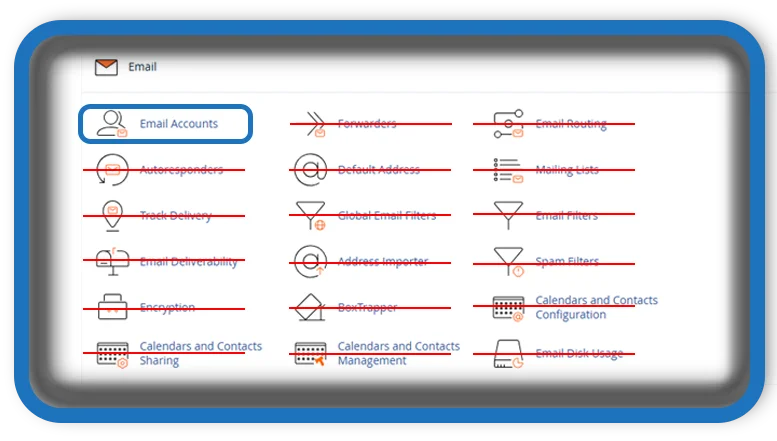
Once logged in, scroll down to the Email section. This is where all email-related tools are located.
How to Create a New Email Account in cPanel
Creating an email account in cPanel takes less than two minutes.
Step 1: Open Email Accounts
Inside cPanel, locate the Email section and click Email Accounts.
Step 2: Click “Create”
Select the Create button to add a new email address.
Step 3: Enter Email Details
You must provide:
- Username – the part before the @ symbol
- Domain – choose your domain if multiple are available
- Password – use a strong password or the generator
Step 4: Set Mailbox Storage
Choose between:
- Unlimited storage
- Custom quota to limit space usage
Setting limits helps prevent abuse and server overload.
Step 5: Save the Email Account
Click Create to finalize the setup. Your new email address is ready immediately.
How to Access Webmail in cPanel
Webmail allows you to read and send emails directly from your browser.
Access Webmail Options
Go to Email Accounts, then click Check Email next to the address.
You will see webmail clients such as:
- Roundcube
- Horde
- SquirrelMail
Roundcube is the most modern and widely used option.
When to Use Webmail
Webmail is ideal when:
- You are away from your main device
- You need quick access without configuration
- You want browser-based email management
How to Configure Email on Desktop and Mobile Devices
cPanel makes it easy to connect your email to apps like Outlook, Thunderbird, Gmail, or mobile devices.
Automatic Configuration
From Email Accounts, click Connect Devices. cPanel provides auto-configuration scripts for many apps.
Manual Email Settings
If manual setup is required, use these details:
- Incoming Server: mail.yourdomain.com
- IMAP Port: 993 (SSL)
- POP3 Port: 995 (SSL)
- Outgoing Server (SMTP): mail.yourdomain.com
- SMTP Port: 465 or 587
- Username: full email address
- Password: email account password
IMAP is recommended for syncing across devices.
Managing Existing Email Accounts
Once emails are created, ongoing management is essential.
Change Email Passwords
Regular password updates improve security. Click Manage next to the email account to change credentials.
Adjust Storage Quotas
If a mailbox is full, increase its quota or clear old emails.
Monitor Disk Usage
cPanel displays real-time storage usage for each email account.
You may also be interested in: Not Everyone Who Reaches Out Has Pure Intentions
How to Set Up Email Forwarders
Email forwarding sends incoming messages to another address automatically.
Common Use Cases
- Forward business emails to Gmail
- Route multiple addresses to one inbox
- Create aliases like support@ and sales@
How to Add a Forwarder
- Go to Email → Forwarders
- Click Add Forwarder
- Enter the source email
- Set the destination address
- Save changes
Forwarders do not store emails locally unless specified.
How to Create Autoresponders
Autoresponders automatically reply to incoming messages.
When Autoresponders Are Useful
- Vacation replies
- Customer support confirmations
- Temporary announcements
Setup Process
Navigate to Email → Autoresponders, then:
- Choose the email account
- Write a subject and message
- Set start and end dates
Autoresponders enhance professionalism and responsiveness.

Spam Protection and Email Security in cPanel
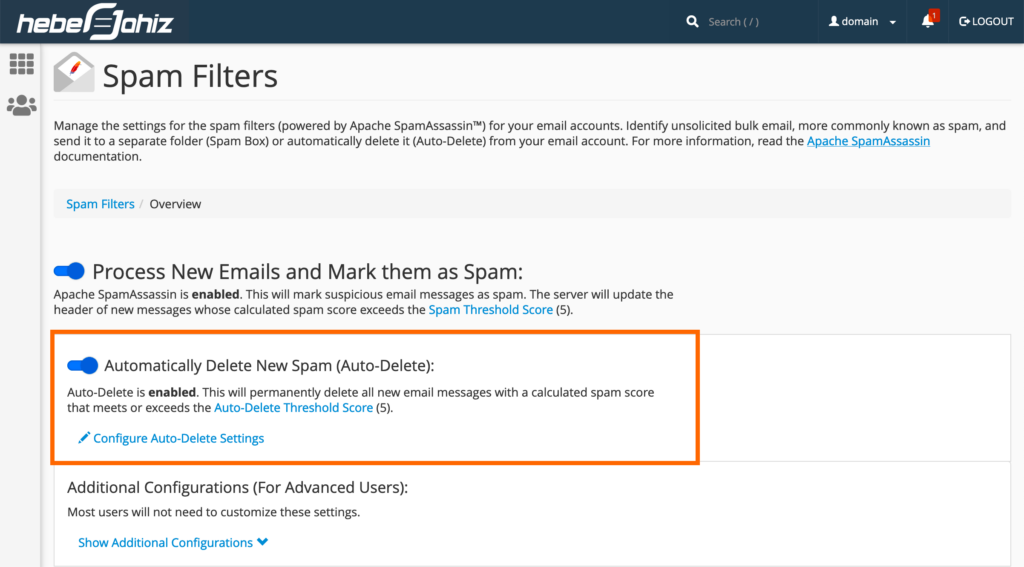
Spam is unavoidable, but cPanel includes tools to manage it effectively.
Spam Filters
Spam filters use scoring systems to detect unwanted emails. You can adjust sensitivity levels.
Blocked Senders
Manually block specific email addresses or domains.
Authentication Settings
Enable:
- SPF
- DKIM
- DMARC
These records reduce spoofing and improve deliverability.
How to Delete Email Accounts Safely
When an email account is no longer needed, deleting it frees up storage.
Before Deleting
- Back up important messages
- Inform users of the change
- Update contact information on your website
Deletion Steps
Go to Email Accounts, click Manage, then select Delete.
Deletion is permanent and cannot be undone.
Best Practices for Managing Email in cPanel
Good habits keep your email system fast and secure.
Recommended practices include:
- Using strong, unique passwords
- Limiting mailbox sizes
- Regularly cleaning old emails
- Monitoring spam activity
- Backing up critical messages
Following these steps ensures reliable communication.
Common Email Issues and How to Fix Them
Email Not Sending
Check SMTP settings and ports.
Emails Going to Spam
Ensure SPF, DKIM, and DMARC are active.
Mailbox Full Errors
Increase storage or delete old messages.
Login Problems
Reset the email password from cPanel.
Most issues can be resolved directly from the Email section.
Frequently Asked Questions
Can I create unlimited email accounts in cPanel?
Most hosting plans allow multiple email accounts, but limits depend on your provider.
What is the difference between IMAP and POP3?
IMAP syncs emails across devices. POP3 downloads emails to one device only.
Is webmail secure?
Yes, especially when accessed via HTTPS and SSL connections.
Can I access cPanel email from Gmail?
Yes, using Gmail’s “Check mail from other accounts” feature.
How much storage should I assign to an email account?
For personal use, 1–2 GB is enough. Businesses may need more.
Can I recover deleted emails?
Only if backups exist. Deleted email accounts are permanently removed.
Do email accounts affect website performance?
Minimal impact unless mailboxes consume excessive storage.
Can I create catch-all emails?
Yes, cPanel allows catch-all addresses for domains.
Final Thoughts on Email Control and Simplicity
Managing email accounts in cPanel gives you full ownership over your communication. You are not dependent on third-party email providers, and your brand looks more professional instantly.
Once you understand the basics, email management becomes routine. Creating addresses, setting forwarders, and adjusting security settings takes only minutes.
With the right setup and best practices, cPanel email is reliable, secure, and perfect for both personal and business use.
📚 Sources
- Official cPanel documentation
- Web hosting provider knowledge bases
- Industry email security best practices
- Community tutorials and technical forums
- Hosting user guides
⚠️ Disclaimer and Source Hygiene
This article is for educational purposes only. Hosting interfaces and features may vary between providers. Always consult your hosting documentation or support team before making critical changes. Information is based on widely used cPanel environments and general best practices.
🔔 For more tutorials like this, consider subscribing to our blog.
📩 Do you have questions or suggestions? Leave a comment or contact us!
🏷️ Tags: cPanel email, create email cPanel, web hosting email, email management, cPanel tutorial, webmail setup, IMAP POP3, email security, hosting guide, professional email
📢 Hashtags: #cPanel #EmailSetup #WebHosting #ProfessionalEmail #Webmail #HostingTips #EmailManagement #WebsiteAdmin #OnlineBusiness #TechGuide
