


⏲️ Estimated reading time: 9 min
Table of Contents
Hidden Tricks That Every PC Does but No One Tells You About. Your computer hides powerful shortcuts and diagnostic tools that can instantly fix freezes, speed up performance, remove malware, clean the system, and protect your privacy. These hidden PC tricks are simple, fast, and require no extra software. Learn how to boost your computer using tools built directly into Windows.
Problems
Most people rely on technicians, paid software, or complicated tutorials to fix computer problems. But Windows includes dozens of powerful features that almost no one knows about. These hidden shortcuts can reboot graphics drivers, remove malware, clean the system, repair performance, and reveal unauthorized accounts helping you protect your computer from slowdowns, glitches, and security threats.
This guide was created to explain these tricks in detail, step by step, so anyone can understand and apply them immediately. Even if you are not a tech-savvy person, the explanations below are practical, clear, and designed to help you fix your PC in minutes. You will discover how to speed up your system, remove viruses without installing anything, restore performance, check for suspicious activity, and unlock useful tools you probably never used before.
These tricks work on all modern versions of Windows, including Windows 10 and Windows 11. They are completely safe, do not damage your computer, and do not require external programs. Everything is built into the operating system, waiting for you to use it.
Let’s explore the hidden functionalities that can transform your computer and help you use it more efficiently every day.
Restarting Your Video Card Drivers Instantly
When your screen freezes, flickers, becomes black for a moment, or your computer feels unusually slow, most people assume they must restart the entire PC. That wastes time, closes programs, interrupts work, and can sometimes cause data loss. Fortunately, Windows includes a shortcut that instantly restarts your GPU drivers.
Why GPU Drivers Can Cause Problems
Your graphics card handles everything related to visuals: games, videos, animations, rendering, transitions, and even simple tasks like opening folders. When the driver glitches or becomes unstable, the result can be:
- Random screen freezes
- Graphic artifacts
- Slow animation performance
- Delays when switching windows
- Flickering images
- Black screens or sudden flash
- Game crashes
This is one of the most common causes of temporary PC freezing.
The Shortcut That Fixes GPU Issues
Windows includes a built-in command that forces the graphics driver to restart without shutting down your computer. The shortcut is:
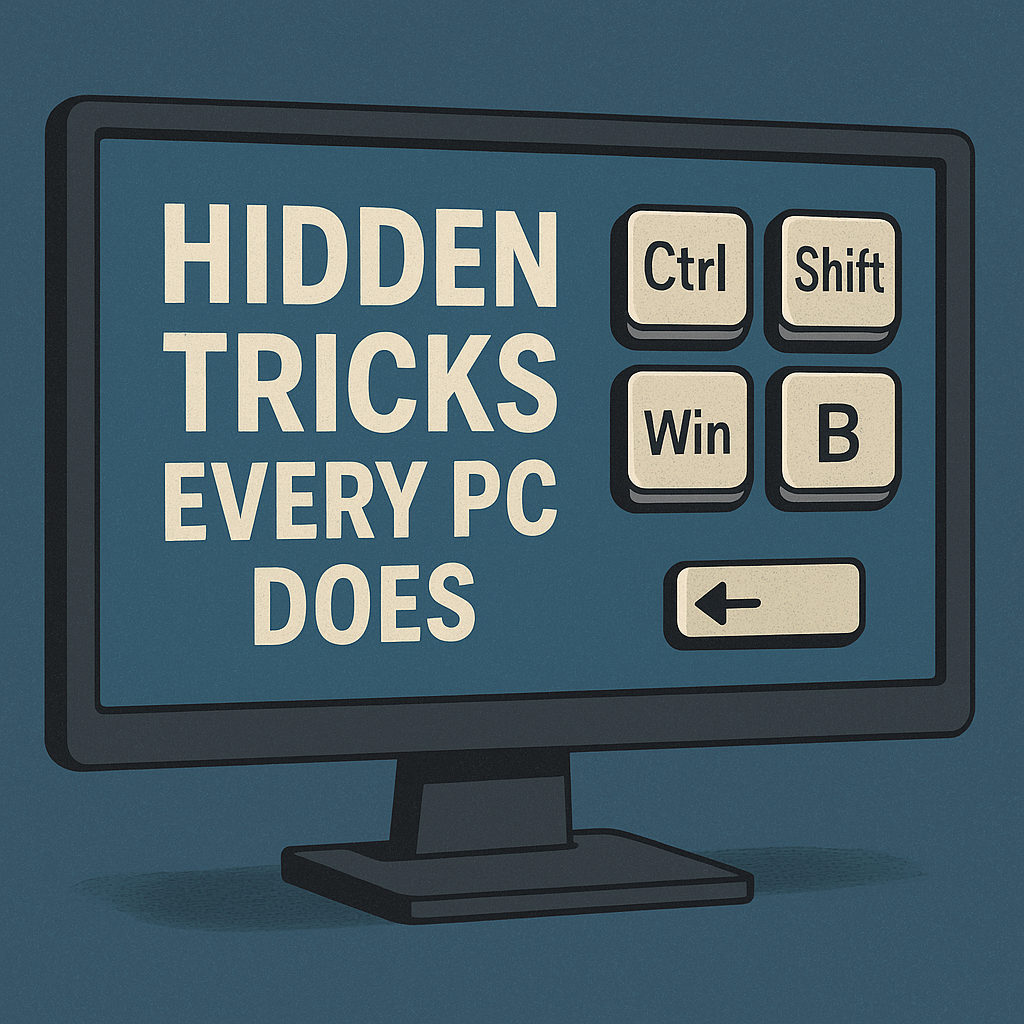
CTRL + SHIFT + WIN + B
When you press it, the screen will go black for a second. You may hear a short beep. This is normal. After that, Windows restarts your GPU drivers, clears the faulty processes, and your screen becomes responsive again.
Why This Trick Is Incredibly Useful
You can apply it anytime:
- When your browser freezes
- When a game stutters and refuses to recover
- When videos lag
- When the display becomes scrambled
- When you open too many apps and the GPU chokes
- When the PC becomes extremely slow without reason
This is one of the most powerful and unknown shortcuts in Windows. It can save minutes or hours of frustration and reduces the need to restart your PC.
Removing Malware Using a Hidden Built-In Tool
Most users believe they must install antivirus programs to remove viruses. But Windows already includes an advanced scanning tool hidden deep inside the system, capable of detecting and removing malware without any external software.
When You Should Suspect Malware
Even if you use your PC carefully, malicious software can sneak in through emails, downloads, websites, or apps. Warning signs include:
- Programs opening by themselves
- Windows restarting randomly
- Slow performance
- Applications crashing
- Strange pop-ups
- Suspicious network activity
- Fans spinning loudly
- Files disappearing or moving
If you experience any of these behaviors, you should run a deep scan.
How to Open the Hidden Malware Removal Tool
Press:
WIN + F
This opens Windows search.
Type:
MRT
Then press ENTER.
This launches the Malicious Software Removal Tool, a deep offline scan system included in Windows. It removes:
- Trojans
- Spyware
- Keyloggers
- Browser hijackers
- Hidden viruses
- Backdoor malware
- Crypto-miners
- Known malicious processes
Why This Tool Is Better Than Some Free Antivirus Apps
Many free antivirus programs slow down your system, show ads, or miss deeper infections. The Windows MRT tool runs quietly, without installing anything, and checks system areas that normal antivirus tools often ignore.
It does not require updates, subscriptions, or internet access. It performs a complete system scan and automatically removes anything dangerous it finds.
This hidden tool is one of the best Windows protections people rarely use.
Accessing Microsoft Office Tools for Free
Many users believe they must buy a Microsoft 365 subscription to use Word, Excel, PowerPoint, and other Office apps. But Windows includes a shortcut that gives you access to fully functional online versions for free.
The Shortcut for Free Microsoft 365 Access
Press:
CTRL + SHIFT + WIN + ALT
This shortcut opens the browser directly into the free online version of Microsoft 365, where you can use:
- Word
- Excel
- PowerPoint
- OneNote
- Outlook
- OneDrive
- Calendar
Why This Is Useful
You can work on documents, save them online, download them, and use templates without paying anything. The online interface looks almost identical to the paid version.
Benefits include:
- No installation required
- No license needed
- Works instantly in any browser
- Saves progress automatically
- Accessible from any PC or phone
This is extremely helpful if you need Office tools urgently and do not want to pay for a subscription.
Checking If Someone Else Has Access to Your PC
Unauthorized access is more common than people expect. A hidden user account can allow someone to monitor your device without your knowledge. Fortunately, Windows includes a simple way to check all registered users.
Signs That Someone May Be Accessing Your Computer
- Unknown accounts appearing on login screen
- Files modified without explanation
- New programs installed
- Strange browser history
- Recently opened documents you didn’t touch
- Suspicious network activity
- Disabled security features
If any of these occur, you should verify your accounts immediately.
How to Open the User Account Panel
Press:
WIN + R
This opens the Run box.
Type:
NetPLWiz
Then press ENTER.
A window will appear showing all user accounts associated with your PC.
What to Look For
If you see:
- An email you don’t recognize
- An administrator account you didn’t create
- Multiple Microsoft login profiles
- Unknown local users
Then someone may have access to your system.
How to Remove Unauthorized Users
Click the suspicious account, then click:
Remove
This immediately disconnects that account from your PC, preventing any login attempts or remote access.
Cleaning Your System Using Disk Cleanup
Over time, your PC collects gigabytes of unnecessary files. These slow down your system, reduce available storage, and make apps load slower. Disk Cleanup is one of the most powerful tools for restoring performance.
Why Temporary Files Slow Down Windows
Windows constantly creates:
- Cache files
- Update leftovers
- Error reports
- Browser data
- Installation files
- Thumbnail cache
- System logs
- Temporary program data
Even if you uninstall programs, fragments remain hidden deep in the system. These accumulate over months and years, gradually slowing down your computer.
How to Access Disk Cleanup
Open:
File Explorer → This PC
Right-click Local Disk (C:)
Select Properties
Click Disk Cleanup
What to Delete Safely
Check:
- Temporary Files
- Recycle Bin
- Thumbnails
- System Cache
- Setup Logs
- Temporary Internet Files
Then click:
Clean Up System Files
This performs a deeper scan and removes gigabytes of unnecessary data.
Benefits of Disk Cleanup
- Faster PC startup
- Faster program loading
- More free space
- Less system lag
- Reduced background processes
- Smoother multitasking
Regular cleanup can dramatically improve performance, especially on older systems.
Why These Tricks Work Better Than Many Paid Solutions
Most “PC optimization programs” promise performance boosts but often install ads, background services, or useless features. Windows already includes tools that are safer, faster, and more effective.
These Built-In Tools Are Better Because:
- They are created directly by Microsoft
- They do not include advertising
- They do not run permanently in the background
- They do not require installation
- They perform deep system-level actions
- They do not damage or alter system files
- They focus on security and performance
These features remain unknown because Microsoft rarely advertises them publicly. Yet they are some of the most powerful ways to keep your PC running like new.
Frequently Asked Questions
Can these tricks damage my computer?
No. All tricks in this guide use official Windows features designed to improve performance safely.
How often should I use Disk Cleanup?
Once every 2–4 weeks is ideal, especially if you use your PC heavily.
Is MRT enough as an antivirus?
It removes many common threats, but using an additional updated antivirus is recommended for full protection.
Can restarting GPU drivers cause data loss?
No. It does not close apps or documents. It only refreshes the graphics driver.
Why would someone else have an account on my PC?
It can happen if you logged into the Microsoft Store with another profile or if someone physically accessed your device earlier.
Can I use Microsoft 365 online without a subscription forever?
Yes. The online version is always free.
What if I still experience slowdowns after using all tricks?
You may need to disable startup apps, uninstall heavy programs, or check your drive health.
Essential Takeaways
A computer’s performance often drops due to problems that seem complicated but are easy to solve with hidden Windows tools. Restarting your GPU instantly removes graphical glitches. The MRT scan clears malware without installing software. Free Microsoft Office access helps you work quickly. Checking hidden accounts protects your privacy, and disk cleanup keeps your PC fast.
If you use these tricks regularly, your computer will run smoother, faster, and more securely with almost zero effort.
Disclaimer and Source Hygiene
Read also: Paris Knife Attack Leaves Three Women Injured: Investigation
This article is for informational purposes only. For severe hardware issues, data recovery problems, or persistent malware infections, consult a certified technician. The information provided is based on public Microsoft documentation, system behavior analysis, and general PC troubleshooting best practices.
🔔 For more tutorials like this, consider subscribing to our blog.
📩 Do you have questions or suggestions? Leave a comment or contact us!
🏷️ Tags: pc tricks, windows tips, boost computer speed, malware removal, microsoft defender, disk cleanup, gpu driver restart, hidden windows tools, pc performance, computer troubleshooting
📢 Hashtags: #PCTips #Windows11 #Windows10 #ComputerHelp #TechGuide #PCPerformance #SpeedUpPC #CyberSecurity #Microsoft365 #HelpZoneBlog
