

⏲️ Estimated reading time: 10 min
Table of Contents
Google Search Console: Complete WordPress Guide for Beginners and Experts. Google Search Console is essential for WordPress site owners who want higher rankings, better visibility, and problem-free indexing. This complete guide explains step by step how to connect WordPress, submit a sitemap, monitor SEO, and fix indexing or ranking issues.
See also: Automatically Delete Trashed Posts After X Days (WordPress PHP)
Why Google Search Console Matters for WordPress
WordPress powers more than 40% of all websites worldwide, making it the most popular content management system (CMS). However, launching a WordPress site is just the first step. To succeed online, you need to monitor your site’s health, SEO visibility, and search performance.
That’s where Google Search Console (GSC) comes in. Formerly known as Google Webmaster Tools, GSC is a free tool provided by Google to help website owners track and optimize their site’s presence in search results.
For WordPress users, integrating Google Search Console provides insights into:
- Which pages are ranking and for what keywords.
- How often your website appears in Google search results.
- Whether Google can index your site properly.
- Mobile usability and performance issues.
- Security problems, like malware or spam attacks.
This guide will walk you step by step through setting up Google Search Console with WordPress and using its features to improve your SEO strategy.
Step 1: Setting Up Google Search Console for WordPress
1.1 Create a Google Account
To use Search Console, you need a Google account. If you already use Gmail or YouTube, you can log in with the same account. Otherwise, create one at accounts.google.com.
1.2 Add Your Website to Search Console
- Visit Google Search Console.
- Click “Add property.”
- You’ll see two options:
- Domain property – Tracks everything under your domain (including subdomains and protocols like HTTP/HTTPS).
- URL prefix property – Tracks only URLs with the exact prefix you enter.
👉 For most WordPress sites, Domain property is the best choice because it covers all variations of your site.
1.3 Verify Ownership
Google needs to confirm that you own the website. The most common verification methods for WordPress are:
- DNS Verification (recommended): Add a TXT record to your domain’s DNS settings (usually found in your hosting provider’s dashboard).
- HTML File Upload: Download a file from GSC and upload it to your WordPress root folder via FTP or File Manager.
- Meta Tag Method: Add a verification meta tag into your WordPress site’s
<head>section. This can be done with an SEO plugin like Yoast SEO or Rank Math.
Once verification is successful, your site will be connected to Google Search Console.
Step 2: Submitting Your WordPress Sitemap to Google
A sitemap helps Google discover all your important pages.
2.1 Generate a Sitemap in WordPress
Most SEO plugins create a sitemap automatically:
- Yoast SEO:
yourdomain.com/sitemap_index.xml - Rank Math:
yourdomain.com/sitemap_index.xml - All in One SEO:
yourdomain.com/sitemap.xml
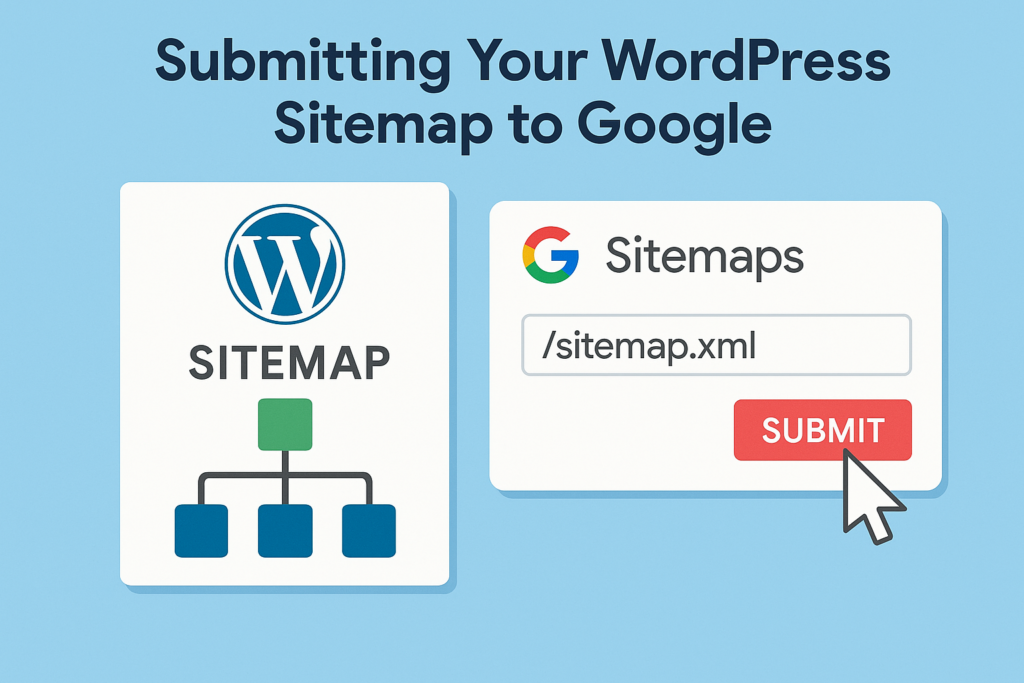
2.2 Submit Sitemap in Search Console
- In Search Console, go to Sitemaps.
- Enter your sitemap URL (e.g.,
/sitemap_index.xml). - Click Submit.
Now, Google will regularly crawl and index your content.
How to Create Custom SiteMap Page Template
Step 3: Understanding the Google Search Console Dashboard
The GSC dashboard provides a wealth of insights. Let’s break down the most important sections for WordPress users.
3.1 Performance Report
This shows how your WordPress site performs in Google search. Key metrics include:
- Total clicks – How many people clicked your site.
- Total impressions – How many times your site appeared in search results.
- Average CTR (Click-Through Rate).
- Average position – Your ranking in Google.
You can filter data by queries, pages, countries, devices, and search appearance (e.g., rich snippets).
👉 Pro Tip: Use this to identify keywords where you rank in positions 8–20. Updating those pages with better SEO could push them onto the first page of Google.
3.2 Index Coverage
This report shows which WordPress pages Google indexed successfully and which had issues.
- Valid pages – Successfully indexed.
- Errors – Pages that couldn’t be indexed.
- Excluded pages – Pages you intentionally blocked (via robots.txt or noindex).
👉 Common issues:
- “Crawled – currently not indexed”
- “Submitted URL marked ‘noindex’”
- “Duplicate without user-selected canonical”
3.3 URL Inspection Tool
You can check if a specific page is indexed by entering its URL. If it isn’t, you can request indexing.
3.4 Experience Reports
These include:
- Core Web Vitals – Speed and user experience scores.
- Mobile Usability – Whether your site works well on smartphones.
3.5 Enhancements
If your WordPress site uses structured data (via schema plugins), you’ll see reports for:
- Breadcrumbs
- Product schema (e-commerce)
- FAQs
- How-to schema
Step 4: Fixing Common WordPress SEO Issues with Search Console
4.1 Pages Not Indexed
- Check for noindex tags in your SEO plugin.
- Make sure your
robots.txtdoesn’t block the page. - Ensure the page has unique, valuable content.
4.2 Slow Website Performance
Core Web Vitals may highlight slow loading times. Fixes include:
- Using caching plugins (e.g., WP Rocket, W3 Total Cache).
- Compressing images (e.g., Smush, ShortPixel).
- Using a Content Delivery Network (CDN).
4.3 Mobile Usability Issues
If GSC shows mobile errors:
- Switch to a responsive WordPress theme.
- Avoid pop-ups that block content.
- Test your site with Google’s Mobile-Friendly Test.
4.4 Security Issues
Google may flag hacked content or malware.
- Keep WordPress, plugins, and themes updated.
- Use a security plugin like Wordfence or Sucuri.
- Regularly back up your site.
Step 5: Using Search Console for Keyword and Content Strategy
5.1 Discover High-Performing Keywords
Check the Performance tab for keywords where you already get impressions. Optimize your content for those keywords to increase clicks.
5.2 Identify Underperforming Pages
Look for pages with high impressions but low CTR. Improve titles and meta descriptions to encourage more clicks.
5.3 Expand with Content Gaps
Search Console shows which queries your site is appearing for, but without clicks. Create new WordPress posts around those queries.
Step 6: Advanced WordPress SEO with Search Console
- Integrate GSC with Google Analytics: Combine traffic and search insights for deeper analysis.
- Use Regex Filters: Segment keywords by brand vs. non-brand.
- Monitor Structured Data: Ensure rich snippets are working properly.
- Track Backlinks: See which sites link to your WordPress content.
Step 7: Best Practices for WordPress + Search Console
- Check Search Console Weekly. Fix issues early.
- Keep Your Sitemap Clean. Remove outdated or thin-content pages.
- Update Old Content. Search Console shows what’s declining in traffic.
- Use SEO Plugins Wisely. Don’t overload your site with conflicting plugins.
- Focus on User Experience. Google rewards fast, mobile-friendly, high-quality content.
Final Thoughts
Google Search Console is not just a technical tool; it’s a roadmap to better SEO for WordPress. By monitoring performance, fixing errors, and optimizing based on real search data, you can grow your website’s visibility and attract more visitors.
Whether you’re running a blog, an e-commerce store, or a business site, Search Console gives you the power to make smarter SEO decisions and stay competitive in Google’s ever-changing landscape.
⚠️ Disclaimer and Source Hygiene
General Information
The content in this guide, “Google Search Console Full Guide For Beginners and Experts,” is provided for informational and educational purposes only. While every effort has been made to ensure the accuracy and currency of the information presented, we make no representations or warranties of any kind, express or implied, about the completeness, accuracy, reliability, suitability, or availability of the information, products, services, or related graphics contained within this guide for any purpose.
No Professional Advice
This guide does not constitute professional SEO, legal, or technical advice. The strategies, methods, and recommendations described herein are based on general industry practices and our own experience. Search engine algorithms, including Google’s, change frequently. Results may vary based on individual circumstances, website configuration, industry competition, and numerous other factors beyond our control.
- Consult Professionals: We strongly recommend consulting with qualified SEO professionals, web developers, or legal advisors before implementing significant changes to your website or business strategy.
- Your Responsibility: Any reliance you place on the information in this guide is strictly at your own risk.
Affiliate & Tool Disclosure
This guide may reference third-party tools, plugins, and services (including but not limited to Yoast SEO, Rank Math, WP Rocket, Wordfence, and Google products).
- We are not affiliated with, endorsed by, or sponsored by Google LLC or any mentioned third-party companies unless explicitly stated.
- Links to external tools or services may be affiliate links. If you click on an affiliate link and make a purchase, we may receive a commission at no additional cost to you.
- Tool Limitations: Features and interfaces of third-party tools change regularly. Screenshots and instructions may become outdated. Always refer to the official documentation of any tool for the most current information.
Results Not Guaranteed
We do not guarantee any specific results, including but not limited to:
- Improved search rankings or positions in Google Search results
- Increased website traffic, clicks, or impressions
- Successful indexing of your website or pages
- Resolution of technical SEO issues
- Specific Core Web Vitals scores or mobile usability compliance
- Protection against security threats or malware
Search engine optimization outcomes depend on hundreds of factors including website quality, competition, industry trends, algorithm updates, and implementation quality.
Technical Risks
Implementing the technical steps described in this guide (such as DNS changes, file uploads, plugin configurations, or sitemap modifications) involves inherent risks:
- Backup Your Site: Always create full backups of your WordPress site and database before making changes.
- Testing Environment: We recommend testing changes in a staging environment before applying them to your live website.
- No Liability: We are not responsible for any loss of data, website downtime, ranking drops, security breaches, or other damages that may occur from following this guide.
External Links
This guide contains links to external websites (Google Search Console, WordPress.org, plugin websites, etc.). We have no control over the nature, content, and availability of those sites. The inclusion of any links does not necessarily imply a recommendation or endorse the views expressed within them.
Intellectual Property
- Copyright: © 2025 HZ. All rights reserved.
- Trademarks: Google, Google Search Console, YouTube, Gmail, WordPress, Yoast, Rank Math, and other mentioned brands are trademarks of their respective owners. All trademarks and registered trademarks are the property of their respective holders.
- Fair Use: Screenshots and references to Google Search Console interface are used under fair use for educational and instructional purposes.
Updates & Accuracy
- Publication Date: August 20, 2025
- Currency: Google Search Console features and Google Search algorithms change frequently. This guide reflects information available as of the publication date. We make no commitment to update this content.
- Verify Information: Always verify critical information against official Google documentation: support.google.com/webmasters
Governing Law
This disclaimer shall be governed by and construed in accordance with the laws of [Your Jurisdiction], and any disputes relating to this disclaimer will be subject to the exclusive jurisdiction of the courts of [Your Jurisdiction].
Contact
For questions regarding this disclaimer or the content of this guide, please contact us Here
By reading and using this guide, you acknowledge that you have read, understood, and agree to this disclaimer.
🔔 For more tutorials like this, consider subscribing to our blog.
📩 Do you have questions or suggestions? Leave a comment or contact us!
🏷️ Tags: Google Search Console, WordPress SEO, SEO tools, indexing issues, sitemap submission, search engine optimization, Google ranking, WordPress tutorial, site performance, Core Web Vitals
📢 Hashtags: #WordPress, #GoogleSearchConsole, #SEO, #Blogging, #DigitalMarketing, #SiteOptimization, #CoreWebVitals, #SearchEngineOptimization, #Indexing, #GoogleTools
