


⏲️ Estimated reading time: 6 min
Table of Contents
Learn how to enable directory privacy and password-protect sensitive folders on your website. This step-by-step guide explains how it works, when to use it, and which directories to secure helping you improve security without breaking functionality or SEO.
🔰 Directory Privacy
Website security is no longer optional it is essential. Every website, whether small or large, faces constant threats such as unauthorized access, brute-force attacks, data scraping, and file exposure.
One of the simplest yet most effective ways to protect your website is by enabling directory privacy. This feature allows you to restrict access to specific folders on your server using a username and password.
In simple terms, even if someone knows the URL of a protected folder, they cannot access it without proper credentials.
This method adds a strong first layer of defense, especially for websites running on platforms like WordPress, where attackers often target sensitive directories.
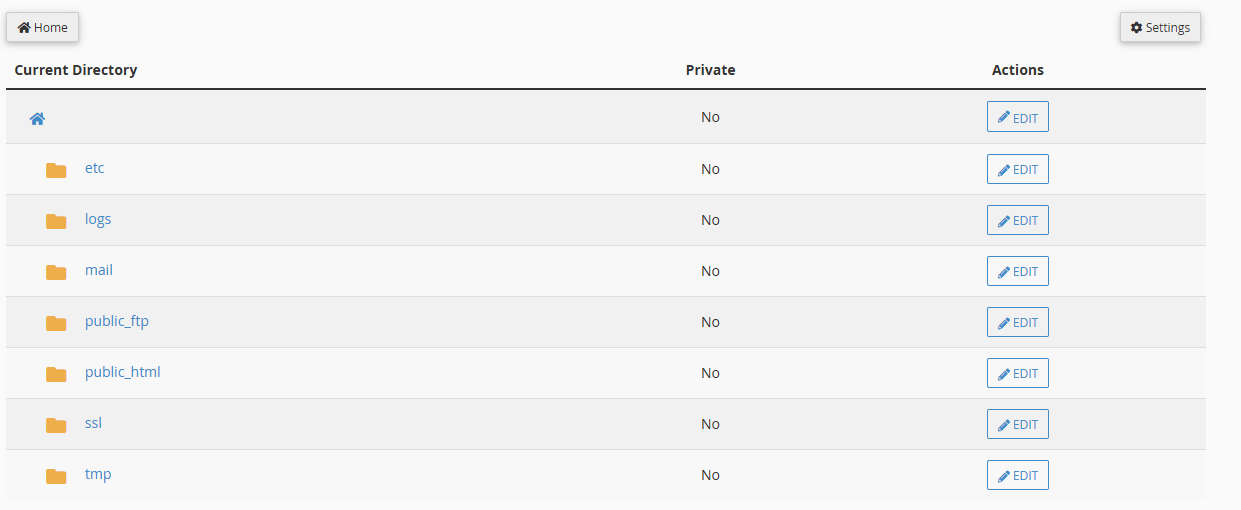
🧠 What Is Directory Privacy and Why It Matters
🔎 Understanding Directory Privacy
Directory privacy (also known as password protection or HTTP authentication) is a server-level security feature. It works independently of your CMS login system.
That means:
- It protects folders before WordPress even loads
- It blocks bots and attackers at the server level
- It reduces unnecessary server load
When enabled, users attempting to access a protected directory will see a login prompt.
🛡️ Why Directory Privacy Is Important
Here’s why you should care:
- Prevents unauthorized access to sensitive files
- Protects backups and configuration data
- Stops brute-force attacks early
- Adds an extra authentication layer
- Reduces risk of data leaks
Without directory protection, anyone could potentially access directories if they discover the URL.
⚙️ How Directory Privacy Works Behind the Scenes
Directory privacy typically relies on:
.htaccessfile rules.htpasswdfile for storing credentials- Server authentication (Apache/Nginx-based systems)
When a user tries to access a protected folder:
- The server checks if authentication is required
- A login prompt appears
- The credentials are validated
- Access is granted or denied
This process happens before your website loads, making it extremely efficient.
🛠️ Step-by-Step: Enable Directory Privacy in cPanel
Most hosting providers offer this feature through cPanel.
Follow these steps:
🔑 Step 1: Log in to cPanel
Access your hosting control panel using your credentials.
📂 Step 2: Open Directory Privacy
Find:
- “Directory Privacy”
- Or “Password Protect Directories”
📁 Step 3: Select the Directory
Navigate through your file structure and choose the folder you want to protect.
🔒 Step 4: Enable Password Protection
Tick the option:
- “Password protect this directory”
Add a meaningful name for the protected area.
👤 Step 5: Create User Credentials
Set:
- Username
- Strong password
Use complex passwords with symbols, numbers, and uppercase letters.
💾 Step 6: Save Changes
Apply the settings.
Your directory is now protected.
📌 Recommended Directories to Protect
Not all folders are equal. Some contain critical data and should always be protected.
🔐 Admin or Backend Panels
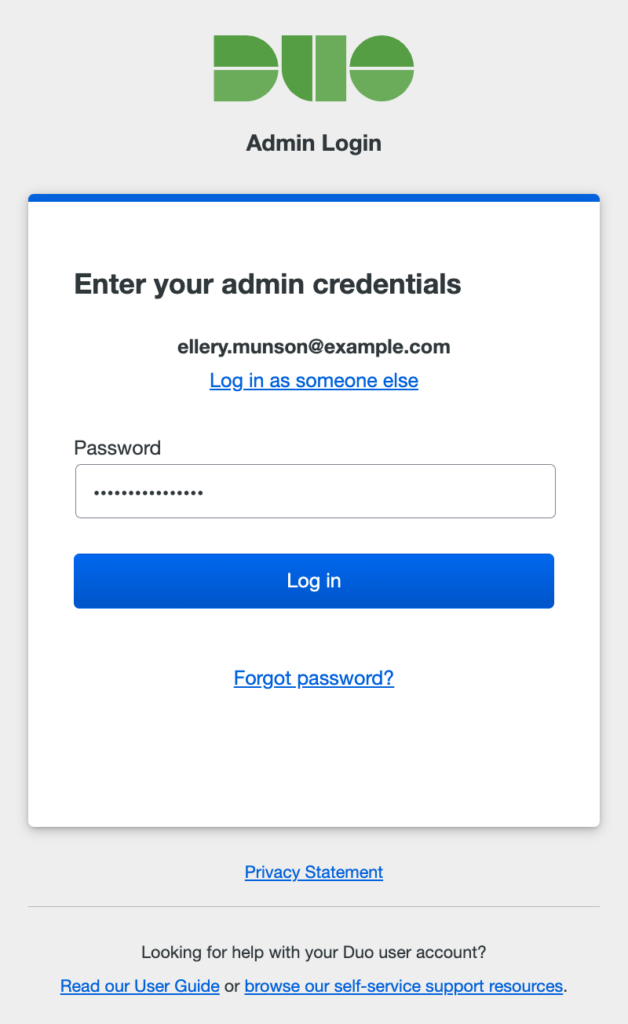
These include:
- Custom dashboards
- Admin panels outside WordPress
- Internal tools
Even if you already use WordPress login, adding another layer improves security.
📥 Private Content or Downloads
Protect:
- Premium content
- Paid downloads
- Member-only resources
This ensures only authorized users can access your files.
💾 Backup Folders
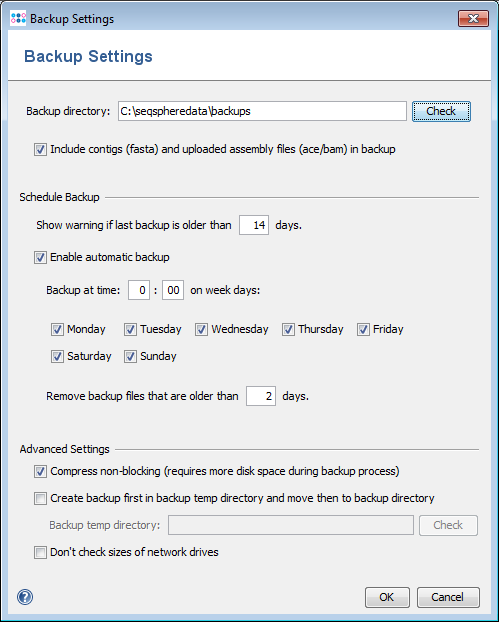
Backup folders often contain:
- Full website data
- Databases
- Sensitive information
If exposed, attackers can download your entire website.
⚙️ Configuration Directories
These may include:
You may also be interested in: Andrew and Tristan Tate Arrested in the U.S. Following UK
- API keys
- Environment variables
- Database credentials
Protecting these is critical for preventing full system compromise.
❌ Directories You Should NOT Protect
Over-securing your site can break functionality.
🌐 Public HTML (Root Directory)
This is your main website folder.
If you protect it:
- Your entire site becomes inaccessible
- Visitors will see a login prompt
🎨 CSS, JavaScript, and Images
These files control:
- Design
- Layout
- Functionality
Blocking them will break your website visually.
🧭 Sitemap and Robots.txt
Search engines rely on these files.
Blocking them can:
- Hurt SEO
- Prevent indexing
- Reduce visibility
🔌 API and Webhook Endpoints
If your site uses:
- Payment gateways
- External services
- Automation tools
Blocking APIs will break integrations.
⚠️ Common Mistakes to Avoid
❌ Using Weak Passwords
Always use strong, unique credentials.
❌ Protecting Too Many Directories
Over-restricting access can break your site.
❌ Forgetting Credentials
Store your passwords safely.
❌ Ignoring Regular Updates
Security is not a one-time setup.
🚀 Advanced Tips for Better Security
🔐 Combine with IP Restrictions
Limit access to specific IP addresses.
🔁 Rotate Passwords Regularly
Change passwords every few months.
🔍 Monitor Access Logs
Check who tries to access protected directories.
🧩 Use Multiple Layers
Combine:
- Directory privacy
- WordPress security plugins
- Firewall protection
📊 Benefits of Directory Privacy
- Improves website security
- Reduces attack surface
- Protects sensitive data
- Blocks unauthorized access
- Enhances control over resources
🧠 When Should You Use Directory Protection
Use it when:
- You store sensitive files
- You manage private content
- You run custom admin panels
- You want extra protection
Avoid it when:
- It affects user experience
- It blocks essential resources
🧩 Directory Privacy vs WordPress Login
| Feature | Directory Privacy | WordPress Login |
|---|---|---|
| Level | Server | Application |
| Speed | Faster | Slower |
| Security Layer | First | Second |
| Protection Scope | Folder | Entire site |
👉 Best approach: Use both together
🔚 Smart Security Starts with Simple Steps
Directory privacy is one of the easiest ways to improve your website’s security. It requires minimal effort but delivers strong protection.
However, balance is key. Protect sensitive directories, but leave public resources accessible. This ensures your website remains both secure and functional.
Frequently Asked Questions
❓ What is directory privacy?
It is a method to restrict access to specific folders using a username and password.
❓ Does it affect SEO?
Only if you protect important files like sitemap or robots.txt.
❓ Can I protect multiple directories?
Yes, you can apply protection to as many folders as needed.
❓ Is it better than WordPress login?
It is not better, but it adds an extra layer of security.
❓ What happens if I forget the password?
You can reset it from cPanel.
❓ Does it stop hackers completely?
No, but it significantly reduces risk.
❓ Can I remove protection later?
Yes, you can disable it anytime.
❓ Is it free?
Yes, most hosting providers include it.
🧾 Key Takeaways You Should Remember
Directory privacy is simple but powerful. It protects your data, reduces risks, and adds an essential security layer. Use it wisely. Protect what matters. Keep your site running smoothly.
⚠️ Disclaimer and Source Hygiene
This article is for informational purposes only. Always consult hosting providers or cybersecurity professionals before making critical security changes. Information is based on best practices and industry-standard documentation.
🔔 For more tutorials like this, consider subscribing to our blog.
📩 Do you have questions or suggestions? Leave a comment or contact us!
🏷️ Tags: directory privacy, password protect folder, cpanel security, wordpress security, website protection, htaccess security, server security, protect directories, hosting security, web security tips
📢 Hashtags: #WordPressSecurity #WebSecurity #cPanel #WebsiteProtection #SEOtips #HostingTips #CyberSecurity #BloggingTips #WPGuide #OnlineSafety
📚 Sources and References
- Official cPanel Documentation
- WordPress Security Best Practices
- OWASP Web Security Guidelines
🕊️ Secondary Sources and Testimonials
- Hosting provider tutorials
- Developer community discussions
- Real-world case studies from website administrators
