

⏲️ Estimated reading time: 2 min
How to Configure Email Routing in cPanel
Proper email routing ensures that messages reach the right destination. Whether you use a local mail server or an external provider, setting up routing correctly helps avoid delivery issues. Learn how to configure it in cPanel efficiently.
Read also: How To Manage cPanel Email Disk Usage Efficiently
Understanding
Email routing determines how your mail server processes incoming messages. A correct configuration prevents misrouted emails and supports smooth communication. Whether you’re using built-in email services or an external provider, selecting the right option is essential.
Types of Email Routing
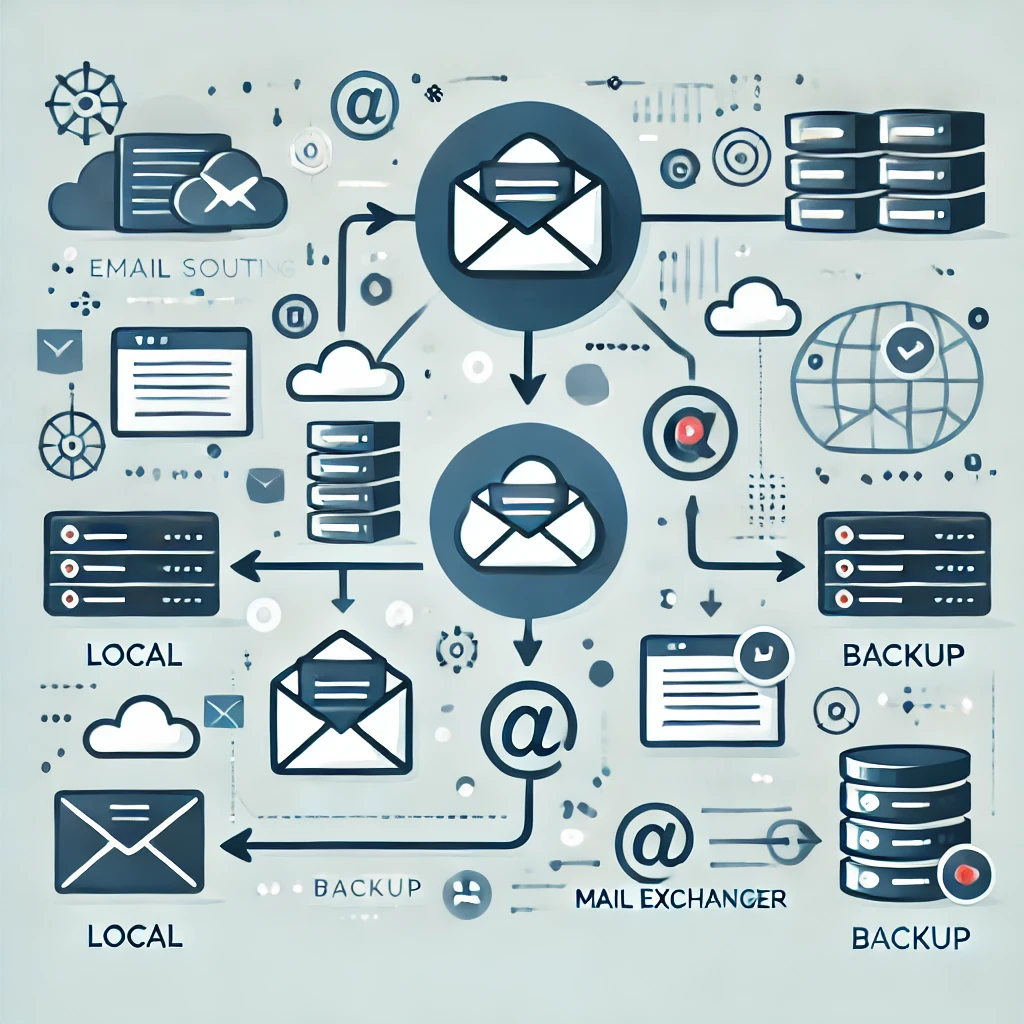
cPanel provides four options:
- Automatically Detect Configuration – The system selects the most appropriate setting.
- Local Mail Exchanger – Messages are delivered to mailboxes on the same server.
- Remote Mail Exchanger – Emails are forwarded to an external service like Google Workspace or Outlook.
- Backup Mail Exchanger – The server temporarily holds messages if the primary one is unavailable.
Steps to Configure
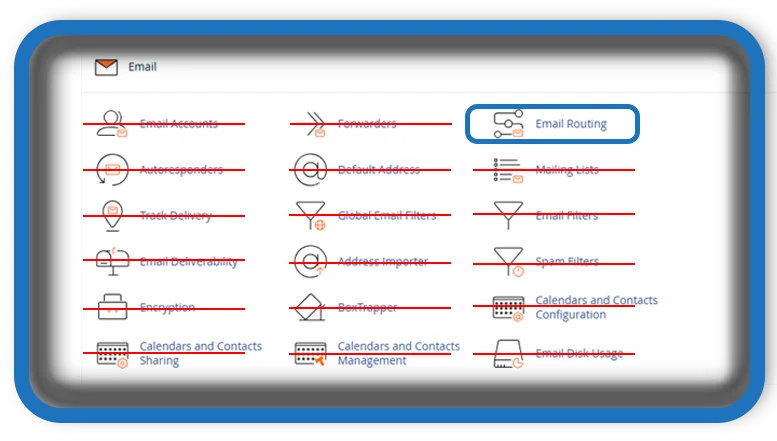
- Log in to cPanel and go to Email Routing under the “Email” section.
- Select the domain you want to modify.
- Choose the appropriate setting.
- Click Change to save the update.
Troubleshooting Common Issues
- Emails Not Arriving: Check MX records and authentication settings.
- Messages Landing in Spam: Ensure proper DNS and reverse DNS configurations.
- Delayed Deliveries: Inspect the mail queue and server load.
A well-configured mail system ensures reliable communication. Choose the best option for your needs.
Tags: cPanel, email setup, MX records, web hosting, mail server, remote mail exchanger, local mail exchanger, email delivery, cPanel settings, email troubleshooting
