


⏲️ Estimated reading time: 6 min
Table of Contents
Proper PHP settings can be the difference between a slow, unstable WordPress site and one that is fast, reliable, and scalable. This complete guide explains the best PHP values, what each setting does, and how to apply them safely on any hosting environment.
Why PHP Settings Are Critical for WordPress
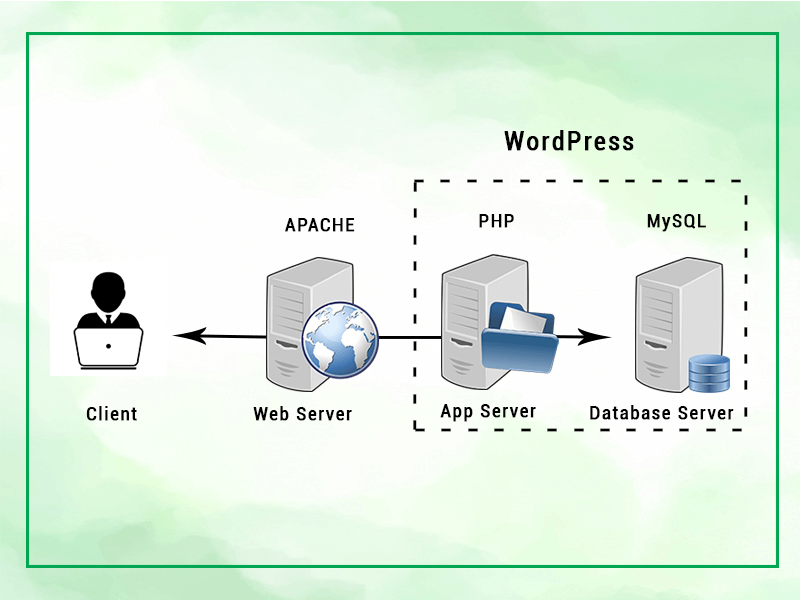
WordPress runs entirely on PHP.
Every page load, plugin action, image upload, menu save, and background task depends on how PHP is configured on your server.
Many site owners focus on:
- themes,
- plugins,
- SEO tweaks,
- caching tools.
Yet they completely ignore PHP configuration, which is the real foundation of performance and stability.
Incorrect PHP settings cause:
- failed media uploads,
- timeout errors,
- menus that refuse to save,
- white screen errors,
- broken backups,
- unstable admin dashboards.
Correct PHP settings result in:
- smoother admin experience,
- better plugin compatibility,
- fewer errors,
- safer updates,
- long-term scalability.
What PHP Is and How It Powers WordPress
PHP is the server-side language that processes:
- user requests,
- plugin logic,
- content saving,
- database interactions,
- page rendering.
WordPress performance is not only about server speed.
It is also about PHP limits.
If those limits are too low, WordPress behaves like a powerful engine restricted by artificial caps.
Recommended PHP Settings for WordPress (Optimized Table)
Optimal Values for Most WordPress Websites
| PHP Setting | Current Value | Recommended Value | Purpose |
|---|---|---|---|
| file_uploads | Enabled | ✅ Enabled | Allows media uploads |
| max_execution_time | 30 | 300 | Prevents timeout errors |
| max_input_time | 60 | 300 | Handles large submissions |
| max_input_vars | 1000 | 3000 | Prevents menu truncation |
| memory_limit | 128M | 256M – 512M | Avoids fatal memory errors |
| post_max_size | 8M | 64M – 128M | Supports large uploads |
| upload_max_filesize | 2M | 64M – 128M | Modern media support |
| session.gc_maxlifetime | 1440 | Default | Session stability |
| session.save_path | Default | Default | Login reliability |
| zlib.output_compression | Disabled | Disabled | Avoids compression conflicts |
Detailed Explanation of Each PHP Setting
file_uploads – The Backbone of WordPress Media
This setting allows WordPress to upload:
- images,
- videos,
- PDFs,
- plugins,
- themes.
If disabled, WordPress becomes nearly unusable for publishing content.
There is no performance or security benefit in disabling it.
max_execution_time – Preventing Script Timeouts
This value defines the maximum time PHP is allowed to run a script.
A limit of 30 seconds is insufficient for:
- theme demo imports,
- backup creation,
- restore operations,
- large updates,
- bulk plugin actions.
Setting it to 300 seconds gives WordPress enough room to complete complex tasks safely.
This does not slow down your site.
It only raises the allowed maximum runtime.
max_input_time – Reliable Data Processing
This setting controls how long PHP waits for incoming data.
It affects:
- menu saving,
- large forms,
- theme option panels,
- visual page builders.
Low values result in:
- partial saves,
- missing settings,
- unexplained admin issues.
Matching this value with max_execution_time ensures consistency.
max_input_vars – The Hidden Cause of Broken Menus
One of the most underestimated PHP settings.
Each menu item, checkbox, and option counts as one variable.
Modern themes and builders easily exceed 1500 variables.
With a value of 1000:
- menus save partially,
- submenus disappear,
- settings reset.
Setting it to 3000 solves most menu-related WordPress issues instantly.
memory_limit – Giving WordPress Room to Breathe
128M is no longer sufficient for modern WordPress sites.
Plugins such as:
- page builders,
- WooCommerce,
- SEO tools,
- security plugins
consume significant memory.
Recommended values:
- 256M for standard sites,
- 512M for WooCommerce or complex builds.
Memory is allocated only when needed.
Unused memory remains free.
You may also be interested in: How To Fix Maximum upload file size: 2 MB in WordPress
post_max_size – Preventing Upload Failures
This value defines the maximum size of POST data.
It must always be greater than upload_max_filesize.
If not:
- uploads fail silently,
- WordPress throws unclear errors,
- users assume the site is broken.
A safe rule:
post_max_size ≥ upload_max_filesize
upload_max_filesize – Supporting Modern Content
A 2M upload limit is outdated.
Today’s websites upload:
- high-resolution images,
- PDFs,
- ZIP files,
- videos.
64M is the minimum acceptable value.
128M provides full flexibility for creators.
session.gc_maxlifetime and session.save_path
WordPress does not rely heavily on PHP sessions by default.
Changing these values unnecessarily may cause:
- unexpected logouts,
- WooCommerce cart issues,
- authentication problems.
Unless explicitly required, keep them at default values.
zlib.output_compression – Why It Should Stay Disabled
Compression should be handled by:
- the web server,
- caching layers,
- CDNs.
PHP-level compression can conflict with:
- Gzip,
- Brotli,
- caching plugins.
Leave it disabled in PHP.

How to Apply PHP Settings Correctly
Method 1 – php.ini (Best for VPS or Dedicated Servers)
upload_max_filesize = 128M
post_max_size = 128M
memory_limit = 512M
max_execution_time = 300
max_input_time = 300
max_input_vars = 3000
A PHP restart is required.
Method 2 – .user.ini (Most Compatible)
upload_max_filesize = 128M
post_max_size = 128M
memory_limit = 512M
max_execution_time = 300
max_input_time = 300
max_input_vars = 3000
Changes apply automatically within minutes.
Method 3 – cPanel (Beginner-Friendly)
- Open Select PHP Version
- Go to Options
- Adjust values
- Save changes
This is the safest method on shared hosting.
Common PHP Myths Debunked
- ❌ “Higher values slow down the site”
- ❌ “Default values are optimized”
- ❌ “More memory is a security risk”
All of these are false.
Limits define maximum allowance, not forced usage.
Frequently Asked Questions
What is the ideal memory_limit for WordPress?
256M for regular sites, 512M for WooCommerce or heavy builders.
Does max_execution_time affect site speed?
No. It only defines how long scripts are allowed to run.
Can I apply these settings in .htaccess?
Sometimes. It depends on your hosting provider.
Why don’t my menus save completely?
Usually due to a low max_input_vars value.
Are these settings AdSense-friendly?
Yes, they fully comply with AdSense policies.
Do I need to restart the server?
Only when editing php.ini.
Can these settings break my site?
No, when applied correctly.
Does WordPress use PHP sessions?
Very minimally by default.
Essential Takeaways for a Stable WordPress Site
Correct PHP settings are not optional anymore.
They are a core requirement for modern WordPress websites.
They:
- remove hidden limitations,
- prevent admin errors,
- improve plugin compatibility,
- support future growth.
A stable PHP environment leads to a stable WordPress site.
⚠️ Disclaimer and Source Hygiene
This article is for informational purposes only. For advanced configurations, consult your hosting provider or a server administrator. Information is based on official PHP documentation and widely accepted WordPress best practices.
🔔 For more tutorials like this, consider subscribing to our blog.
📩 Do you have questions or suggestions? Leave a comment or contact us!
🏷️ Tags: WordPress, PHP settings, WordPress optimization, PHP ini, web hosting, WordPress performance, WooCommerce hosting, PHP configuration
📢 Hashtags: #WordPress #PHP #WPOptimization #WebHosting #PHPSettings #WordPressTips #SitePerformance #WebDevelopment
