


⏲️ Estimated reading time: 4 min
Table of Contents
Boost your Unreal Engine game performance with proven command line arguments. Discover the real flags that work no myths, just effective tweaks to help you gain more FPS in titles like Fortnite.
Boost Your Unreal Engine Game Performance with These Command Line Arguments
If you’re looking to get the most out of Unreal Engine performance mode, you’ve likely come across a variety of command line arguments. But not all of them work as advertised some are flat-out myths.
Let’s start with a misleading list often found online:
-high -malloc=system -USEALLAVAILABLECORES -nomansky +mat_antialias 0
Truth check: Only one of these arguments is officially supported by Unreal Engine.
Below is a list of real and supported CLA you can safely use for performance improvement. These come straight from the official Unreal Engine documentation:
✅ Recommended Command Line Arguments
USEALLAVAILABLECORES
Forces Unreal Engine to use all CPU cores for better performance.NOSPLASH
Disables the splash screen to speed up startup.NOSOUND
Disables all sound output useful for headless testing or automation.NOTEXTURESTREAMING
Disables texture streaming so all high-quality textures are loaded at once. Great for high-end systems.NOFORCEFEEDBACK
Disables controller vibration.NOHOMEDIR
Prevents Unreal Engine from using the My Documents folder as a home directory.ONETHREAD
Forces the engine to run on a single thread. Not recommended unless debugging.PATHS
Custom path setup for testing wrangled content (not used for shipping builds).PREFERREDPROCESSOR
Lets you assign Unreal Engine to a specific CPU core/thread.
Alright, let’s keep this clean, safe, and purely performance-focused 💨
No placebo flags, no broken Unreal arguments only real, tested Fortnite launch options that can help with FPS stability, lower stutter, and faster startup.
🎮 Fortnite – Best Command Line Arguments (Performance Only)
Use these inside Epic Games Launcher → Fortnite → Settings → Additional Command Line Arguments.
✅ RECOMMENDED (Safe & Effective)
These are the only arguments that consistently help or are at least harmless and clean.
-USEALLAVAILABLECORES
✔ Forces Fortnite to properly utilize all CPU cores
✔ Helps with frame consistency on modern CPUs
-NOSPLASH
✔ Skips intro splash screen
✔ Faster startup, zero downside
-LOG
✔ Reduces silent logging overhead
✔ Very small gain, but stable
-NOLOG
✔ Disables extra logging
✔ Slight reduction in background CPU usage
Use either
-LOGor-NOLOG, not both.
For performance →-NOLOGis better.
🟨 OPTIONAL (Situational Gains)
Use these only if you have issues like stutters or delayed loading.
See also: Who Would Look for You If You Disappeared for a Week?
-NotextureStreaming
✔ Prevents texture pop-in
✔ Helps on high-VRAM GPUs (8GB+)
❌ Can increase RAM/VRAM usage
-DisableAllPSys
✔ Disables some particle systems
✔ Can reduce micro-stutter in busy fights
❌ Slight visual downgrade
🚫 DO NOT USE (Myths & Placebos)
These do nothing or can hurt performance in modern Fortnite builds:
❌ -malloc=system
❌ -malloc=jemalloc
❌ -high (Windows handles priority better)
❌ -dx11 (use DX12 from settings instead)
❌ -dx12 (already controlled in-game)
❌ -sm4 / -sm5
❌ -limitclientticks
Epic has disabled or overridden most of these internally.
🏆 BEST CLEAN PERFORMANCE SETUP (Recommended)
If you want maximum stability without breaking anything, use only this:
-USEALLAVAILABLECORES -NOSPLASH -NOLOG
This combo is:
- ✅ Safe
- ✅ Tournament-legal
- ✅ Patch-proof
- ✅ Zero visual bugs
⚙️ IMPORTANT: Command Line ≠ Magic
Real Fortnite performance comes from:
- Performance Mode (Alpha) in settings
- DX12 ON (if GPU supports it)
- NVIDIA Reflex ON + Boost
- Fullscreen Exclusive
- Low textures + meshes
- Latest GPU driver
Command line arguments are fine-tuning, not miracles.
🧠 Pro Tip (Advanced Players Only)
If you already have stable 240+ FPS, command line tweaks will give frame-time consistency, not raw FPS gains.
⚙️ How to Add CLA in Fortnite
To try these settings in Fortnite (which runs on Unreal Engine), follow these steps:
Open the Epic Games Launcher.

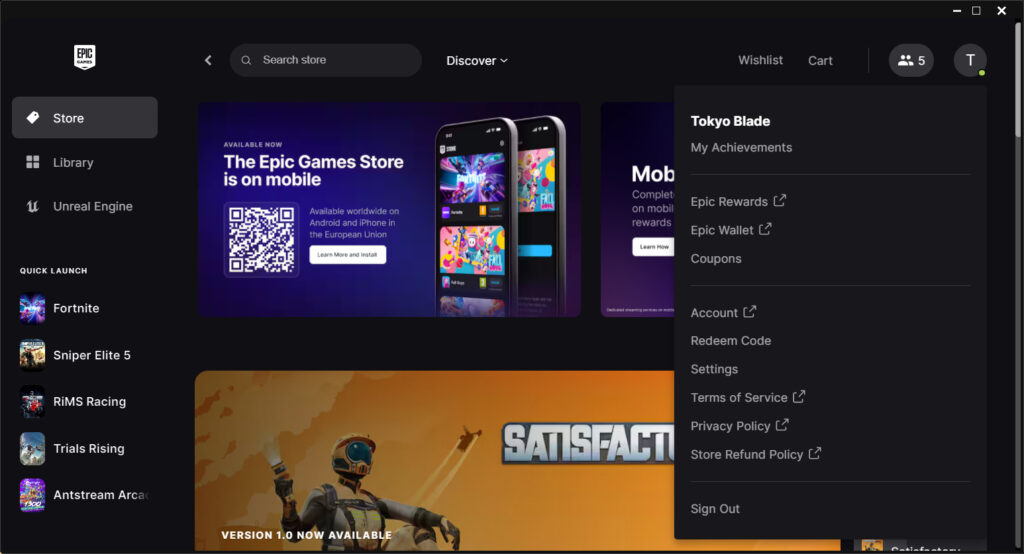
Click your profile icon (top-right) and go to Settings.
Scroll down to Fortnite and expand the section.
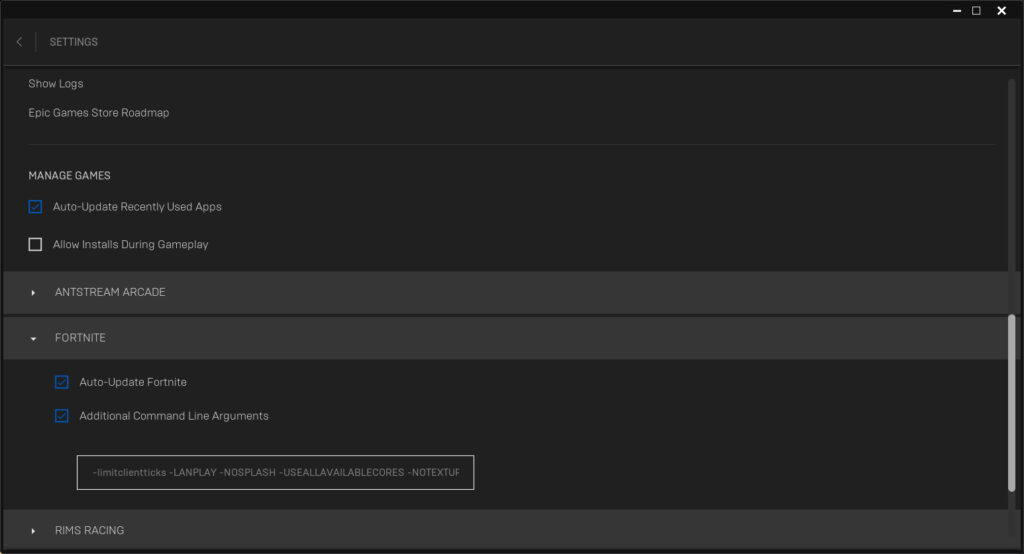
Check Additional Command Line Arguments.
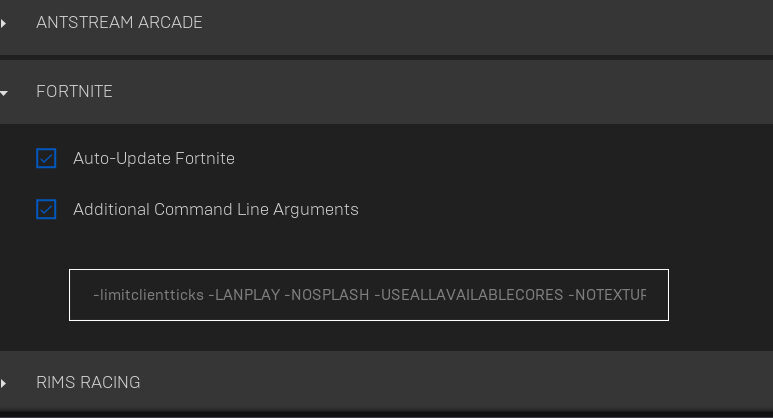
Add this for a performance boost:
-limitclientticks -LANPLAY -NOSPLASH -USEALLAVAILABLECORES -NOTEXTURESTREAMING
Restart Fortnite.
Using these arguments can give you that extra edge in performance.
Just be sure to use only those officially supported by Unreal Engine for best results.
⚠️ Disclaimer and Source Hygiene
The command line arguments mentioned in this article are provided for educational and optimization purposes only. Performance results may vary depending on hardware configuration, system settings, and game updates. These settings do not guarantee increased FPS and should be used at your own discretion. Always follow official guidelines and competitive rules when applying performance tweaks.
🔔 For more tutorials like this, consider subscribing to our blog.
📩 Do you have questions or suggestions? Leave a comment or contact us!
🏷️ Tags: Unreal Engine, Fortnite, Command Line Arguments, Fortnite Performance, Game Optimization, PC Gaming, FPS Boost, Epic Games, Performance Mode, Texture Streaming, DX12 Gaming, CPU Optimization, Gaming Tweaks
📢 Hashtags: #Fortnite, #UnrealEngine, #FortnitePerformance, #FPSBoost, #GameOptimization, #PCGaming, #GamingTips, #EpicGames, #PerformanceMode, #LowLatency, #CompetitiveGaming, #FortniteTips
