

⏲️ Estimated reading time: 4 min
Table of Contents
The Ultimate Guide to cPanel Backup Keep Your Website Safe
Website data is one of your most valuable digital assets. Whether you’re running a business, a blog, or an e-commerce store, losing your files, databases, or configurations can be catastrophic. Fortunately, cPanel offers robust and flexible backup solutions that can protect you from data loss, server crashes, hacking incidents, and even accidental deletions. In this guide, we’ll walk you through everything you need to know about cPanel Backup and how to use it effectively.
🔍 What is cPanel Backup?
cPanel Backup is a built-in feature in the cPanel control panel that allows you to create and manage backups of your website. These backups can include:
- Website files
- Databases (MySQL/PostgreSQL)
- Email accounts
- DNS settings
- SSL certificates
- Full account data
With cPanel Backup, you can either manually create backups or schedule automatic ones. This functionality is essential for restoring your website in case of issues or moving to a new hosting environment.
✅ Why You Need to Back Up with cPanel
Here are some reasons why cPanel Backup should be part of your website maintenance routine:
- Disaster Recovery: Hardware failures, server crashes, or cyberattacks can lead to data loss.
- Migration: Backups simplify transferring your site to a new host or domain.
- Version Control: Keep older versions of your site to undo mistakes or test new features safely.
- Peace of Mind: Knowing you have a copy of everything makes it easier to experiment or handle issues without fear.
🧰 Types of Backups in cPanel
cPanel offers several backup options depending on your hosting setup and preferences:
1. Full Account Backup
This backup includes everything in your cPanel account files, databases, emails, DNS settings, and more. Best used for migrations or major restorations.
2. Partial Backups
You can download specific parts of your website:
- Home directory (files)
- MySQL databases
- Email forwarders and filters
3. Automated Backups
Hosting providers often enable automated daily, weekly, or monthly backups. You can configure these in WHM or request support from your host.
🚀 How to Create a Manual Backup in cPanel
Follow these steps to manually back up your website via cPanel:
- Log in to cPanel.
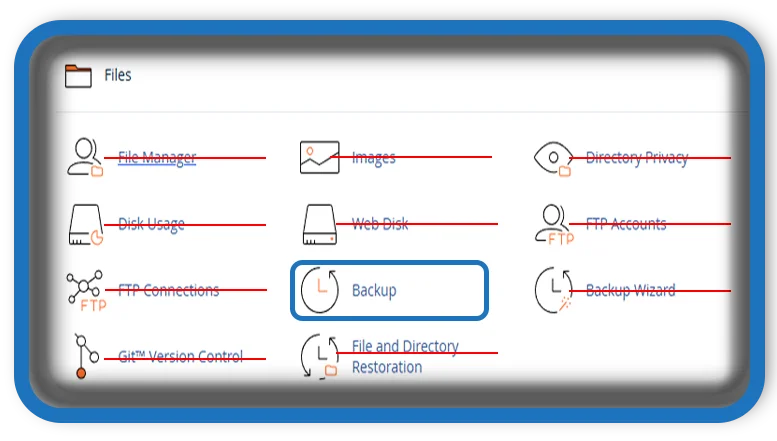
- Scroll to the Files section.
- Click on Backup or Backup Wizard.
- Select Download a Full Account Backup.
- Choose the destination (Home Directory is recommended).
- Enter your email to get notified when the backup is complete.
- Click Generate Backup.
Once ready, the backup file (usually a .tar.gz archive) will be available for download.
Read also: How To Use cPanel Images: Modify and Manage Images Saved
🔁 How to Restore from a Backup
To restore data:
- Go to Backup in cPanel.
- Use the options under Restore a Home Directory Backup or Restore a MySQL Database.
- Choose the appropriate file and upload it.
- Wait for the restoration to complete.
If you’re restoring a full backup, you may need assistance from your hosting provider or access to WHM.
⚙️ Automating Backups with Cron and Remote Storage
For advanced users or those with VPS/WHM access, automating backups via cron jobs and storing them remotely (e.g., Google Drive, Dropbox, S3) is a powerful option.
- Use scripts to zip files and databases.
- Set up cron jobs in cPanel to run at regular intervals.
- Configure FTP/SFTP or API-based uploads to remote storage.
There are also third-party plugins and WHM extensions that simplify this.
🛡️ Best Practices for Backup Management
- Schedule Regular Backups: Daily or weekly depending on your site’s activity.
- Keep Multiple Versions: Maintain a few backups (e.g., 3–5 versions) to roll back if needed.
- Test Restores: Occasionally restore a backup in a staging environment to ensure reliability.
- Encrypt Sensitive Data: Especially if backups are stored offsite.
- Monitor Storage Space: Large backups can fill your server; automate deletion of old backups.
🧩 cPanel Backup vs Other Backup Solutions
While cPanel is great for manual and basic automated backups, you might consider plugins (for WordPress) or third-party services for added flexibility:
- JetBackup: Often bundled with hosting, supports remote storage and scheduling.
- Acronis: Enterprise-grade with robust features.
- UpdraftPlus / BlogVault (for WordPress): Great UI, offsite storage options.
Using both cPanel and plugin-based backups ensures redundancy.
🧠 Final Thoughts
Backing up your website is not optional it’s a critical responsibility. With cPanel’s built-in tools, even beginners can easily secure their data and avoid devastating losses. Whether you’re running a blog, an online store, or a business site, make sure your backup strategy is active, automated, and tested.
If your hosting provider supports it, take full advantage of features like JetBackup and remote storage integrations to take your backup management to the next level.
📩 Do you have questions or suggestions? Leave a comment or contact us!
🏷️ Tags: cpanel, backup, website security, data recovery, hosting tips, full account backup, restore website, cron job backup, automated backups, website migration
