

⏲️ Estimated reading time: 36 min
Table of Contents
Learn how to create a portable YouTube downloader for Windows using a BAT file, yt-dlp, FFmpeg, FFprobe, and Deno. This complete tutorial explains installation, folder structure, video and MP3 downloads, automatic Desktop saving, dependency checks, troubleshooting, and the commands behind a simple Windows download menu.
Downloading and processing online videos through Windows Command Prompt may sound complicated, especially if you have never worked with batch files. However, a simple Windows BAT script can turn several powerful command-line tools into a practical application with an easy-to-use menu. Instead of remembering long commands, you enter a URL, choose the format, and let the script handle the technical work.
In this tutorial, we will build a portable Windows YouTube Downloader using yt-dlp, FFmpeg, FFprobe, and Deno. The application offers three options: download the best available video and audio combination, prefer MP4 video, or extract audio as MP3. It saves the resulting files directly to your Windows Desktop, making them easy to locate after processing.
The project does not require a complicated installer or hard-coded Windows usernames. Its executables remain inside a dedicated data folder, while the BAT script automatically identifies their location. We will explore every important command, explain the folder structure, examine the three download modes, and discuss common problems and possible improvements.
Important: Download only videos you own, have permission to download, or are otherwise legally authorized to save. Public availability does not automatically grant permission to download, redistribute, or commercially reuse someone else’s content. Always respect applicable copyright laws, licenses, and platform terms.
What Is a Windows YouTube Downloader BAT Script?
A Windows BAT file is a plain-text script containing commands that Command Prompt can execute automatically. The .bat extension tells Windows to process those commands in sequence. Batch files are commonly used for administrative tasks, file management, backups, system maintenance, and automation.
In this project, the BAT file acts as a simple interface for yt-dlp. Rather than manually typing different commands for video and audio processing, users interact with a menu that provides three predefined choices. Each option launches yt-dlp with the appropriate settings, allowing the program to select available media streams and save the resulting file.
The BAT script does not download media independently. It relies on external tools to perform the actual work. Understanding this distinction is important because the script’s reliability depends on the installed versions of yt-dlp, FFmpeg, and Deno, as well as the accessibility of the requested media.
What Can This Downloader Do?
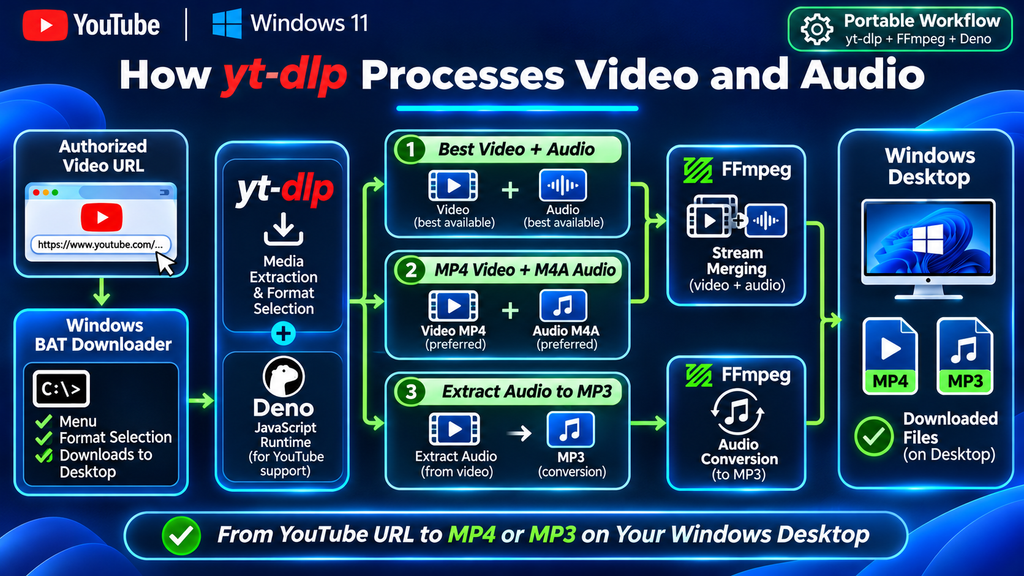
The application supports three main operations. The first selects the best available video and audio combination according to the configured yt-dlp format expression. The second prefers MP4 video and M4A audio, which can be useful for compatibility with common devices and software. The third extracts audio and converts it into MP3 format.
The script also verifies that its required executable files exist before displaying the menu. This prevents users from starting a download with missing components. After each operation, it offers the option to process another URL without reopening the program. The interface is simple enough for beginners while remaining customizable for experienced Windows users.
Why Use yt-dlp, FFmpeg, FFprobe, and Deno?
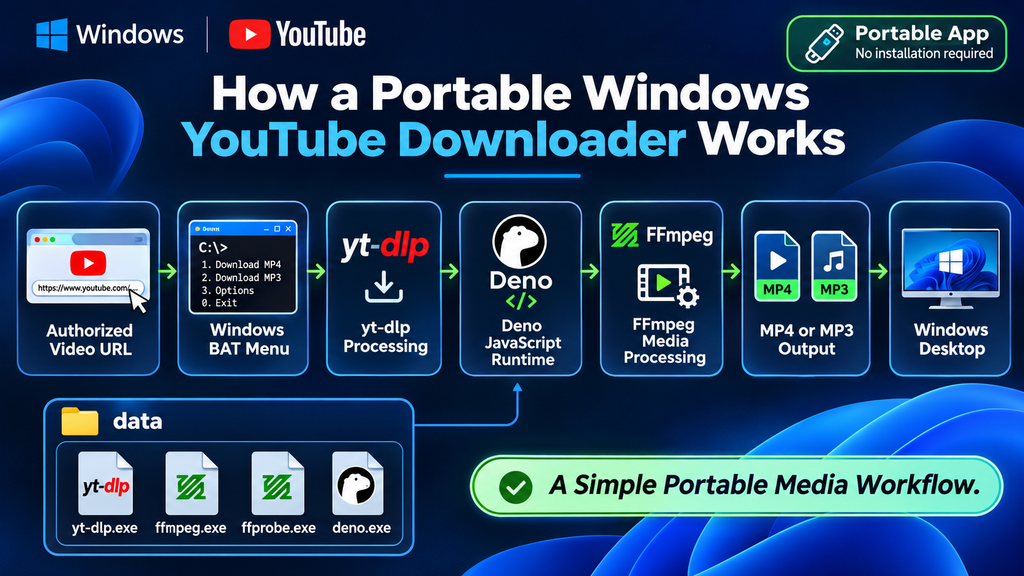
Each component has a specific responsibility. yt-dlp manages media extraction, discovers available formats, selects streams, and generates output filenames. FFmpeg performs media processing, including merging separately downloaded video and audio streams or converting audio into MP3. FFprobe provides media inspection capabilities and complements the FFmpeg toolkit.
Deno serves a different purpose. Modern yt-dlp YouTube support can require an external JavaScript runtime for challenge processing. Deno is a supported and recommended runtime in the yt-dlp documentation. By keeping deno.exe in the project’s local folder, the BAT script can explicitly tell yt-dlp where to find it without relying on a system-wide installation.
This separation of responsibilities makes the application easier to maintain. When yt-dlp requires an update, you can replace its executable. If FFmpeg or Deno needs updating, those components can be maintained independently. The BAT interface can often remain unchanged, provided its command-line options are still supported.
Understanding the Role of Each Tool
| Component | Main responsibility |
|---|---|
yt-dlp.exe | Media extraction and format selection |
ffmpeg.exe | Media merging and conversion |
ffprobe.exe | Media stream and metadata inspection |
deno.exe | JavaScript runtime support |
.bat file | Menu, automation, and command execution |
These tools work together, but they do not guarantee that every online video can be downloaded. Availability depends on the source, its restrictions, the formats offered, and the current capabilities of yt-dlp. Keeping the software updated is important, especially when online platforms change their delivery systems.
Complete Downloader Architecture
Step 1: Create the Portable Downloader Folder
Begin by creating a new folder named YouTube-Downloader in a location of your choice. You can place it on your Desktop, another local drive, or inside a directory dedicated to portable applications. The important detail is that the BAT file and its dependency folder remain together.
Inside the main folder, create another folder named data. This directory will contain the four executable files required by the application. Keeping the executables together avoids unnecessary configuration and makes it easier to move the entire project between compatible Windows computers.
The completed folder structure should look like this:
YouTube-Downloader\
│
├── YouTube-Downloader.bat
│
└── data\
    ├── yt-dlp.exe
    ├── ffmpeg.exe
    ├── ffprobe.exe
    └── deno.exe
This layout is central to the script’s portability. The BAT file uses its own location to identify the data directory, meaning it does not need an absolute installation path. If you move the complete project, the internal directory relationship remains the same.
Why the Folder Structure Matters
Many beginner scripts fail because they rely on absolute paths such as C:\Tools\yt-dlp.exe. Those paths may work on one computer but fail on another where the directory does not exist. A relative path avoids this limitation and makes the project more flexible.
Our script uses %~dp0, a special batch parameter that identifies the drive and directory containing the running BAT file. By combining this value with data, the application can locate its dependencies wherever the project folder is stored. This is one of the most useful techniques for creating portable Windows utilities.
Step 2: Download the Required Executables
Before creating the BAT file, obtain the necessary tools from their official projects or trusted distribution sources. Avoid downloading unknown packages that claim to include a complete YouTube downloader, especially when their contents cannot be verified. Executable files run directly on your computer, so their origin matters.
Download the appropriate standalone Windows yt-dlp executable, a compatible FFmpeg build containing FFmpeg and FFprobe, and the supported Windows Deno executable. Place the required .exe files directly inside the data folder. Make sure the filenames match the script exactly.
Official project resources include:
Some downloaded FFmpeg archives contain additional directories such as bin, documentation, and licensing files. The BAT script expects ffmpeg.exe and ffprobe.exe directly inside data, so ensure that the executables are placed in the correct location. Keep relevant license and attribution files when redistributing any package.
Do You Need to Install These Programs in Windows?
Not necessarily. This project is designed around local executables. Instead of installing every component globally or adding directories to the Windows PATH, the script references the files inside its own folder.
This approach makes the application convenient for portable use. However, portable does not mean completely independent of the operating system. The executable versions must still be compatible with the Windows computer, and the user must have permission to run the files and write to the selected output directory.
Step 3: Create the Windows BAT File
Open Notepad or another plain-text editor and create a new document. The complete script will be added later in this tutorial, but first it is useful to understand the commands that control the interface.
The opening section is:
@echo off
chcp 65001 >nul
title YouTube Downloader
color 0A
@echo off prevents Command Prompt from displaying each batch command before executing it. Without this instruction, the console would show numerous internal operations, making the interface harder to read. Hiding the commands allows users to focus on the menu and status messages.
chcp 65001 >nul changes the console code page to UTF-8, which can help display international characters. The >nul part suppresses the usual status message. The title command sets the window title, while color 0A creates a black background with green text.
Why Use a BAT File Instead of Typing Commands Manually?
A BAT file allows you to define complex commands once and reuse them whenever necessary. This reduces typing mistakes and creates a consistent workflow. It also makes the tool accessible to users who do not know yt-dlp’s format-selection syntax.
The script can additionally perform checks before running the downloader, handle invalid menu choices, and return to the beginning after processing a URL. These features would require repeated manual effort if you used individual Command Prompt commands.
Step 4: Configure the Application Paths
The next section defines the directories and executables:
set "DESKTOP=%USERPROFILE%\Desktop"
set "DATA=%~dp0data"
set "YTDLP=%DATA%\yt-dlp.exe"
set "FFMPEG=%DATA%"
set "DENO=%DATA%\deno.exe"
%USERPROFILE% points to the current Windows user’s profile directory. On a standard configuration, adding \Desktop produces the path to the Desktop. This avoids writing a specific username into the script. However, if your Desktop is redirected to OneDrive or another location, the actual Desktop path may differ and require adjustment.
The variable %~dp0 identifies the directory containing the BAT file. Therefore, %~dp0data points to the data folder beside it. The remaining variables build the executable paths from this location, ensuring that the script can find its tools without searching the entire computer.
Why Are the Variables Surrounded by Quotation Marks?
The syntax:
set "DATA=%~dp0data"is a recommended batch scripting pattern. The quotation marks protect the assignment from accidental trailing spaces without becoming part of the variable’s value.
Later, executable paths are also enclosed in quotation marks:
"%YTDLP%"This is important when folders contain spaces. For example, a path such as C:\Users\Example\Desktop\My Tools could be interpreted incorrectly if it were passed to a command without proper quotation marks.
Step 5: Check Whether yt-dlp Exists
Before displaying the menu, the script checks for yt-dlp:
if not exist "%YTDLP%" (
    echo [EROARE] Nu gasesc yt-dlp.exe
    echo.
    echo Fisierul trebuie sa existe aici:
    echo data\yt-dlp.exe
    echo.
    pause
    exit /b
)
The command if not exist tests whether the specified file is missing. If Windows cannot find yt-dlp.exe, the script displays an error message and explains where the file should be located. This prevents users from reaching the download menu when the primary executable is unavailable.
The pause command keeps the console open long enough to read the error. This is particularly helpful when launching the BAT file by double-clicking it. Finally, exit /b stops the batch script, preventing further execution.
Why Dependency Checks Are Important
Without these checks, the program could display a working menu even though essential components were missing. The resulting errors would appear later and might be difficult for beginners to understand.
By checking dependencies at startup, the script identifies configuration problems early. This approach is useful beyond media downloaders and can be applied to backup utilities, Windows maintenance scripts, file converters, and other portable applications.
Step 6: Verify FFmpeg and FFprobe
The script performs similar checks for FFmpeg and FFprobe:
if not exist "%DATA%\ffmpeg.exe" (
    echo [EROARE] Nu gasesc ffmpeg.exe
    echo.
    echo Fisierul trebuie sa existe aici:
    echo data\ffmpeg.exe
    echo.
    pause
    exit /b
)

if not exist "%DATA%\ffprobe.exe" (
    echo [EROARE] Nu gasesc ffprobe.exe
    echo.
    echo Fisierul trebuie sa existe aici:
    echo data\ffprobe.exe
    echo.
    pause
    exit /b
)
FFmpeg is important because high-quality online video is often delivered as separate video and audio streams. yt-dlp can obtain those streams, while FFmpeg combines them into a single playable file when appropriate. FFmpeg is also used when converting downloaded audio into MP3.
FFprobe complements FFmpeg by inspecting media files and their streams. Including both tools creates a more complete local media-processing environment. The script checks for their presence before presenting options that may depend on them.
What Happens If FFmpeg Is Missing?
The application stops and displays an error instead of continuing to the menu. This behavior is intentional because video merging and MP3 conversion could fail without FFmpeg.
If the file exists inside a nested directory such as data\ffmpeg\bin, the current script will not find it. You must either move the executable to the expected location or adjust the script’s path definitions and dependency checks.
Step 7: Verify the Deno JavaScript Runtime
The final startup check verifies Deno:
if not exist "%DENO%" (
    echo [EROARE] Nu gasesc deno.exe
    echo.
    echo Fisierul trebuie sa existe aici:
    echo data\deno.exe
    echo.
    pause
    exit /b
)
Deno provides JavaScript runtime functionality used by modern yt-dlp YouTube extraction support. The yt-dlp project documents external JavaScript runtimes and recommends Deno for relevant challenge-processing workflows.
The script later uses:
--js-runtimes "deno:%DENO%"This explicitly tells yt-dlp where the local Deno executable is located. It avoids relying on a separate Deno installation somewhere in the Windows environment.
The presence check only confirms that deno.exe exists. It does not verify that the version is supported or that the executable runs correctly. If runtime-related errors appear, consult the current yt-dlp EJS documentation and verify the Deno version.
Step 8: Build the Main Downloader Menu
After the dependency checks, the script reaches the main menu:
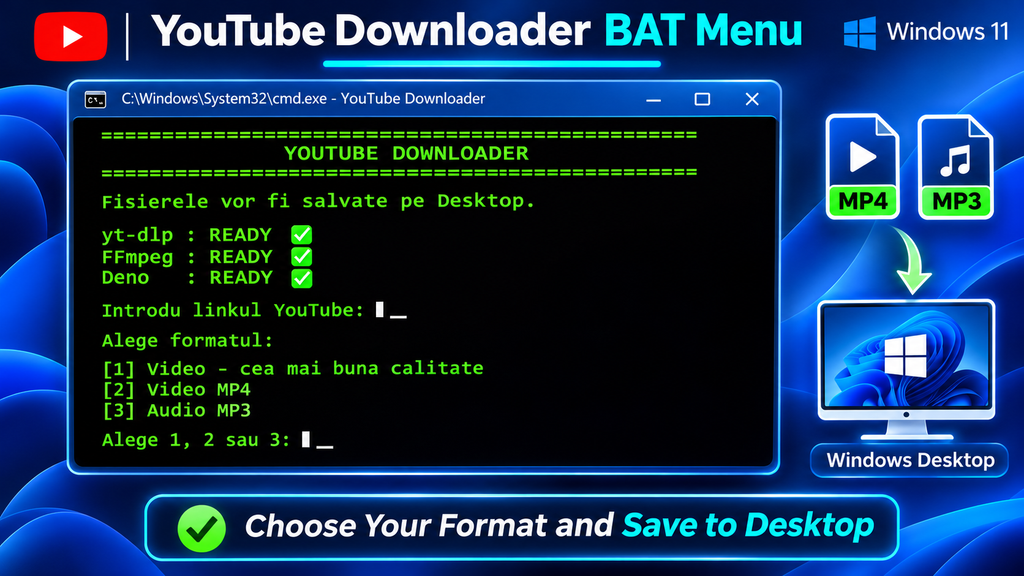
:START
cls
echo ==================================================
echo             YOUTUBE DOWNLOADER
echo ==================================================
echo.
echo Fisierele vor fi salvate pe Desktop.
echo.
echo yt-dlp : READY
echo FFmpeg : READY
echo Deno   : READY
echo.
:START is a batch label. Other commands can return to this location using goto START. This creates a reusable menu without requiring a more advanced programming language.
The cls command clears the console before displaying the interface. The script then prints the application title, the expected output location, and the status of the required tools. Because the dependency checks have already succeeded, the program can display the READY messages.
What Does READY Actually Mean?
The READY status indicates that the expected executable files were found. It does not guarantee that every video URL can be downloaded or that all components are running correctly.
A media source may be unavailable, restricted, removed, or unsupported. The installed executable may also be outdated. The status messages should therefore be understood as startup checks rather than complete functional tests.
Windows Downloader Console Menu
Step 9: Ask the User for a YouTube URL
The input section is:
set "URL="
set /p "URL=Introdu linkul YouTube: "

if not defined URL goto START
The first command clears the previous URL value. This is important when the user returns to the menu after processing another video. Without clearing the variable, an old URL might remain available and cause confusion.
set /p displays a prompt and stores the user’s input in the variable named URL. The script does not need to know the video’s title, resolution, or format at this point. yt-dlp will handle media information after receiving the URL.
If the user presses Enter without entering a value, if not defined URL sends the program back to START. This prevents the downloader from being launched with an empty URL.
Example of the URL Input Process
Imagine you have uploaded a video to your own channel and want to save an authorized local copy. You copy the video’s URL, open the BAT program, and paste it into the input prompt.
After pressing Enter, the script stores the URL and displays the format menu. You can then choose the video or audio output you need. This workflow avoids editing the BAT file whenever you want to process a different authorized media URL.
Step 10: Display the Three Download Formats
The format menu is generated by:
echo Alege formatul:
echo.
echo [1] Video - cea mai buna calitate
echo [2] Video MP4
echo [3] Audio MP3
echo.

set "CHOICE="
set /p "CHOICE=Alege 1, 2 sau 3: "
Each number corresponds to a different yt-dlp command. The first option focuses on the best available video and audio combination. The second prioritizes MP4-oriented streams. The third extracts audio and converts it into MP3.
The script clears the previous selection before asking for a new value. This is a useful habit in interactive batch files because it prevents an earlier selection from unintentionally affecting a later operation.
The menu keeps the application approachable. Users do not need to understand complex yt-dlp format selectors because those details are already included in the script.
Step 11: Download the Best Available Video Quality
When the user selects Option 1, the script runs:
if "%CHOICE%"=="1" (
    "%YTDLP%" ^
    --js-runtimes "deno:%DENO%" ^
    --ffmpeg-location "%FFMPEG%" ^
    -f "bv*+ba/b" ^
    --merge-output-format mp4 ^
    -o "%DESKTOP%\%%(title)s.%%(ext)s" ^
    "%URL%"
    goto DONE
)
The condition if "%CHOICE%"=="1" checks whether the user selected the first menu option. If the condition is true, the script launches yt-dlp with the configured arguments.
The caret character ^ is used to continue a batch command onto the next line. This makes long commands easier to read and maintain. Without line continuation, the entire yt-dlp command would need to be written on one line or structured differently.
The command specifies the local Deno runtime, identifies the FFmpeg directory, selects the preferred media formats, requests MP4 merging, and defines the output filename.
Understanding the Format Selector
The expression:
-f "bv*+ba/b"uses yt-dlp’s format-selection syntax. bv* selects the best format containing video, which may also contain audio. ba selects the best audio-only format. The plus sign combines selected formats when appropriate, while /b provides a fallback to the best combined format.
This allows yt-dlp to work with media services that provide separate video and audio streams. The resulting quality depends on the formats actually available for the selected media.
Option 1 does not guarantee 1080p, 4K, or any particular resolution. It asks yt-dlp to select formats according to the expression, subject to source availability and other limitations.
Step 12: Understand MP4 Merging
The first video mode contains:
--merge-output-format mp4This option requests MP4 as the output container when separate streams need to be merged. It is important to understand that a media container is different from a codec.
MP4 is a container that can hold video, audio, metadata, and other streams. The actual video and audio may use different encoding formats. Requesting an MP4 container does not automatically mean every stream will be re-encoded into the same codec.
When compatible streams can be merged without re-encoding, the process can avoid unnecessary quality loss and reduce processing time. However, compatibility depends on the selected formats, and a requested container does not guarantee that every possible codec combination will work.
Why Separate Video and Audio Streams Exist
Streaming platforms often deliver video and audio independently to support adaptive streaming. This allows compatible players to select different quality levels based on available bandwidth, device capabilities, and other factors.
For a downloader, this means a high-resolution video stream may not contain an audio track. yt-dlp can select separate streams, and FFmpeg can combine them into a single output file when the required formats are accessible and compatible.
Step 13: Download Video With MP4 Preference
Option 2 uses the following command:
if "%CHOICE%"=="2" (
    "%YTDLP%" ^
    --js-runtimes "deno:%DENO%" ^
    --ffmpeg-location "%FFMPEG%" ^
    -f "bv*[ext=mp4]+ba[ext=m4a]/b[ext=mp4]/b" ^
    --merge-output-format mp4 ^
    -o "%DESKTOP%\%%(title)s.%%(ext)s" ^
    "%URL%"
    goto DONE
)
This mode is similar to Option 1, but the format selector is more specific. It initially prefers video streams with an MP4 extension and audio streams with an M4A extension.
The first preferred combination is:
bv*[ext=mp4]+ba[ext=m4a]If that combination is unavailable, the selector includes fallbacks:
/b[ext=mp4]/bThis makes Option 2 useful when you prefer commonly supported MP4-oriented output rather than prioritizing the best available combination without the same extension preferences.
When Should You Choose Option 2?
Option 2 can be useful when preparing authorized media for devices or applications that commonly support MP4 files. Examples include certain televisions, media players, video editors, and portable devices.
However, MP4 compatibility is not determined by the file extension alone. The codecs inside the container also matter. Therefore, choosing Option 2 improves the format preference but does not guarantee universal compatibility with every device.
Step 14: Understand the Difference Between Options 1 and 2
The first two menu options share many command-line arguments, but their selection priorities are different. Option 1 uses a general quality-oriented expression, while Option 2 initially restricts its preferred streams to MP4 video and M4A audio.
| Feature | Option 1 | Option 2 |
|---|---|---|
| Main objective | Best available combination | MP4-oriented preference |
| Video selection | bv* | bv*[ext=mp4] |
| Audio selection | ba | ba[ext=m4a] |
| MP4 merge request | Yes | Yes |
| Fallback formats | Yes | Yes |
| Guaranteed resolution | No | No |
For most users, the difference is straightforward. Choose Option 1 when the available video and audio quality is your primary consideration. Choose Option 2 when you want the downloader to prioritize commonly supported MP4 and M4A formats.
Neither option guarantees a particular file size, bitrate, codec, or resolution. Those characteristics depend on the media source and the formats yt-dlp can access.
Step 15: Extract Audio and Convert It to MP3
The third option is designed for audio extraction:
if "%CHOICE%"=="3" (
    "%YTDLP%" ^
    --js-runtimes "deno:%DENO%" ^
    --ffmpeg-location "%FFMPEG%" ^
    -x ^
    --audio-format mp3 ^
    --audio-quality 0 ^
    -o "%DESKTOP%\%%(title)s.%%(ext)s" ^
    "%URL%"
    goto DONE
)
The -x option tells yt-dlp to extract audio. The --audio-format mp3 argument requests MP3 as the final format. FFmpeg performs the necessary conversion or post-processing.
The --audio-quality 0 setting requests the highest quality setting on the relevant variable-bitrate quality scale. This does not mean the final audio will be better than the original source. Converting a previously compressed source cannot restore audio information that has already been lost.
Why MP3 Is Still Useful
MP3 remains widely supported across media players, portable devices, vehicle entertainment systems, and many audio applications. This makes it a convenient output format when compatibility is important.
For example, you might want to extract audio from your own educational presentation, personal recording, or another video that you are authorized to process. The MP3 mode simplifies that task without requiring you to manually construct FFmpeg commands.
If preserving the original audio encoding is more important than MP3 compatibility, a future version of the script could include an additional audio-only mode without forced conversion.
Step 16: Save Downloaded Files Automatically to the Desktop
All three download modes use the same output template:
-o "%DESKTOP%\%%(title)s.%%(ext)s"The -o option defines the output filename and location. %DESKTOP% represents the destination directory configured earlier, while %(title)s and %(ext)s are yt-dlp output-template fields.
Because this command is written inside a BAT file, the percent signs belonging to the yt-dlp template are doubled. This prevents Windows batch processing from interpreting them incorrectly before passing the command to yt-dlp.
For example, if the media title is:
My Example Videoand the resulting extension is MP4, the output might be:
Desktop\My Example Video.mp4For MP3 extraction, the final file will use the .mp3 extension after successful processing.
Why Automatic Filenames Are Convenient
Automatic filenames remove the need to manually name every download. The output template uses information discovered by yt-dlp, making the process faster and easier.
However, duplicate titles can create filename conflicts depending on the output settings and existing files. A future improvement could add the media identifier or a date to the output template, making filenames more unique and easier to organize.
Video and Audio Processing Workflow
Step 17: Handle Invalid Menu Selections
If the user enters a number other than 1, 2, or 3, the script executes:
echo.
echo [EROARE] Optiune invalida.
timeout /t 2 >nul
goto START
The program displays an invalid-option message and waits two seconds. The >nul redirection hides the standard timeout output, keeping the console interface cleaner.
After the delay, goto START returns to the beginning of the menu. The screen is cleared, and the user can enter another URL and choose a valid format.
This approach prevents the application from closing unexpectedly because of a simple typing mistake. A future version could improve the experience by retaining the entered URL and asking only for another format selection.
Step 18: Return to the Menu After Downloading
Each valid download block ends with:
goto DONEThe DONE label displays the completion screen:
:DONE
echo.
echo ==================================================
echo DESCARCARE TERMINATA
echo ==================================================
echo.
echo Fisierul a fost salvat pe Desktop.
echo.
The script then asks whether another URL should be processed:
choice /C DN /M "Doresti sa descarci alt link? D=Da, N=Nu"The /C DN argument defines the accepted keys. D represents the first choice, and N represents the second. The script uses the result to decide whether to restart the menu or exit.
Understanding ERRORLEVEL
The final conditions are:
if errorlevel 2 exit
if errorlevel 1 goto START
In traditional batch syntax, if errorlevel N checks whether the exit code is equal to or greater than N. This is why the script checks the higher value first.
When the user presses N, the choice command returns 2 and the script exits. When the user presses D, it returns 1 and the program jumps back to START.
This is a useful technique for creating interactive batch menus with limited keyboard choices.
The Complete Windows YouTube Downloader BAT Script
The following is the complete original script. The commands and menu messages are preserved as provided, including the Romanian interface text. The technical behavior is independent of the language used for the displayed messages.
@echo off
chcp 65001 >nul
title YouTube Downloader
color 0A

set "DESKTOP=%USERPROFILE%\Desktop"
set "DATA=%~dp0data"
set "YTDLP=%DATA%\yt-dlp.exe"
set "FFMPEG=%DATA%"
set "DENO=%DATA%\deno.exe"

cls
echo ==================================================
echo             YOUTUBE DOWNLOADER
echo ==================================================
echo.
echo Fisierele vor fi salvate pe Desktop.
echo.

REM Verificare yt-dlp
if not exist "%YTDLP%" (
    echo [EROARE] Nu gasesc yt-dlp.exe
    echo.
    echo Fisierul trebuie sa existe aici:
    echo data\yt-dlp.exe
    echo.
    pause
    exit /b
)

REM Verificare FFmpeg
if not exist "%DATA%\ffmpeg.exe" (
    echo [EROARE] Nu gasesc ffmpeg.exe
    echo.
    echo Fisierul trebuie sa existe aici:
    echo data\ffmpeg.exe
    echo.
    pause
    exit /b
)

REM Verificare FFprobe
if not exist "%DATA%\ffprobe.exe" (
    echo [EROARE] Nu gasesc ffprobe.exe
    echo.
    echo Fisierul trebuie sa existe aici:
    echo data\ffprobe.exe
    echo.
    pause
    exit /b
)

REM Verificare Deno
if not exist "%DENO%" (
    echo [EROARE] Nu gasesc deno.exe
    echo.
    echo Fisierul trebuie sa existe aici:
    echo data\deno.exe
    echo.
    pause
    exit /b
)

:START
cls
echo ==================================================
echo             YOUTUBE DOWNLOADER
echo ==================================================
echo.
echo Fisierele vor fi salvate pe Desktop.
echo.
echo yt-dlp : READY
echo FFmpeg : READY
echo Deno   : READY
echo.

set "URL="
set /p "URL=Introdu linkul YouTube: "

if not defined URL goto START

echo.
echo Alege formatul:
echo.
echo [1] Video - cea mai buna calitate
echo [2] Video MP4
echo [3] Audio MP3
echo.

set "CHOICE="
set /p "CHOICE=Alege 1, 2 sau 3: "

echo.
echo ==================================================
echo Descarcare...
echo ==================================================
echo.

if "%CHOICE%"=="1" (
    "%YTDLP%" ^
    --js-runtimes "deno:%DENO%" ^
    --ffmpeg-location "%FFMPEG%" ^
    -f "bv*+ba/b" ^
    --merge-output-format mp4 ^
    -o "%DESKTOP%\%%(title)s.%%(ext)s" ^
    "%URL%"
    goto DONE
)

if "%CHOICE%"=="2" (
    "%YTDLP%" ^
    --js-runtimes "deno:%DENO%" ^
    --ffmpeg-location "%FFMPEG%" ^
    -f "bv*[ext=mp4]+ba[ext=m4a]/b[ext=mp4]/b" ^
    --merge-output-format mp4 ^
    -o "%DESKTOP%\%%(title)s.%%(ext)s" ^
    "%URL%"
    goto DONE
)

if "%CHOICE%"=="3" (
    "%YTDLP%" ^
    --js-runtimes "deno:%DENO%" ^
    --ffmpeg-location "%FFMPEG%" ^
    -x ^
    --audio-format mp3 ^
    --audio-quality 0 ^
    -o "%DESKTOP%\%%(title)s.%%(ext)s" ^
    "%URL%"
    goto DONE
)

echo.
echo [EROARE] Optiune invalida.
timeout /t 2 >nul
goto START

:DONE
echo.
echo ==================================================
echo DESCARCARE TERMINATA
echo ==================================================
echo.
echo Fisierul a fost salvat pe Desktop.
echo.

choice /C DN /M "Doresti sa descarci alt link? D=Da, N=Nu"

if errorlevel 2 exit
if errorlevel 1 goto START
This script is intended to be saved as a .bat file. Do not paste it into a Word document or another rich-text editor that may modify quotation marks or special characters. Use Notepad, Visual Studio Code, or another plain-text editor.
How to Save and Run the BAT File Correctly
Open Notepad, paste the complete script, and select File → Save As. Choose a filename such as YouTube-Downloader.bat. Under the file type selection, choose All Files to prevent Notepad from adding .txt automatically.
Select UTF-8 encoding where available. Save the BAT file inside the main YouTube-Downloader folder, next to the data directory. Confirm that all four required executables are present.
To start the application, double-click the BAT file. A Command Prompt window should open and display the downloader menu. If a dependency is missing, the script will show the expected location and stop.
Do You Need Administrator Privileges?
Normally, no. The script launches local executables and writes output files to the user’s Desktop. These actions generally do not require elevated permissions.
Running an ordinary media-processing utility as Administrator introduces unnecessary privileges. It is better to use a standard user session unless a specific, legitimate administrative task requires elevation.
Testing the Downloader for the First Time
Before relying on the application, test it with a video that you created or have explicit permission to download. Start by confirming that the console displays the three READY indicators.
Enter the authorized media URL, choose Option 2, and wait for the command to finish. Then inspect the Desktop and verify that the output file exists. Open the file in a trusted media player to confirm that both video and audio work correctly.
Repeat the test with Option 3 if you need MP3 functionality. Check that the final audio file plays correctly and that the filename matches the expected output template.
Testing both modes confirms more than the existence of the executables. It checks the interaction between yt-dlp, FFmpeg, Deno, the output directory, and the source media.
Common Problem: yt-dlp.exe Cannot Be Found
If the program displays an error indicating that yt-dlp.exe is missing, verify the folder structure before changing any commands.
The expected path is:
YouTube-Downloader\data\yt-dlp.exeA common mistake is placing the executable inside an additional nested folder or moving the BAT file without its data directory. Since %~dp0 refers to the BAT file’s current location, the program searches for dependencies relative to that file.
Windows may also hide known file extensions. If necessary, enable file extension visibility in File Explorer and confirm that the executable has the expected filename.
Common Problem: FFmpeg or FFprobe Is Missing
FFmpeg archives often contain several directories, including a bin folder. If you extract the archive without adjusting the layout, the executables may remain in a location the BAT file does not search.
The script expects:
data\ffmpeg.exe
data\ffprobe.exe
If the files are located in data\ffmpeg\bin, either move them into the expected directory or update the script accordingly.
Do not remove the dependency checks simply to bypass the error. Those checks help identify an incomplete setup before the application attempts media processing.
Common Problem: Deno Is Missing or Outdated
The Deno check verifies that deno.exe exists inside the data directory. If the file is missing, the program cannot reach the main menu.
If Deno exists but yt-dlp reports runtime-related errors, check the installed version and compare it with the current yt-dlp EJS requirements. Runtime compatibility can change as yt-dlp evolves.
Use the official Deno distribution and current yt-dlp documentation when troubleshooting. Avoid downloading modified runtime executables from unknown sources.
Common Problem: The Downloader Says READY but the Download Fails
The READY messages only confirm file existence. They do not prove that yt-dlp can successfully access every media URL.
A source may be private, removed, unavailable, restricted, or unsupported. Online platforms also change their delivery systems, which can require yt-dlp updates.
Start troubleshooting by checking the error message and confirming that yt-dlp is current. If the source is restricted or requires permissions you do not have, respect those restrictions rather than attempting to bypass them.
A reliable downloader should report failures clearly instead of hiding them.
Important Limitation: The Script Does Not Check Download Success
The original script always jumps to DONE after the yt-dlp command finishes. This means it can display a successful completion message even when yt-dlp returned an error.
For example, a network failure, unavailable media file, or FFmpeg processing error could cause the download to fail. However, the original control flow still reaches:
goto DONEA better implementation would check the exit code immediately after yt-dlp returns. A nonzero result could be sent to a separate failure screen, while a successful result could continue to DONE.
Example of Improved Exit-Code Handling
The basic idea is:
if errorlevel 1 goto FAILED
goto DONE
This check should be placed immediately after the yt-dlp command, before another command changes the exit status. A separate FAILED label could then display an error message and offer the user another attempt.
For the complete original script shown in this tutorial, the logic remains unchanged so readers can understand the exact supplied implementation.
How to Update yt-dlp Safely
yt-dlp is actively maintained, and updates can be important when supported websites change their media delivery behavior. For this portable project, you can update the standalone executable by obtaining a current official release and replacing the existing file inside data.
Before updating, consider keeping a backup of the working project. This is particularly useful if you have customized the BAT file or depend on a specific set of media-processing options.
FFmpeg and Deno may also require updates. Check upstream release notes and compatibility requirements when errors occur. Avoid assuming that a particular version will remain compatible indefinitely.
How to Add a Dedicated Downloads Folder
Saving everything to the Desktop is convenient, but frequent use can create clutter. A future version could create a dedicated folder such as:
Desktop\YouTube DownloadsThe script could check whether the folder exists and create it when necessary. The output template would then point to that directory instead of the Desktop root.
Another useful improvement would be separate Video and Audio directories. Options 1 and 2 could save MP4 files in the video folder, while Option 3 could save MP3 files in the audio folder.
Because the project already uses variables for important paths, adding these changes would be relatively straightforward.
How to Expand the Download Menu
The three-option menu provides a simple starting point, but yt-dlp supports many additional media-management features. A future version could offer resolution preferences, audio-only formats without conversion, subtitle downloads, metadata handling, or other legitimate processing options.
However, every additional feature increases the complexity of the BAT file. More conditions, output paths, and format selectors mean more situations that need testing.
A good approach is to add features only when they solve a real problem. Keeping the menu clear and predictable makes the application easier for beginners and reduces maintenance work.
Security and Privacy Considerations
Portable command-line applications should be treated with the same care as installed software. Download executables from official or trusted sources, inspect scripts before running them, and avoid packages that request unnecessary administrator permissions.
A BAT file is plain text, which makes it relatively easy to review. Be cautious with scripts that silently download unknown programs, modify Windows security settings, access credentials, or create persistent background tasks.
The downloader described here does not require administrator access for its normal workflow. Running it with standard user permissions is generally the appropriate choice.
Also consider where downloaded files are stored. Media files may contain sensitive information, especially when processing personal recordings or private material that you are authorized to handle.
Copyright, Licensing, and Responsible Downloading
yt-dlp can be used for legitimate purposes, including managing your own uploads, processing authorized educational material, and saving content whose licensing permits downloading.
However, technical accessibility does not automatically grant permission to copy or redistribute a video. Copyright laws, licensing terms, and platform rules may restrict downloading, modification, publication, or commercial use.
Before processing content created by someone else, verify that you have the necessary rights or permission. Do not use the script to bypass DRM, paid access, private account controls, or other technical restrictions.
If you plan to publish or monetize media obtained through a downloader, review the applicable license and consult a qualified professional when legal requirements are unclear.
Frequently Asked Questions
Does this BAT file automatically install yt-dlp?
No. The script expects yt-dlp.exe to already exist inside the data folder. If the executable is missing, the startup check displays an error and stops the program.
Why does the downloader need FFmpeg?
FFmpeg merges separate video and audio streams and performs media conversion. It is also required for the MP3 extraction workflow configured in this script.
Why is Deno included?
Deno provides external JavaScript runtime support used by modern yt-dlp YouTube extraction workflows. The script explicitly identifies the local Deno executable.
Where are downloaded files saved?
The original script saves files to the current Windows user’s Desktop using %USERPROFILE%\Desktop. On systems with redirected Desktop folders, this path may require adjustment.
What is the difference between Option 1 and Option 2?
Option 1 prioritizes the best available video and audio combination according to its format selector. Option 2 initially prefers MP4 video and M4A audio for more specific format compatibility.
Does Option 1 guarantee 4K quality?
No. The available resolution depends on the source media, its accessible formats, and yt-dlp’s format selection.
Does MP3 conversion improve audio quality?
No. MP3 conversion cannot restore information missing from the original source. The quality setting controls the conversion process, not the fidelity of the original recording.
Can I move the downloader to another Windows computer?
Yes, provided you move the complete project folder and its executables are compatible with the destination system. The script uses relative paths to locate its dependencies.
Why does the script check FFprobe?
FFprobe complements FFmpeg and provides media inspection capabilities. The script includes it as part of the local media-processing toolkit.
Can I download any public YouTube video?
Not automatically. Public visibility does not guarantee permission to download or reuse content. Always respect applicable copyright laws, licenses, platform terms, and access restrictions.
The most important principle behind this project is that the BAT file is an automation interface rather than the actual download engine. yt-dlp handles extraction and format selection, FFmpeg performs media processing, and Deno provides JavaScript runtime functionality where required.
Separating these responsibilities makes the project easier to understand and maintain. Individual components can be updated without redesigning the entire menu, provided the supported command-line interfaces remain compatible.
For Windows beginners, this project is also a practical introduction to environment variables, relative paths, file checks, conditional statements, labels, keyboard input, output templates, and error handling.
Turn a Simple BAT File Into a Useful Windows Tool
A relatively small Windows BAT script can make powerful command-line software much easier to use. This project combines yt-dlp, FFmpeg, FFprobe, and Deno into a portable folder and provides a straightforward interface for video and audio processing.
Users can enter an authorized media URL, choose one of three output modes, and save the resulting file to the Desktop. The script checks its dependencies before starting and allows another operation without requiring a complete restart.
The design also provides room for future improvements. Better download-success detection, dedicated output folders, clearer English interface messages, additional formats, and version checks could make the application even more practical.
The most valuable lesson is the architecture itself: use simple Windows scripting to coordinate specialized tools, keep dependencies organized, and build a workflow that remains understandable and maintainable.
⚠️ Disclaimer and Source Hygiene
This article is intended for educational purposes and legitimate media-management workflows. Download only content you own, are authorized to download, or are permitted to save under applicable licenses and terms. Do not use these instructions to bypass DRM, paywalls, private access controls, or other technical restrictions.
The technical explanations are based on the supplied BAT script and official project documentation for yt-dlp, FFmpeg, and Deno. Software capabilities, supported options, and version requirements may change over time. Consult current official documentation before making significant changes or troubleshooting compatibility issues.
For legal, licensing, security, or professional media-production questions, consult an appropriately qualified professional when necessary.
🔔 For more tutorials like this, consider subscribing to our blog.
📩 Do you have questions or suggestions? Leave a comment or contact us!
🏷️ Tags: Windows YouTube Downloader, yt-dlp, FFmpeg, Deno, BAT Script, Windows 11 Tutorial, MP4 Downloader, MP3 Converter, Command Prompt, Portable Downloader
📢 Hashtags: #YouTubeDownloader, #YtDlp, #Windows11, #BatchScript, #FFmpeg, #Deno, #MP4, #MP3, #WindowsTutorial, #TechGuide
📚 Sources and References
yt-dlp Official Documentation
The official yt-dlp repository provides information about supported commands, format selectors, output templates, installation methods, and available executables.
Source: https://github.com/yt-dlp/yt-dlp
yt-dlp Installation Guide
The installation guide explains how to obtain official binaries and configure yt-dlp on supported operating systems.
Source: https://github.com/yt-dlp/yt-dlp/wiki/Installation
yt-dlp FAQ
The FAQ covers common problems, troubleshooting methods, and the role of FFmpeg when media services provide separate video and audio streams.
Source: https://github.com/yt-dlp/yt-dlp/wiki/FAQ
yt-dlp External JavaScript Support
The EJS documentation explains external JavaScript runtime requirements, supported runtimes, and Deno configuration.
Source: https://github.com/yt-dlp/yt-dlp/wiki/EJS
FFmpeg Official Documentation
FFmpeg provides documentation for media processing, audio conversion, stream handling, and container operations.
Source: https://ffmpeg.org/documentation.html
Deno Official Documentation
Deno’s official documentation explains installation, runtime functionality, and supported platforms.
Source: https://docs.deno.com/
🕊️ Secondary Sources and Testimonials
Community discussions, GitHub issues, tutorials, and user experiences can provide useful troubleshooting ideas and examples of practical yt-dlp workflows. However, third-party guidance may become outdated when websites change their media delivery systems or when yt-dlp updates its dependencies.
For this reason, official project documentation should remain the primary source for technical requirements and command-line behavior. Community advice is best treated as supplementary information and verified before being applied to an existing installation.
No individual user testimonials or performance guarantees are presented as verified evidence in this tutorial.
