

⏲️ Estimated reading time: 33 min
Table of Contents
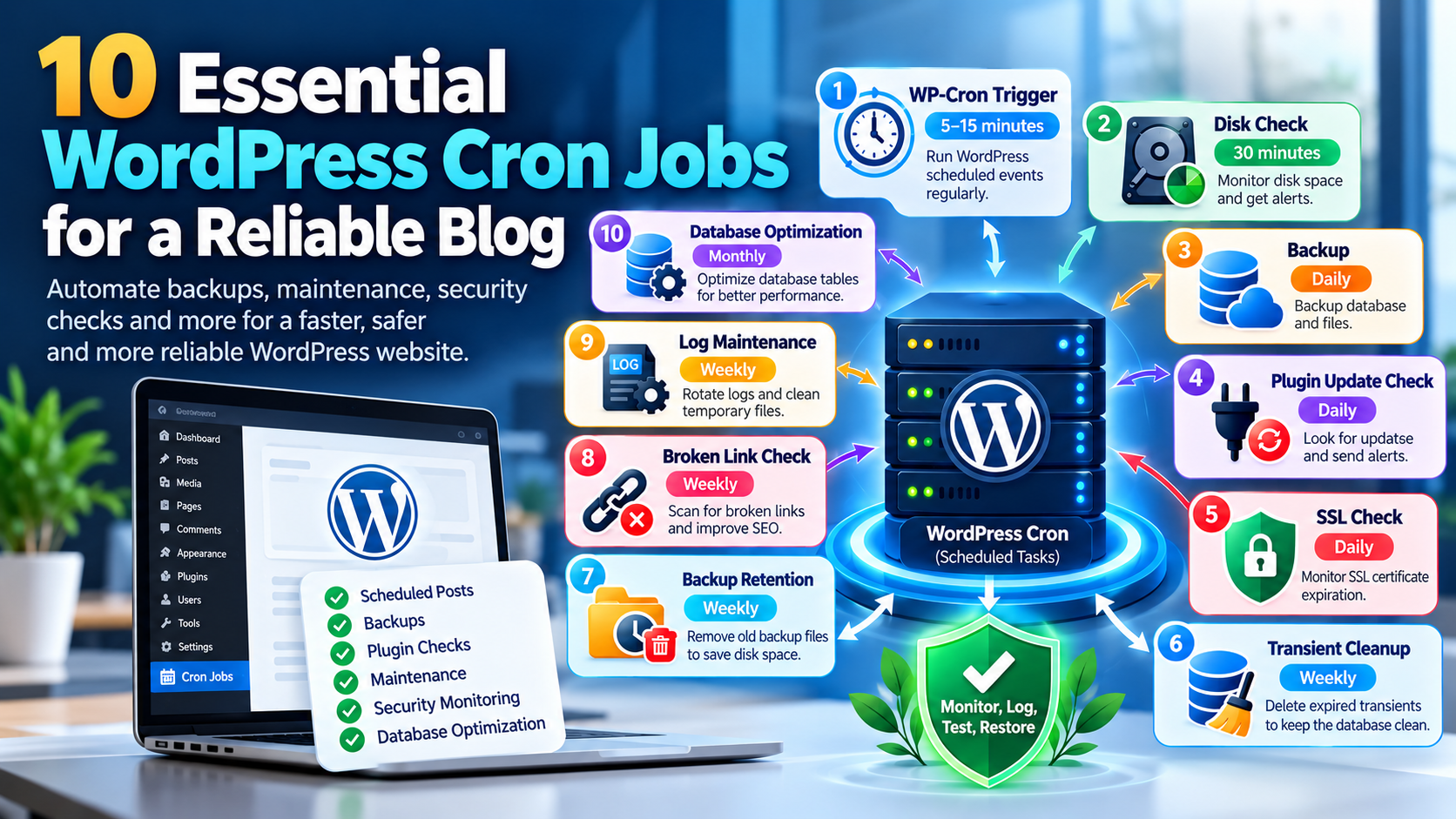
WordPress WP-Cron depends on site activity and may delay scheduled tasks on low-traffic websites. Learn how System Cron works, how to replace WP-Cron safely, and discover ten practical cron jobs for backups, maintenance, security monitoring, scheduled posts, database cleanup, and server health.
Last reviewed: October 2026
Why WordPress Cron Jobs Deserve More Attention
WordPress quietly performs many important jobs behind the scenes. Scheduled posts need to publish, temporary data needs to expire, plugins check for updates, maintenance tasks run, and some backup or security plugins depend on scheduled events. WordPress coordinates many of these operations through a system called WP-Cron. Despite its name, however, WP-Cron is not the same thing as the traditional cron scheduler available on Linux and Unix servers.
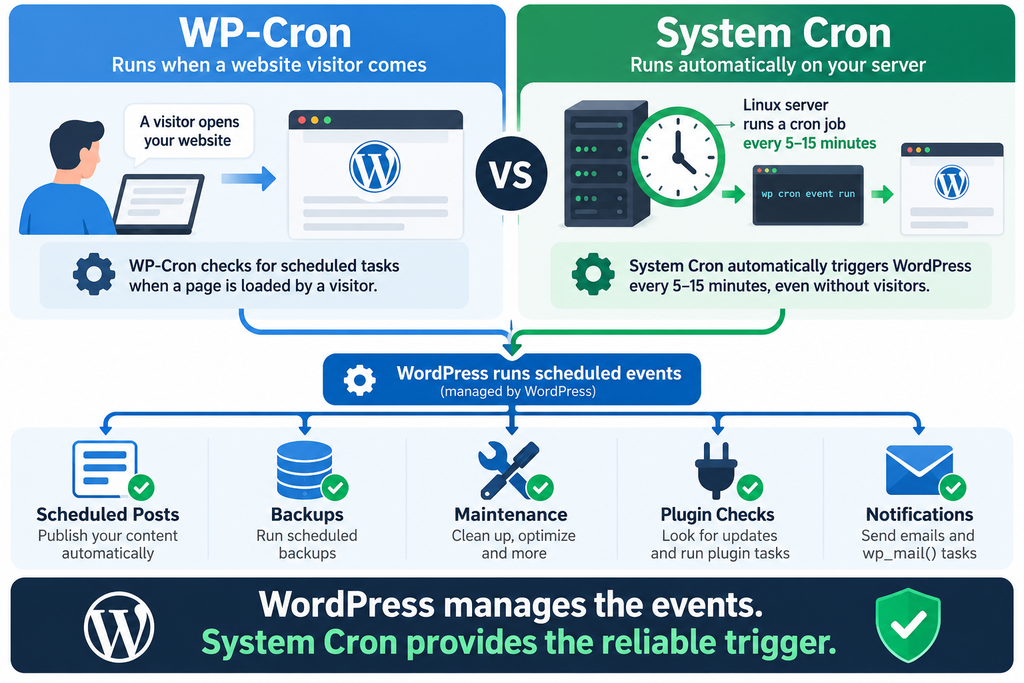
WordPress describes WP-Cron as its system for handling time-based tasks. The important detail is how those tasks get started. WordPress normally checks its scheduled event queue when the site receives a page load. If an event is due, WordPress attempts to start the cron process. This design makes WordPress portable because it works even on hosting accounts where customers cannot configure a real operating-system scheduler.
That convenience also creates an important limitation. Imagine that you schedule an article for 2:00 AM, but nobody visits your small blog between midnight and 6:30 AM. The scheduled event may not be triggered at exactly 2:00 AM. WordPress itself explains that scheduling delays can happen when no page load occurs around the scheduled time.
For a personal blog, that delay may not matter. For a larger publication, WooCommerce store, membership site, automated newsletter system, or website where scheduled tasks are operationally important, relying exclusively on visitor traffic becomes less attractive.
This is where a real System Cron can help.
Instead of waiting for visitors, the operating system can trigger WordPress at predictable intervals. A common configuration runs the WordPress scheduler every five, ten, or fifteen minutes. WordPress continues managing its internal event queue, while Linux provides the reliable external trigger.
That distinction is important:
System Cron does not replace the WordPress event system. It replaces the unreliable visitor-dependent trigger.
Once you understand that difference, WordPress cron management becomes much easier.
WP-Cron vs System Cron: What Is the Real Difference?
WP-Cron is often described as a “pseudo-cron.” That description is useful as long as we understand what it means. WordPress maintains a list of scheduled events internally. On normal page loads, WordPress checks whether something is due and can spawn the cron process. It does not have an independent clock constantly waking WordPress at exact moments.
A Linux System Cron works differently. The operating system itself evaluates a schedule. A job configured for 03:00 can therefore be launched at approximately 03:00 whether the website receives visitors or not. The website does not need a human visitor to provide the trigger.
Consider a small blog that receives most of its visitors during daytime hours. The owner schedules an article for 05:00. With default WP-Cron behavior, there may be no request near 05:00 to initiate scheduled processing. With System Cron running every five minutes, WordPress gets an opportunity to process due events around 05:00 even when the front end is quiet.
This does not mean every WordPress website must disable normal WP-Cron. Small sites on shared hosting may have no access to System Cron, and default WP-Cron is intentionally designed to work in those environments. WordPress explicitly recognizes this portability advantage.
However, if you control a VPS, dedicated server, cPanel Cron Jobs interface, Plesk scheduler, or another reliable scheduler, using a real cron trigger is often the more predictable configuration.
When System Cron Makes Sense
A System Cron configuration becomes particularly useful when scheduled posts must appear reliably, background processing is important, the site receives irregular traffic, or administrators want more control over server resource usage.
It can also reduce unnecessary cron spawning associated with normal visits. WordPress’s official documentation recommends disabling page-load WP-Cron after configuring the operating system scheduler because leaving both mechanisms active is unnecessary and can add resource usage.
There is another advantage: observability. Server-level cron commands can write output to dedicated log files. Administrators can then see whether a command ran, failed, produced an error, or stopped unexpectedly.
That visibility becomes valuable when managing several WordPress installations.
1. Create Reliable Daily WordPress Backups
A dependable backup process deserves the highest priority because almost every other maintenance mistake can be recovered when a valid backup exists. A failed plugin update, accidental deletion, corrupted database, compromised account, broken theme modification, or server failure becomes much less frightening when you have tested recovery copies.
A WordPress backup should normally contain at least two components: the database and the files. The database contains posts, pages, settings, users, comments, plugin configuration, and other structured information. The filesystem contains WordPress core, themes, plugins, uploads, configuration files, and other site assets.
WP-CLI provides a convenient database export command:
cd /home/USER/public_html
wp db export /home/USER/backups/database-$(date +\%F).sql
WP-CLI documents wp db export and its alias wp db dump as database export commands that use the database credentials already stored in wp-config.php.
A daily System Cron could call a dedicated backup script:
30 2 * * * /home/USER/scripts/wp-backup.sh >> /home/USER/logs/wp-backup.log 2>&1This means:
30 = minute 30
2  = 02:00 AM
*  = every day of the month
*  = every month
*  = every day of the week
Therefore, the script runs every day at 02:30 according to the server’s timezone.
Why a Backup Script Is Better Than a Huge Cron Command
Keep complicated backup logic inside a shell script rather than placing everything on one cron line. The script can create directories, export the database, archive selected files, transfer copies to remote storage, verify success, delete expired backups, and generate logs.
For example:
#!/bin/bash

SITE="/home/USER/public_html"
BACKUP="/home/USER/backups"
DATE=$(date +%F-%H%M)

mkdir -p "$BACKUP"

cd "$SITE" || exit 1

wp db export "$BACKUP/database-$DATE.sql"

tar -czf "$BACKUP/files-$DATE.tar.gz" \
    wp-content \
    wp-config.php
This is only a starting example. Production backup scripts should include error handling and should not blindly assume that every command succeeded.
Most importantly, do not consider a backup successful simply because an archive exists.
A good backup strategy includes restoration testing.
WP-CLI provides wp db import for importing SQL database dumps, which makes controlled restoration testing on a staging environment possible.
Keep Backups Away From the Public Website
Avoid storing sensitive backups inside publicly reachable directories such as:
public_html/backups/A database dump can contain email addresses, user information, configuration values, plugin data, and other information that should never become publicly downloadable.
Prefer a directory outside the document root:
/home/USER/backups/Even better, maintain an additional encrypted or properly protected copy on another storage system. A backup that exists only on the same VPS does not protect you adequately from total server failure.
You can also implement retention:
find /home/USER/backups/ -type f -mtime +30 -deleteThis example removes files older than 30 days from the specified backup directory. Test the path carefully before enabling deletion.
Never experiment with destructive find ... -delete commands directly in production. Run the same command without -delete first and inspect the resulting file list.
2. Clean Expired WordPress Transients and Old Backups
WordPress plugins and themes frequently use the Transients API for temporary cached information. A transient normally has a name, value, and optional expiration period. Depending on the site’s configuration, transients may reside in the WordPress database or use an external object cache.
WP-CLI provides a simple command for removing expired transients:
cd /home/USER/public_html
wp transient delete --expired
The official WP-CLI documentation confirms that the --expired option deletes expired transients rather than indiscriminately removing every transient.
That distinction matters. You will sometimes find optimization tutorials recommending:
wp transient delete --allThis is much more aggressive. It removes all transients, including valid ones that have not expired. Although many can be regenerated, routinely destroying valid cached data may create unnecessary database queries, API requests, or computational work.
For ordinary maintenance, deleting only expired entries is the more conservative approach.
A Weekly Cleanup Schedule
A simple weekly schedule might be:
0 3 * * 0 cd /home/USER/public_html && wp transient delete --expiredThis runs at 03:00 every Sunday.
If old local backup files also need removal, keep that operation separate:
15 3 * * 0 find /home/USER/backups/ -type f -mtime +30 -deleteSeparating the jobs improves troubleshooting. If one operation fails, you can identify the responsible command more easily.
Before adding the second command to cron, test:
find /home/USER/backups/ -type f -mtime +30 -printReview every result. Only add -delete after confirming that the command targets exactly the files you intend to remove.
Object Cache Changes the Picture
Do not assume that every transient lives inside wp_options. WordPress installations using persistent object caching can behave differently.
WP-CLI even provides:
wp transient typeThe command reports whether transients are being stored in the database or through an object-cache implementation.
That makes it useful when diagnosing a WordPress site using Redis or another persistent object cache.
3. Check WordPress Plugin Updates Every Day
Outdated plugins deserve attention because vulnerabilities are regularly discovered in WordPress extensions. However, there is an important difference between detecting an update and blindly installing every available update on a production website.
For many professionally maintained sites, a sensible workflow is:
detect → review → backup → test when necessary → update → verify
WP-CLI can show installed plugins and whether updates are available. Its plugin-list output includes fields such as the installed version, update status, available version, and automatic-update state.
For example:
cd /home/USER/public_html
wp plugin list
For automation, you can request selected fields:
wp plugin list --fields=name,status,version,update,update_versionYou can redirect this information into a daily report:
0 4 * * * cd /home/USER/public_html && wp plugin list --fields=name,status,version,update,update_version > /home/USER/logs/plugin-status.txt 2>&1An administrator can then integrate the report with a properly configured local mail system, monitoring service, or notification script.
Why Automatic Updates Need a Policy
WP-CLI supports automated plugin updates, including:
wp plugin update --allIt even supports --dry-run for previewing updates.
That does not mean wp plugin update --all should automatically run every night on every production website.
Imagine that an update introduces a compatibility problem with your theme, PHP version, custom code, WooCommerce checkout, caching system, or another plugin. An unattended update could leave the website partially broken until someone notices.
Security updates should not be delayed unnecessarily, but update automation should reflect the importance and recoverability of the site.
A personal blog with excellent automated backups may accept aggressive automation. A revenue-producing WooCommerce site may use staging tests and controlled deployment instead.
The key is intentional management rather than blindly choosing “everything automatic” or “nothing automatic.”
4. Optimize the WordPress Database Periodically
WordPress databases change constantly. Posts are revised, comments appear and disappear, plugins create tables, metadata changes, temporary information expires, and applications perform many insert, update, and delete operations.
WP-CLI includes:
wp db optimizeAccording to its documentation, this command uses mysqlcheck with optimization enabled and obtains database connection details from wp-config.php.
A monthly schedule could look like:
0 5 1 * * cd /home/USER/public_html && wp db optimize >> /home/USER/logs/db-optimize.log 2>&1That means the command runs at 05:00 on the first day of every month.
Do Not Turn Database Optimization Into a Ritual
More optimization is not automatically better.
Running database optimization every minute would provide no sensible advantage and could add unnecessary server work. Modern database engines also behave differently depending on storage engine, table size, workload, and configuration.
For a normal WordPress blog, occasional maintenance is usually enough unless monitoring identifies a specific database problem.
Before optimizing, you can inspect the database:
wp db checkYou can also investigate its tables with:
wp db tablesWP-CLI provides dedicated database commands for checking, exporting, importing, optimizing, querying, repairing, and inspecting WordPress databases.
A useful principle is simple: measure first, maintain second.
Do not run expensive database operations merely because a generic optimization checklist tells you to.
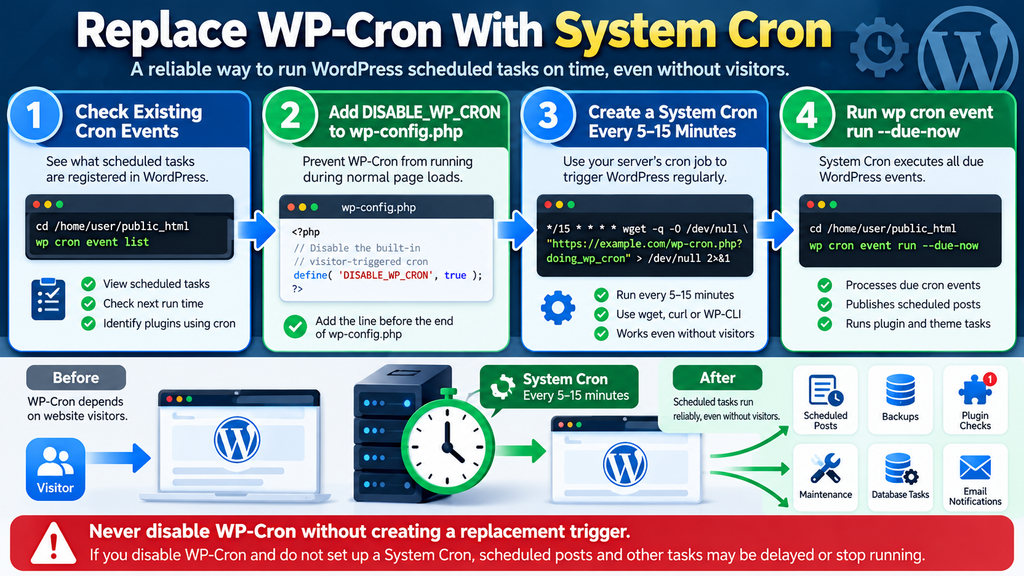
5. Replace Visitor-Triggered WP-Cron With System Cron
For a VPS or hosting environment with cron access, this is arguably the most useful WordPress scheduling improvement.
First, open:
wp-config.phpAdd:
define( 'DISABLE_WP_CRON', true );Place the definition before the point where WordPress finishes loading its configuration.
This prevents normal page loads from initiating WP-Cron. WordPress officially documents this configuration when connecting WP-Cron to a system task scheduler.
Now you must provide another trigger.
This second step is essential.
Do not disable WP-Cron and then forget to configure System Cron.
Doing so can delay or break scheduled posts and plugin tasks that depend on WordPress’s event scheduler.
Method A: Trigger wp-cron.php Over HTTP
A traditional configuration is:
*/15 * * * * wget -q -O /dev/null "https://example.com/wp-cron.php?doing_wp_cron" >/dev/null 2>&1This requests wp-cron.php every fifteen minutes.
WordPress’s own documentation describes making a web request to wp-cron.php as an easy way to connect WordPress with a system scheduler.
Another HTTP client can accomplish the same job:
*/15 * * * * curl -fsS "https://example.com/wp-cron.php?doing_wp_cron" >/dev/null 2>&1Replace:
example.comwith your actual domain.
Method B: Use WP-CLI
When you control the server and WP-CLI works correctly for the website, I generally prefer an explicit command:
*/10 * * * * cd /home/USER/public_html && /usr/local/bin/wp cron event run --due-now --quietWP-CLI officially documents:
wp cron event run --due-nowas a command that executes WordPress cron events currently due.
This approach avoids depending on an external HTTP request to your own website and makes the intention of the server task extremely clear.
Always verify the actual location of WP-CLI:
which wpPossible output:
/usr/local/bin/wpCron has a more limited environment than your interactive shell, so using absolute paths can prevent confusing “command not found” failures.
Should You Use 5, 10, or 15 Minutes?
There is no universal interval for every WordPress installation.
A content site where scheduled publishing matters might use:
*/5 * * * *A normal blog may be perfectly comfortable with:
*/10 * * * *or:
*/15 * * * *Running WordPress cron every minute is rarely necessary for an ordinary blog and may increase unnecessary work.
The external schedule determines how frequently WordPress gets an opportunity to process due events. It does not mean every registered WordPress cron task executes every five minutes. The --due-now option processes events that are actually due.
6. Check SSL Certificate Expiration Every Day
Modern hosting platforms commonly automate TLS certificate renewal, but automation can fail. DNS problems, configuration mistakes, failed challenges, server migrations, firewall changes, or renewal-service problems can leave a certificate approaching expiration without receiving enough attention.
A lightweight secondary check can therefore be useful.
OpenSSL supports the -checkend option. It checks whether a certificate will expire within a specified number of seconds and returns a non-zero exit status when the certificate is within that window.
Fourteen days equals:
14 × 24 × 60 × 60 = 1,209,600 secondsA basic test is:
echo | openssl s_client \
-servername example.com \
-connect example.com:443 2>/dev/null \
| openssl x509 -noout -checkend 1209600
For cron, however, a dedicated script is easier to maintain.
For example:
#!/bin/bash

DOMAIN="example.com"

if ! echo | openssl s_client \
    -servername "$DOMAIN" \
    -connect "$DOMAIN:443" 2>/dev/null \
    | openssl x509 -noout -checkend 1209600
then
    echo "WARNING: SSL certificate for $DOMAIN expires within 14 days."
fi
Then schedule it:
0 6 * * * /home/USER/scripts/ssl-check.sh >> /home/USER/logs/ssl-check.log 2>&1The job runs daily at 06:00.
Logging Is Not the Same as Alerting
This distinction is easy to miss.
Writing:
WARNING: SSL certificate expires soon.into a log file does not help much if nobody reads the log.
Production monitoring should deliver actionable alerts through a channel you actually monitor, such as email, a server monitoring platform, or another notification system.
Cron should automate detection. Your monitoring layer should make sure a human learns about the problem.
7. Monitor Disk Usage Before the Server Fills Up
A full filesystem can cause serious problems. Databases may be unable to write data, backups can fail, uploads may stop, logs cannot grow normally, cache systems may malfunction, and applications can behave unpredictably.
Instead of waiting for 100% usage, create an early warning.
A simple script might be:
#!/bin/bash

THRESHOLD=85

USAGE=$(df -P / | awk 'NR==2 {gsub("%","",$5); print $5}')

if [ "$USAGE" -ge "$THRESHOLD" ]; then
    echo "WARNING: Root filesystem usage is ${USAGE}%"
fi
Save it somewhere appropriate:
/home/USER/scripts/disk-check.shMake it executable:
chmod +x /home/USER/scripts/disk-check.shThen schedule:
*/30 * * * * /home/USER/scripts/disk-check.sh >> /home/USER/logs/disk-check.log 2>&1The script now checks the root filesystem every 30 minutes.
Why 85% Is Only an Example
Do not treat 85% as a universal law.
A 40 GB VPS at 85% utilization has about 6 GB free. A multi-terabyte storage server at the same percentage has dramatically more free capacity.
You may therefore monitor both percentage and absolute free space.
WordPress administrators should also know what is consuming the disk. Useful diagnostic commands include:
df -hand:
du -sh /home/USER/*Be careful with broad du scans on very large filesystems because they can take time and generate I/O.
Typical WordPress disk consumers include old backups, debug logs, cache directories, forgotten staging installations, large media libraries, server logs, temporary archives, and abandoned migration packages.
The cron job should tell you that capacity is becoming dangerous. Investigation should then determine why.
8. Keep Scheduled WordPress Posts and Background Tasks Reliable
Scheduled publishing is one of the clearest examples of why WP-Cron reliability matters.
WordPress itself lists publishing scheduled posts among the core features that use WP-Cron.
Suppose an editor schedules:
Monday - 08:00If default WP-Cron depends on a later page request, processing can be delayed on a quiet website. A System Cron trigger every five minutes substantially reduces that dependency.
For example:
*/5 * * * * cd /home/USER/public_html && /usr/local/bin/wp cron event run --due-now --quietYou are not creating a separate Linux cron entry for every scheduled WordPress article. Instead, System Cron wakes the WordPress scheduler, and WordPress decides which internal events are due.
That architecture is important because plugins can register their own recurring schedules.
You can inspect available WordPress cron schedules with:
wp cron schedule listWP-CLI can show schedules such as hourly, twice daily, daily, and schedules registered by plugins.
Inspect the Actual WordPress Cron Queue
One of the most useful diagnostic commands is:
wp cron event listWP-CLI can display fields including the hook name, next run time, recurrence, and interval.
For example, an administrator may see events related to:
wp_version_check
wp_update_plugins
wp_update_themes
publish_future_post
plugin_specific_hook
Plugin names and custom hooks vary between websites.
If a WordPress installation has thousands of suspicious events, duplicated hooks, or events scheduled at unexpectedly short intervals, investigate the responsible plugin or custom code rather than simply increasing cron frequency.
A faster external trigger cannot fix badly designed scheduled tasks.
9. Check Broken Links Without Overloading WordPress
Broken links are worth monitoring, but this area requires some nuance.
A dead internal link can send a visitor to a 404 page. A dead external reference can make an article less useful. Deleted pages can also leave old navigation paths, archive links, or historical articles pointing toward resources that no longer exist.
Google recommends returning a real 404 response when a page genuinely does not exist and using a permanent 301 redirect when content has moved to a clear replacement location.
Google also explains that crawlable links help it discover pages and understand relationships between content.
However, avoid turning that into the simplistic claim that “one broken link causes a Google ranking penalty.” SEO does not work that mechanically.
Broken-link maintenance is valuable because it improves usability, content quality, site architecture, and crawlability.
Do Not Hammer Your Own Site Every Few Minutes
A full-site link crawler can create substantial work. It may request hundreds or thousands of URLs and then follow external destinations.
For a normal blog, a weekly scan is much more reasonable than running a comprehensive crawler every few minutes.
A conceptual schedule could be:
0 2 * * 6 /home/USER/scripts/link-check.sh >> /home/USER/logs/link-check.log 2>&1This example starts the link-checking script every Saturday at 02:00.
The actual implementation depends on your chosen crawler or monitoring system.
If you use a WordPress plugin for broken-link checking, inspect how that plugin schedules scans before creating another System Cron task. You do not want two separate systems performing the same expensive crawl.
The goal is useful maintenance, not maximum cron activity.
10. Rotate Logs and Clean Temporary Files Safely
Logs are essential until uncontrolled logs become the problem themselves.
A PHP error log, web server access log, security log, WordPress debug file, backup log, or application log can become enormous if an error starts repeating thousands of times.
For standard Linux logs, use the operating system’s established log-management facilities rather than inventing a crude WordPress cron command.
For application-specific files that are outside normal log rotation, you can create a carefully scoped maintenance process.
For example:
find /home/USER/logs/archive/ \
-type f \
-name "*.log.gz" \
-mtime +30 \
-print
Notice that this version only prints matching files.
After verifying the output, a controlled production version could delete only the intended archived logs:
find /home/USER/logs/archive/ \
-type f \
-name "*.log.gz" \
-mtime +30 \
-delete
This is much safer than casually running something broad against /tmp or another shared system directory.
Be Very Careful With /tmp Cleanup Commands
A commonly copied cron example looks like this:
find /tmp -type f -atime +7 -deleteDo not paste that blindly into a production server.
Modern Linux systems often already have mechanisms for temporary-file lifecycle management. For example, systemd-tmpfiles is specifically designed to create, remove, and clean files and directories according to configured policies.
Server-wide temporary directories can also contain files belonging to applications you did not personally create.
A safer rule is:
Only automatically delete files from directories that your application owns and whose retention policy you understand.
That approach is less dramatic, but much safer.
A Practical Cron Schedule for a WordPress Blog
After implementing these ideas, a small or medium WordPress blog might end up with a schedule resembling this:
# WordPress scheduled events - every 5 minutes
*/5 * * * * cd /home/USER/public_html && /usr/local/bin/wp cron event run --due-now --quiet

# Disk usage monitoring - every 30 minutes
*/30 * * * * /home/USER/scripts/disk-check.sh >> /home/USER/logs/disk-check.log 2>&1

# Daily backup - 02:30
30 2 * * * /home/USER/scripts/wp-backup.sh >> /home/USER/logs/wp-backup.log 2>&1

# Daily plugin update report - 04:00
0 4 * * * cd /home/USER/public_html && /usr/local/bin/wp plugin list --fields=name,status,version,update,update_version > /home/USER/logs/plugin-status.txt 2>&1

# Daily SSL check - 06:00
0 6 * * * /home/USER/scripts/ssl-check.sh >> /home/USER/logs/ssl-check.log 2>&1

# Weekly expired transient cleanup - Sunday 03:00
0 3 * * 0 cd /home/USER/public_html && /usr/local/bin/wp transient delete --expired >> /home/USER/logs/transient-cleanup.log 2>&1

# Weekly old backup cleanup - Sunday 03:15
15 3 * * 0 find /home/USER/backups/ -type f -mtime +30 -delete

# Weekly broken-link scan - Saturday 02:00
0 2 * * 6 /home/USER/scripts/link-check.sh >> /home/USER/logs/link-check.log 2>&1

# Monthly database optimization - first day at 05:00
0 5 1 * * cd /home/USER/public_html && /usr/local/bin/wp db optimize >> /home/USER/logs/db-optimize.log 2>&1
Do not copy this configuration unchanged.
Replace every username, path, domain, executable location, and script name with values appropriate for your server. More importantly, test every command manually before placing it inside cron.
If this command fails:
cd /home/USER/public_html && wp cron event run --due-nowit will not magically start working simply because you put it into crontab.
How to Install the Cron Jobs Safely
If you have shell access, first check the server’s time:
dateAlso check its configured timezone:
timedatectlThe output may show something such as:
Time zone: Europe/Brusselsor:
Time zone: UTCKnowing this matters because:
30 2 * * *means 02:30 according to the cron environment and server configuration, not necessarily 02:30 according to the timezone you selected inside WordPress.
Check WP-CLI Before Building Automation
Run:
which wpThen:
wp --infoMove to your WordPress directory:
cd /home/USER/public_htmlTest:
wp core versionThen inspect WordPress’s scheduled events:
wp cron event listIf these commands work under the same user that will execute the cron job, you have a much stronger foundation.
Edit the Correct Crontab
For the current Linux user:
crontab -eAfter saving, verify:
crontab -lDo not assume that root’s crontab and a hosting user’s crontab are interchangeable.
Running WordPress CLI commands as the correct account also helps avoid creating files with unexpected ownership.
Test Every Script Manually
Before scheduling:
/home/USER/scripts/disk-check.shThen:
/home/USER/scripts/ssl-check.shThen:
/home/USER/scripts/wp-backup.shInspect their output and exit behavior.
For a backup, verify that the resulting SQL file is not empty:
ls -lh /home/USER/backups/Do not stop there. Periodically perform an actual restore test on an isolated environment.
A backup that has never been restored is an assumption, not proven disaster recovery.
How to Verify That WordPress Cron Is Actually Working
Creating a cron entry is only half the job. You also need evidence that it works.
Start by inspecting scheduled WordPress events:
wp cron event listThe output provides the hook, next execution time, relative execution time, and recurrence information for scheduled events.
You can manually process due events:
wp cron event run --due-nowA successful execution may produce output similar to:
Executed the cron event 'some_hook'...
Success: Executed a total of X cron events.
The exact events depend on your installation.
If you are still using normal WP-Cron rather than DISABLE_WP_CRON, WP-CLI also provides:
wp cron testThis tests WordPress’s cron spawning mechanism. However, the command intentionally reports an error when DISABLE_WP_CRON is enabled because normal WordPress cron spawning has been disabled. That is expected when you deliberately replaced the visitor-triggered mechanism with System Cron.
Use Logs That Tell You Something
This:
>/dev/null 2>&1throws away both standard output and errors.
That can be appropriate for a stable, well-monitored command, but it is a poor choice while troubleshooting.
Initially, prefer:
>> /home/USER/logs/wp-cron.log 2>&1Now both normal output and errors are appended to a log.
After confirming reliability, you can reduce logging if the command generates excessive noise.
Monitoring should focus on failures rather than creating huge logs that nobody reads.
Common WordPress Cron Mistakes to Avoid
The first major mistake is disabling WP-Cron without creating its replacement. Adding:
define( 'DISABLE_WP_CRON', true );does exactly what the name suggests. If no external scheduler processes due events afterward, scheduled WordPress operations may no longer run when expected.
Another common mistake is scheduling expensive operations too frequently. A database backup every minute, full filesystem archive every five minutes, or full broken-link crawl every ten minutes can consume I/O, CPU, database resources, and network bandwidth for little practical benefit.
A third mistake involves overlapping tasks. Do not schedule a large backup, database optimization, link crawler, malware scan, and log compression job at exactly 03:00 simply because that hour sounds convenient.
Spread expensive work across the quiet period:
02:30 - Backup
03:15 - Cleanup
04:00 - Plugin report
05:00 - Database maintenance
06:00 - SSL verification
This reduces simultaneous resource spikes.
Never Trust a Cron Command You Have Not Tested
Cron often runs with a restricted environment.
Your interactive terminal may know where wp, php, mysqldump, and other commands live. Cron may not.
That is why absolute executable paths can be useful:
/usr/local/bin/wpinstead of:
wpFind the correct path with:
which wp
which php
which mysqldump
Do not copy paths from another server.
Your hosting environment may be completely different.
How to Choose the Right Frequency for Each Task
Frequency should reflect urgency and cost.
WordPress event processing is lightweight when only a few events are due, so checking every five or ten minutes can make sense. Disk monitoring is also inexpensive and can reasonably run every 30 minutes.
Full backups are different. They can generate database load, disk reads, compression CPU usage, and network traffic. One daily backup is often more appropriate for a typical blog, although high-change sites may require more frequent database protection.
Database optimization belongs even further down the frequency scale. Running it monthly can be enough for many ordinary blogs. If the database behaves well, there is no prize for optimizing it more often.
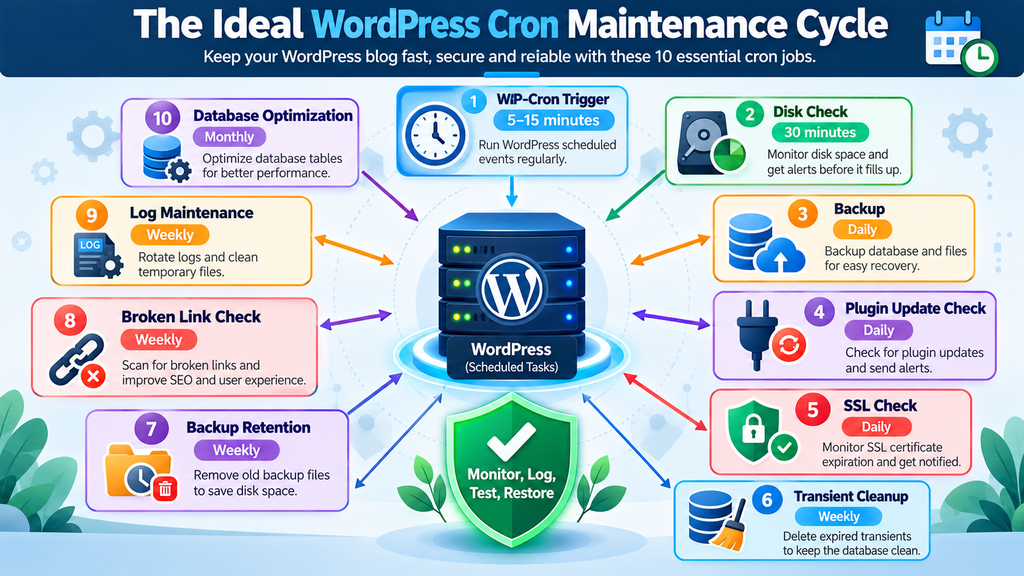
A useful schedule therefore looks roughly like this:
Every 5–15 minutes → WordPress due events
Every 30 minutes → Disk monitoring
Daily → Backup
Daily → Plugin update report
Daily → SSL verification
Weekly → Expired transient cleanup
Weekly → Backup retention cleanup
Weekly → Broken-link scan
Weekly → Application log housekeeping
Monthly → Database optimization
The best schedule is not the one containing the most cron entries.
It is the one that performs necessary work at sensible intervals without creating new problems.
Security Rules for WordPress Cron Jobs
Cron jobs run automatically, which means mistakes also run automatically.
Protect scripts from unauthorized modification. If an attacker can modify a script that root executes every five minutes, that script becomes a serious security problem.
Use appropriate file ownership and permissions. Avoid putting administrative scripts inside publicly accessible WordPress directories unless there is a specific reason.
Do not hard-code database passwords into random shell scripts when an existing secure mechanism can provide credentials. WP-CLI database commands can use the database settings already defined in wp-config.php, reducing the need to duplicate credentials.
Be equally careful with backup files. SQL dumps and archives should not be casually exposed through the web server.
Finally, treat destructive commands with extra suspicion:
rm -rf
find ... -delete
wp db reset
wp db drop
WP-CLI includes powerful database management commands, including operations capable of removing data.
Automation amplifies both good administration and bad administration.
Test first.
Automate second.
Frequently Asked Questions
Is WP-Cron a real cron job?
Not in the traditional operating-system sense. WordPress maintains scheduled events, but normal WP-Cron processing is associated with site requests rather than a continuously running system scheduler. WordPress states that WP-Cron checks scheduled tasks on page loads and that delays can occur when no page load happens around the expected execution time.
Should I disable WP-Cron on every WordPress website?
No. Default WP-Cron is useful on hosting platforms where System Cron is unavailable. Disable the visitor-triggered mechanism only when you have a reliable replacement. WordPress specifically documents disabling WP-Cron after connecting it to a system task scheduler.
How often should System Cron trigger WordPress?
For many blogs, every 5–15 minutes is a reasonable operational range. Sites with time-sensitive queues may require different intervals. Avoid blindly scheduling one-minute execution unless your application actually requires it.
Can WP-CLI process only events that are currently due?
Yes. Use:
wp cron event run --due-nowWP-CLI documents this command specifically for running cron hooks that are due at the time of execution.
How can I see all scheduled WordPress cron events?
Use:
wp cron event listIt displays scheduled hooks and information including their next execution and recurrence.
Should I automatically update every plugin through cron?
Not necessarily. WP-CLI can update plugins automatically, but production websites should have a defined update and rollback strategy. At minimum, maintain reliable backups and verify the website after important updates. Critical security updates should receive prompt attention.
Should I delete all WordPress transients weekly?
Usually not. A more conservative command is:
wp transient delete --expiredWP-CLI supports deleting only expired transients. Deleting all valid transients unnecessarily can force cached information to be regenerated.
Does a broken link automatically hurt Google rankings?
It is better not to frame the issue as a direct automatic ranking penalty. Broken internal and external links can hurt usability and site quality, while correct crawlable links help search engines discover and understand pages. Missing pages should return appropriate status codes, and permanently moved pages should use appropriate redirects.
Is a daily local backup enough?
A daily backup is an excellent starting point, but keeping every copy on the same server leaves a major failure scenario uncovered. Important sites should consider protected off-server copies and periodic restoration tests.
Why does my cron command work in SSH but fail from crontab?
Cron may use a different environment and PATH from your interactive shell. Use absolute executable paths where practical, confirm file permissions, verify the working directory, and redirect errors to a log while troubleshooting.
A Reliable WordPress Site Needs More Than a Cron Entry
WordPress automation works best when responsibilities are clearly separated. WordPress should continue managing WordPress-specific events. The operating system can provide a predictable trigger. Dedicated scripts can handle backups and monitoring, while established server tools should manage system-level jobs such as log rotation and temporary-file policies.
For most VPS-hosted WordPress blogs, replacing visitor-triggered WP-Cron with a carefully configured System Cron is a practical reliability improvement. The official WordPress documentation specifically provides a method for connecting WP-Cron to the system scheduler and disabling page-load triggering afterward.
The strongest configuration, however, is not simply the one with the most automation. Every scheduled operation should have a purpose, sensible frequency, predictable resource cost, appropriate logging, and a safe failure path.
Backups should be restorable. Alerts should reach someone. Cleanup commands should target controlled directories. Plugin updates should follow a policy. Database maintenance should solve a real need. WordPress scheduled events should be inspected occasionally rather than forgotten after configuration.
Cron is powerful because it turns repeated administrative work into infrastructure.
Use that power carefully, and a WordPress blog becomes considerably easier to maintain.
⚠️ Disclaimer and Source Hygiene
This article provides educational WordPress and Linux server-administration guidance. Commands and paths are examples and must be adapted to your hosting environment. Always create a verified backup before changing wp-config.php, database settings, cron schedules, server configuration, file permissions, or automated deletion rules.
Never run destructive commands on a production server without understanding exactly which files or database objects they affect. Hosting environments differ, and some managed providers implement their own WordPress cron, backup, security, caching, temporary-file, and monitoring systems.
Technical details in this guide were cross-checked against authoritative documentation, including WordPress Developer Resources, official WP-CLI command documentation, Google Search Central, OpenSSL documentation, and systemd documentation.
🔔 For more tutorials like this, consider subscribing to our blog.
📩 Do you have questions or suggestions? Leave a comment or contact us!
🏷️ Tags: WordPress Cron Jobs, WP-Cron, System Cron, WordPress Maintenance, WP-CLI, WordPress Backup, WordPress Security, WordPress Database Optimization, Linux Cron, WordPress Performance
📢 Hashtags: #WordPress, #WPCron, #WordPressTips, #WPCLI, #Linux, #WebHosting, #WordPressSecurity, #WordPressPerformance, #SystemAdmin, #WebDevelopment
📚 Sources and References
WordPress Developer Resources – Cron: WordPress’s official explanation of WP-Cron, including its page-load behavior and the possibility of delayed execution when a site receives no request near a scheduled time.
WordPress Developer Resources – Hooking WP-Cron Into the System Task Scheduler: Official guidance for connecting WordPress cron processing to an operating-system scheduler and using DISABLE_WP_CRON.
WordPress Developer Resources – wp-config.php: Official documentation for configuration constants including DISABLE_WP_CRON.
WP-CLI – Cron Event Run: Official documentation for wp cron event run --due-now, which executes scheduled WordPress events that are currently due.
WP-CLI – Cron Event List: Documentation for inspecting WordPress scheduled events, their hooks, next execution times, and recurrence.
WP-CLI – Transient Delete: Official documentation covering wp transient delete --expired.
WP-CLI – Database Optimize: Documentation explaining the behavior of wp db optimize.
WP-CLI – Database Dump/Export: Official database export documentation and available backup options.
WP-CLI – Plugin List and Plugin Update: Official documentation covering plugin inventory, available updates, automated updates, and dry runs.
OpenSSL Documentation – x509: Official documentation for certificate inspection, including the -checkend option used to detect certificates approaching expiration.
Google Search Central – Link Best Practices: Google’s guidance explaining crawlable links and their role in page discovery and understanding content relationships.
Google Search Central – Crawling Errors: Google’s recommendations for genuine 404 pages and permanent redirects when content has moved.
systemd-tmpfiles Documentation: Official documentation for system-level creation, removal, and age-based cleanup of temporary and volatile files.
🕊️ Secondary Sources and Practical Experience
Real-world WordPress cron configurations vary significantly between shared hosting, cPanel servers, managed WordPress hosting, cloud instances, dedicated servers, and VPS environments. Commands that work perfectly on one server may require different PHP paths, WP-CLI paths, permissions, users, or working directories elsewhere.
Community experience is especially valuable for identifying symptoms such as missed scheduled posts, oversized cron queues, duplicated plugin hooks, failed loopback requests, abandoned backup archives, or cron jobs that work manually but fail when executed by the scheduler.
However, operational anecdotes should complement rather than replace authoritative documentation. When WordPress core behavior, WP-CLI syntax, OpenSSL behavior, or Linux system management is involved, official documentation should remain the primary technical reference.
The safest WordPress automation strategy is therefore simple: verify the documentation, test the command manually, automate it carefully, log meaningful failures, and periodically confirm that the automation still works.
