

⏲️ Estimated reading time: 22 min
Table of Contents
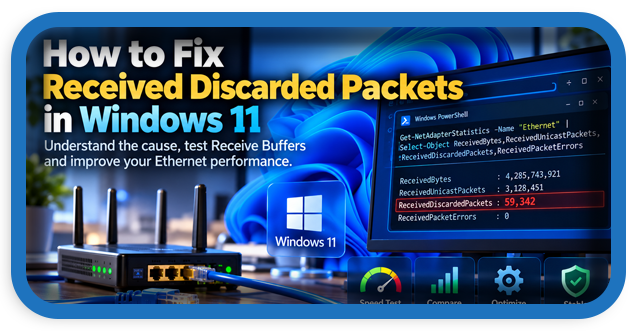
Received discarded packets can quietly reduce Ethernet performance even when your internet connection appears fast. This guide explains how Windows 11 network counters work, what Receive Buffers actually do, how to test changes safely with PowerShell, and when packet discards point to a deeper network problem.
Understanding Received Discarded Packets in Windows 11
A fast internet connection does not always mean that every packet reaches Windows successfully. You can run a speed test, see hundreds of megabits per second, and still discover thousands of discarded packets in your Ethernet statistics. This situation can be confusing because download speed represents only one part of network performance. Stability, packet handling, latency, driver configuration, CPU processing, and adapter buffers also influence the quality of a connection.
Windows provides several built-in PowerShell commands that expose network adapter statistics. One of the most useful is Get-NetAdapterStatistics. It can show received bytes, transmitted bytes, packet errors, and packets discarded by the network interface. Microsoft describes ReceivedDiscardedPackets as a counter for received packets that were discarded. Microsoft Learn
For many home computers, occasional discarded packets are not automatically evidence of a serious fault. The important question is whether the counter grows rapidly during normal traffic and whether that growth corresponds with slow downloads, stuttering transfers, unstable latency, or other symptoms.
The Windows PowerShell Command We Are Using
Open Windows Terminal or PowerShell as Administrator and run:
Get-NetAdapterStatistics -Name "Ethernet" |
Select-Object ReceivedBytes,ReceivedUnicastPackets,ReceivedDiscardedPackets,ReceivedPacketErrors
If your adapter is not named Ethernet, first identify its name:
Get-NetAdapterThen replace "Ethernet" with the appropriate adapter name.
For example, the important fields in our test are:
ReceivedBytes
ReceivedUnicastPackets
ReceivedDiscardedPackets
ReceivedPacketErrors
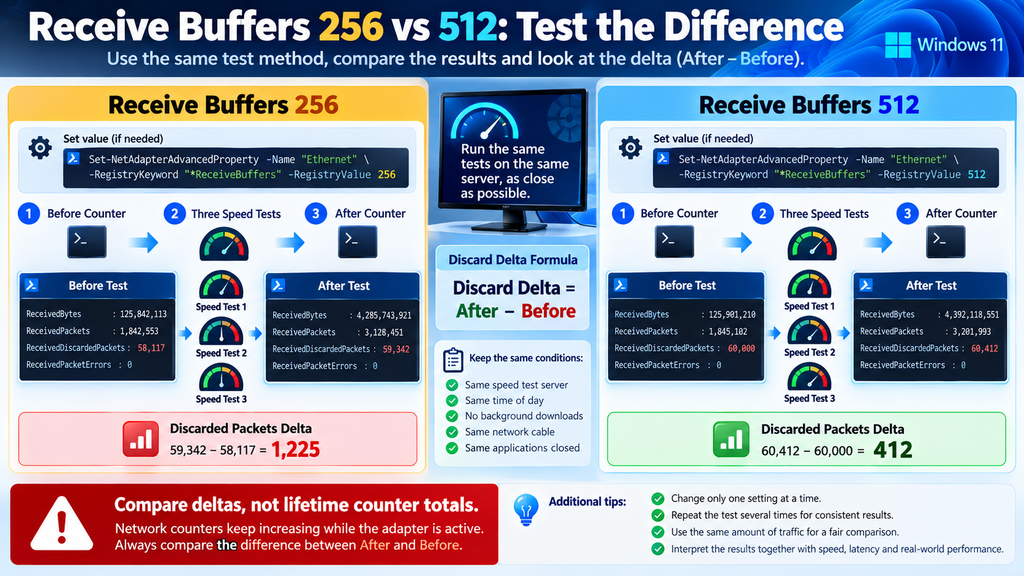
Do not focus on a single number without context. Network counters normally accumulate while the interface remains active. Instead, record the values, generate a controlled amount of traffic, and compare the counters afterward.
What Does ReceivedDiscardedPackets Actually Mean?
ReceivedDiscardedPackets should not be confused with ReceivedPacketErrors. Microsoft documents these as separate network statistics. A discarded-packet counter can increase even when packets are not classified as corrupted packets. Microsoft Learn
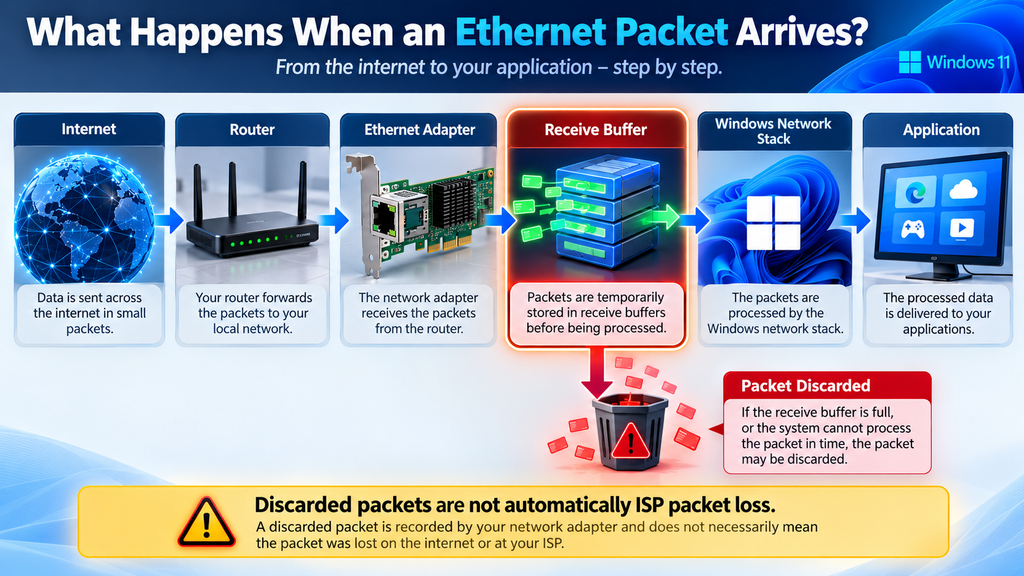
Think of an Ethernet adapter as a reception area. Data arrives from the network faster than Windows can sometimes process it immediately. The adapter and driver need temporary resources to hold incoming information while the operating system processes the traffic.
Receive buffers are part of this process. Intel explains that receive buffers are allocated in host memory and store packets received by an Ethernet adapter. Each received packet needs buffer resources before it can continue through the networking stack. Intel
When receive-side processing cannot keep up under certain workloads, packets can potentially be dropped or discarded. However, buffer exhaustion is not the only possible explanation. Driver problems, adapter settings, CPU processing, virtual networking, network congestion, or hardware issues may also contribute.
Packet Discards Are Not Automatically Internet Packet Loss
This distinction matters. A Windows adapter statistic does not automatically tell you where a networking problem originated. A discarded packet recorded by the local Ethernet interface is not identical to packet loss measured across an internet route.
For example, an internet packet could disappear somewhere between your router and a remote server. Conversely, Windows could report local receive discards even though your ISP connection itself remains healthy.
That is why troubleshooting should combine several measurements rather than relying on one counter.
You should consider Ethernet statistics, latency tests, speed tests, driver information, CPU activity, adapter configuration, and real-world application behavior together.
Why Receive Buffers Matter
Receive buffers give the network adapter temporary space for incoming packets. Increasing their number can provide additional capacity when an adapter receives data faster than the system processes it.
Intel’s Ethernet documentation specifically states that increasing Receive Buffers may improve receive performance, although doing so also consumes additional system memory. Intel also recommends considering a larger buffer configuration when dropped or discarded RX packets appear in suitable workloads. Intel
This does not mean that everyone should immediately configure the maximum possible value. Different Ethernet controllers support different ranges, and driver implementations vary.
The better approach is measurement. Change one parameter, generate comparable traffic, measure the result, and decide whether the modification actually helped.
Checking the Current Receive Buffers Value
Use PowerShell to inspect the current setting:
Get-NetAdapterAdvancedProperty -Name "Ethernet" -DisplayName "Receive Buffers" |
Format-Table DisplayName,DisplayValue
A result could look similar to:
DisplayName      DisplayValue
-----------      ------------
Receive Buffers  256
The exact value depends on the Ethernet controller and installed driver. Intel documentation published for its adapters shows that supported values can vary by product. Some Intel documentation describes ranges reaching 4096, while other adapter generations expose smaller ranges. Therefore, use the values actually supported by your installed driver rather than assuming every Ethernet adapter accepts the same configuration. Intel
Testing Receive Buffers 256 Versus 512
A controlled comparison provides much more useful information than changing several adapter settings simultaneously.
Suppose your Ethernet adapter currently uses:
Receive Buffers: 256You perform a large download or several consecutive speed tests and notice that ReceivedDiscardedPackets increases significantly.
Before changing anything, capture the counters:
Get-NetAdapterStatistics -Name "Ethernet" |
Select-Object ReceivedBytes,ReceivedUnicastPackets,ReceivedDiscardedPackets,ReceivedPacketErrors
Save or copy the result.
Now generate a reasonably repeatable workload. Three consecutive speed tests using the same test server are useful for a practical home-network comparison.
Increasing Receive Buffers to 512
If your adapter driver supports 512 Receive Buffers, you can configure it with:
Set-NetAdapterAdvancedProperty -Name "Ethernet" -RegistryKeyword "*ReceiveBuffers" -RegistryValue 512Restart the adapter:
Restart-NetAdapter -Name "Ethernet"Be aware that restarting the adapter temporarily disconnects the computer from the network.
Verify the new configuration:
Get-NetAdapterAdvancedProperty -Name "Ethernet" -DisplayName "Receive Buffers" |
Format-Table DisplayName,DisplayValue
The expected output is:
DisplayName      DisplayValue
-----------      ------------
Receive Buffers  512
At this point, do not modify additional Ethernet parameters. Changing RSS, interrupt moderation, checksum offloading, buffers, and power management simultaneously makes it difficult to identify which change affected the result.
How to Perform a Fair Before-and-After Test
The quality of the experiment matters more than achieving the highest possible number in one speed test. Internet speeds naturally fluctuate, so the test conditions should remain as similar as possible.
First, record the adapter statistics while using the original buffer configuration. Perform three speed tests against the same nearby server when possible. Avoid downloading Windows updates, synchronizing cloud storage, streaming video, or transferring large files simultaneously.
- Then record the counters again.
- Calculate how much
ReceivedDiscardedPacketsincreased during the test period. - Repeat exactly the same procedure after changing Receive Buffers to 512.
- You now have two measurements that can be compared.
Why Raw Counter Totals Can Be Misleading
Imagine that PowerShell initially reports:
ReceivedDiscardedPackets : 58117After changing Receive Buffers, it reports:
ReceivedDiscardedPackets : 60000It would be incorrect to say that 512 buffers caused 60,000 discarded packets.
Most of those packets may have been counted before the configuration change.
What matters is the difference between measurements.
If the counter starts at 58,117 and ends at 60,000, the relevant increase is:
60,000 - 58,117 = 1,883Comparing deltas makes the test much more meaningful.
Measuring the Packet Discard Delta Automatically
PowerShell can make the experiment easier by recording statistics before and after a test.
Start with:
$before = Get-NetAdapterStatistics -Name "Ethernet"Now perform your network workload.
Afterward, run:
$after = Get-NetAdapterStatistics -Name "Ethernet"

[PSCustomObject]@{
    ReceivedBytesDelta = $after.ReceivedBytes - $before.ReceivedBytes
    ReceivedPacketsDelta = $after.ReceivedUnicastPackets - $before.ReceivedUnicastPackets
    DiscardedPacketsDelta = $after.ReceivedDiscardedPackets - $before.ReceivedDiscardedPackets
    PacketErrorsDelta = $after.ReceivedPacketErrors - $before.ReceivedPacketErrors
}
This method is considerably easier to interpret because it displays only what changed during your test.
A sample result might resemble:
ReceivedBytesDelta      : 4285743921
ReceivedPacketsDelta    : 3128451
DiscardedPacketsDelta   : 124
PacketErrorsDelta       : 0
Those numbers are illustrative only. Your results will depend on the adapter, driver, network workload, connection speed, and system configuration.
Calculate the Discard Rate Instead of Counting Packets Alone
A raw number such as 1,000 discarded packets sounds large until it is compared with the total number of packets processed. Suppose an adapter processes millions of packets during a high-speed transfer. The relative discard rate provides better context than the raw counter alone.
A simple calculation is:
Discard Rate (%) =
Discarded Packets / Received Packets × 100
For example, if a test receives 5,000,000 packets and records 500 discarded packets:
500 / 5,000,000 × 100 = 0.01%That percentage provides far more context than simply reporting “500 discarded packets.”
However, there is no universal percentage that proves an Ethernet connection is healthy or faulty in every environment. Workload type, hardware, driver behavior, packet size, latency requirements, and application sensitivity all matter.
Compare Similar Traffic Volumes
There is another important detail. Testing 256 buffers while receiving 2 GB and testing 512 buffers while receiving 10 GB does not produce a fair raw discard comparison. The second test handled much more traffic.
For a better experiment, either transfer approximately the same amount of data or calculate discards relative to the number of received packets.
This gives you a normalized measurement.
It also helps prevent incorrect conclusions based on counters that naturally increase with network activity.
What If 512 Receive Buffers Reduces the Discards?
A significant and repeatable reduction is useful evidence that additional receive-buffer capacity benefits that particular system and workload.
Intel explicitly identifies increasing Receive Buffers as one tuning option when receive performance decreases or discarded RX packets appear. Intel
However, repeatability matters. One successful speed test is not enough to establish that a configuration is permanently better. Run several tests at different times while keeping the conditions reasonably consistent. If 512 repeatedly produces fewer discards without introducing other problems, keeping the higher value can be reasonable when it is officially supported by the adapter.
Memory consumption from a modest buffer increase is generally small on a modern desktop, although the exact implementation remains driver-dependent.
Do Not Assume More Is Always Better
If an adapter allows 512, 1024, 2048, or even 4096 buffers, that does not mean the maximum value automatically produces the best desktop experience. Network tuning involves trade-offs. Some settings favor throughput. Others affect latency, CPU utilization, interrupt behavior, or memory consumption.
Intel’s documentation itself recommends using the adapter-appropriate default when receive performance is not a problem. Intel
Therefore, treat Receive Buffers as a diagnostic and tuning parameter rather than a universal “internet speed” switch.
What If Increasing Receive Buffers Does Not Help?
This result is equally valuable. If the discard rate remains approximately the same after increasing Receive Buffers, buffer capacity may not be the primary bottleneck. At that stage, investigate other components systematically. Start with the Ethernet driver. Obtain the appropriate current driver from the PC, motherboard, or network-adapter manufacturer. Driver updates can include performance improvements, compatibility fixes, and changes to advanced adapter behavior.
Next, inspect the physical network. A damaged Ethernet cable, unreliable connector, problematic router or switch port, or negotiation issue can cause networking symptoms.
You should also inspect Windows networking features rather than randomly disabling them.
Check Receive Side Scaling
Receive Side Scaling, commonly called RSS, allows receive processing to be distributed across multiple processor cores when supported.
Intel describes RSS as a mechanism that balances receive traffic across CPUs or CPU cores. Intel
Check its Windows status with:
Get-NetAdapterRss -Name "Ethernet"You can also inspect the advanced adapter property:
Get-NetAdapterAdvancedProperty -Name "Ethernet" |
Where-Object DisplayName -Match "Receive Side Scaling"
On a modern multi-core computer, disabling RSS without a specific diagnostic reason can work against performance goals.
Interrupt Moderation and Ethernet Performance
An Ethernet adapter generates hardware interrupts so the processor knows network data needs attention. At high network speeds, processing every event individually can create substantial CPU overhead.
Interrupt Moderation groups or regulates these events to reduce processing overhead.
Intel explains that higher interrupt moderation can improve system performance by lowering interrupt frequency, but it may also increase packet-processing latency. Intel
This creates a classic networking trade-off.
A configuration designed for maximum throughput may not be ideal for latency-sensitive gaming. Conversely, an aggressively latency-oriented configuration may increase CPU overhead during large transfers.
That is why blindly copying “gaming network optimization” settings from another computer can produce disappointing results. Hardware, drivers, CPU architecture, and workloads differ.
Check Ethernet Link Speed Before Advanced Tuning
Before spending hours adjusting driver parameters, verify that the Ethernet link negotiated at the expected speed.
Run:
Get-NetAdapter -Name "Ethernet" |
Format-Table Name,Status,LinkSpeed,MediaConnectionState
For a Gigabit Ethernet connection, you would normally expect a negotiated link speed around:
1 GbpsA 2.5 Gigabit Ethernet adapter connected to compatible equipment could report:
2.5 GbpsIf a Gigabit-capable network unexpectedly negotiates at 100 Mbps, investigate the cable, router or switch port, adapter settings, and hardware before experimenting with receive buffers.
A buffer adjustment cannot compensate for a physical link that negotiated incorrectly.
Ethernet Cables and Physical Network Problems
Software tuning receives a lot of attention because changing a PowerShell setting is easy. However, the physical network remains just as important.
A Gigabit Ethernet connection normally depends on all required wire pairs inside the cable functioning correctly. Connectors can also become damaged or poorly seated.
Testing another known-good Ethernet cable is therefore one of the simplest diagnostic steps.
Connect the computer directly to the router or switch using another cable. Then repeat the same packet-counter test.
If the behavior changes dramatically, investigate the original cable or network path before modifying Windows further.
Try Another Router or Switch Port
A router or switch port can also develop problems.
Move the Ethernet cable to another compatible LAN port and allow Windows to reconnect. Verify the negotiated link speed again:
Get-NetAdapter -Name "Ethernet" |
Select-Object Name,Status,LinkSpeed
Then repeat your controlled traffic test.
This simple procedure helps separate a Windows configuration issue from an upstream hardware issue. Good troubleshooting works through the network layer by layer instead of assuming that Windows is responsible for every unusual counter.
Why Speed Tests Alone Are Not Enough
Speed tests are useful, but they primarily measure achievable throughput, latency, and sometimes upload/download responsiveness against a remote test infrastructure.
They do not provide a complete diagnosis of your Ethernet adapter.
A connection might reach 900 Mbps while simultaneously showing a local issue under certain workloads. Another connection might reach only 700 Mbps because of ISP congestion while the Ethernet adapter itself operates perfectly.
Therefore, combine speed testing with local measurements.
For example, record:
Receive Buffers
Received Bytes
Received Packets
Received Discarded Packets
Received Packet Errors
Link Speed
RSS Status
You can then interpret performance using several independent signals.
This is much more reliable than chasing a single benchmark result.
Create a Simple Windows Ethernet Diagnostic Snapshot
PowerShell can collect several useful values at once.
Run:
$adapter = "Ethernet"

Get-NetAdapter -Name $adapter |
Select-Object Name,InterfaceDescription,Status,LinkSpeed

Get-NetAdapterStatistics -Name $adapter |
Select-Object ReceivedBytes,ReceivedUnicastPackets,ReceivedDiscardedPackets,ReceivedPacketErrors,
SentBytes,SentUnicastPackets,OutboundDiscardedPackets,OutboundPacketErrors

Get-NetAdapterAdvancedProperty -Name $adapter -DisplayName "Receive Buffers" -ErrorAction SilentlyContinue |
Select-Object DisplayName,DisplayValue

Get-NetAdapterRss -Name $adapter -ErrorAction SilentlyContinue |
Select-Object Name,Enabled,NumberOfReceiveQueues
This provides a useful snapshot without modifying anything.
Save the result before performing optimizations.
If a later change makes performance worse, your original configuration and measurements provide a reference point.
Avoid Wildcard Property Selection When Names Overlap
You may be tempted to run:
Get-NetAdapterStatistics -Name "Ethernet" |
Select-Object *Discard*,*Error*,*Packet*
However, wildcard patterns can overlap. A property containing both “Packet” and “Discard” can be selected more than once, causing PowerShell to complain that a property already exists.
Selecting explicit fields avoids this problem:
Get-NetAdapterStatistics -Name "Ethernet" |
Select-Object ReceivedBytes,
ReceivedUnicastPackets,
ReceivedDiscardedPackets,
ReceivedPacketErrors,
SentBytes,
SentUnicastPackets,
OutboundDiscardedPackets,
OutboundPacketErrors
Explicit property selection also makes saved diagnostic results easier to compare.
When Should You Restore the Original Receive Buffers Setting?
Keep a record of the original configuration before changing advanced adapter properties.
Suppose the adapter originally used:
Receive Buffers = 256After testing 512, you find no meaningful improvement.
You can restore the original value:
Set-NetAdapterAdvancedProperty -Name "Ethernet" -RegistryKeyword "*ReceiveBuffers" -RegistryValue 256
Restart-NetAdapter -Name "Ethernet"
Then confirm:
Get-NetAdapterAdvancedProperty -Name "Ethernet" -DisplayName "Receive Buffers" |
Format-Table DisplayName,DisplayValue
Returning to a known baseline is better than accumulating dozens of undocumented “optimizations.”
Change Only One Variable at a Time
This principle deserves emphasis.
Suppose you simultaneously change:
Receive Buffers
Transmit Buffers
RSS
Interrupt Moderation
Energy Efficient Ethernet
Flow Control
Checksum Offload
Jumbo Frames
Performance improves.
Which setting fixed it?
You do not know.
Performance becomes worse.
Which setting caused it?
Again, you do not know.
A controlled process changes one variable, tests it, records the result, and then decides whether to keep or reverse the modification.
Be Careful With Jumbo Frames
Jumbo Frames frequently appear in network optimization tutorials, but they are not a universal internet-performance tweak.
Intel specifically warns that all devices across the relevant network path need compatible Jumbo Frame configuration. Otherwise, packets can be dropped. Intel CDRD
For a normal home internet connection, leaving the standard MTU configuration is usually the safer baseline unless you have a specific LAN workload and understand the complete network path. Jumbo Frames can be useful in controlled environments involving storage servers, virtualization hosts, or large local data transfers. They should not be enabled simply because an Ethernet adapter exposes the option.
Receive Buffers and Jumbo Frames Solve Different Problems
These two settings are sometimes incorrectly grouped together.
Receive Buffers determine resources available for handling received data.
Jumbo Frames change the maximum Ethernet frame size.
Increasing receive buffers does not require enabling Jumbo Frames, and enabling Jumbo Frames is not a prerequisite for high-speed Gigabit Ethernet.
Keep the two concepts separate when troubleshooting.
Testing Latency After Ethernet Changes
Throughput is only one side of network performance.
After changing adapter parameters, test latency as well.
A basic local test can target your router. For example:
ping 192.168.1.1 -n 50Replace the address with your router’s actual LAN address.
Then test a reliable internet destination:
ping 1.1.1.1 -n 50Look for consistency rather than obsessing over a single packet.
Large latency spikes, unexpected packet loss, or highly inconsistent response times deserve further investigation.
For gaming and real-time communication, stable latency can matter more than achieving the absolute maximum download benchmark.
Monitor CPU Usage During High-Speed Transfers
Modern Ethernet networking depends heavily on efficient CPU processing.
Open Task Manager while performing a high-speed download or local file transfer. Check whether CPU utilization becomes unusually high.
Also inspect individual logical processors if necessary.
RSS can distribute networking work across multiple processors when the hardware and driver support it. Intel notes that without effective receive-side distribution, processing can become less efficient on multi-core systems. Intel
A powerful Ethernet adapter connected to a fast network can generate a substantial amount of packet-processing work. Therefore, network troubleshooting sometimes becomes CPU troubleshooting.
Receive Buffers and System Memory
Increasing Receive Buffers consumes additional host memory, but the amount is typically modest compared with modern desktop memory capacities.
Intel documentation describes each receive buffer as consuming approximately 2 KB for relevant Intel Ethernet implementations. Intel
Using that simplified figure, increasing from 256 to 512 buffers represents only a relatively small amount of additional memory. However, do not use that calculation as a universal specification for every network controller. Drivers and hardware architectures differ. The more important consideration is whether additional buffers improve your workload. If they do not, there is little reason to increase a setting simply because a larger number is available.
Common Mistakes When Troubleshooting Discarded Packets
One common mistake is interpreting a lifetime counter as the result of the most recent speed test. Always compare before-and-after values. Another mistake is changing several network settings at once. Doing so destroys the diagnostic value of the experiment. Users also sometimes assume that every discarded packet means their ISP lost data. Windows adapter statistics and internet-path packet loss measure different parts of the networking process.
Finally, avoid assuming that the highest available buffer value must be optimal.
Network performance is a balance between throughput, latency, CPU utilization, memory use, hardware behavior, and driver design.
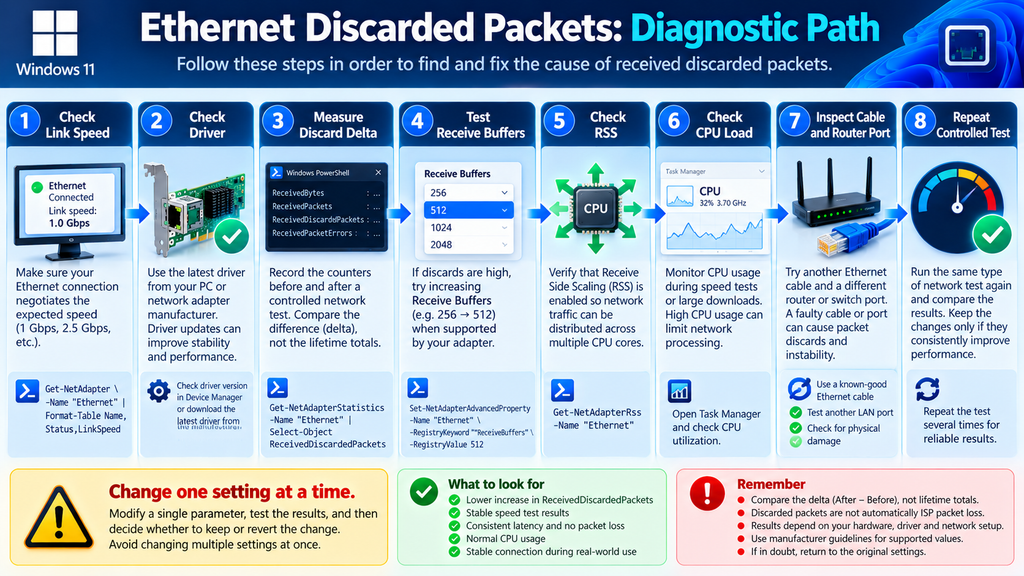
A Better Troubleshooting Routine
A reliable workflow looks like this:
Record baseline
        ↓
Verify link speed
        ↓
Check adapter statistics
        ↓
Generate controlled traffic
        ↓
Measure counter delta
        ↓
Change one setting
        ↓
Repeat identical test
        ↓
Compare normalized results
        ↓
Keep or revert the change
This method is slower than applying a list of “ultimate network tweaks,” but it produces information you can actually trust.
Frequently Asked Questions
What are Received Discarded Packets in Windows 11?
They are packets received by the network interface but discarded rather than successfully continuing through normal processing. Windows exposes this information through network-adapter statistics. The counter should be interpreted alongside traffic volume, errors, hardware information, and actual network symptoms. Microsoft Learn
Does ReceivedDiscardedPackets mean my ISP is losing packets?
Not necessarily. The statistic relates to the Windows network interface. Internet packet loss can occur elsewhere along the route. Use additional latency, packet-loss, and network tests before attributing the problem to an ISP.
Can increasing Receive Buffers reduce packet discards?
It can under some workloads and hardware configurations. Intel specifically identifies larger Receive Buffers as a potential tuning step when receive performance is poor or RX packets are being discarded. Intel
Is 512 Receive Buffers better than 256?
Not universally. The better setting depends on the network controller, driver, workload, and system. Compare controlled before-and-after measurements rather than assuming the larger value is automatically superior.
Should I set Receive Buffers to the maximum?
Usually not without testing. Intel documentation recommends using an adapter-appropriate default when receive performance is not a problem. Higher settings consume additional resources and do not guarantee better performance. Intel
How can I check Receive Buffers in PowerShell?
Use:
Get-NetAdapterAdvancedProperty -Name "Ethernet" -DisplayName "Receive Buffers"Replace Ethernet with the correct adapter name when necessary.
How do I check discarded packets?
Run:
Get-NetAdapterStatistics -Name "Ethernet" |
Select-Object ReceivedUnicastPackets,ReceivedDiscardedPackets,ReceivedPacketErrors
Record the result before and after a controlled network test.
Should Receive Side Scaling be enabled?
RSS is generally useful on supported multi-core systems because it distributes receive processing across processors or CPU cores. The optimal configuration still depends on the hardware and workload. Intel
Should I enable Jumbo Frames for faster internet?
Not simply for internet speed. Intel warns that Jumbo Frames require compatible configuration across the relevant network path. Incorrect configuration can result in dropped packets. Intel CDRD
Can a bad Ethernet cable cause network problems?
Yes. Physical cabling and connectors are fundamental parts of an Ethernet connection. Testing a known-good cable and another router or switch port is an important troubleshooting step before assuming Windows requires extensive tuning.
A Measured Approach Produces Better Ethernet Performance
Received discarded packets can reveal useful information about how a Windows computer handles incoming network traffic, but the counter should never be interpreted in isolation. Start with a baseline, measure the amount of traffic processed, calculate the increase in discarded packets, and compare similar workloads.
Receive Buffers are one legitimate tuning parameter. Intel documents their role in storing incoming packets and identifies increasing them as a possible response to certain receive-performance or discard problems. That makes testing 256 versus 512 a reasonable diagnostic experiment when the adapter supports both values. Intel
The key is disciplined testing. Change one parameter at a time, measure the result, and keep only changes that produce a repeatable improvement. If Receive Buffers do not solve the problem, investigate RSS, drivers, CPU processing, Ethernet cables, router ports, link negotiation, and other parts of the network path.
⚠️ Disclaimer and Source Hygiene
This article provides educational information about Windows networking and Ethernet performance troubleshooting. Network adapter features, available settings, driver property names, and supported values vary between manufacturers and models. Create a restore point or record original settings before changing advanced network configuration, especially on production or business systems.
Technical explanations in this guide were cross-checked against current Microsoft network-adapter documentation and Intel Ethernet documentation. Manufacturer guidance should take priority for the specific network controller installed in your computer. Microsoft documents the Windows adapter statistics used in this tutorial, while Intel provides detailed guidance about Receive Buffers, RSS, interrupt moderation, and Ethernet performance tuning. Microsoft Learn
🔔 For more tutorials like this, consider subscribing to our blog.
📩 Do you have questions or suggestions? Leave a comment or contact us!
🏷️ Tags: Windows 11, Received Discarded Packets, Receive Buffers, Ethernet Optimization, PowerShell, Network Troubleshooting, Windows Networking, Ethernet Performance, Packet Loss, Receive Side Scaling
📢 Hashtags: #Windows11, #PowerShell, #Ethernet, #Networking, #NetworkOptimization, #WindowsTips, #ReceiveBuffers, #Troubleshooting, #PacketLoss, #TechTips
Sources and References
Microsoft Learn documents the MSFT_NetAdapterStatisticsSettingData class and the meaning of statistics including ReceivedBytes, ReceivedDiscardedPackets, OutboundDiscardedPackets, and packet errors. Microsoft Learn
Intel’s Ethernet adapter documentation explains Receive Buffers, RSS, interrupt moderation, and other advanced driver settings. Intel states that increasing Receive Buffers can improve receive performance in appropriate circumstances, while also consuming additional host memory. Intel
Intel’s Windows Performance Tuning Guide for Ethernet 700/800 Series specifically discusses increasing Receive Buffers when RX performance is low or discarded packets are observed. It also documents related tuning considerations such as CPU affinity and RSS. Intel
Secondary Sources and Practical Testing
The PowerShell workflow in this article should be treated as a controlled troubleshooting procedure rather than a promise that one configuration will improve every computer. Real results depend on the Ethernet controller, driver version, router or switch, connection speed, CPU, background traffic, and applications running during testing.
For that reason, the most valuable evidence comes from the computer itself: record the baseline, generate repeatable traffic, measure the counter delta, modify one supported setting, and repeat the experiment. This approach turns an unexplained Windows counter into useful diagnostic information without relying on generic “one-click” network optimization claims.
