

⏲️ Estimated reading time: 30 min
Table of Contents
Learn how to recover a Windows product key using a simple VBS file without installing third-party software. This guide explains how the script works, how to create and run it safely, why some computers return no key, and how digital licenses affect Windows activation.
Recover Windows Product Key With a Simple VBS File
A Windows product key can become surprisingly important when you reinstall Windows, troubleshoot activation, replace a storage drive, or simply want to document the license associated with your computer. Instead of immediately installing a third-party key finder, Windows users can query licensing information already available on their own PC. One convenient way to do this is with a small Visual Basic Script, commonly known as a VBS file.
The method is especially useful for computers that contain an OEM Windows product key embedded in their firmware. Modern PCs often store this information in UEFI firmware rather than displaying it on a physical sticker. A VBS script can ask Windows for this information and display the result in a simple message box. However, there is an important limitation. Not every activated Windows computer has a recoverable 25-character product key. Windows 10 and Windows 11 can also use digital licenses that activate the computer without requiring the user to enter a traditional key. Microsoft explicitly distinguishes between product-key activation and digital-license activation.
This tutorial creates a VBS utility that first checks for an OEM firmware key through Windows Management Instrumentation. If no firmware key is available, it checks a Windows licensing registry location for a backup product key. The script does not generate Windows licenses, bypass activation, crack Windows, or contact an external server. It simply reads licensing information that Windows exposes locally on your own computer.
What Is a Windows Product Key?
A Windows product key is a 25-character code used to activate compatible editions of Microsoft Windows. The familiar format contains five groups of five characters separated by hyphens. Microsoft describes the standard format as XXXXX-XXXXX-XXXXX-XXXXX-XXXXX. The product key helps Windows determine whether the operating system has an appropriate license for activation.
Product keys should not be confused with a Windows Product ID, computer serial number, device ID, or motherboard serial number. These values serve different purposes. A Product ID displayed in Windows Settings does not automatically reveal the Windows activation key. Likewise, the serial number printed on a laptop identifies the physical device rather than the Windows license. In everyday conversation, people sometimes call a Windows product key a “Windows serial number,” but technically these are different identifiers.
The way Windows licensing works has also changed significantly over time. Older Windows installations relied heavily on visible product keys and Certificate of Authenticity labels. Modern Windows computers frequently use firmware-embedded OEM keys or digital licenses. Microsoft states that a new PC may have its product key preinstalled on the computer, included with its packaging, or supplied through a Certificate of Authenticity. A digital license, meanwhile, can activate Windows without requiring the user to manually enter a product key.
Product Key Versus Digital License
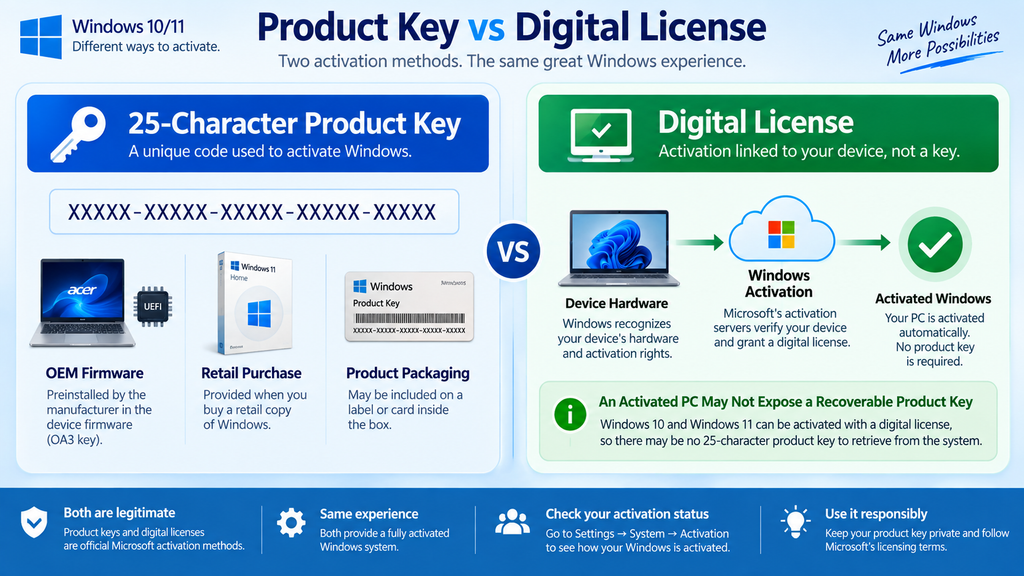
A traditional product key contains 25 characters. A digital license works differently because activation information is associated with the device and, in some circumstances, a Microsoft account. This distinction matters when using any product-key recovery script. A perfectly activated Windows computer can return an empty result because its activation does not depend on a locally recoverable unique key.
Microsoft explains that users who received a free upgrade to Windows 10 or Windows 11 generally have a digital license rather than a traditional product key. Similarly, certain Windows purchases and upgrades through Microsoft services may use digital licensing. Therefore, an empty VBS result should never automatically be interpreted as evidence that Windows is unlicensed.
Before trying to recover a key, check the computer’s activation status. On Windows 11, open Settings → System → Activation. Windows 10 users can open Settings → Update & Security → Activation. The exact wording can indicate whether Windows is activated and whether a digital license is involved. This information provides useful context before interpreting anything returned by a script.
Why Use a VBS File to Recover the Windows Product Key?
Visual Basic Script has been available in Windows environments for many years and can interact with operating-system components such as WMI and the Windows Registry. For this particular task, a VBS file provides a convenient interface because the user can save a small piece of code, double-click it, and receive the result in a message box.
The biggest advantage is simplicity. There is no need to upload licensing information to an unknown website or install a random “product key finder” downloaded from an unfamiliar source. The script operates locally and can be inspected before it runs. Anyone comfortable reading a few lines of code can see which Windows components it accesses and what information it displays.
That transparency is particularly useful for licensing tools. Product keys should be treated as private information. You should avoid posting screenshots containing your full Windows key on forums, social networks, public websites, or support communities. If you create the VBS utility described below, keep the resulting key private and use it only for legitimate licensing, documentation, recovery, or troubleshooting purposes on systems you own or administer.
What the Script Will Check
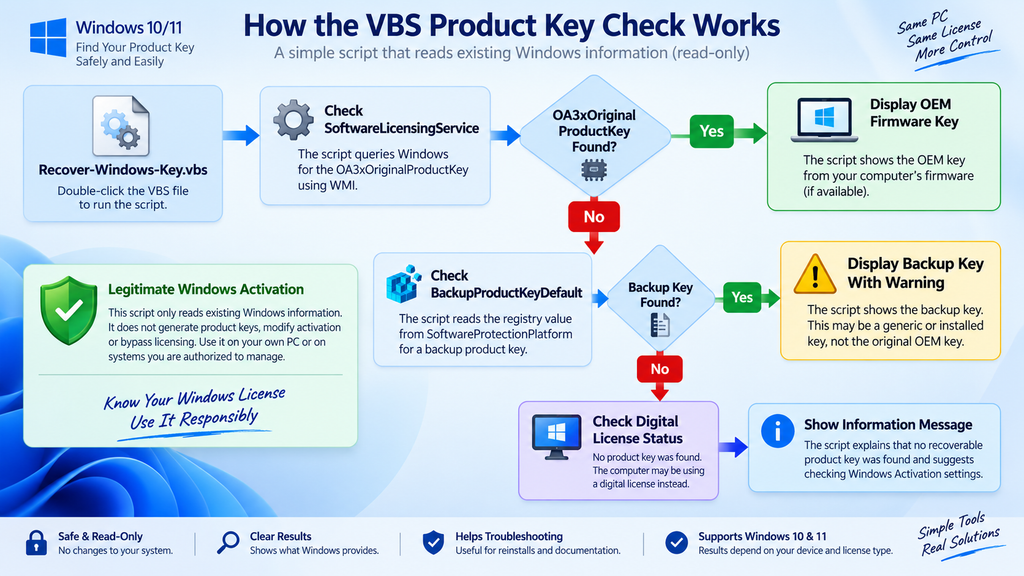
The VBS utility in this tutorial uses two approaches. First, it queries the SoftwareLicensingService WMI class and requests the OA3xOriginalProductKey property. This property can expose an OEM product key embedded by the computer manufacturer when one exists. Microsoft community documentation also references this licensing property for retrieving an onboard OEM key.
If the first query does not return a key, the script checks the SoftwareProtectionPlatform section of the Windows Registry for BackupProductKeyDefault. This value can contain a backup or installed licensing key on some systems. It is important to understand that this second value is not guaranteed to represent the computer’s unique original OEM license. Depending on the activation method, Windows edition, installation history, or upgrade path, it can be different from the firmware key.
Because of these differences, the script labels the results rather than pretending every returned value means exactly the same thing. This makes the utility more useful for modern Windows installations and reduces the risk of misunderstanding what the displayed key represents.
The Windows Product Key VBS File Code
The following VBS code can be copied into Notepad and saved as a .vbs file. It first attempts to retrieve an OEM firmware key. If Windows does not expose one, the script checks the backup product-key registry value. When neither method returns a useful value, it explains that the computer may use a digital license.
Option Explicit

Dim objWMIService
Dim colItems
Dim objItem
Dim OEMKey
Dim BackupKey
Dim WshShell
Dim Message

OEMKey = ""
BackupKey = ""

On Error Resume Next

Set objWMIService = GetObject("winmgmts:\\.\root\cimv2")

If Err.Number = 0 Then
    Set colItems = objWMIService.ExecQuery( _
        "SELECT OA3xOriginalProductKey FROM SoftwareLicensingService")

    For Each objItem In colItems
        OEMKey = Trim(objItem.OA3xOriginalProductKey & "")
        If OEMKey <> "" Then Exit For
    Next
End If

Err.Clear

If OEMKey <> "" Then

    Message = "Windows OEM Product Key:" & vbCrLf & vbCrLf & _
              OEMKey & vbCrLf & vbCrLf & _
              "Keep this product key private."

    MsgBox Message, vbInformation, "Windows Product Key"

    WScript.Quit
End If

Set WshShell = CreateObject("WScript.Shell")

BackupKey = WshShell.RegRead( _
    "HKLM\SOFTWARE\Microsoft\Windows NT\CurrentVersion\" & _
    "SoftwareProtectionPlatform\BackupProductKeyDefault")

If Err.Number <> 0 Then
    BackupKey = ""
    Err.Clear
End If

On Error GoTo 0

If Trim(BackupKey) <> "" Then

    Message = "No OEM firmware key was returned." & vbCrLf & vbCrLf & _
              "Windows Backup Product Key:" & vbCrLf & vbCrLf & _
              BackupKey & vbCrLf & vbCrLf & _
              "Note: This may be a backup or generic installed key " & _
              "rather than the computer's original OEM key."

    MsgBox Message, vbInformation, "Windows Product Key"

Else

    Message = "No recoverable Windows product key was found." & _
              vbCrLf & vbCrLf & _
              "This computer may use a digital license, or Windows " & _
              "may not expose a product key through these locations." & _
              vbCrLf & vbCrLf & _
              "Check Settings > Activation for the current " & _
              "Windows activation status."

    MsgBox Message, vbExclamation, "Windows Product Key"

End If
The script intentionally avoids writing the product key into a permanent text file. Instead, it displays the result on screen. That design reduces the chance of accidentally leaving a plain-text license key in a shared folder, cloud-synchronized Desktop directory, backup location, or other place where somebody else could discover it.
How the VBS Product Key Script Works
The first line, Option Explicit, forces variables to be declared before they are used. Although this is not essential for such a small utility, it is a good scripting practice because it helps catch typing mistakes and makes the code easier to maintain.
Next, the script creates variables for the WMI connection, query results, OEM key, registry backup key, Windows Script Host shell, and final message. Both key variables start empty. The script then temporarily enables On Error Resume Next, allowing it to handle computers where a particular licensing property or registry entry cannot be read without terminating immediately.
The first important operation connects to the local WMI root\cimv2 namespace. The query asks SoftwareLicensingService specifically for OA3xOriginalProductKey. When an OEM key exists in firmware and Windows exposes it through this interface, the value is placed into the OEMKey variable.
Why OA3xOriginalProductKey Is Checked First
OEM Activation 3.x is associated with the firmware-based licensing approach used on many Windows PCs. Instead of relying on a printed product-key sticker, manufacturers can provision licensing information into the device firmware. Windows can then use that information during installation and activation.
Microsoft community documentation commonly uses SoftwareLicensingService and OA3xOriginalProductKey when checking for a firmware-embedded Windows key. A current PowerShell equivalent uses Get-CimInstance to access the same property. However, a blank result is possible, particularly when the machine uses another activation method.
Giving the OEM firmware value priority makes sense because it can represent the original Windows key provisioned for that hardware. If the query succeeds, the script immediately displays the key and stops. It does not continue to the registry fallback because doing so could introduce a second value and unnecessarily confuse the user.
Why the Registry Is Used as a Fallback
When no firmware key is returned, the script creates a WScript.Shell object and attempts to read:
HKEY_LOCAL_MACHINE\SOFTWARE\Microsoft\Windows NT\CurrentVersion\SoftwareProtectionPlatform\BackupProductKeyDefault
The BackupProductKeyDefault value is sometimes available as another source of licensing information. Microsoft Q&A documentation has referenced this registry location as a way to inspect a Windows product key when other approaches do not provide the expected result.
The distinction is important. A value found here should not automatically be described as the original OEM firmware key. Depending on the system, it may represent a backup or generic key associated with the installed edition. The script therefore displays an explanatory warning when it reaches this fallback method.
How to Create the Recover Windows Product Key VBS File
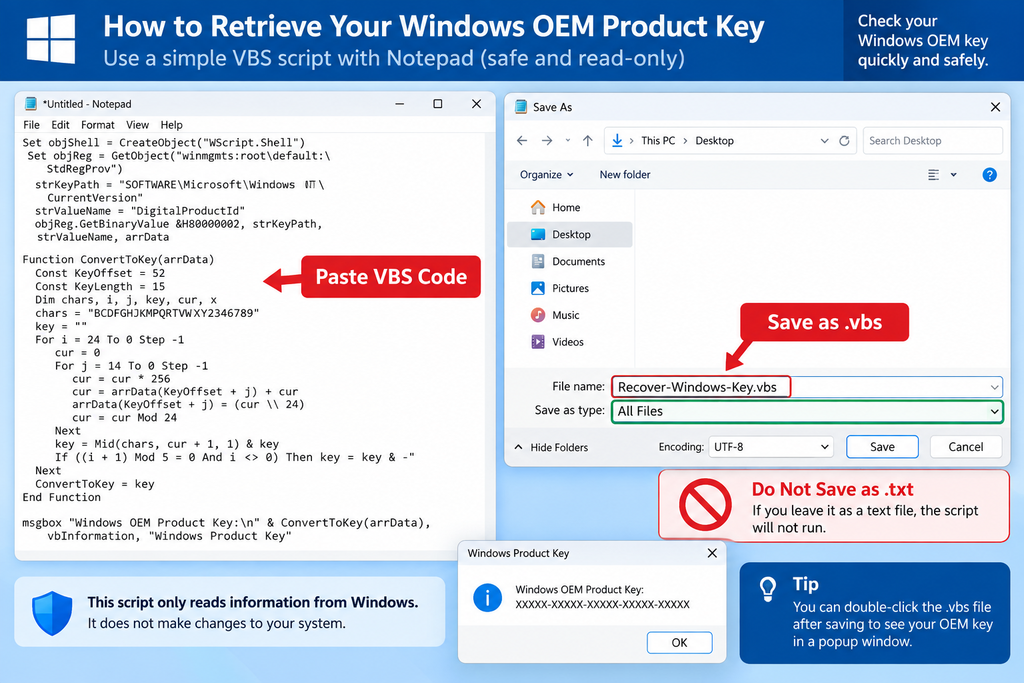
Creating the utility requires only Windows Notepad or another plain-text editor. Start by opening the Start menu and searching for Notepad. Open the application and paste the complete VBS code from this tutorial into the blank document.
Review the code before saving it. This is a useful habit whenever you download or copy scripts from the internet. A VBS file can perform system operations, so you should never execute unknown scripts without understanding their purpose. The script provided here only reads local Windows licensing information and displays a result.
When you are ready, select File → Save As. The filename and file type matter because Notepad may otherwise save the document as an ordinary .txt file.
Save the File With the Correct Extension
Enter the following filename:
Recover-Windows-Key.vbs
Change Save as type to All Files (.) if that option appears. You can leave the encoding at a normal modern text encoding supported by your Windows version. Save the file somewhere convenient, such as a dedicated tools folder.
After saving, inspect the filename carefully. It should end with .vbs, not .vbs.txt. Windows sometimes hides extensions for known file types, which can make this mistake difficult to notice.
If necessary, open File Explorer and enable File name extensions from the View options. You should then see the complete filename.
Running the Script
Double-click Recover-Windows-Key.vbs. Windows Script Host should execute the file and display one of several possible results.
If an OEM key is available through OA3xOriginalProductKey, the message box will show Windows OEM Product Key followed by the 25-character value. Keep that value private.
When no firmware key is available but BackupProductKeyDefault exists, the utility identifies the result as a Windows Backup Product Key. The message also warns that the value may not be the original OEM key.
Finally, if neither method produces a value, the script explains that no recoverable key was found and recommends checking the Windows Activation page. This is not necessarily an error. The system may simply rely on digital activation.
Understanding the Result Displayed by the VBS File
Seeing a 25-character value is only the beginning. You also need to understand where that value came from. The script deliberately reports whether it obtained the value from the firmware-oriented WMI property or from the registry fallback.
If the dialog says Windows OEM Product Key, the script successfully obtained a value from OA3xOriginalProductKey. This is the result most users are looking for when they want to identify the Windows key embedded in a manufacturer’s PC firmware.
If the message says Windows Backup Product Key, treat the result more cautiously. It may be useful for documentation or troubleshooting, but it should not automatically be assumed to be a unique transferable retail license.
What If No Key Appears?
An empty result is common enough that it deserves special attention. Windows activation has evolved beyond the simple idea that every computer must contain one visible, recoverable product key.
Microsoft states that Windows 10 and Windows 11 can use a digital license rather than a traditional product key. A free upgrade from an eligible older Windows installation, for example, can result in a digital license. In that situation, there may be no unique 25-character key that this script can meaningfully recover.
A computer can therefore show Windows is activated in Settings while the VBS utility reports that no product key was found. Those two results are not contradictory. The activation system may recognize the device through its digital entitlement instead.
Check Windows Activation Status
Before attempting to change anything, open the Activation page in Windows. On Windows 11, use:
Settings → System → Activation
On Windows 10, the activation section is normally available through:
Settings → Update & Security → Activation
Look at the activation status and edition. Knowing whether you are running Windows Home, Pro, Enterprise, or another edition matters because product keys and licensing channels are edition-specific.
Do not enter a recovered key into the activation interface simply to “test” it when Windows is already activated. If the computer works correctly and activation is valid, unnecessary licensing changes can create confusion rather than solve a problem.
OEM Keys, Retail Keys and Generic Windows Keys
Windows licensing becomes easier to understand when you separate the key itself from the license rights attached to it. An OEM key supplied with a computer is associated with the Windows license provided for that hardware. A retail Windows purchase follows different licensing terms, while organizations may use volume activation systems.
The VBS script cannot determine every legal licensing right from a 25-character string. It simply reads information exposed by Windows. You should therefore avoid using a key-recovery result to make assumptions about whether a license can legally be transferred to another PC.
If you need to determine transfer rights, ownership, or licensing conditions, consult the purchase documentation and Microsoft’s current licensing information.
Generic Keys Can Cause Confusion
Some Windows installations use generic installation keys internally. These keys can identify an edition but do not necessarily represent a unique license purchased specifically for the computer. This is one reason key-finder applications sometimes display a key that appears identical across multiple PCs.
A generic key is not proof that Windows is illegally activated. Likewise, retrieving a generic key does not give you a new Windows license. Activation may depend on a digital entitlement stored by Microsoft’s activation infrastructure rather than the displayed installation key.
The VBS script in this tutorial reduces confusion by checking the OEM firmware property first and clearly labeling the registry fallback.
VBS Versus Command Prompt and PowerShell
The VBS approach is convenient, but it is not the only way to inspect Windows licensing information. PowerShell can query the same SoftwareLicensingService information directly. On modern systems, a CIM-based query can request the OA3xOriginalProductKey property.
For example, an administrator can open PowerShell and run:
(Get-CimInstance -ClassName SoftwareLicensingService -Property OA3xOriginalProductKey).OA3xOriginalProductKeyIf an appropriate firmware key is exposed, PowerShell can display it. If the command returns an empty result, that can mean no suitable OEM firmware key is available through that property. Microsoft community documentation notes this possibility and also highlights the increasing role of digital licenses.
What About WMIC?
A frequently shared older command is:
wmic path softwarelicensingservice get OA3xOriginalProductKeyThis command has historically been used to retrieve the firmware key. However, WMIC is an older Windows management interface, and availability can vary on newer Windows versions. Microsoft community guidance has noted that WMIC may need to be installed as an optional feature on newer Windows 11 configurations.
For that reason, a reusable VBS file or modern PowerShell command can be more convenient than relying exclusively on WMIC. The underlying idea remains similar: query Windows licensing information rather than attempting to reconstruct or invent a license.
Why the Old DigitalProductId VBS Scripts Can Be Misleading
Searching the web for “Windows product key VBS” often returns older scripts that read the DigitalProductId binary registry value and run it through a decoding algorithm. Those scripts became popular during earlier generations of Windows.
They can still be interesting for technical study, but they are not always the best choice for modern Windows 10 and Windows 11 systems. The key decoded from an installed system can represent an installation key rather than the original firmware-embedded OEM key. Digital licensing makes the situation even more complicated.
For a practical modern utility, directly checking OA3xOriginalProductKey first provides a clearer objective: determine whether the computer exposes an OEM firmware key.
Why This Tutorial Does Not Generate a Key
A legitimate recovery utility reads information that already belongs to the computer. It does not create a new product key, modify Windows licensing services, disable activation, or circumvent Microsoft’s licensing mechanisms.
That distinction also makes the script safer. The code performs read operations, displays information, and exits. It does not alter activation registry values or attempt to replace licensing files.
If Windows is not licensed, a VBS script cannot legitimately turn an unlicensed installation into a licensed one. You will need an appropriate Windows license or another valid activation entitlement.
When Recovering Your Windows Key Is Useful
One sensible reason to check a product key is before reinstalling Windows. Although many modern OEM systems activate automatically after reinstalling the correct Windows edition, recording the available licensing information can provide additional documentation.
Another use case is preparing a PC for maintenance. You may want to record the installed Windows edition, activation status, and firmware product key before replacing storage or troubleshooting a damaged installation.
System administrators may also use a small local script when documenting machines they are authorized to manage. In those environments, product keys should still be handled as confidential licensing information and stored securely.
Replacing an SSD or Hard Drive
A storage replacement is one of the situations where users often worry about Windows activation. On many modern OEM computers, the original key is embedded in firmware rather than stored only on the SSD.
That means replacing the storage device does not automatically erase the firmware-embedded key. When the correct edition of Windows is installed again, activation may occur automatically if the machine has an appropriate OEM or digital entitlement.
Still, checking activation and documenting the available key before replacing hardware is a reasonable precaution. It gives you more information if activation behaves unexpectedly after installation.
Is the VBS Product Key Script Safe?
The code shown in this tutorial is designed as a read-only licensing information utility. It queries Windows for an OEM product-key property and reads a specific registry value as a fallback. It does not modify the registry, change Windows activation, download software, send information across the internet, or attempt to bypass licensing.
However, the broader rule for VBS files remains important: never assume a script is safe merely because its filename sounds useful. VBS is a scripting technology capable of performing many system operations. A malicious or poorly written script can make unwanted changes.
Always inspect scripts before executing them. If a script contains unknown download addresses, destructive file operations, unexplained PowerShell commands, registry modifications, or heavily obfuscated code, do not run it until you understand exactly what it does.
Protect the Product Key
The product key itself should remain private. Do not publish it when asking for technical support. If you take a screenshot of the script result, hide the key before sharing the image.
The same precaution applies to videos and tutorials. A creator demonstrating the utility should use a fictional example such as:
XXXXX-XXXXX-XXXXX-XXXXX-XXXXX
Never display a real active key in a public tutorial.
Troubleshooting the Windows Product Key VBS File
If double-clicking the file simply opens Notepad, check its extension. The most common problem is accidentally creating Recover-Windows-Key.vbs.txt instead of a genuine .vbs file.
Enable filename extensions in File Explorer and rename the file correctly. Be careful when changing extensions because Windows may display a warning explaining that changing a file extension can make the file unusable.
If the script executes but reports no key, do not immediately start modifying the system. First check Windows Activation in Settings.
The Script Returns No OEM Key
A blank OA3xOriginalProductKey value can be legitimate. The machine might not have an OEM firmware key, or its activation method may not depend on one.
A custom-built desktop PC is a good example. If Windows was purchased separately, the motherboard may never have received an OEM key from a computer manufacturer. The license may instead originate from a retail purchase or digital activation.
Likewise, a computer that received Windows through an upgrade path may use a digital license. Microsoft specifically states that eligible free upgrades can result in a digital license rather than a conventional product key.
The Registry Key Is Different From the OEM Key
This does not automatically indicate a problem. The firmware key and currently installed key can represent different parts of the activation process.
For example, the PC may originally have shipped with one Windows edition and later have been upgraded. The installed Windows environment may therefore contain licensing information that differs from the manufacturer’s original firmware provisioning.
For recovery purposes, document both the source and the value rather than assuming that two different keys mean Windows is incorrectly licensed.
Windows Is Activated but No Key Is Found
This is perhaps the most important troubleshooting scenario. Modern Windows activation does not require every activated system to expose a unique product key to local scripts.
Check the Activation page. If Windows reports that it is activated with a digital license, the lack of a recoverable 25-character key can be completely consistent with the activation method.
Microsoft’s own Windows product-key documentation explains that users may require either a product key or a digital license, depending on how Windows was obtained.
Can the VBS File Recover a Key After Windows Is Reinstalled?
The answer depends on where the key exists. If an OEM key is embedded in UEFI firmware, reinstalling or formatting the Windows drive does not normally remove that firmware value. A script querying OA3xOriginalProductKey after installation may therefore still retrieve it.
However, if you are trying to recover a retail key from an old Windows installation that has already been completely erased, this VBS script cannot magically reconstruct information that is no longer available locally.
A digital license creates another scenario. Windows may reactivate automatically when the same device connects to Microsoft’s activation services, even though no unique key is displayed by the script.
Clean Installation Considerations
Before reinstalling Windows, identify the edition currently activated on the computer. Installing Windows Home on a machine licensed only for Pro, or the reverse, can complicate activation.
For an OEM PC, Windows Setup may automatically detect the firmware key and select the corresponding edition. In other cases, Setup may ask for a product key or allow you to continue without one.
The safest approach is to document the current edition and activation status before making major changes. A product-key recovery script should be one part of that preparation, not the entire backup strategy.
Recovering a Windows Key From a New PC
Microsoft states that a new PC running Windows may have its product key preinstalled, included in the packaging, or provided on a Certificate of Authenticity attached to the device.
For a recently purchased OEM laptop or desktop, the VBS script’s first query is therefore the most relevant. If the manufacturer provisioned an OA3 key in firmware and Windows exposes it through SoftwareLicensingService, the utility can display it.
You should still keep the original purchase invoice and documentation. A recovered key is not a replacement for proof of purchase, and licensing questions sometimes require information about where and how Windows was acquired.
Retail and Digital Purchases
If Windows was purchased separately from an authorized retailer, Microsoft advises checking the card, label, digital locker, or confirmation email associated with the purchase, depending on how the software was supplied.
For a digital purchase from Microsoft, order history and purchase confirmation information can also be relevant. Therefore, do not rely exclusively on a local script when trying to reconstruct licensing records.
Think of the VBS file as a convenient local diagnostic tool rather than an authoritative record of every possible Windows license associated with you.
Creating a Desktop Shortcut for the VBS Tool
Users who frequently reinstall or maintain Windows computers may want to keep the script inside a dedicated administration folder. You can then create a shortcut rather than leaving the actual script scattered across the Desktop.
Right-click the .vbs file and create a shortcut using the options available in your Windows version. Give the shortcut a descriptive name such as Check Windows Product Key.
Keep in mind that anyone who can execute the script on a compatible computer may be able to see the key returned by Windows. For this reason, avoid placing the utility in shared startup folders or automatically executing it on public computers.
Do Not Automatically Save Keys to Desktop
It may be tempting to modify the script so that every recovered key is automatically written to a text file. For a personal computer this can be convenient, but it also creates a persistent copy of sensitive licensing information.
The Desktop is often synchronized with cloud services or included in backups. A plain-text key can therefore travel farther than expected.
Displaying the result temporarily in a message box is a safer default. If you need permanent documentation, store the information using a secure method appropriate for your environment.
Improving the VBS Script Without Making It Risky
A useful system utility does not need dozens of features. In fact, a small script is easier to inspect and maintain. The most valuable improvements are those that provide context without modifying the system.
For example, a future version could display the Windows edition, operating-system build, activation status, and whether an OEM key was detected. These details could help users understand why a particular key was returned.
Any enhanced version should continue to separate information retrieval from activation changes. Reading licensing status is appropriate for a diagnostic utility. Silently replacing keys, modifying licensing registry entries, or running activation commands would fundamentally change the purpose and risk profile of the tool.
A Good Rule for Windows Maintenance Scripts
The safest utilities make their actions obvious. If a script reads information, label what it reads. If it changes something, explain the change before executing it.
This principle is especially important for downloadable .bat, .cmd, .ps1, and .vbs utilities. Users should be able to open the file in a text editor and understand its core behavior.
For this Windows product-key utility, the goal remains intentionally narrow: identify a firmware OEM key when available, check a backup licensing value when necessary, and explain when digital licensing may be the reason no traditional key appears.
Frequently Asked Questions
Can a VBS File Recover My Windows 10 Product Key?
It can retrieve an OEM firmware key when Windows exposes the OA3xOriginalProductKey property. The script can also inspect a backup product-key registry value. However, it cannot guarantee a unique key on every Windows 10 computer because some installations use digital licenses.
Does the VBS Script Work With Windows 11?
The underlying Windows licensing information queried by the script can be available on Windows 11 systems. Results depend on the device and licensing method. A digitally activated Windows 11 PC may not expose the type of unique product key a user expects.
Why Does the Script Say No Product Key Was Found?
Your computer may use a digital license, may not contain an OEM firmware key, or may not expose a useful key through the checked registry location. Check Settings → System → Activation on Windows 11 to confirm the current activation status.
Is the Windows Product Key the Same as the Product ID?
No. A Windows Product ID is not the same thing as the 25-character activation product key. Do not use the Product ID displayed in Windows Settings as though it were an activation key.
Can I Use the Recovered Key on Another Computer?
A retrieved key does not automatically grant transfer rights. Whether a Windows license can be moved depends on the license type and applicable Microsoft licensing terms. OEM, retail, and organizational licensing arrangements can differ.
Is It Safe to Share My Windows Product Key Online?
No. Treat a valid Windows product key as private licensing information. Hide it in screenshots, videos, support requests, forum posts, and social media content.
Why Is the Registry Key Different From the Firmware Key?
The firmware value can represent the OEM key provisioned by the manufacturer, while the installed Windows environment may contain a different backup or installation key. Upgrades, edition changes, and digital activation can also affect what is displayed.
Do I Need My Product Key Before Replacing an SSD?
It is sensible to document your activation information before replacing storage. However, many modern PCs use a firmware-embedded OEM key or digital license, so Windows may reactivate automatically after the correct edition is reinstalled.
Can This VBS File Activate Windows?
No. The script only reads licensing information available on the computer. It does not generate a license, bypass activation, or activate an unlicensed Windows installation.
Does an Empty Result Mean My Windows Copy Is Pirated?
No. An empty result by itself says nothing definitive about license legitimacy. A properly activated Windows installation may use a digital license instead of exposing a traditional product key. Check Windows Activation settings for the actual activation status.
Keep Your Windows License Information Safe
A small VBS file can turn Windows product-key retrieval into a quick and transparent process. Instead of installing an unknown key-finder application, you can inspect the script yourself, save it locally, and let Windows report the licensing information it already exposes.
The most important detail is understanding the result. An OEM firmware key returned through OA3xOriginalProductKey is not necessarily the same thing as a registry backup key. Likewise, an empty result does not mean Windows lacks a valid license. Modern Windows 10 and Windows 11 computers frequently rely on digital activation.
Use the script as a diagnostic and documentation tool. Check your Windows edition and activation status before reinstalling the operating system, keep any recovered key private, and retain your purchase documentation whenever possible. These simple precautions make future Windows recovery and activation troubleshooting much easier.
⚠️ Disclaimer and Source Hygiene
This tutorial is provided for educational, system-administration, and legitimate license-recovery purposes. Use the VBS script only on computers you own or are authorized to administer. The script does not create Windows licenses, bypass Microsoft activation, or grant rights to use a recovered key on another device.
Windows licensing behavior can vary by edition, device manufacturer, activation channel, purchase method, and operating-system version. Always verify important licensing questions against current Microsoft documentation or consult Microsoft, your device manufacturer, retailer, or qualified IT professional when necessary.
The technical guidance in this article was cross-checked against Microsoft Support documentation and Microsoft-hosted technical discussions concerning Windows product keys, digital licenses, SoftwareLicensingService, OA3xOriginalProductKey, and Windows activation.
🔔 For more tutorials like this, consider subscribing to our blog.
📩 Do you have questions or suggestions? Leave a comment or contact us!
🏷️ Tags: Windows Product Key, Recover Windows Product Key, Windows VBS, VBS Script, Windows 11 Product Key, Windows 10 Product Key, Windows Serial Number, Windows Activation, Digital License, Windows Tutorial
📢 Hashtags: #Windows, #Windows11, #Windows10, #ProductKey, #VBScript, #WindowsTips, #WindowsTutorial, #PCMaintenance, #WindowsActivation, #TechTutorial
Sources and References
Microsoft Support – Find your Windows product key: Microsoft explains the 25-character Windows product-key format, where keys can be located, and the difference between product-key activation and digital licenses.
Microsoft Learn / Microsoft Q&A – Windows licensing queries: Microsoft-hosted technical discussions document querying SoftwareLicensingService and the OA3xOriginalProductKey property through Windows management interfaces. They also demonstrate that the property can return an empty result when an applicable firmware key is unavailable.
Microsoft Support – Windows Activation: Microsoft’s activation documentation explains the different licensing paths used by Windows, including product keys and digital licenses.
Secondary Sources and Testimonials
Community troubleshooting discussions hosted on Microsoft Learn provide useful real-world examples of users receiving either a firmware product key or a blank result from OA3xOriginalProductKey. These reports reinforce an important point: a key-recovery command or script should not be used as the sole test of whether Windows is legitimately activated.
For authoritative decisions about activation, licensing rights, transfers, or purchases, current Microsoft documentation should take priority over third-party key-finder tutorials and anonymous scripts. A local recovery tool is useful for discovering information, but the Windows Activation page and official purchase records provide the broader licensing context.
