


⏲️ Estimated reading time: 19 min
Table of Contents
Learn how the WP Cleanup Toolkit plugin works, what each function does, and how to use it safely. This guide explains the admin UI, dry-run reporting, weekly cron cleanup, batch deletion logic, and every cleanup task plus i18n setup, best practices, and safe limits.
WP Cleanup Toolkit Plugin Guide: Full Walkthrough. What This Plugin Does in Plain English
WP Cleanup Toolkit (Custom) is a safety-first cleanup plugin that helps you remove database clutter without guessing.
It gives you:
- It gives you a proper Tools page.
- It gives you a “Dry-run” mode that creates a report without deleting anything.
- It gives you an “Execute” mode that actually deletes things.
- It gives you a weekly WP-Cron job that can run selected tasks automatically.
- It works in batches to avoid timeouts on large sites.
- It keeps settings in one option and stores the last report in another option.
- It uses i18n correctly (Text Domain + load textdomain), so translations are clean.
Who This Plugin Is For
See also: Narcissism: A Disorder or a Chosen Behavior?
This plugin is for WordPress site owners and admins who want performance and database hygiene, but also want control.
It fits well if:
You publish often and revisions pile up.
You get spam comments.
You test plugins and transients accumulate.
You migrate content and end up with orphaned meta or term relationships.
You want a single “cleanup dashboard” you can run weekly.
Safety Notes Before You Touch Anything
This plugin is safe by design, but cleanup is always a “measure twice, cut once” thing.
A backup is strongly recommended before medium-risk tasks.
Orphan deletions are usually fine, but mistakes can happen if other plugins store relationships in unusual ways.
OPTIMIZE TABLE can lock tables on some setups and can spike CPU, so you should run it when traffic is low.
Dry-run exists for a reason.
Use it first.
Where the Plugin Lives and How to Install It
Create a folder like:
wp-content/plugins/wp-cleanup-toolkit-custom/
Put your main file inside, for example:
wp-cleanup-toolkit-custom.php
Optional language folder:
wp-content/plugins/wp-cleanup-toolkit-custom/languages/
Activate from Plugins.
Then go to:
Tools → WP Cleanup
Plugin Header and Global Guard Explained
The header block defines:
Plugin name, description, version, author, license.
Text Domain wpct and Domain Path /languages.
The guard:
if (!defined('ABSPATH')) exit;
This prevents direct execution from the browser.
Class Architecture Overview
The plugin is a single final class: WPCT_Cleanup_Toolkit.
It uses:
- A singleton pattern via
boot(). - Constants for option keys and cron hook names.
- A settings cache array to avoid repeated
get_option()calls during one request. - A clean separation between:
- Admin UI rendering
- Admin form handling
- Cron scheduling
- Actual cleanup tasks
Constants Explained One by One
OPT_LAST_REPORT
Stores the last run report.
Key: wpct_last_report
This is where the plugin saves the JSON-style report array.
OPT_SETTINGS
Stores settings.
Key: wpct_settings
This holds batch size, keep-days, cron enable, and cron task selection.
CRON_HOOK
The WordPress cron hook name.
Key: wpct_weekly_cleanup
This is what WordPress calls when your weekly cron event fires.
VERSION
The plugin version string.
Key: 1.1.1
Not used heavily in logic right now, but useful for future migrations.
MIN_BATCH / MAX_BATCH / MAX_KEEP_DAYS
These are safety rails.
Batch size prevents you from deleting 200,000 rows in one query.
Max keep days prevents silly values like 999999.
They protect both your DB and your admin UI from dangerous input.
Singleton Boot Pattern: Why It Exists
The plugin ends with:
WPCT_Cleanup_Toolkit::boot();
That means:
- WordPress loads the file.
- The class boots itself once.
- Hooks are registered once.
- No accidental double init.
- This is a clean, common structure for custom plugins.
Function-by-Function Explanation
__construct
The constructor is private.
That forces the class to be created only through boot().
This keeps your plugin predictable.
boot
What it does
Creates (or returns) the one single instance of the plugin class.
Why it matters
It prevents multiple instances registering hooks multiple times.
What happens inside
If $instance is null:
Create the object.
Call init() to register WordPress hooks.
Return the instance.
init
What it does
Registers every hook the plugin needs.
Hooks registered here
plugins_loaded → load_textdomain
This runs early enough that translations work in the admin.
admin_menu → admin_menu
Adds Tools → WP Cleanup.
admin_post_wpct_cleanup → handle_admin_post
Handles both saving settings and running cleanup.
This is a secure pattern because admin-post.php enforces admin context.
admin_init → handle_notices
Builds admin notices from query args like ?saved=1 or ?ran=dry_run.
cron_schedules filter → add_weekly_schedule
Adds a “weekly” schedule called wpct_weekly.
CRON_HOOK action → run_weekly_cron
This is what runs during weekly cron events.
activation hook → activate
Schedules cron if needed.
deactivation hook → deactivate
Clears cron hooks so nothing runs after plugin is disabled.
load_textdomain
What it does
Loads translations from /languages.
Why it matters
Without this, even if you have .mo files, WordPress won’t load them.
Details
load_plugin_textdomain('wpct', false, dirname(plugin_basename(__FILE__)) . '/languages');
Text domain must match your __() calls.
activate
What it does
Calls ensure_cron_scheduled().
Why it matters
If cron is enabled by default (it is), your weekly job needs to exist.
deactivate
What it does
wp_clear_scheduled_hook(self::CRON_HOOK);
Why it matters
This is the correct safe way to remove scheduled instances of that hook.
It avoids leaving orphan cron jobs in the database.
ensure_cron_scheduled
What it does
Schedules a weekly cron event if one does not already exist.
Logic
If wp_next_scheduled(CRON_HOOK) is false, it schedules:
Start time: time() + HOUR_IN_SECONDS
Recurrence: wpct_weekly (custom schedule added by filter)
Hook: wpct_weekly_cleanup
Why it adds one hour
This avoids scheduling “right now” during activation, which can feel messy on some hosts.
Also, many cron runners don’t fire immediately.
add_weekly_schedule
What it does
Adds a custom cron interval to WordPress.
Output
schedules['wpct_weekly'] = ['interval' => WEEK_IN_SECONDS, 'display' => 'Once Weekly…'];
Why it matters
WordPress does not ship with “weekly” by default.
This makes the schedule visible to WordPress and any cron UI plugins.
admin_menu
What it does
Adds a Tools page.
WordPress API used
add_management_page()
Why Tools is a good home
Cleanup is maintenance.
Tools is where site admins expect maintenance utilities.
get_default_settings
What it returns
A full default settings array including:
batch_size = 2000
revisions_keep_days = 30
enable_cron = 1
cron_tasks defaults (safe tasks enabled, risky tasks off)
Why this matters
Defaults give you “safe automation” out of the box.
You can enable medium-risk tasks only when you are confident.
get_settings
What it does
Loads settings once per request and caches them.
Why it matters
Your plugin calls settings in multiple places.
Caching reduces repeated DB calls and speeds up admin pages.
Key details
$saved = get_option(OPT_SETTINGS, [])
Then it merges saved data with defaults using wp_parse_args.
It also merges nested cron_tasks separately so missing keys don’t break.
This is important.
Without nested merging, a partial array can cause undefined index problems.
save_settings
What it does
Clears cache and saves to DB:
update_option(OPT_SETTINGS, $settings, false);
Why autoload=false
The last argument false means do not autoload.
That is smart.
Settings are only needed in admin and cron contexts, not on every front-end request.
handle_notices
What it does
Shows success/info notices on the plugin page.
Why it checks $_GET['page']
It only adds notices when you are on the plugin page.
So it doesn’t pollute other admin pages.
How it creates notices
Uses:
add_settings_error('wpct_messages', 'code', 'message', 'type');
Then in the UI:
settings_errors('wpct_messages');
This is clean WordPress-native notice handling.
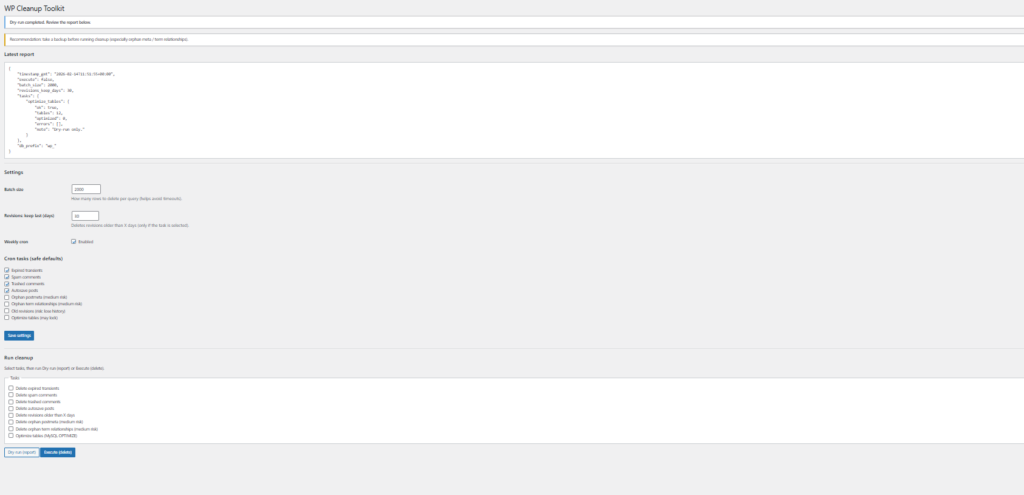
render_admin_page
What it does
Prints the entire Tools → WP Cleanup UI.
Security check
current_user_can('manage_options')
If not, it dies.
What it shows
A headline.
Notices.
A warning backup notice.
The latest report (pretty-printed JSON).
A settings form:
Batch size
Revisions keep days
Enable weekly cron checkbox
Cron task toggles
A run cleanup form:
Task checkboxes
Dry-run button
Execute button with JS confirm
Why the report display is useful
It turns your actions into visible data.
You can confirm what happened, how many rows were found, and how many were deleted.
That makes troubleshooting far easier.
handle_admin_post
What it does
This is the “controller” for form submissions.
It handles:
Saving settings
Running manual cleanup (dry-run or execute)
Security inside
current_user_can('manage_options')
check_admin_referer('wpct_cleanup')
This prevents CSRF.
Mode parsing
$mode = sanitize_key($_POST['mode'])
It supports:
save_settings
dry_run
execute
Saving settings path
If mode is save_settings:
Calls process_settings_save()
Redirects to tools page with saved=1
Running cleanup path
Builds a $tasks array from checked boxes.
Loads settings.
Calls:
run_cleanup($tasks, $mode === 'execute', $settings)
Stores report in OPT_LAST_REPORT.
Redirects with ran=dry_run or ran=execute.
process_settings_save
What it does
Sanitizes and stores settings.
Batch size sanitization
It clamps the input between MIN_BATCH and MAX_BATCH.
That prevents 0, negative numbers, or absurdly high values.
revisions_keep_days sanitization
It clamps between 1 and MAX_KEEP_DAYS.
enable_cron
Checkbox style: if set, 1; otherwise 0.
cron_tasks sanitization
It starts from default cron_tasks and then sets each key based on checkbox presence.
That prevents unknown keys from being injected.
Cron scheduling logic
If enable_cron = 1:
ensure_cron_scheduled
Else:
wp_clear_scheduled_hook
This is exactly how a cron toggle should behave.
run_weekly_cron
What it does
Runs the cron cleanup based on saved selections.
Key safety checks
If cron disabled, it returns.
If selected cron_tasks array is empty, it returns.
Task selection logic
array_keys(array_filter(cron_tasks, fn($v)=>$v===1))
Then it runs cleanup in execute mode automatically.
It sets $report['cron'] = true to mark it as cron-run.
Stores report.
run_cleanup
What it does
This is the orchestration layer.
It prepares:
Batch size
Keep days
Cutoff date in GMT
Report metadata
A map of tasks to callables
Then loops through selected tasks and executes each one safely.
Why task_map is smart
It avoids giant if/else blocks.
It keeps tasks modular.
You can add tasks easily later.
Error handling
It wraps each task in try/catch.
If a task throws, it stores:
ok=false
error=message
The rest still runs.
That’s a strong design for maintenance tools.
Report payload
It includes:
timestamp_gmt
execute boolean
batch_size
revisions_keep_days
tasks results
db_prefix
That helps debugging across multisite or custom prefixes.
task_expired_transients
Purpose
Deletes expired transient entries stored in wp_options.
Important limitation
This targets database transients.
If you use an external object cache (Redis/Memcached), many transients never hit wp_options.
So this cleans what actually exists in the DB, not cache memory.
How it detects expired
It checks rows where:
option_name LIKE _transient_timeout_%
option_value < current unix time
Dry-run vs execute
Dry-run:
Counts how many expired timeout rows exist.
Returns found count.
Execute:
Loops in batches.
Fetches keys by selecting SUBSTRING(option_name, 20).
Builds timeout option names and value option names.
Deletes timeouts.
Deletes values.
Counts deleted keys.
Why it deletes both
A transient is typically stored as:
_transient_timeout_KEY
_transient_KEY
If you remove only timeouts, value rows can remain.
This plugin removes both.
task_comments_by_status
Purpose
Deletes comments by status: spam or trash.
Inputs
$status (sanitized)
$execute
$batch
How it works
Counts comments where comment_approved = status.
Execute mode:
Selects comment IDs in batches.
Deletes matching commentmeta rows first.
Deletes comment rows next.
Why delete commentmeta first
It avoids leaving orphan meta.
It’s good hygiene.
task_autosaves
Purpose
Deletes autosave revisions.
How it detects them
In WP, autosaves appear as revisions with post_name ending in -autosave-v1.
So it queries:
post_type = revision
post_name LIKE %-autosave-v1
Execute mode
Gets IDs in batches.
Deletes postmeta for those post IDs.
Deletes posts rows.
Counts deletions.
task_old_revisions
Purpose
Deletes revisions older than a cutoff date.
Cutoff logic
The cutoff is calculated in GMT:
Now minus keep_days.
Then:
post_type = revision
post_date_gmt < cutoff
Execute mode
Same pattern as autosaves:
Fetch IDs in batches.
Delete postmeta first.
Delete posts next.
Counts deleted.
Why GMT
WordPress stores post_date_gmt reliably for global comparisons.
It avoids timezone confusion.
task_orphan_postmeta
Purpose
Deletes rows in wp_postmeta that point to posts that no longer exist.
How it detects orphans
LEFT JOIN posts on post_id.
Where p.ID IS NULL.
Execute mode
Selects meta_id in batches.
Deletes those meta_id rows.
Counts deletions.
Risk note
“Medium” risk.
In most sites, orphan postmeta is safe to remove.
However, some plugins may temporarily create meta before posts finalize.
That’s rare, but possible during imports.
Dry-run first is the right approach.
task_orphan_termrels
Purpose
Deletes orphan term relationships where object_id points to a post that no longer exists.
How it detects orphans
LEFT JOIN posts on object_id.
Where p.ID IS NULL.
Execute mode
Selects object_id and term_taxonomy_id pairs.
Deletes each pair using $wpdb->delete().
Counts deletions.
Why delete row-by-row
Because term_relationships uses a compound key (object_id + term_taxonomy_id).
Deleting pairs safely is simpler and less error-prone than building big IN clauses.
It’s slower than a single query, but safer.
task_optimize_tables
Purpose
Runs MySQL OPTIMIZE TABLE on all prefix tables.
Steps
Gets tables like wp_% (or your prefix).
Checks table type from INFORMATION_SCHEMA.
Skips views.
Runs OPTIMIZE TABLE for each table.
Counts optimized tables and collects errors.
Risk note
This can lock tables.
On InnoDB, OPTIMIZE TABLE may rebuild.
On busy sites, do it at low traffic.
How the Admin UI Forms Work
The plugin uses two forms, both posting to admin-post.php.
That’s a standard WP approach.
Settings form
Hidden fields:
action = wpct_cleanup
mode = save_settings
Nonce: wpct_cleanup
When submitted, handle_admin_post sees save_settings and stores options.
Cleanup run form
Hidden fields:
action = wpct_cleanup
mode = dry_run or execute (via button name/value)
Tasks are passed as tasks[key]=1.
Nonce: wpct_cleanup
This makes the controller simple and secure.
Why Batch Processing Is a Big Deal
Batching reduces:
Time limits
Memory spikes
Lock durations
Fatal errors on large tables
Instead of:
DELETE 200,000 rows in one query
You do:
DELETE 2,000 rows repeatedly
The site stays stable.
Your hosting doesn’t kill PHP.
What the Report Looks Like and How to Read It
Each task returns an array like:
ok: true/false
found: how many items exist
deleted: how many were removed (execute only)
note: extra context
This report is saved and displayed in your admin UI in JSON.
That means you can copy it to a ticket or log.
Recommended “Safe Defaults” for Real Sites
Strong default set
Expired transients.
Spam comments.
Trashed comments.
Autosave posts.
These are low-risk and give immediate DB cleanup wins.
Medium-risk set
Orphan postmeta.
Orphan term relationships.
Use these after migrations, bulk deletes, or broken imports.
High-impact tasks
Old revisions.
This can remove history.
If you rely on revision history for editorial workflows, keep this off.
Heavy tasks
Optimize tables.
Do it rarely and off-peak.
Performance and Compatibility Notes
External object cache
Expired transients task won’t touch Redis-only transients.
That’s correct behavior because they are not in wp_options.
Table prefixes
The plugin respects $wpdb->prefix.
So it works with custom prefixes.
Multisite
This plugin is not multisite-aware in the sense of iterating all blogs.
It will run only on the current site’s tables.
If you need network-wide cleanup, you would expand it to loop sites.
Security Review
Capability checks
All admin actions require manage_options.
That’s appropriate.
Nonce checks
All forms require wpct_cleanup nonce.
That blocks CSRF attacks.
Sanitization
Mode uses sanitize_key.
Tasks use sanitize_key.
Numeric fields are cast to int and clamped.
This prevents input abuse and “weird” values.
How to Make It 100% i18n-Ready (Your a. Question)
Languages Folder Structure
Create:
languages/wpct.pot
languages/wpct-ro_RO.po and .mo
languages/wpct-en_US.po and .mo (optional, since English strings are source)
Generating a .pot File
If you use WP-CLI i18n tools, run from plugin folder:
wp i18n make-pot . languages/wpct.pot --domain=wpct
Then translate into Romanian in Poedit or similar.
Compile to .mo.
Because your plugin already calls load_plugin_textdomain, it will pick them up automatically.
Translation Tips
Keep the text domain consistent: wpct.
Don’t mix domains.
Use esc_html__ and esc_attr__ as you already do in UI output.
Adding Safety Caps + Logging (Your b. Question)
You asked for:
Max exec time.
Max total deletions per run.
Log reports in wp-content/uploads/wpct/.
Here is a clean way to do it without rewriting your whole plugin.
Cap Strategy That Works Well
Add settings:
max_total_deletions (example: 50000)
max_seconds (example: 20)
During cleanup loops, stop when:
deleted_total >= cap
or
time() – start >= max_seconds
Then store a report note: “Stopped due to safety cap”.
Minimal Patch Example
You can implement caps by adding two settings defaults and passing them into tasks.
Example snippet pattern:
$start = time();
$max_seconds = 20;
$max_total = 50000;
$total_deleted = 0;

// inside each batch loop:
if ((time() - $start) >= $max_seconds) { break; }
if ($total_deleted >= $max_total) { break; }
Then update $total_deleted += count($ids_int);
Uploads Logging Pattern
You can log the JSON report after any run:
$uploads = wp_upload_dir();
$dir = trailingslashit($uploads['basedir']) . 'wpct/';
wp_mkdir_p($dir);

$filename = 'report-' . gmdate('Ymd-His') . '.json';
file_put_contents($dir . $filename, wp_json_encode($report, JSON_PRETTY_PRINT));
Then store the log filename in the report itself.
This gives you an audit trail beyond the “last report”.
Best Practices When Running This Plugin on Production
Run Dry-Run First Every Time
Dry-run tells you the impact before you delete.
It also confirms your selection is correct.
Use Staging for Medium-Risk Tasks
If you can, run orphan tasks on staging first.
Compare before/after.
Schedule Cron Off-Peak
WordPress cron runs on visits.
On busy sites, timing is unpredictable.
If you want “real cron”, run a server cron to call wp-cron.php, or use a cron plugin.
Keep Batch Size Reasonable
2000 is a sensible default.
If your DB is slow, use 500 or 1000.
If your DB is strong and tables are big, you can raise to 5000.
Avoid maxing out unless you tested.
Frequently Asked Questions
Can this plugin break my site?
It is designed to be safe, but any deletion task can remove data you might still want. Use dry-run first and keep medium-risk tasks off unless you understand the impact.
Does it work with Redis object cache?
Yes, but expired transient cleanup only deletes database transients stored in wp_options. Redis-only transients won’t appear there.
Why does it use GMT for revision cutoff?
Because WordPress stores a stable post_date_gmt value that avoids timezone confusion and makes the cutoff consistent.
What’s the safest weekly cron setup?
Enable cron, select only expired transients, spam, trash, and autosaves. Leave orphans and OPTIMIZE off unless you have a reason.
Why delete postmeta before deleting posts?
It avoids leaving orphan meta rows and keeps the database clean.
Will OPTIMIZE TABLE improve speed?
Sometimes, but not always. It can lock tables and spike load. Use it rarely, and only off-peak.
Can I run it on multisite network-wide?
Not as-is. This version targets the current site’s tables. Network-wide cleanup needs a loop across all sites and prefixes.
Where are settings stored?
In wp_options under wpct_settings. The last report is stored under wpct_last_report.
How do I translate the plugin to Romanian?
Create a /languages folder, generate a .pot file with WP-CLI, then create wpct-ro_RO.po and compile to .mo.
Can I add limits so it never deletes too much?
Yes. Add caps for max deletions and max runtime per run, then stop loops when the cap is reached. Logging to uploads is also a good idea.
Final Takeaways You Can Actually Use
You built a cleanup plugin the right way.
It uses WordPress-native admin-post handling.
It uses nonces and capability checks properly.
It runs batch deletions to avoid timeouts.
It offers dry-run reporting, which is what most “cleanup” plugins forget.
It supports weekly cron with a safe toggle and proper unscheduling.
If you only enable safe tasks for cron, you’ll get ongoing maintenance with low risk.
If you enable medium-risk tasks, do it with a backup and dry-run first.
⚠️ Disclaimer and Source Hygiene
This article is for educational purposes and does not replace professional advice. Always back up your site and database before running cleanup operations, especially when deleting orphaned relationships or optimizing tables. Information here is based on WordPress best practices, common database maintenance patterns, and the official WordPress API behavior.
🔔 For more tutorials like this, consider subscribing to our blog.
📩 Do you have questions or suggestions? Leave a comment or contact us!
🏷️ Tags: WordPress cleanup plugin, WordPress database optimization, delete revisions WordPress, delete spam comments, expired transients cleanup, WP-Cron weekly cleanup, WordPress maintenance tool, WordPress admin tools, wpdb batch delete, WordPress i18n plugin
📢 Hashtags: #WordPress #WordPressPlugin #WPDevelopment #WPCLI #DatabaseCleanup #WPCron #SiteMaintenance #WordPressTips #Performance #SEO
📚 Sources
WordPress Plugin Handbook (hooks, admin-post, activation hooks)
WordPress Developer Resources (wpdb, options API, cron API)
WP-CLI i18n command documentation (make-pot)
Community best practices from WordPress core patterns (batching deletes, using nonces, safe cron scheduling)
Real-world maintenance workflows used by site admins (dry-run before execute, off-peak optimize, backups before orphan cleanup)
