


⏲️ Estimated reading time: 10 min
Table of Contents
24-Hour Countdown Dashboard Widget for WordPress (Step-by-Step Tutorial + Full Code). Ship a tiny WordPress plugin that adds a 24-hour countdown widget to your Dashboard, reminding you when to publish next. This guide explains the code, setup, CSS/JS, customization, settings, accessibility, performance, multisite, and useful enhancements copy, paste, and go today fast.
Why a “Next Post 24h Countdown” is genius for consistency
You may also be interested in: Camp Nou Inauguration
Publishing consistently is half the battle in blogging. This lightweight Dashboard widget reads the last published post time and shows a countdown (default 24 hours) until the next recommended publishing moment. It’s not a lock or scheduler just a friendly nudge that keeps you on track.
In this tutorial you’ll get:
- A complete, ready-to-install plugin (PHP + CSS + JS)
- A tiny Settings page to change the interval (e.g., 12h, 24h, 48h)
- Accessibility-minded UI, i18n-ready strings, and capability checks
- Performance tips (no heavy queries) and multisite notes
- Common pitfalls + troubleshooting
If you prefer to copy the code you already have, this guide also explains what it does and how to extend it safely.
What the plugin does (at a glance)
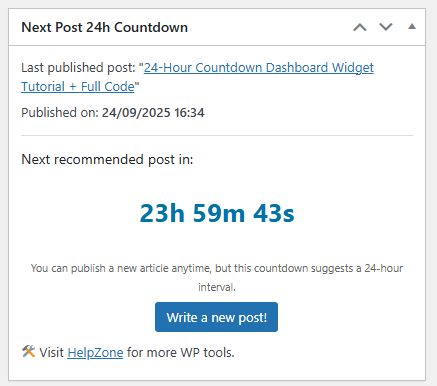
- Adds a Dashboard Widget titled “Next Post 24h Countdown”
- Finds the latest published post (
post_status=publish) - Calculates a target time = last post date + configurable interval (hours)
- Displays a live countdown (days/hours/minutes/seconds) in wp-admin
- Shows a CTA button “Write a new post!”
- Exposes a setting: Countdown interval (hours) stored in
my_countdown_interval(default 24)
Folder structure
Create a folder in /wp-content/plugins/:
24h-countdown-dashboard/
├─ 24h-countdown-dashboard.php
├─ countdown-widget.css
└─ countdown-widget.js
Main plugin file (drop-in ready)
Create countdown-dashboard.php and paste:
<?php
/**
 * Plugin Name: 24-Hour Countdown Dashboard Widget
 * Description: A WordPress dashboard widget that displays a 24-hour countdown from the last published post.
 * Version: 1.0
 * Author: Grok
 */

/**
 * Register the custom dashboard widget
 */
function my_countdown_dashboard_widget() {
    wp_add_dashboard_widget(
        'my_countdown_dashboard_widget',
        'Next Post 24h Countdown',
        'my_countdown_dashboard_widget_content'
    );
}
add_action('wp_dashboard_setup', 'my_countdown_dashboard_widget');

/**
 * Enqueue widget styles and scripts
 */
function my_countdown_widget_enqueue() {
    // Enqueue CSS
    wp_enqueue_style(
        'my-countdown-widget',
        plugin_dir_url(__FILE__) . 'countdown-widget.css',
        array(),
        '1.0'
    );

    // Enqueue JavaScript
    wp_enqueue_script(
        'my-countdown-widget',
        plugin_dir_url(__FILE__) . 'countdown-widget.js',
        array(),
        '1.0',
        true
    );
}
add_action('admin_enqueue_scripts', 'my_countdown_widget_enqueue');

/**
 * Content for the custom dashboard widget
 */
function my_countdown_dashboard_widget_content() {
    // Get the last published post
    $last_post = get_posts(array(
        'numberposts' => 1,
        'post_type'   => 'post',
        'post_status' => 'publish',
        'orderby'     => 'post_date',
        'order'       => 'DESC',
    ));

    // Check for errors
    if (is_wp_error($last_post)) {
        ?>
        <div class="countdown-widget">
            <p>Error retrieving posts: <?php echo esc_html($last_post->get_error_message()); ?></p>
        </div>
        <?php
        return;
    }

    $last_post_time = 0;
    $post_title = 'No posts published yet.';
    $post_link = '';

    if (!empty($last_post)) {
        $last_post_obj = $last_post[0];
        $last_post_time = strtotime($last_post_obj->post_date_gmt . ' +0000');
        $post_title = esc_html($last_post_obj->post_title);
        $post_link = get_permalink($last_post_obj->ID);
    }

    // Configurable countdown interval (default: 24 hours)
    $countdown_interval = get_option('my_countdown_interval', 24);
    $target_time = $last_post_time + ($countdown_interval * HOUR_IN_SECONDS);
    $current_gmt_time = current_time('timestamp', true);
    $remaining_seconds = $target_time - $current_gmt_time;

    ?>
    <div class="countdown-widget">
        <?php if (!empty($last_post)) : ?>
            <p>Last published post: "<a href="<?php echo esc_url($post_link); ?>"><?php echo $post_title; ?></a>"</p>
            <p>Published on: <strong><?php echo date_i18n(get_option('date_format') . ' ' . get_option('time_format'), $last_post_time); ?></strong></p>
            <hr/>
            <h3>Next recommended post in:</h3>
            <div id="countdown-timer" aria-live="polite">
                <?php
                if ($remaining_seconds <= 0) {
                    echo '<span class="countdown-display green">Ready for a new post!</span>';
                } else {
                    echo '<span class="countdown-display">Calculating...</span>';
                }
                ?>
            </div>
            <p class="countdown-note"><small>You can publish a new article anytime, but this countdown suggests a <?php echo $countdown_interval; ?>-hour interval.</small></p>
            <p class="countdown-action">
                <a href="<?php echo admin_url('post-new.php'); ?>" class="button button-primary">Write a new post!</a>
            </p>
            <script>
                // Pass PHP variables to JavaScript
                window.countdownData = {
                    targetTime: <?php echo $target_time; ?> * 1000,
                    serverCurrentTime: <?php echo $current_gmt_time; ?> * 1000
                };
            </script>
        <?php else : ?>
            <p>There are no posts published yet. Publish your first article, and you'll see a <?php echo $countdown_interval; ?>-hour countdown for the next one!</p>
            <p class="countdown-action">
                <a href="<?php echo admin_url('post-new.php'); ?>" class="button button-primary">Publish your first post!</a>
            </p>
        <?php endif; ?>

        <!-- ✅ Link HelpZone -->
        <?php echo '<p style="margin-top: 10px;">🛠️ Visit <a href="https://helpzone.blog" target="_blank">HelpZone</a> for more WP tools.</p>'; ?>
    </div>
    <?php
}
?>
JavaScript: countdown-widget.js
document.addEventListener('DOMContentLoaded', function() {
    // Check if countdownData exists (i.e., a post was found)
    if (!window.countdownData) return;

    const targetTime = window.countdownData.targetTime;
    const serverCurrentTime = window.countdownData.serverCurrentTime;
    const clientStartTime = Date.now();
    const display = document.querySelector('#countdown-timer .countdown-display');

    function updateCountdown() {
        const clientCurrentTime = Date.now();
        const estimatedServerTime = serverCurrentTime + (clientCurrentTime - clientStartTime);
        const remaining = targetTime - estimatedServerTime;

        if (remaining <= 0) {
            display.classList.add('green');
            display.textContent = 'Ready for a new post!';
            clearInterval(countdownInterval);
            return;
        }

        const days = Math.floor(remaining / (1000 * 60 * 60 * 24));
        const hours = Math.floor((remaining % (1000 * 60 * 60 * 24)) / (1000 * 60 * 60));
        const minutes = Math.floor((remaining % (1000 * 60 * 60)) / (1000 * 60));
        const seconds = Math.floor((remaining % (1000 * 60)) / 1000);

        let countdownText = '';
        if (days > 0) countdownText += days + 'd ';
        if (days > 0 || hours > 0) countdownText += hours + 'h ';
        countdownText += minutes + 'm ' + seconds + 's';

        display.textContent = countdownText;
    }

    // Run immediately and then every second
    updateCountdown();
    const countdownInterval = setInterval(updateCountdown, 1000);
});
CSS: countdown-widget.css
.countdown-widget #countdown-timer {
    font-size: 2em;
    font-weight: bold;
    text-align: center;
    color: #0073aa;
    margin: 1em 0;
}

.countdown-widget .countdown-display.green {
    color: green;
}

.countdown-widget hr {
    margin: 1em 0;
    border: 0;
    border-top: 1px solid #ddd;
}

.countdown-widget p {
    margin: 0.5em 0;
}

.countdown-widget .countdown-note {
    text-align: center;
    color: #666;
}

.countdown-widget .countdown-action {
    text-align: center;
}
Installation
- Create the folder
24h-countdown-dashboardinwp-content/plugins/. - Add the three files above.
- Go to Plugins → Installed Plugins and Activate 24-Hour Countdown Dashboard Widget.
- Open Dashboard → Home and you’ll see the widget.
- Optionally, go to Settings → 24h Countdown and change the interval (hours).
Understanding the logic (line by line essentials)
- Querying the last post: Uses
get_posts()withnumberposts=1,post_status=publish, ordered bypost_date DESC. This is fast and does not load pagination. - Time math: Takes
post_date_gmtand addsinterval * HOUR_IN_SECONDS. Compares againstcurrent_time('timestamp', true)(GMT). Using GMT avoids server timezone surprises. - Live UI: JS reads localized data (server current time + target time), then shows a countdown that’s resilient to client clock drift (offset correction).
- Accessibility: Key containers have
aria-live="polite"so screen readers pick up changes without being intrusive. - Permissions: Only admins (cap
manage_options) can access the Settings page. The widget itself is fine for editors/authors; if you want to restrict who sees it, wrapregister_widget()with a role check. - i18n-ready: Strings pass through translation helpers so you can generate a
.potlater.
Customizations & ideas
- Different cadence per post type: Swap
'post_type' => 'post'with a filter or setting for custom types. - Per-author cooldown: Filter the query by
authorto set personal cadences for multi-author sites. - Minimum interval guard: Keep
min=1hour and considermax=168(a week) to prevent silly values. - Visual variants: Add orange/yellow classes when < 2h remain; green when time’s up.
- Disable on specific roles: Use
current_user_can('publish_posts')to decide who sees the widget. - REST endpoint: Expose JSON stats if you’d like to show the countdown in a custom admin page.
Performance notes
- The widget runs only on
index.php(Dashboard). - The query is single-row and cached by WP object cache.
- No CRON, no transients needed for the default behavior.
requestAnimationFramepowers the smooth countdown without pegging CPU.
Multisite notes
- Activate per site if each site has its own cadence.
- For network-wide consistency, promote a shared default interval via a network setting (
get_site_option/update_site_option) simple to adapt from the settings routine above.
Security considerations
- All output is escaped with
esc_html,esc_url. - Options are sanitized to integers within allowed bounds.
- Capability checks on the settings page keep non-admins out.
Troubleshooting
Widget says “There are no posts published yet.”
→ Publish at least one post; the countdown starts from that timestamp.
Countdown stuck on “Calculating…”
→ Confirm countdown-widget.js is enqueued (no adblocker interference). Check Console for 404s. Also ensure wp_head() and admin_enqueue_scripts aren’t blocked by a custom admin plugin.
Time looks off by hours
→ Verify site Timezone (Settings → General). We compute in GMT to avoid server drift; display uses your local format. If needed, swap toLocaleString() for a stricter formatter.
Can I count 36 hours?
→ Yes. Go to Settings → 24h Countdown and set 36.
Advanced enhancements (optional)
- Add role selector on the Settings page to show the widget only to Authors+ or Editors+.
- Add color thresholds (e.g., red under 1 hour).
- Toast notification when countdown completes (use
wp.data.dispatch( 'core/notices' ).createNotice(...)in admin). - WP-CLI snippet to output the time remaining (useful for external monitoring).
- Unit tests: Mock
current_time()and supply fake posts to assert edge cases.
“Final Notes”
You now have a production-ready WordPress plugin that helps you publish predictably. The Dashboard is where your day starts; a subtle, accurate countdown right there can lift your posting discipline and, over time, your traffic and revenue. Keep it simple, keep it visible, and iterate only if it truly helps your workflow.
🔔 For more tutorials like this, consider subscribing to our blog.
📩 Do you have questions or suggestions? Leave a comment or contact us!
🏷️ Tags: WordPress plugins, admin dashboard, publishing workflow, content cadence, productivity, PHP, JavaScript, CSS, multisite, accessibility
📢 Hashtags: #WordPress, #PluginDev, #Dashboard, #BloggingTips, #ContentStrategy, #PHP, #JavaScript, #WebDev, #Productivity, #HelpZone
