


⏲️ Estimated reading time: 5 min
Table of Contents
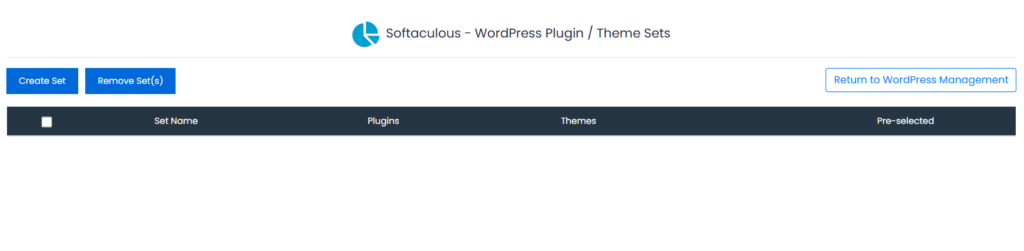
🧩 What Are WordPress Plugin & Theme Sets in Softaculous? Softaculous, the one-click installer available in cPanel, DirectAdmin, Plesk, and other hosting panels, has a hidden gem called Plugin/Theme Sets. Softaculous WordPress Plugin and Theme Sets
This feature allows you to predefine a collection of plugins and themes that will be automatically installed every time you install WordPress through Softaculous.
That means:
- No more manually installing the same plugins on every new site.
- No more re-uploading your favorite theme or configuration each time.
- You get a consistent environment right from the start.
⚙️ Why Use Plugin & Theme Sets?
If you manage multiple websites (for example, client sites, test environments, or niche blogs), this feature can save hours and help maintain a standard WordPress baseline.
Benefits:
- Speed – Installs all your favorite plugins and themes in one click.
- Consistency – Every new site starts with the same setup.
- Automation – No more repetitive post-install tasks.
- Security – Avoid downloading plugins/themes manually from unreliable sources.
- Professional workflow – Ideal for developers and agencies.
🧱 What You Can Include
In a set, you can define:
- Plugins (free or premium available from the WordPress.org repository)
- Themes (from the official repository)
- You can create multiple sets for example:
- “Blog Setup”
- “WooCommerce Store”
- “Portfolio Website”
- “Client Starter Pack”
🪄 How to Create a Plugin/Theme Set in Softaculous
Follow these steps:
- Login to your cPanel or hosting panel.
- Open Softaculous Apps Installer.
- From the left menu, click WordPress → Plugin/Theme Sets.
- Click Create Set.
- Give your set a name (e.g., “Standard Blog Setup”).
- Add plugins you want included (e.g., Yoast SEO, W3 Total Cache, WPForms).
- Add themes (e.g., GeneratePress, Astra, OceanWP).
- Save your set.
🚀 Using Your Set During Installation
When you install WordPress via Softaculous:
- Go to Softaculous → WordPress → Install.
- Fill in the basic site details.
- Scroll down to Advanced Options.
- You’ll see a dropdown called Select Plugin/Theme Set.
- Choose your set before clicking Install.
Softaculous will automatically:
- Install WordPress.
- Activate the chosen theme.
- Install and activate all the selected plugins.
In less than 60 seconds, you’ll have a ready-to-use WordPress setup exactly as you defined.
🧰 Example Setup Ideas
Here are a few pre-made examples you can create:
📰 Blog / Magazine Site
- Themes: GeneratePress or Kadence
- Plugins: Yoast SEO, WPForms Lite, W3 Total Cache, Table of Contents Plus, Classic Editor, UpdraftPlus
🛍️ WooCommerce Store
- Themes: Astra, Storefront
- Plugins: WooCommerce, Stripe Gateway, Yoast SEO, Site Kit, Jetpack, Wordfence
💼 Portfolio / Business Site
- Themes: Blocksy, Neve
- Plugins: Elementor, Contact Form 7, WP Super Cache, Smush, Site Kit
⚡ Developer Toolkit
- Themes: Blank or custom dev theme
- Plugins: Query Monitor, Health Check & Troubleshooting, Code Snippets, WP Migrate Lite
💡 Pro Tips for Power Users
- If you update a plugin or theme in your set, future installations will use the latest version from the repository.
- You can duplicate sets to quickly modify variations.
- Combine with Softaculous Staging to deploy test environments instantly.
- If your hosting supports remote installation, you can push WordPress with your predefined set directly to another domain.
🔒 Security Note
Only include official repository plugins/themes or ones you’re sure are safe.
Softaculous won’t pull items from external URLs, so all installs come directly from WordPress.org minimizing the risk of malware.
❓ FAQ Section
How many plugin/theme sets can I create in Softaculous?
You can create unlimited sets. Many users create different sets for different types of websites (blogs, eCommerce, portfolio, etc.).
Can I include premium plugins or themes?
Only if they’re available in the WordPress repository. For private or premium ones, you must install them manually afterward.
Does it activate the plugins automatically?
Yes, Softaculous activates all plugins and themes immediately after WordPress is installed.
Can I edit a set later?
Absolutely. You can edit, rename, or delete any plugin/theme set at any time.
Is it available on all hosting plans?
Most cPanel hosts include it, but some may disable advanced Softaculous features. Check your hosting plan’s Softaculous settings.
🏁 Final Thoughts – Your WordPress Starter Blueprint
See also: Andrew and Tristan Tate Arrested in the U.S. Following UK
Using Softaculous Plugin & Theme Sets is like creating your own personal WordPress installer template.
Once configured, every new site is instantly ready to use optimized, secure, and structured exactly how you want it.
For developers, bloggers, and agencies alike, this is one of the simplest automation tricks to save hours of setup time while keeping your projects professional and consistent.
🔔 For more tutorials like this, consider subscribing to our blog.
📩 Do you have questions or suggestions? Leave a comment or contact us!
🏷️ Tags: Softaculous, WordPress automation, WordPress setup, cPanel, plugin sets, theme sets, WordPress installer, hosting tools, WordPress tutorial, HelpZone
📢 Hashtags: #Softaculous, #WordPress, #cPanel, #PluginSets, #ThemeSets, #WordPressTips, #WebHosting, #Automation, #WPSetup, #HelpZone
🌟 Smart Conclusion:
“Build Once, Deploy Everywhere” – The Power of Softaculous Sets
Instead of repeating the same installation tasks over and over, automate them with plugin and theme sets. It’s a professional way to build fast, consistent, and ready-to-launch WordPress websites in seconds.
