

⏲️ Estimated reading time: 22 min
Table of Contents
WPZone SEO Engine is a WordPress technical SEO audit plugin designed to quickly identify content, indexing, internal linking, schema, and XML sitemap issues. Version 1.1.0 includes a modern dashboard, complete SEO scanning, individual module scores, and an independent Title Optimizer for published posts.
WPZone SEO Engine – A Simple Way to Audit WordPress SEO
Managing a WordPress website involves much more than publishing new articles. As a website grows, it becomes increasingly difficult to notice long titles, missing image ALT text, posts without internal links, indexing problems, or other technical SEO issues. Checking hundreds or thousands of articles manually can quickly become an exhausting task. WPZone SEO Engine was created to make this process easier and more organized.
WPZone SEO Engine v1.1.0 is a WordPress plugin focused on technical and on-page SEO auditing. Instead of trying to replace every existing SEO tool, it analyzes published content and brings important issues together inside a dedicated WordPress dashboard. Administrators can quickly review the general SEO health of their website and identify posts that may need attention.
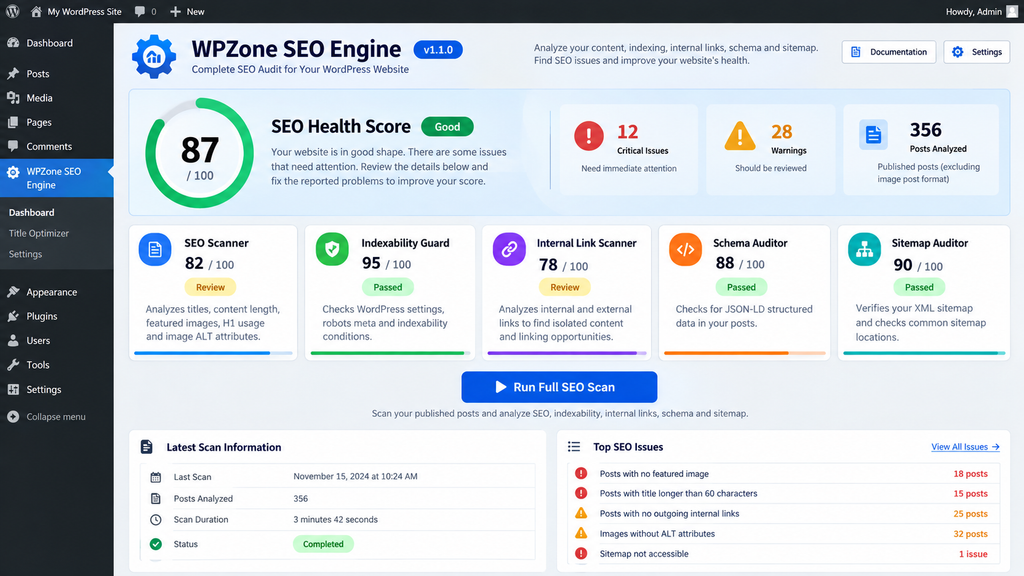
Version 1.1.0 introduces a refined interface designed to make audit information easier to understand. The dashboard displays an SEO Health Score, individual scores for the main audit modules, Critical and Warning problem counters, and a detailed list of affected posts. The Title Optimizer also operates independently from the main SEO scan, allowing administrators to inspect long titles without running a complete audit first.
What WPZone SEO Engine v1.1.0 Does
The plugin includes five primary audit components: SEO Scanner, Indexability Guard, Internal Link Scanner, Schema Auditor, and Sitemap Auditor. Each module examines a different part of the website and contributes to the overall health information displayed inside the dashboard.
The current version primarily works with published WordPress posts. Pages are excluded from the main scan, while posts using the WordPress Image post format are also excluded from both Full SEO Scan and Title Optimizer. This behavior is intentional and prevents special content formats from affecting the standard article audit.
It is important to understand that WPZone SEO Engine should not be considered a guarantee of higher Google rankings. A strong dashboard score means that the elements checked by the plugin do not show major detected problems. Search visibility still depends on many additional factors, including content quality, search intent, website authority, technical performance, competition, and the usefulness of the page to visitors.
The Five Main SEO Audit Modules
WPZone SEO Engine separates its checks into five distinct areas. This approach makes the audit easier to understand than a single long list of warnings without context. An administrator can quickly determine whether detected problems are related to content, indexability, internal links, structured data, or the XML sitemap.
Each module receives its own score. The dashboard then combines these results to calculate an overall SEO Health Score. A website may perform very well in sitemap availability and indexability while still requiring improvements to internal linking or individual articles.
This modular approach is especially useful for larger WordPress websites. Instead of treating every issue as equally important, the administrator can focus on the areas that require the most attention.
SEO Scanner
SEO Scanner examines several important elements directly inside published posts. These include the presence and length of the title, featured image availability, content length, H1 usage, and missing ALT attributes on images.
When a title exceeds 60 characters, the plugin can display a warning. Posts containing fewer than 250 words are also identified as having thin content according to the scanner’s internal audit rules. This threshold should not be interpreted as a universal Google requirement. Some pages can fully satisfy user intent with fewer words.
The scanner also checks whether a featured image has been assigned to the post. If no featured image exists, the issue appears in the report. Images located inside the article are inspected as well, allowing the plugin to identify image elements without properly completed ALT attributes.
Indexability Guard
Excellent content cannot attract organic search traffic if the website is unintentionally discouraging search engines from indexing it. For this reason, WPZone SEO Engine includes a dedicated Indexability Guard module.
The plugin checks important WordPress settings, including the blog_public option. If the WordPress setting that discourages search engines from indexing the website is enabled, the issue can be classified as Critical. This check can be particularly useful after moving a website from staging to production.
The plugin also inspects available wp_robots signals to detect noindex conditions. However, administrators should always interpret these results within the context of their website. Some pages should intentionally remain outside search engine indexes, so the presence of noindex does not automatically mean something is incorrectly configured.
Internal Link Scanner
Internal links help visitors discover related information and create meaningful connections between articles on the same website. WPZone SEO Engine analyzes rendered WordPress content and attempts to determine how many relevant internal and external links are present.
The scanner recognizes relative URLs and normalizes common domain variations involving www, HTTP, and HTTPS. Certain links that should not be treated as normal editorial links are ignored, including anchors, mailto:, tel:, javascript:, and data: links.
When a post contains no outgoing internal links, WPZone SEO Engine displays a Warning. A post containing only one internal link may be treated as informational rather than a critical problem. The purpose of this module is to highlight potentially isolated content, not to force an artificial number of links into every article.
Schema Auditor
Structured data can help search engines better understand the type and context of website content. WPZone SEO Engine includes a straightforward Schema Auditor designed to identify the presence of JSON-LD inside post content.
There is an important distinction between this check and a complete structured data validator. In version 1.1.0, the module primarily checks the content available to the plugin. A theme or another SEO plugin may generate schema elsewhere in the final page source without storing that code directly inside post_content.
For this reason, a message indicating that JSON-LD was not detected should be treated as informational rather than absolute proof that the public page contains no structured data. For a complete assessment, administrators should also inspect the final rendered page and use dedicated structured data testing tools when necessary.
Sitemap Auditor
An XML sitemap helps search engines discover URLs available on a website. WPZone SEO Engine automatically checks two common sitemap locations: /sitemap.xml and the standard WordPress /wp-sitemap.xml.
The plugin attempts to access these locations and examines the response for XML structures such as urlset or sitemapindex. When an accessible sitemap is found, the result contributes to the overall audit information.
If neither location provides an accessible and recognizable XML sitemap, Sitemap Auditor lowers its score and reports the issue. This check can be particularly useful after installing or removing an SEO plugin, changing a custom sitemap system, or making significant modifications to a WordPress configuration.
How Full SEO Scan Works
After installing and activating the plugin, a new WPZone SEO Engine section becomes available inside the WordPress administration area. The main audit can be started from this dashboard by using the Run Full SEO Scan button.
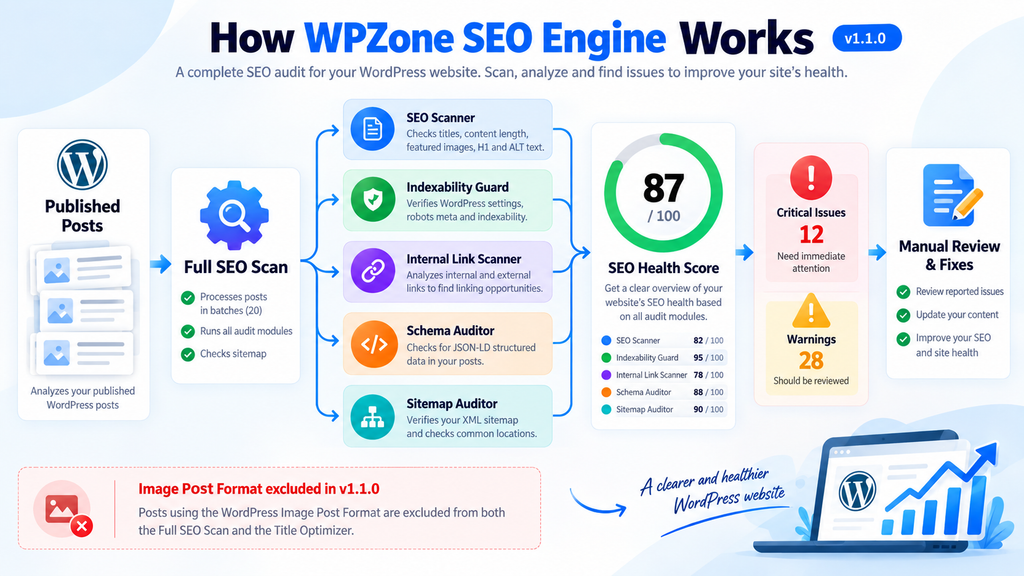
Full SEO Scan processes eligible published posts and passes each one through the available audit modules. Instead of attempting to process every article in one very large request, version 1.1.0 uses batch processing. The plugin handles 20 posts per batch and continues until the eligible content has been processed.
While the operation is running, the interface displays the message “SEO scan in progress – please keep this page open.” It is recommended to keep the page open until the process finishes. After article processing is complete, the plugin also performs its sitemap audit and stores information about the latest scan.
Why Batch Processing Matters
A small WordPress website may contain only a few dozen posts. An established blog, however, can easily contain hundreds or thousands of articles. Attempting to process the entire database in one request could increase the risk of PHP timeouts or unnecessary resource spikes.
Dividing the operation into smaller batches makes the process more controlled. Each group of posts can be analyzed separately while the interface continues processing the remaining content. This approach is particularly helpful on hosting environments with stricter PHP execution or memory limits.
Administrators of very large websites should still consider running complete scans during periods of lower traffic. Any operation that reads and analyzes a large number of posts requires server resources, even when the work is divided into smaller batches.
Understanding the SEO Health Score
At the top of the plugin dashboard, WPZone SEO Engine displays an SEO Health Score ranging from 0 to 100. This score provides a quick overview of the results produced by the five primary audit modules.
The plugin calculates individual results for SEO Scanner, Indexability Guard, Internal Link Scanner, Schema Auditor, and Sitemap Auditor. These values contribute to the overall score. The interface also visually classifies modules using statuses such as Passed, Review, and Attention, making problematic areas easier to identify.
The score should be used as a diagnostic indicator rather than an absolute SEO target. There is little value in changing useful content simply to achieve 100/100. It is more important to inspect the warnings, understand why they appeared, and correct the issues that genuinely matter for the website.
Critical, Warning, and Audit Information
The dashboard separates detected problems according to severity. Critical issues deserve priority because they may indicate significant technical problems, such as search engine indexing being discouraged or an expected sitemap being unavailable.
Warning issues highlight elements that should be reviewed but may not represent serious problems. A long title, missing featured image, or lack of outgoing internal links may appear in this category. The context of the article should always be considered before making changes.
Less urgent informational findings do not need to overwhelm the main Problems table. This keeps the dashboard focused on issues that administrators can realistically investigate and correct.
Title Optimizer Works Independently from the SEO Scan
One of the practical features included in the current version is Title Optimizer. This tool does not depend on the results generated by Full SEO Scan. Administrators can therefore open the plugin dashboard and immediately check for long titles without first completing a full website audit.
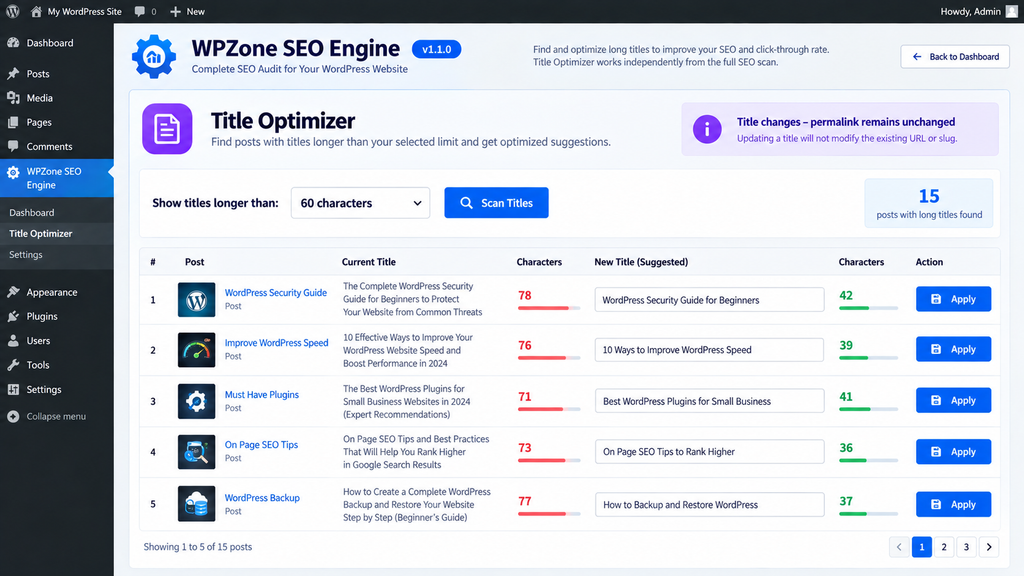
You can choose the title length threshold you want to inspect: 50, 55, 60, 65, or 70 characters. The plugin searches eligible published posts and displays titles that exceed the selected limit inside a separate table.
For every result, the interface shows the current title, character count, and a shorter suggestion. The proposed title can be manually edited before saving, allowing the administrator to retain editorial control instead of automatically accepting every generated shortening.
What Happens When You Click Apply
After reviewing or editing the proposed title, the Apply button saves the change in WordPress. The plugin updates the post_title, after which the article can be reevaluated within the plugin’s internal results.
An important detail is that this operation does not change the existing permalink or slug. Updating a title therefore does not automatically change the public URL of the article.
This separation is useful because modifying URLs of already indexed content may require redirects and additional SEO checks. WPZone SEO Engine allows administrators to optimize a title without automatically turning the process into a URL restructuring operation.
Why You Should Not Automatically Apply Every Suggestion
A shorter title is not automatically a better title. Removing a few words can sometimes change the meaning, remove important information, or make the headline less appealing to readers.
Title Optimizer should therefore be treated as an identification and editing tool rather than a replacement for editorial judgment. Read the suggestion carefully, preserve the primary topic, maintain the meaning of the article, and consider what the visitor is actually searching for.
A strong title should accurately describe the content, remain easy to understand, and give the reader a legitimate reason to open the article. Character count is only one part of that decision.
What SEO Scanner Checks Inside Each Post
For titles, the scanner first verifies that a title exists. A missing title represents a serious issue. If the title exceeds 60 characters, the plugin generates a Warning. This should be interpreted as an internal recommendation rather than a universal search engine requirement.
Featured image availability is another included check. Posts without a featured image are reported. A well-chosen featured image can improve presentation in archives, on the homepage, and wherever a WordPress theme or social platform uses the image for previews.
Content containing fewer than 250 words is identified as “Thin content.” However, length should never be confused with quality. A concise 200-word answer that completely solves a visitor’s problem can be more useful than a repetitive 2,000-word article.
H1 and ALT Attribute Checks
WPZone SEO Engine searches for <h1> elements inside the post content. When multiple H1 elements are detected, the plugin can display a warning. Many WordPress themes already render the post title as the primary H1, which means manually inserting additional H1 headings inside the editor may be unnecessary.
The scanner also examines images placed inside the article. When images without completed ALT attributes are detected, the plugin reports their number. Alternative text should describe an image when that description provides meaningful information to the visitor.
Administrators should avoid mechanically filling every ALT attribute with SEO keywords. Good alternative text should be descriptive, natural, and useful for accessibility. Purely decorative images may require a different approach.
How the Plugin Analyzes Internal Links
WPZone SEO Engine does not rely only on the raw text stored inside the WordPress editor. For internal link analysis, the plugin processes content through the WordPress the_content filter. This allows the scanner to examine markup after WordPress has processed blocks and certain shortcode content.
Internal and external links are identified, while common domain variations are normalized. A relative URL such as /wordpress-tutorial/, for example, can be recognized as an internal link. The same principle applies to HTTP, HTTPS, and www variations of the site’s domain.
Anchor links, telephone links, email links, JavaScript URLs, and data URIs are excluded from this particular analysis. The objective is to examine meaningful editorial links rather than counting every href attribute found in the page markup.
What “No Outgoing Internal Links” Means
When a post contains no outgoing internal links, WPZone SEO Engine can mark it with a Warning. This message does not mean that administrators should add unrelated links simply to satisfy the scanner.
Instead, look for one or two genuinely relevant articles that can help the visitor continue exploring the subject. A WordPress security tutorial, for example, could naturally link to a backup guide or a tutorial about safely updating plugins.
Internal links should exist primarily because they help the visitor. A healthy internal structure develops naturally when related articles are connected in a logical and useful way.
Which Posts Are Excluded in WPZone SEO Engine v1.1.0
Version 1.1.0 is configured to scan published posts rather than standard WordPress pages. This keeps the main audit focused on editorial blog content.
In addition, posts using the WordPress Image Post Format are excluded from both Full SEO Scan and Title Optimizer. These posts should therefore not be considered missing if they do not appear in the scan results.
This distinction is important when comparing the total number of posts shown in WordPress with the number processed by WPZone SEO Engine. The figures may differ because the plugin applies its own eligibility rules before beginning the audit.
WPZone SEO Engine Is Not a Complete SEO Platform
WPZone SEO Engine is primarily an audit and diagnostic tool. It should not be considered a replacement for every feature available in a comprehensive SEO plugin or external webmaster platform.
For example, discovering a valid sitemap does not prove that every URL inside that sitemap has been indexed. Likewise, finding internal links does not automatically mean the website has a perfect internal linking structure. Schema Auditor should not be treated as a complete validator of every piece of structured data generated in the browser.
The advantage of WPZone SEO Engine is its focus on practical checks that can be performed directly inside WordPress. The results can then serve as a starting point for deeper investigation when necessary.
How to Install WPZone SEO Engine
Installation works like most WordPress plugins distributed as ZIP archives. Before installing any new plugin on a production website, creating a recent backup is recommended.
From your WordPress Dashboard, open Plugins → Add New Plugin → Upload Plugin. Select the WPZone SEO Engine ZIP archive and click Install Now. Once WordPress finishes installing the files, click Activate Plugin.
After activation, find WPZone SEO Engine in the WordPress administration menu. Open the plugin dashboard and review the interface before running your first complete scan.
Recommended First Scan
Before clicking Run Full SEO Scan, make sure the website is operating normally and that WordPress can access its expected sitemap. On a large website, consider performing the initial scan during a lower-traffic period.
Click Run Full SEO Scan and keep the dashboard page open while the process runs. Once the audit finishes, begin with Critical issues before reviewing the Warning results.
Avoid changing dozens of articles at the same time without checking the results. Correct a few issues, inspect the affected public pages, and then continue gradually. This approach reduces the risk of unnecessary editorial changes.
Download WPZone SEO Engine v1.1.0
You can download WPZone SEO Engine v1.1.0 – Final UI/UX using the download area below. After downloading the plugin, keep the file in ZIP format and upload it directly through WordPress → Plugins → Add New Plugin → Upload Plugin.
Autor: WpZone
Requirements and Compatibility
WPZone SEO Engine is designed for WordPress and requires appropriate administrator permissions to access its primary management functions. Sensitive administrative operations should remain available only to authorized WordPress users.
The plugin code indicates a minimum PHP 8.0 requirement, while the included documentation references WordPress 6.4 or newer. For a production website, using actively supported WordPress and PHP versions is recommended whenever possible.
Before installing the plugin on an important live website, testing it in a staging environment remains good practice. WordPress configurations vary considerably, and combinations of themes, SEO plugins, caching systems, server settings, and custom code may produce behavior that does not appear in a standard installation.
What to Check After Installation
After activation, confirm that the WPZone SEO Engine dashboard loads correctly and that Run Full SEO Scan starts the audit. Once the scan finishes, compare the number of processed posts with the number of eligible published posts on the website.
Open several entries from the Problems section and compare the warnings with the actual articles. If the plugin reports a missing featured image, inspect that post. If it reports no outgoing internal links, review the article content.
Test Title Optimizer on a non-critical article before changing multiple titles. Confirm that the title updates correctly and that the existing permalink remains unchanged.
Who Can Benefit from WPZone SEO Engine
The plugin can be useful for WordPress administrators managing blogs with a large number of articles who want a quick overview of common technical and editorial SEO issues. Instead of opening every article individually, they can run an audit and review centralized results.
It can also be useful for website owners who already use another SEO solution but want an additional auditing layer. WPZone SEO Engine can provide a second set of checks for titles, featured images, ALT attributes, internal links, indexability, and sitemap availability.
WordPress developers may also find the report useful after migrating a website, changing themes, importing large amounts of content, or restructuring a website. Running an audit after these operations can reveal posts that require additional attention.
What an SEO Scanner Cannot Tell You
No WordPress plugin can predict with certainty where an article will rank in Google. Search engines use systems that are considerably more complex than checking title length, word count, internal links, or featured images.
WPZone SEO Engine should therefore be viewed as a quality-control tool. It can tell you that a post has no featured image or outgoing internal links. It can identify a long title and detect certain indexability conditions. It cannot independently determine whether an article perfectly satisfies search intent.
Editorial judgment remains essential. Use the scanner to identify potential problems, then decide whether the recommended change genuinely improves the article.
Good SEO Is More Than a Score of 100
It can be tempting to pursue a perfect dashboard score. However, a website created for real people should prioritize useful information, clarity, accessibility, accuracy, and user experience.
An article can achieve 100/100 in an automated scanner and still provide little original value. Another article may contain a minor warning while remaining the best available answer to a specific question.
Use scores as guidance rather than an obsession. SEO works best when technical optimization supports valuable content instead of forcing content to satisfy an internal scoring algorithm.
Frequently Asked Questions – FAQ
What is WPZone SEO Engine?
WPZone SEO Engine is a WordPress technical SEO audit plugin. Version 1.1.0 includes SEO Scanner, Indexability Guard, Internal Link Scanner, Schema Auditor, Sitemap Auditor, and an independent Title Optimizer.
Does WPZone SEO Engine automatically modify my posts?
Full SEO Scan is primarily designed to detect and report potential problems. Title Optimizer can change a post title when an authorized administrator explicitly uses the Apply action.
Does Title Optimizer change the article URL?
No. In the version described here, updating the title changes post_title while the existing permalink or slug remains unchanged.
Which title length limits can I select?
Title Optimizer allows administrators to identify titles longer than 50, 55, 60, 65, or 70 characters.
Does WPZone SEO Engine scan WordPress pages?
Not in version 1.1.0 as described here. The primary Full SEO Scan and Title Optimizer are focused on eligible published posts.
Are Image Post Format articles scanned?
No. Version 1.1.0 excludes posts using the WordPress Image Post Format from both Full SEO Scan and Title Optimizer.
Does WPZone SEO Engine check the XML sitemap?
Yes. Sitemap Auditor attempts to identify an accessible XML sitemap at /sitemap.xml or /wp-sitemap.xml.
Does the plugin check internal links?
Yes. Internal Link Scanner analyzes rendered content and identifies relevant internal and external links. Posts without outgoing internal links can receive a Warning.
Does an SEO Health Score of 100 guarantee better Google rankings?
No. The score reflects only the checks implemented by WPZone SEO Engine. Search rankings depend on many additional factors and cannot be guaranteed by a plugin.
Can I use WPZone SEO Engine alongside another SEO plugin?
WPZone SEO Engine is primarily designed as an auditing tool. Actual compatibility depends on the website configuration and other installed plugins. Testing on staging is recommended before using it on an important production website.
A Clearer SEO Audit for Growing WordPress Websites
As a WordPress blog grows, small problems become increasingly difficult to notice. Ten articles can be checked manually without much difficulty. A website containing one thousand or more posts creates an entirely different challenge. WPZone SEO Engine aims to make that workload more manageable.
Its five primary modules provide different perspectives on website health, while SEO Health Score offers a quick starting point. Full SEO Scan identifies potential issues, the Problems table centralizes actionable findings, and Title Optimizer provides an independent way to identify and correct overly long titles.
WPZone SEO Engine v1.1.0 does not promise to “automatically do SEO,” nor can it guarantee rankings. Its value lies in helping administrators identify issues that might otherwise remain hidden among hundreds or thousands of posts. For WordPress website owners, this type of audit can become a useful part of regular website maintenance.
⚠️ Disclaimer and Source Hygiene
This article is based on publicly available reports, post-fight interviews, and media coverage. The content is intended for informational and entertainment purposes only and does not constitute medical, legal, or professional advice. All opinions expressed belong to the quoted individuals or are part of journalistic analysis. Fight results, injuries, and future plans are subject to official confirmation and change.
🔔 For more tutorials like this, consider subscribing to our blog.
📩 Do you have questions or suggestions? Leave a comment or contact us!
🏷️ Tags: WPZone SEO Engine, WordPress SEO, SEO Scanner, WordPress SEO Plugin, Technical SEO, SEO Audit, Title Optimizer, Internal Links, WordPress Sitemap, SEO Tools
📢 Hashtags: #WPZone, #WPZoneSEOEngine, #WordPress, #WordPressSEO, #SEO, #TechnicalSEO, #SEOAudit, #WordPressPlugin, #Webmaster, #Blogging
📚 Sources and References
The primary technical source for this article is the code and documentation included with WPZone SEO Engine v1.1.0 – Final UI/UX. Features described in this article reflect the functionality implemented in this version of the plugin.
For broader SEO interpretation, administrators should also consult official WordPress documentation and official search engine documentation. Internal scanner thresholds, including title length and minimum word counts, should be treated as auditing indicators rather than universal search ranking rules.
🕊️ Secondary Sources and Testimonials
Real-world behavior can vary depending on the WordPress version, active theme, PHP environment, server configuration, caching system, and other installed plugins. Testing in a staging environment is therefore recommended before making significant changes to a production website.
WPZone SEO Engine users can contribute by reporting reproducible problems, compatibility issues, and improvement suggestions. Technical feedback is most useful when it includes the WordPress version, PHP version, plugin version, and the steps required to reproduce the reported behavior.
