

⏲️ Estimated reading time: 29 min
Table of Contents
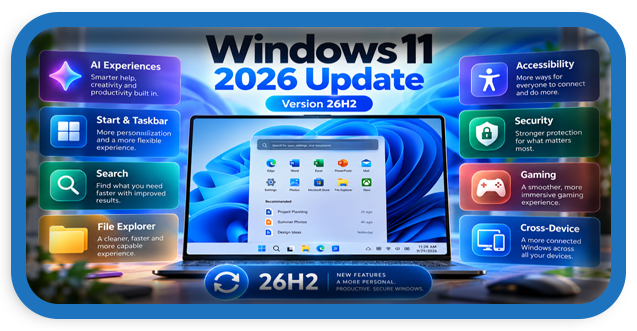
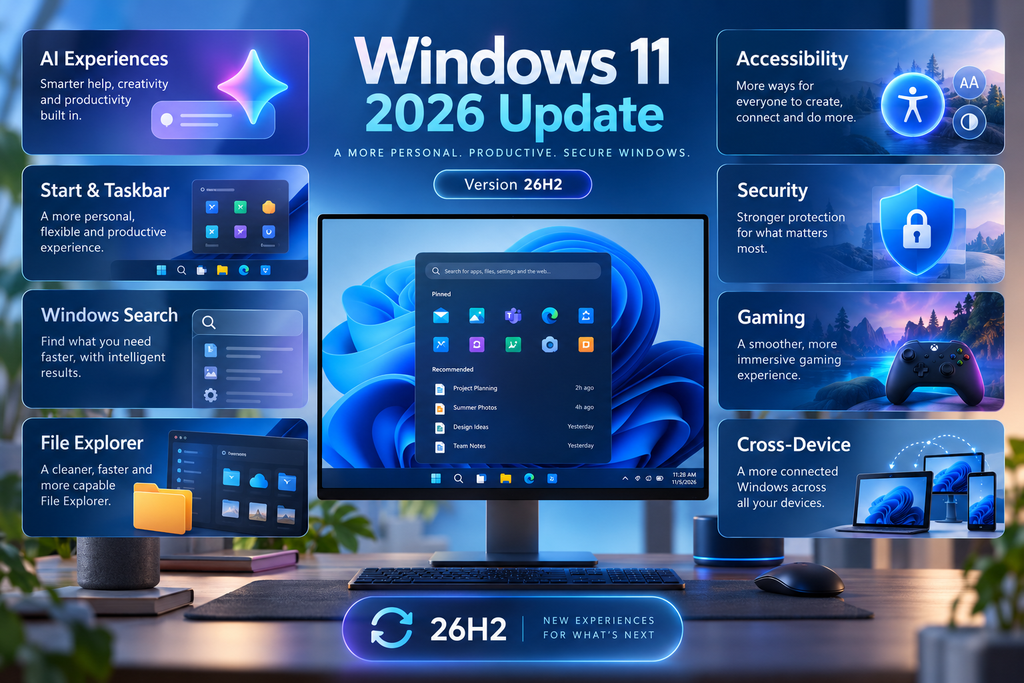
The Windows 11 2026 Update, also known as version 26H2, brings together new AI experiences, Start and taskbar customization, improved Search, accessibility upgrades, stronger security, better device support, gaming enhancements, and other improvements delivered through Windows updates over the past year.
Inside the Windows 11 2026 Update
Microsoft has officially introduced the Windows 11 2026 Update, also known as Windows 11 version 26H2. Rather than feeling like a completely unfamiliar operating system, this release brings together improvements that Microsoft has been developing and distributing through Windows updates over the previous year. As a result, users who regularly install monthly updates may recognize several features immediately. Microsoft announced availability of version 26H2 on September 29, 2026, describing it as a release built on the modern servicing foundation used by recent Windows 11 versions.
That approach is important because Windows feature updates have changed significantly over the years. Microsoft increasingly introduces improvements through regular servicing instead of holding every feature for one enormous annual installation. The Windows 11 2026 Update therefore acts partly as a milestone that brings those experiences together. It covers AI-powered features, personalization, Windows Search, File Explorer, accessibility, sharing, security, Bluetooth and camera improvements, gaming, networking, and more. However, Microsoft also warns that individual features can vary depending on the device, market, hardware, and rollout schedule.
For everyday users, the biggest benefit may be that Windows continues becoming more flexible without requiring them to learn an entirely new desktop environment. Familiar elements such as Start, the taskbar, Search, Settings, and File Explorer remain central to Windows 11. Microsoft is instead expanding what these areas can do while gradually adding AI-assisted experiences and deeper connections between PCs, mobile devices, and cloud services.
Windows 11 26H2 Availability and Rollout
Windows 11 version 26H2 became available beginning September 29, 2026, but that does not mean every compatible PC will receive it at exactly the same moment. Microsoft uses what it describes as a controlled feature rollout. Availability expands over time as Microsoft evaluates reliability, hardware compatibility, driver behavior, and other signals from devices receiving the update.
This gradual approach can help prevent a compatibility problem from affecting a very large number of computers simultaneously. If Microsoft identifies an issue involving particular hardware, drivers, applications, or configurations, the company may apply a safeguard hold. A safeguard hold temporarily prevents affected systems from being offered the new feature update while the problem is investigated or resolved. Therefore, two apparently similar Windows 11 PCs can sometimes see different update availability.
Microsoft says Windows 11 version 26H2 is available for eligible devices running recent Windows 11 releases. The company also emphasizes a streamlined servicing experience for many supported systems. Depending on the device and existing Windows installation, moving to the new release may involve a comparatively small update process rather than the lengthy upgrade experience associated with older Windows generations.
Why You Might Not See Windows 11 26H2 Yet
If Windows Update does not immediately offer version 26H2, that alone does not indicate something is wrong with your PC. Your device may simply be waiting for the next stage of Microsoft’s rollout. A compatibility safeguard could also be active, or your configuration may not yet be included in the current deployment wave.
Users should generally avoid trying to bypass a known compatibility safeguard unless Microsoft or the hardware manufacturer provides specific guidance. Waiting can be the safer option when Windows Update deliberately withholds a feature release because of a known issue.
Microsoft continues publishing information about Windows versions and servicing through its Windows release health resources. These pages are particularly useful when investigating upgrade blocks, known issues, resolved problems, or differences between Windows versions.
How to Get the Windows 11 2026 Update
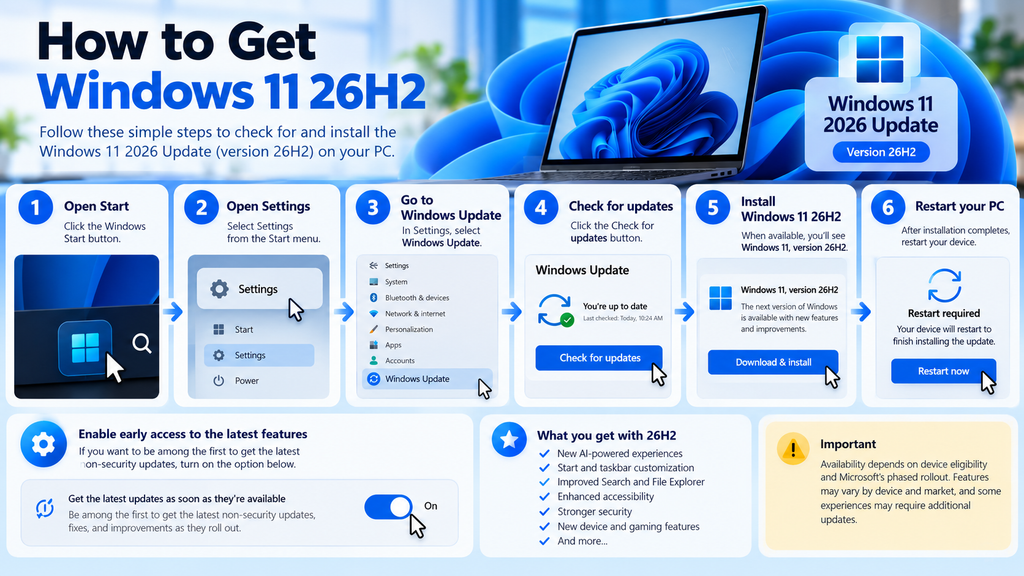
The easiest way to check for Windows 11 26H2 is through Windows Update. Open the Start menu and select Settings. From there, open Windows Update and select Check for updates. If version 26H2 is available for your device, Windows Update should present the appropriate download and installation option. Microsoft specifically recommends Windows Update as the normal path for eligible devices.
Users who want earlier access to eligible non-security improvements can also open Windows Update and enable Get the latest updates as soon as they’re available. Turning this setting on tells Microsoft that the device can receive eligible Windows improvements earlier during controlled rollouts. It does not guarantee immediate access to every feature because compatibility safeguards and device-specific requirements can still apply.
Before installing a major Windows update, basic preparation remains worthwhile. Save important work, make sure essential personal files are backed up, and keep laptops connected to power. It is also sensible to leave sufficient free storage space and install important driver or firmware updates from your PC manufacturer when appropriate.
Should You Turn On Early Update Access?
The option depends on how quickly you want new Windows experiences. Users who enjoy testing newly released Windows features may appreciate receiving eligible improvements sooner. People who depend on a computer for critical production work may prefer the standard rollout schedule.
The setting mainly affects how quickly eligible non-security features and improvements reach your device. Security updates remain an important part of Windows servicing regardless of whether you enable early access.
There is no need to repeatedly press Check for updates throughout the day. If the feature update is not offered, Microsoft may simply not have released it to your particular system yet. Keeping Windows Update functioning normally is usually the best approach.
AI-Powered Experiences Become More Visible
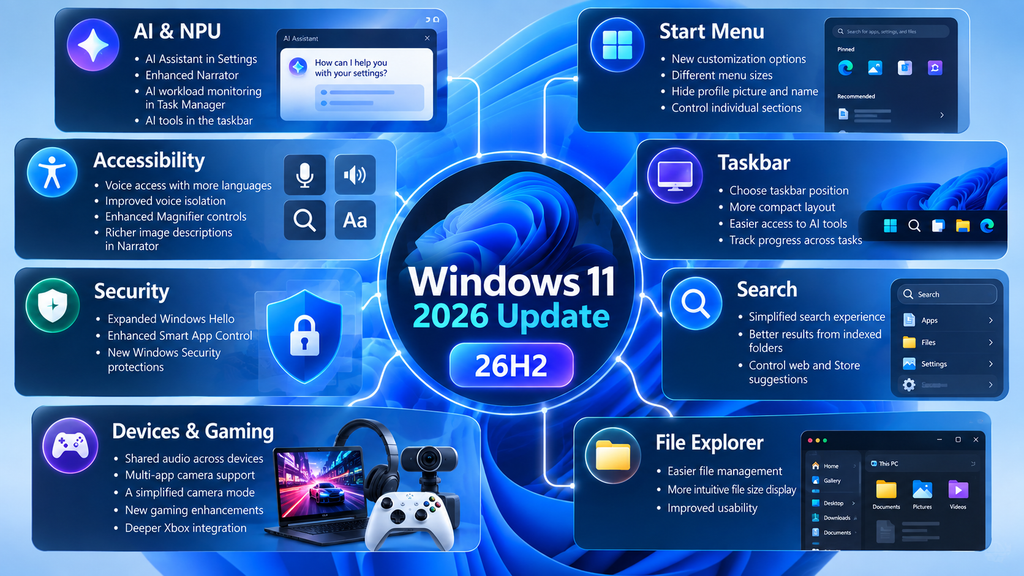
Artificial intelligence continues becoming more integrated into Windows 11. The 2026 Update expands this direction by bringing AI-related experiences into areas that people already use, including Settings, Narrator, Task Manager, and the taskbar. Microsoft’s goal appears to be making AI capabilities feel like part of Windows rather than something that always requires opening a separate application.
However, hardware remains important. Not every AI capability will work identically on every Windows 11 PC. Some experiences can depend on hardware such as a neural processing unit, commonly called an NPU, while others may have language, region, account, or rollout requirements. This distinction matters because seeing a feature advertised for Windows 11 does not automatically mean every Windows 11 machine receives the same implementation.
The broader direction is clear. Microsoft is increasingly designing Windows around a combination of traditional local computing, cloud services, and dedicated AI processing. For compatible hardware, that can make certain intelligent features faster and more closely integrated with the operating system.
Agent in Windows Settings
One of the notable AI-related changes involves Settings. Microsoft describes an agent in Settings that can help users find and manage options using natural language. Instead of remembering exactly where a particular control is located, users can describe what they want to accomplish more naturally.
This could become particularly useful because Windows Settings has grown substantially. Network options, accessibility controls, personalization, accounts, privacy, storage, Bluetooth devices, Windows Update, and many other functions live within the same application.
Natural-language assistance can reduce the need to remember the exact names of settings. It also represents a larger change in how people may eventually interact with an operating system. Traditional menus are not disappearing, but AI can provide another route to the same controls.
AI Improvements in Narrator
Narrator is also receiving richer image-description capabilities. The idea is to provide more useful information about visual content to people who depend on screen-reading technology. Instead of simply identifying that an image exists, enhanced descriptions can provide additional context about what appears within it.
This is a practical example of AI being used for accessibility rather than only content generation. Visual interpretation can help make websites, applications, documents, and other digital content easier to understand when the original material does not provide enough descriptive context.
As with other AI features, actual availability can depend on hardware, configuration, language, and Microsoft’s rollout process.
Task Manager Adds AI Workload Visibility
Task Manager has always been one of Windows’ most useful troubleshooting utilities. It provides information about running processes and hardware utilization, including CPU, memory, storage, networking, and GPU activity. The Windows 11 2026 Update extends this idea toward modern AI workloads.
Microsoft says new monitoring capabilities provide greater visibility into AI workloads and NPU activity. This becomes increasingly relevant as more computers include dedicated neural processing hardware.
An NPU handles certain machine-learning workloads more efficiently than relying exclusively on the CPU or GPU. When applications begin using this hardware more frequently, users and administrators need a way to understand what is happening. Better Task Manager visibility can therefore help with performance analysis, troubleshooting, battery investigations, and application monitoring.
Why NPU Monitoring Matters
CPU and GPU monitoring became essential as software grew more demanding. NPU monitoring could follow a similar path as AI-assisted applications become more common.
Imagine an application causing unexpected battery drain or system load. Knowing whether it is using the CPU, GPU, or NPU provides valuable diagnostic information. Developers can also benefit from understanding whether an application is actually using the specialized hardware available on the system.
For ordinary users, the most important point is simpler: Task Manager is evolving alongside PC hardware. As Windows computers gain new processing components, Windows is providing additional tools for seeing how those components are being used.
Start Menu Personalization Gets More Flexible
The Start menu remains one of the most recognizable parts of Windows, and Microsoft continues refining it. According to Microsoft’s Windows 11 2026 Update overview, new customization options allow users to adjust the Start experience in additional ways.
Users can choose between different menu sizes and gain more control over the information displayed inside Start. Microsoft also highlights options related to the visibility of the profile picture, account name, and individual sections.
These may sound like relatively small changes compared with AI features, but personalization improvements can affect every day of computer use. Start is opened repeatedly throughout a normal Windows session, so even modest layout improvements can make the desktop feel more comfortable.
A More Personal Start Experience
Windows users have very different preferences. Some want a compact Start menu that primarily launches applications. Others prefer a larger surface containing more information and shortcuts.
Greater control lets users adapt Start to their own workflow instead of forcing everyone into the same layout. It can also help reduce unnecessary visual information.
Microsoft’s recent Windows development has increasingly focused on incremental refinements like these. They may not transform Windows overnight, but together they can make routine interactions faster and less distracting.
Taskbar Customization Expands
The taskbar receives its own personalization improvements in the Windows 11 2026 Update. Microsoft says users can customize the taskbar to better match their preferences, including choosing its position and using a more compact layout.
Taskbar flexibility has been a frequent topic among Windows users because the taskbar is central to application switching, notifications, system controls, and daily navigation. Additional customization can be particularly useful on ultrawide displays, small laptops, tablets, and multi-monitor workstations.
A compact configuration may help users maximize available screen space, while position choices can accommodate different workflows and display arrangements.
The result is another step toward giving Windows 11 users more control over the desktop interface rather than relying entirely on one default configuration.
Windows Search Becomes Easier to Use
Search is another major area of improvement. Windows contains enormous amounts of information, including installed applications, documents, pictures, system settings, cloud content, and potentially years of personal files. Finding the right item quickly can save considerable time.
Microsoft says Windows Search in the 2026 Update offers a simplified experience and improved results from automatically indexed frequently used folders. Users also receive additional controls for managing web and Microsoft Store suggestions.
That last point is especially useful for people who want more control over the type of information appearing in search results. A user looking for a local document may have different priorities from someone searching for an application or online resource.
Better Indexing Can Mean Faster Results
Windows Search depends heavily on indexing. Instead of scanning an entire drive from the beginning whenever you search, Windows maintains an index containing information about files and other searchable content.
Improving how frequently used locations are indexed can make searches feel faster and more relevant. It can also reduce frustration when a file exists on the computer but does not appear where the user expects.
Search quality depends on more than raw speed. Results also need to be relevant and predictable. Microsoft’s combination of simplified search, improved indexing, and additional suggestion controls aims to address all three areas.
File Explorer Receives Practical Improvements
File Explorer rarely generates the same excitement as a new AI tool, but it is arguably more important to everyday Windows use. People depend on it for documents, photos, downloads, external drives, network folders, backups, archives, and countless other tasks.
Microsoft describes improvements that make files easier to view and manage. These include more intuitive file-size displays and broader usability refinements throughout File Explorer.
Small interface improvements can have a large cumulative effect because File Explorer is used so frequently. Better information presentation can make it easier to identify unusually large files, understand storage usage, and organize data.
For users who manage thousands of files, even minor navigation improvements can save time over the life of a PC.
Accessibility Improvements Across Windows 11
Accessibility receives meaningful attention in the Windows 11 2026 Update. Microsoft highlights changes involving Voice Access, Voice Isolation, Magnifier, and Narrator. These tools can be essential for users with accessibility requirements, but several improvements can also benefit people in everyday situations.
Voice Access, for example, allows users to interact with Windows using speech. Expanded language support makes that capability useful to a broader group of people. Better language coverage matters because accessibility technology becomes significantly more valuable when users can interact naturally in their preferred language.
Microsoft is also improving how Windows understands speech in challenging environments. That becomes important in homes, offices, classrooms, public spaces, and other locations where background noise can interfere with voice commands.
Voice Isolation Improves Recognition
Voice Isolation is designed to improve recognition by reducing the impact of surrounding noise. Better isolation can help Voice Access understand commands more accurately when the environment is not completely quiet.
Reliable recognition matters greatly for anyone using voice as a primary input method. Repeating commands because background sounds confuse the system quickly becomes frustrating.
Improved voice processing can also have broader benefits as voice interaction becomes more common across PCs. Better separation between a speaker and background noise creates a stronger foundation for voice-controlled computing.
Magnifier Gains Better Zoom Controls
Windows Magnifier remains an important accessibility tool for enlarging areas of the screen. Microsoft says enhanced zoom controls in the Windows 11 2026 Update make the viewing experience easier to customize.
Fine control is particularly useful because users have different visual requirements. One person may need occasional magnification for small text, while another may depend on Magnifier throughout the entire Windows session.
Improving controls around an established accessibility feature may not appear revolutionary, but it can make Windows noticeably easier to use for the people who rely on it.
Windows Share Becomes More Capable
Sharing content between applications and devices is another area Microsoft continues developing. Windows Share provides a central interface for sending files and other content to compatible destinations.
With recent Windows 11 improvements, Microsoft says users signed in with a work or school account can discover and install relevant applications directly from the sharing experience.
This can reduce interruptions in a workflow. Instead of leaving the current task, finding another application, installing it, and then returning to the file, the sharing interface can provide a more direct path.
The change also reflects Microsoft’s broader effort to make common Windows workflows require fewer unnecessary steps.
Android and Windows Work More Closely Together
Cross-device experiences continue to receive attention as people increasingly move between computers and smartphones during the same task. Microsoft is strengthening integration between Android phones and Windows PCs, including experiences intended to let users resume tasks as they move between devices.
This direction makes sense because the traditional boundary between a phone and PC is becoming less useful. A user might begin reading something on a smartphone during a commute, continue working on a computer, and later return to the phone.
Better continuity can make that movement feel less fragmented. Instead of manually recreating context on another device, compatible cross-device features can help maintain the workflow.
Availability can still depend on the phone model, application, Microsoft account, region, and Windows configuration, so users should not assume every Android device supports every Windows integration feature.
Windows Hello Continues Expanding
Security improvements form another major part of the Windows 11 2026 Update. Windows Hello is one of the technologies receiving attention.
Microsoft says expanded support for compatible fingerprint readers provides additional secure and flexible sign-in options. Windows Hello already supports biometric authentication and PIN-based sign-in, helping users reduce their reliance on traditional passwords.
Biometric authentication can improve convenience because signing in becomes fast while authentication remains tied to the device and its security architecture.
Hardware compatibility still matters. A fingerprint reader needs appropriate Windows Hello support and compatible drivers before it can participate in the sign-in process.
Smart App Control Gets Better Management
Smart App Control is designed to help protect Windows systems from untrusted or potentially dangerous applications. In the Windows 11 2026 Update, Microsoft highlights enhanced management capabilities intended to provide more flexibility.
The basic security principle is straightforward. Preventing suspicious software from running can stop a problem earlier than attempting to repair the damage afterward.
Modern Windows security therefore uses multiple layers. Reputation systems, application controls, identity protection, malware detection, hardware-backed security, encryption, and regular updates can work together.
No individual feature eliminates every risk. Smart App Control should be viewed as one component of that broader protection strategy.
Windows Security Continues Evolving
Microsoft also references additional Windows Security improvements intended to protect identities, applications, and devices. The company has increasingly treated hardware and software security as connected parts of the same platform.
For everyday users, the practical advice remains familiar. Keep Windows updated, install applications from sources you trust, use strong account protection, review unexpected security prompts carefully, and maintain backups of important files.
A feature update can improve the underlying security platform, but safe computing habits still matter. Windows cannot protect users from every harmful download, fraudulent website, stolen credential, or misleading prompt.
The best protection comes from combining Windows security technology with sensible user behavior and regular maintenance.
Shared Audio Comes to Supported Devices
The Windows 11 2026 Update also includes device-focused improvements. Shared Audio is one of the more interesting examples.
Microsoft describes the feature as a way to share audio across multiple devices simultaneously using supported Bluetooth audio technology. That can be useful when two people want to listen to the same content without relying on speakers.
The feature may also be useful in accessibility and shared entertainment scenarios. However, Bluetooth capabilities depend heavily on hardware.
A computer, Bluetooth adapter, drivers, and receiving audio devices all need to support the necessary technology. Therefore, users should check device compatibility rather than assuming Shared Audio will work with every pair of Bluetooth headphones.
Multi-App Camera Expands Webcam Flexibility
Windows traditionally manages camera access carefully because webcams can create conflicts when multiple applications attempt to use the same hardware simultaneously.
Multi-App Camera changes that experience by allowing multiple applications to access a camera at the same time in supported scenarios.
This could be useful for people who use video conferencing, streaming, recording, accessibility applications, or other camera-dependent tools simultaneously.
It may also simplify more advanced workflows that previously required virtual-camera software or complicated application configurations.
As always, users should continue reviewing camera privacy permissions. Greater flexibility does not remove the importance of knowing which applications can access video hardware.
Basic Camera Mode Focuses on Compatibility
Microsoft also introduces a Basic Camera experience designed to provide a simplified mode and improve compatibility.
A simpler mode can be valuable when advanced camera functionality causes problems with particular applications, drivers, or hardware combinations.
Windows supports an enormous variety of webcams, capture devices, integrated laptop cameras, and professional equipment. Maintaining compatibility across that ecosystem is difficult.
Providing a streamlined option gives users another troubleshooting path when the standard camera configuration does not behave as expected.
Widgets Become Less Distracting
Widgets are intended to provide information without requiring users to open multiple applications. However, information surfaces can quickly become distracting when notifications become too frequent.
Microsoft says Widgets improvements in the Windows 11 2026 Update provide a more focused experience with better notification controls and fewer interruptions.
That is an important design goal. Useful information should be available when needed without constantly competing for attention.
Better controls also allow users to decide how prominently widgets fit into their personal Windows workflow. Someone who relies heavily on widgets may want frequent updates, while another person may prefer a quieter desktop.
Gaming and Xbox Integration Improve
Gaming remains an important part of the Windows ecosystem. The Windows 11 2026 Update includes new gaming improvements and deeper Xbox integration on supported Windows devices.
Microsoft has been working for years to make Windows gaming feel more consistent across traditional desktop PCs, gaming laptops, handheld devices, and the broader Xbox ecosystem.
Deeper integration can help simplify access to gaming services and create a more unified experience. The exact benefits will depend on the hardware and services a player uses.
Gamers should also remember that operating-system updates are only one part of PC performance. Graphics drivers, game patches, storage speed, CPU and GPU capability, memory, thermal performance, and game-specific settings remain important.
Networking Reliability Gets Attention
Not every Windows improvement needs a visible interface. Networking reliability changes can be just as valuable, particularly for users who depend on shared resources.
Microsoft says networking improvements in the Windows 11 2026 Update are intended to provide more consistent access to shared network resources and services.
This can matter in homes with network storage, offices using shared folders, businesses running local servers, and environments where several Windows computers exchange files.
Reliability improvements are often difficult to notice when everything works correctly. Their value becomes obvious when they prevent connection failures, inconsistent access, or repeated troubleshooting.
For administrators, stable networking can also reduce support incidents that appear to be application problems but actually originate from connectivity issues.
Why Windows 11 26H2 May Feel Familiar
One of the most important things to understand about the Windows 11 2026 Update is that installing it may not suddenly reveal dozens of completely unfamiliar features.
Microsoft explicitly explains that the release brings together features and improvements delivered through monthly Windows updates over the previous year. If your computer has remained fully updated, many of these experiences may already be familiar.
This reflects the evolution of Windows servicing. The operating system is no longer changed only through occasional giant upgrades. Microsoft can introduce components gradually through regular updates and controlled feature rollouts.
The annual feature release therefore becomes a consolidation point as much as a traditional upgrade.
Windows Has Become a Continuously Updated Platform
This servicing model has advantages. Microsoft can deliver improvements faster instead of waiting for the next annual release. Problems can also be identified while a feature reaches a limited population before deployment expands.
However, the model can make Windows versions slightly confusing. Two computers showing the same Windows version may temporarily have different features because one has received a controlled rollout and the other has not.
Hardware adds another layer. AI features may require an NPU, biometric capabilities require compatible sensors, and advanced Bluetooth experiences require appropriate radios and peripherals.
That is why a simple statement such as “Windows 11 26H2 includes this feature” does not always mean “every 26H2 computer has this feature today.”
Should You Install Windows 11 26H2?
For an eligible PC, Windows 11 26H2 represents the next stage of Microsoft’s Windows 11 servicing cycle. It combines improvements across productivity, accessibility, personalization, security, hardware support, and AI-assisted experiences.
There is still no reason to rush an unsupported installation simply because another computer has already received the update. Microsoft’s controlled rollout exists partly to identify compatibility problems before they affect additional devices.
If Windows Update offers 26H2 normally, that is a strong indication that your device has reached an eligible rollout stage. Even then, backing up important information before a significant operating-system update remains sensible.
Users with specialized hardware, older peripherals, professional software, or business-critical systems may also want to check compatibility information from their hardware and software vendors.
What to Do Before Installing Version 26H2
Preparation does not need to be complicated. Start by making sure important personal documents, photos, projects, and other irreplaceable files exist in a backup location.
Check that the Windows system drive has reasonable free space. Extremely low storage can make updates and normal Windows maintenance more difficult. Laptops should remain connected to reliable power while the update installs.
You can also open Windows Update and install pending regular updates before moving to the feature release. If your computer manufacturer provides an official update utility, checking for important BIOS, firmware, chipset, graphics, network, or storage updates may also be worthwhile.
Finally, save your work and close important applications before restarting. Windows updates have become increasingly reliable, but a little preparation remains valuable.
How to Check Your Windows 11 Version After Updating
After installation, you can confirm the Windows version without digging through complicated system menus.
Press Windows + R, type winver, and press Enter. Windows will open the About Windows dialog containing the installed version and OS build.
You can also open Settings > System > About and review the Windows specifications section.
Knowing the exact version is useful when troubleshooting because “Windows 11” alone is not sufficiently specific. Windows 11 includes several servicing versions, and solutions can vary depending on the installed release and build.
The build number can be even more useful when investigating a recent update because monthly cumulative updates modify the operating-system build while the feature version remains the same.
Windows 11 26H2 and Copilot+ PCs
AI-powered Windows features deserve an important distinction. Windows 11 26H2 can run on a broad range of supported Windows 11 hardware, while certain advanced AI experiences can depend on Copilot+ PC requirements or other specialized hardware.
Copilot+ PCs include NPUs designed for substantial on-device AI processing. This dedicated hardware can perform machine-learning tasks without relying exclusively on the CPU, GPU, or cloud.
Therefore, a standard Windows 11 computer and a Copilot+ PC running the same Windows version can have different capabilities.
Microsoft also rolls out features progressively, which adds another variable. Hardware support, Windows version, region, language, account type, installed updates, and rollout status can all influence what appears on a particular PC.
Windows 11 26H2 for Work and Education
The 2026 Update is not limited to consumer PCs. Microsoft also announced version 26H2 availability through management channels used by commercial and education customers, including Windows Autopatch and the Microsoft 365 admin center.
Managed environments approach operating-system updates differently from home users. IT administrators often test updates against business applications, security software, drivers, printers, VPN clients, and specialized hardware before broad deployment.
A controlled rollout is particularly valuable in these environments because a compatibility problem can affect hundreds or thousands of computers.
Organizations should therefore follow their established IT deployment policies rather than manually attempting to force the update onto managed computers.
Frequently Asked Questions
What is the Windows 11 2026 Update?
The Windows 11 2026 Update is Microsoft’s latest Windows 11 feature release, also known as Windows 11 version 26H2. It brings together features and improvements delivered through Windows servicing over the previous year, including changes to AI experiences, personalization, Search, File Explorer, accessibility, security, devices, gaming, and networking.
When was Windows 11 26H2 released?
Microsoft announced availability of Windows 11 version 26H2 on September 29, 2026. Distribution uses a controlled rollout, so the update may not appear on every eligible computer simultaneously.
How do I check for Windows 11 26H2?
Open Start > Settings > Windows Update and select Check for updates. If version 26H2 is currently available for your eligible device, Windows Update should display the appropriate installation option.
Why is Windows 11 26H2 not showing on my PC?
The update uses a phased rollout. Microsoft may not have included your device in the current rollout wave, or a compatibility safeguard may temporarily prevent installation. Availability can also vary according to hardware and other device conditions.
Do I need a Copilot+ PC for Windows 11 26H2?
Not every Windows 11 26H2 feature requires a Copilot+ PC. However, some AI experiences can depend on specialized hardware, including an NPU, and individual capabilities may have additional device, language, region, or rollout requirements.
What does “Get the latest updates as soon as they’re available” do?
The Windows Update option allows your PC to receive eligible non-security improvements earlier during Microsoft’s rollout process. Turning it on does not guarantee that every feature update will become immediately available because compatibility safeguards and other requirements still apply.
Does Windows 11 26H2 improve gaming?
Microsoft includes gaming improvements and deeper Xbox integration among the Windows 11 2026 Update changes. Actual gaming performance still depends heavily on hardware, graphics drivers, individual games, and system configuration.
Does Windows 11 26H2 improve security?
The update includes improvements involving Windows Hello, Smart App Control, and broader Windows Security protections. Microsoft continues to develop Windows around layered security covering identity, applications, hardware, and operating-system protection.
Will all Windows 11 26H2 PCs have exactly the same features?
No. Microsoft states that features can vary by device and market, and some capabilities continue rolling out after the main release. Hardware requirements can also affect AI, biometric, Bluetooth, camera, and other experiences.
How can I check whether 26H2 installed successfully?
Press Windows + R, enter winver, and press Enter. The About Windows window will display your Windows version and operating-system build. You can also review Windows specifications under Settings > System > About.
A Bigger Update Made From Smaller Changes
Windows 11 version 26H2 shows how Microsoft’s approach to Windows updates continues to evolve. Instead of saving every improvement for one dramatic annual upgrade, Microsoft increasingly delivers features throughout the year and then brings them together under a new feature release.
That explains why the Windows 11 2026 Update may simultaneously feel new and familiar. AI integration is becoming more visible, Start and the taskbar are gaining additional customization, Search and File Explorer continue improving, accessibility tools are becoming more capable, and Windows Security continues evolving. Devices also benefit from improvements involving Bluetooth audio, cameras, networking, gaming, and cross-device workflows.
For most users, Windows Update remains the appropriate place to start. Check for updates, keep important files backed up, and allow Microsoft’s controlled rollout to determine when version 26H2 is ready for your hardware. If some advertised features do not appear immediately, remember that Microsoft specifically says functionality can vary by device and market and may continue rolling out over time.
⚠️ Disclaimer and Source Hygiene
This article is provided for general informational and educational purposes. Windows features, availability, system requirements, compatibility rules, and rollout schedules can change as Microsoft releases new updates. Some Windows 11 2026 Update features may require compatible hardware, specific regions, supported languages, Microsoft accounts, additional software updates, or newer drivers.
Information in this article was researched against Microsoft’s official Windows documentation and Windows Experience Blog available at the time of publication. Always check Microsoft’s current documentation, Windows Update, Windows release health information, and your device manufacturer’s support resources before making significant operating-system changes. For managed business or education computers, consult your organization’s IT administrator before installing feature updates.
🔔 For more tutorials like this, consider subscribing to our blog.
📩 Do you have questions or suggestions? Leave a comment or contact us!
🏷️ Tags: Windows 11 2026 Update, Windows 11 26H2, Windows 11 update, Windows 11 new features, Windows Update, Windows 11 AI, Windows 11 security, Windows 11 Taskbar, Windows 11 Start Menu, Windows 11 gaming
📢 Hashtags: #Windows11, #Windows112026, #Windows1126H2, #WindowsUpdate, #MicrosoftWindows, #WindowsTips, #WindowsAI, #WindowsSecurity, #PCUpdates, #WindowsTutorial
Keep Your Windows PC Up to Date
Windows 11 is increasingly becoming a continuously evolving operating system rather than a platform that changes only once each year. Keeping Windows Update active helps ensure that your PC receives security fixes, reliability improvements, compatibility updates, and eligible new features as Microsoft makes them available.
For more tutorials like this, consider subscribing to our blog.
Do you have questions or suggestions? Leave a comment or contact us!
Sources and References
The primary source for this article is Microsoft Support’s Inside this update documentation, which describes the Windows 11 2026 Update and its AI, personalization, Search, accessibility, sharing, security, device, gaming, and networking improvements.
Microsoft’s Windows Experience Blog announced the availability of Windows 11 version 26H2 on September 29, 2026. It also explains the controlled rollout, Windows Update installation path, servicing approach, and availability for eligible devices.
Microsoft maintains Windows release information and servicing data through its Windows release health documentation. Because builds, known issues, safeguard holds, and servicing information can change, readers should consult Microsoft’s latest documentation when troubleshooting a particular Windows installation.
- Microsoft Support – Inside this update
- Microsoft – How to get the Windows 11 2026 Update
- Microsoft Windows 11 Release Information
Secondary Sources and Testimonials
No anonymous testimonials or unsupported user claims were used as factual evidence in this article. The technical and release information was checked primarily against Microsoft’s own Windows documentation. This source approach reduces the risk of presenting rumors, Insider-only experiments, or third-party speculation as generally available Windows 11 26H2 functionality.
Windows features can still change after publication. Microsoft may expand a controlled rollout, temporarily block an update on particular hardware, modify feature availability, or introduce additional capabilities through later cumulative updates. Readers should therefore treat current Microsoft documentation and Windows Update on their own PC as the final reference for device-specific availability.
