

⏲️ Estimated reading time: 26 min
Table of Contents
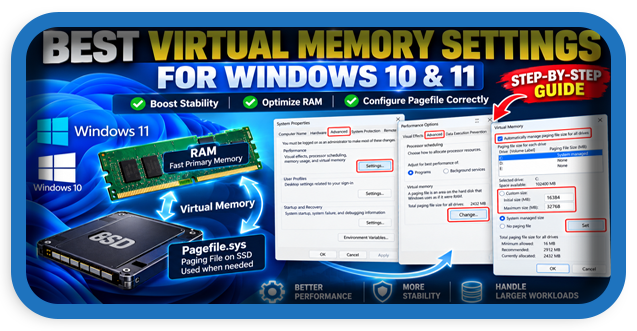
Learn the best steps for setting virtual memory in Windows 10 and Windows 11. This guide explains pagefile settings, system-managed memory, custom sizes, SSD considerations, common mistakes, and practical recommendations for PCs with different amounts of RAM.
Virtual memory is one of those Windows settings that many users discover only after a computer starts feeling slow, an application reports insufficient memory, or a demanding game suddenly closes. The setting looks simple, but choosing random values can create more problems than it solves. Windows already includes a sophisticated memory-management system, and in most cases, it can manage the paging file automatically.
Still, understanding virtual memory is useful. A correctly configured page file can provide extra committed-memory capacity when workloads demand more memory than physical RAM alone can comfortably support. It can also play an important role when Windows needs to create diagnostic crash dumps. The goal, therefore, is not to make the page file as large as possible. The goal is to configure Windows so that RAM, storage, applications, and the operating system work together efficiently.
This guide explains the best steps for setting virtual memory in Windows 10 and Windows 11. We will look at automatic and custom configurations, practical RAM examples, SSD considerations, troubleshooting, and the mistakes that are best avoided.
What Is Virtual Memory in Windows?
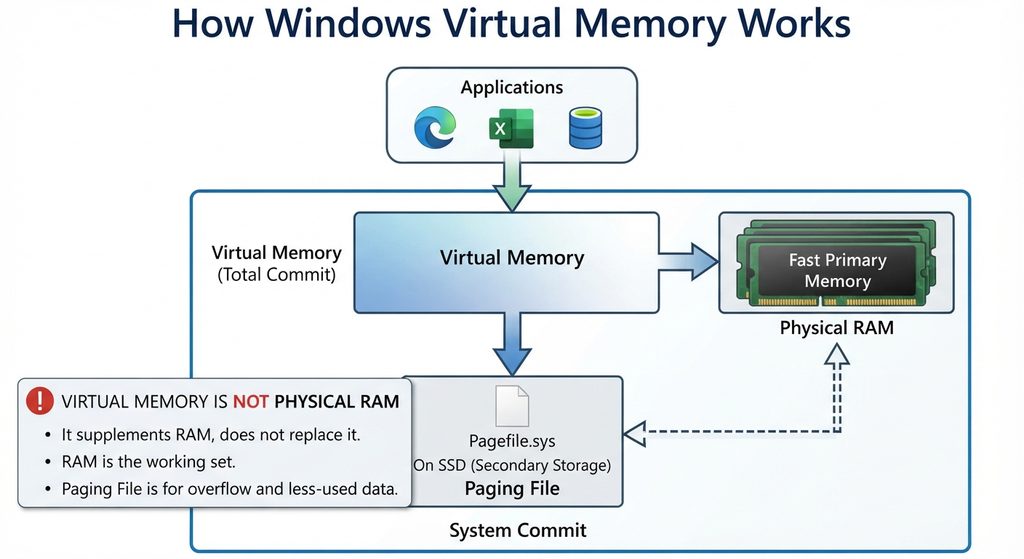
Virtual memory is part of the memory-management architecture used by Windows. Applications operate within virtual address spaces rather than accessing physical RAM directly. Windows and the processor translate those virtual addresses and manage which information remains in physical memory. When necessary, Windows can also use storage-backed memory mechanisms as part of this system. Microsoft explains that the paging file helps extend the system commit limit and provides backing for certain modified memory pages.
The Windows paging file is commonly called pagefile.sys. It normally resides on a storage volume and remains hidden from everyday users. It should not be confused with physical RAM. RAM is dramatically faster and serves as the computer’s primary working memory. The page file is not a replacement for installing enough RAM. Instead, it gives Windows additional flexibility when managing committed memory and workloads that occasionally require more memory.
This distinction matters because increasing virtual memory does not magically transform an 8 GB computer into a machine with 32 GB of physical RAM. If a workload constantly exceeds available physical memory, heavy paging can make the computer noticeably slower because even a fast SSD has much higher latency than RAM. A page file can improve stability in the right circumstances, but additional physical RAM remains the better solution for consistently memory-intensive workloads.
RAM, Virtual Memory, and the Paging File
Three terms often get mixed together: RAM, virtual memory, and the page file. RAM is physical hardware installed inside the computer. Virtual memory is a broader operating-system memory concept. The page file is a disk-based file Windows can use as part of its virtual-memory and committed-memory management.
Microsoft describes the system commit limit as being based on physical memory plus the combined capacity of page files. Applications and Windows components can reserve committed memory, and that commitment must have backing available. A page file therefore gives Windows additional room for workloads whose committed-memory requirements could otherwise approach the system limit.
This is also why simply disabling pagefile.sys to save SSD space is not generally a useful optimization. A PC may appear to work normally without it, especially when large amounts of RAM are installed, but certain workloads can still reach the commit limit. Page files can also be important for generating crash dumps after serious Windows failures.
Should You Let Windows Manage Virtual Memory Automatically?
For most Windows computers, yes. The safest starting point is to leave Automatically manage paging file size for all drives enabled. Microsoft documents that Windows uses system-managed page files by default. Their sizes can change according to factors such as installed RAM, current commit requirements, usage history, and crash-dump requirements.
This approach is particularly sensible on a normal home PC, gaming computer, office workstation, or laptop with adequate free SSD space. Modern Windows does not simply choose one permanent page-file number based on a basic RAM multiplier. The operating system can adjust its memory strategy according to actual requirements. That makes automatic management a much better default than copying arbitrary values from an optimization video or forum post.
Manual configuration still has legitimate uses. For example, an administrator may need predictable paging-file capacity, a specific application may encounter allocation problems, or troubleshooting may show that automatic growth is not responding quickly enough. Microsoft has documented certain scenarios where manually configuring a paging file can work around memory-allocation errors associated with slow page-file growth.
Why the Old 1.5× RAM Rule Is Not Universal
For years, Windows tuning guides repeated a simple formula: set virtual memory to 1.5 times installed RAM. You may still encounter that recommendation today. It can serve as a starting point in specific manual-configuration situations, and Microsoft documentation mentions it in relation to particular troubleshooting scenarios. However, it should not be treated as a universal requirement for every Windows PC.
Consider a computer with 128 GB of RAM. Blindly applying a 1.5× formula would create a 192 GB paging-file target. Most desktop users have no reason to reserve that amount of SSD capacity. Conversely, a machine with only 4 GB of RAM may encounter workloads where a relatively generous page file helps prevent allocation failures, although the real performance improvement would come from installing more RAM.
Modern page-file sizing depends on workload, peak commit charge, crash-dump requirements, available storage, and physical memory. Therefore, the best configuration begins with Windows management rather than a universal multiplier.
Best Steps for Setting Virtual Memory in Windows
Before changing anything, check how much RAM your computer has and how much free space remains on the system drive. You should also consider why you want to modify virtual memory. If Windows is stable and you are not receiving memory-related errors, changing the page file simply because a larger number sounds faster is unlikely to provide a meaningful performance improvement.
You can reach the relevant settings through Windows System Properties. The interface is similar across Windows 10 and Windows 11, although Microsoft occasionally changes how users reach the advanced settings from the modern Settings application. The traditional System Properties dialog remains a convenient route.
A particularly quick method is to press Windows + R, type sysdm.cpl, and press Enter. This opens System Properties directly. From there, the controls needed for virtual memory are located under the Advanced performance settings. Microsoft also uses this route in Windows troubleshooting documentation.
Step 1: Open Advanced System Properties
Press Windows + R to open the Run dialog. Type:
sysdm.cpl
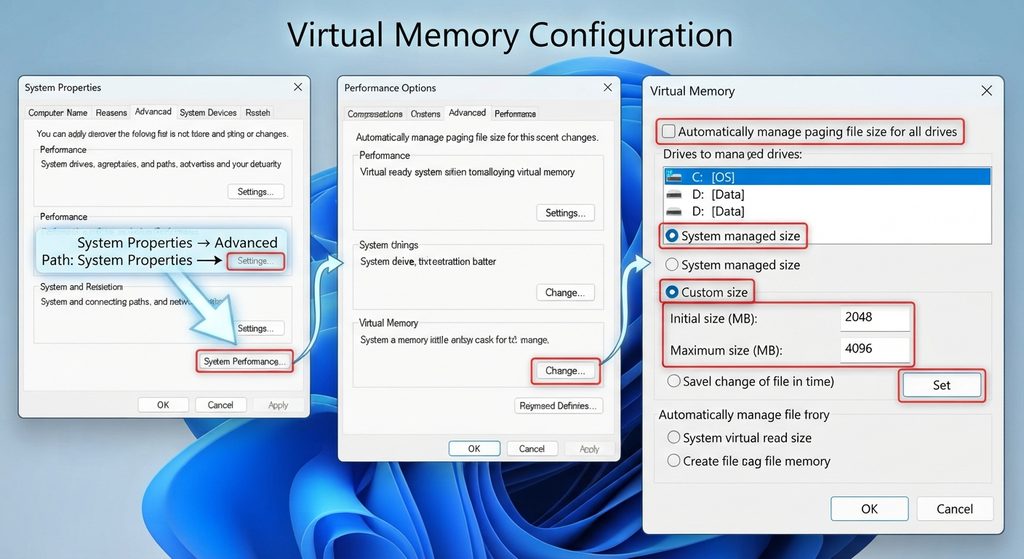
Press Enter. When System Properties appears, select the Advanced tab. Under the Performance section, click Settings. A second window named Performance Options will open.
Choose its Advanced tab. You should now see a section labeled Virtual memory, along with information about the current paging-file allocation. Click Change to open the Virtual Memory configuration window.
The complete path is:
Run → sysdm.cpl → Advanced → Performance Settings → Advanced → Virtual Memory → Change
This method works well because it avoids searching through multiple Settings pages. It also takes you directly to the classic Windows controls where the paging-file configuration can be reviewed.
Step 2: Check the Current Automatic Setting
At the top of the Virtual Memory window, look for Automatically manage paging file size for all drives. If this option is enabled, Windows is already controlling the paging-file configuration.
For the majority of users, you can leave this box checked. There is no need to enter custom values simply because Windows has allocated a page file. The presence of pagefile.sys does not mean your PC has insufficient RAM. It is a normal component of Windows memory management.
If you specifically need a custom configuration, clear the automatic-management checkbox. Select the Windows drive, which is normally C:, and then choose either System managed size or Custom size. Do not choose No paging file simply as a performance tweak.
Step 3: Decide Between System Managed and Custom Size
System managed size is the preferred configuration for most computers. Windows can adapt the page file according to memory pressure and other system requirements. It also integrates naturally with Windows crash-dump behavior.
Custom size gives you direct control over the initial and maximum paging-file values. This can be useful when troubleshooting a particular workload or when you deliberately want predictable disk-space usage. However, custom settings introduce another responsibility: the maximum must be large enough for peak committed-memory requirements.
A custom page file that is too small can be worse than an automatically managed one. Once Windows reaches its commit limit, applications may fail to allocate memory. Programs can close, operations can fail, or the system can become unstable. Therefore, avoid aggressively restricting the maximum merely to recover a few gigabytes of SSD space.
Step 4: Apply the New Configuration Correctly
After choosing the drive and entering your preferred settings, click Set. This step is easy to overlook. Merely typing the numbers and closing the dialog may not apply the configuration as expected.
Next, click OK through the remaining windows. Windows may request a restart. Save your open work and restart the computer when convenient. A restart ensures that the new paging-file configuration is fully applied.
After rebooting, return to the Virtual Memory window if you want to confirm the setting. You can also use Task Manager to observe memory usage during normal workloads. Instead of judging performance immediately after startup, use the PC normally and watch what happens when your most demanding applications are running.
Recommended Virtual Memory Settings by RAM Size
There is no perfect page-file number based solely on installed RAM. Two computers with 16 GB of RAM can have completely different requirements. One may run a browser and Microsoft Office, while another runs virtual machines, large development environments, video software, or memory-intensive creative applications.
For this reason, the most reliable general recommendation is simple: use System managed size unless you have a demonstrated reason to configure a fixed range manually. Microsoft states that peak system commit can vary significantly between systems, which means page-file requirements also vary.
Still, installed RAM gives us useful context. The following recommendations should be treated as practical configuration guidance rather than strict mathematical requirements.
PCs With 4 GB of RAM
A Windows computer with 4 GB of RAM has very little physical-memory headroom by modern standards. Browsers, background utilities, antivirus software, cloud synchronization tools, and Windows itself can consume a significant portion of that memory.
For this type of machine, disabling the page file is especially unwise. Keep the paging file system-managed and maintain enough free SSD space for Windows to adjust it. If the computer frequently becomes slow while several applications are open, increasing the page file may prevent some out-of-memory failures, but it will not eliminate the fundamental RAM limitation.
Upgrading to at least 8 GB of physical RAM, when the hardware supports it, will generally make a much larger difference than experimenting with enormous custom page-file settings.
PCs With 8 GB of RAM
Eight gigabytes remains workable for everyday Windows use, including browsing, streaming, office applications, and lighter workloads. However, modern browsers can consume several gigabytes when many tabs are open. Games and creative software can push memory requirements considerably higher.
A system-managed page file is the best starting point. Windows can provide additional commit capacity without forcing you to predict exactly how much virtual-memory backing your applications will require.
If Task Manager repeatedly shows committed memory approaching its limit during your normal workload, investigate which applications are responsible. A larger page file can increase the commit limit, but consistently high memory pressure may indicate that a RAM upgrade is appropriate.
PCs With 16 GB of RAM
Sixteen gigabytes is comfortable for many Windows users. It supports everyday multitasking, gaming, office work, moderate photo editing, and many development workloads.
There is usually little reason to configure an enormous page file manually on a healthy 16 GB machine. Leave Windows in control unless a specific workload or troubleshooting requirement suggests otherwise.
Importantly, having 16 GB of RAM does not mean the paging file should be disabled. Applications can request committed memory that exceeds the currently active working sets visible in Task Manager. Maintaining a page file gives Windows more flexibility and supports diagnostic functions.
PCs With 32 GB of RAM
With 32 GB of physical memory, normal desktop workloads may rarely experience serious RAM pressure. Gamers, developers, content creators, and heavy multitaskers often find this amount comfortable.
Even so, the best general configuration remains System managed size. There is no meaningful performance prize for setting the paging file to zero. Likewise, there is normally no reason to reserve tens of gigabytes based purely on an old RAM multiplier.
Users running virtual machines, large video projects, professional design applications, local AI workloads, or large development builds should monitor committed memory. Those workloads can behave very differently from ordinary desktop usage.
PCs With 64 GB or 128 GB of RAM
Large-memory workstations illustrate why simplistic page-file formulas are problematic. A PC with 128 GB of RAM does not automatically need a 192 GB page file. Page-file requirements depend on peak commit demand and diagnostic requirements rather than a fixed multiplier alone.
Microsoft’s current troubleshooting guidance for systems with more than 32 GB of memory recommends system-managed paging in scenarios where reliable crash-dump collection is important.
For a powerful workstation, therefore, leaving the page file system-managed is generally the sensible choice. Advanced users with highly predictable workloads can tune it after measuring actual commit usage, but there should be a technical reason for doing so.
How to Calculate a Custom Virtual Memory Size
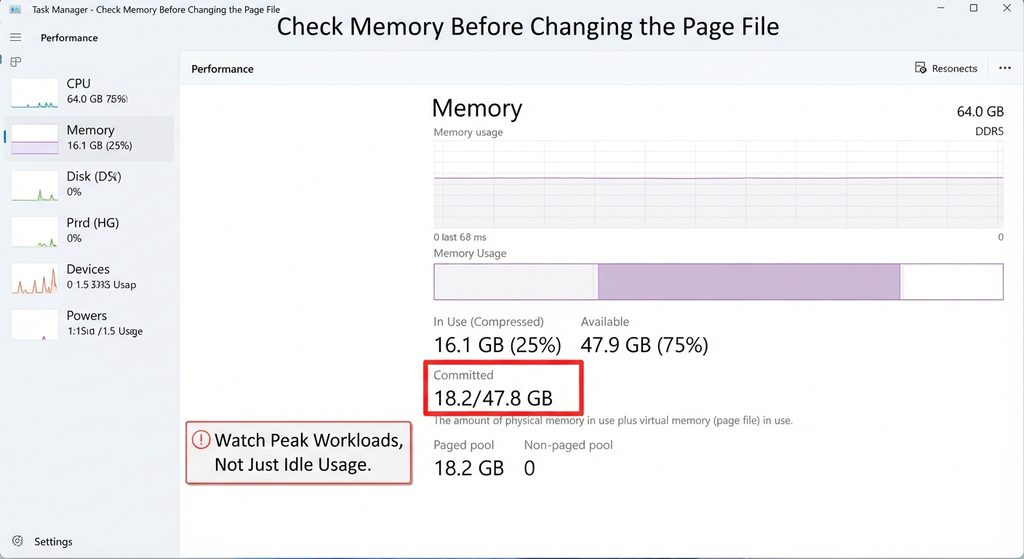
If you genuinely need a custom page file, start by measuring your computer rather than copying somebody else’s numbers. Open Task Manager → Performance → Memory and look at the Committed value while your typical heavy workload is running.
You may see a value such as:
18.2 / 47.8 GB
The first number represents the current committed-memory usage, while the second represents the commit limit. If the first value regularly approaches the second, the machine is running short of commit capacity. Additional RAM, additional page-file capacity, or reducing memory-intensive workloads can provide more headroom.
This approach is much more informative than saying every computer needs exactly 1.5× or 3× its physical RAM.
Initial Size and Maximum Size Explained
When you select Custom size, Windows asks for an Initial size (MB) and Maximum size (MB). The initial value is the starting allocation, while the maximum establishes how far the page file can grow under that custom configuration.
One reason to use a sufficiently large initial size is to avoid relying on page-file expansion during sudden memory demand. Microsoft has documented a Windows 10 scenario where slow page-file growth can contribute to memory-allocation errors and recommends manual sizing as a workaround in that specific situation.
For ordinary Windows PCs, however, this is not a reason to abandon automatic management preemptively. If you have no memory errors and Windows is managing the page file successfully, there is little benefit in solving a problem that does not exist.
Converting GB to MB
Windows asks for custom page-file sizes in megabytes. For practical binary-style calculations used in this context:
| GB | MB |
|---|---|
| 1 GB | 1,024 MB |
| 4 GB | 4,096 MB |
| 8 GB | 8,192 MB |
| 16 GB | 16,384 MB |
| 32 GB | 32,768 MB |
| 64 GB | 65,536 MB |
These conversions are useful when entering a known custom target. However, do not interpret them as recommended page-file sizes. They are simply conversions.
Why You Should Not Disable the Windows Page File
Disabling the page file is frequently promoted as an SSD or gaming optimization. In most cases, that advice oversimplifies how Windows memory management works.
A computer with plenty of RAM may operate for long periods without needing significant paging activity. That does not mean the page file has no purpose. Microsoft explains that page files extend the system commit limit and can support crash dumps. Without page files, the commit limit is slightly below the amount of installed physical memory.
Certain applications also behave better when normal Windows paging facilities remain available. Removing the page file reduces the operating system’s flexibility for no guaranteed performance benefit. Unless you have a specialized configuration and understand its memory and diagnostic implications, keep a paging file enabled.
Page Files and Windows Crash Dumps
The page file has another job that becomes important when something goes wrong. Windows can create a memory dump after a system crash. Engineers and troubleshooting tools can analyze that dump to determine which driver, kernel component, or other condition contributed to the failure.
Different dump types have different storage requirements. Microsoft notes that page-file or dedicated dump-file capacity may be necessary to support the selected crash-dump configuration. System-managed paging can adapt to these requirements.
Disabling the page file can therefore make troubleshooting more difficult. You might save some SSD space but later discover that useful diagnostic information was unavailable after a serious crash.
Should the Page File Be on an SSD or HDD?
If your Windows installation runs from an SSD, there is generally no reason to move the paging file to a slow mechanical hard drive simply because you want to “protect” the SSD. Paging is highly sensitive to storage latency, and an SSD handles random access much faster than a traditional HDD.
Modern SSDs are designed to handle substantial write workloads. Normal Windows paging should not be treated as something that must automatically be moved away from solid-state storage. In practical terms, sacrificing memory responsiveness to avoid routine SSD writes usually provides a poor trade-off.
The more important issue is free space. A system-managed paging file needs room to grow when necessary. If your C: drive is almost full, Windows has less flexibility. Cleaning unnecessary files or upgrading storage is preferable to aggressively limiting the page file merely to keep a nearly full drive operational.
What If You Have Multiple SSDs?
Computers with several fast drives offer additional possibilities. Windows supports paging files on multiple volumes. Advanced workstation users may distribute paging capacity according to workload and storage configuration.
For an ordinary desktop PC, however, complexity rarely provides a noticeable benefit. Keeping a system-managed page file on the Windows SSD is simple and reliable.
Users with specialized workstations should consider disk performance, free capacity, crash-dump requirements, and workload patterns before relocating paging files. Avoid moving pagefile.sys solely because an optimization guide claims the system drive should never contain one.
Virtual Memory Settings for Gaming PCs
Gamers frequently change page-file settings while chasing higher FPS. Virtual memory usually does not work that way. Increasing the page file from 8 GB to 64 GB will not give a game the same performance improvement as installing faster hardware or sufficient physical RAM.
The page file is primarily about memory-management capacity and stability. If a game and its background applications require more committed memory than the computer can support, additional paging capacity may prevent allocation failures or crashes. However, actively paging large amounts of game data is much slower than keeping frequently accessed information in RAM.
For gaming systems with 16 GB, 32 GB, or more RAM, leaving virtual memory system-managed is normally the sensible configuration. If a particular game reports insufficient memory, first check RAM usage, committed memory, background applications, GPU memory, storage space, game requirements, and known software issues before randomly changing page-file values.
Does a Larger Page File Increase FPS?
Normally, no. Page-file capacity should not be treated as an FPS slider. A larger page file increases potential commit capacity, but disk-backed memory remains much slower than physical RAM.
If a game was previously crashing because the system ran out of committed-memory capacity, correcting an undersized page file could improve stability. That improvement may feel dramatic because the crashes stop, but it does not mean the page file itself is accelerating rendering.
For performance tuning, focus on sufficient RAM, CPU and GPU capability, graphics settings, temperatures, drivers, storage performance, and unnecessary background processes. Virtual memory should be configured for reliability first.
Virtual Memory for Video Editing and Professional Applications
Creative workloads can place much greater pressure on memory than ordinary desktop applications. Video editing, large Photoshop projects, 3D rendering, software development, virtual machines, and scientific tools can consume tens of gigabytes of committed memory.
A workstation with 32 GB of RAM might therefore have higher page-file requirements than another machine with the same physical memory. This is why workload measurement matters more than a universal RAM formula.
Run your normal projects and inspect Task Manager’s committed-memory figures. If usage frequently approaches the limit, identify whether the application itself is expected to consume that amount. Adding physical RAM is generally preferable when the workload consistently exceeds installed memory, while an adequately sized paging file provides additional capacity and resilience.
How to Check Whether Your Page File Is Large Enough
Task Manager provides a useful starting point. Press Ctrl + Shift + Esc, choose Performance, and select Memory. Watch the committed-memory values while running your normal heavy workload.
Do not focus only on the percentage of physical RAM currently used. Commit and physical-memory usage represent related but different concepts. A system can have enough currently available RAM yet still have significant committed-memory requirements.
Microsoft also documents Performance Monitor counters for deeper analysis, including page-file usage and available physical memory. Professional administrators can use these measurements to understand whether page files are heavily utilized and whether memory pressure is persistent.
Signs That Memory Configuration Needs Attention
Common symptoms can include out-of-memory messages, applications unexpectedly terminating, demanding software failing during large operations, or committed memory repeatedly approaching the system limit.
However, these symptoms do not automatically prove that the page file is the problem. A memory leak, defective application, driver issue, insufficient physical RAM, nearly full system disk, or unusually demanding project can produce similar behavior.
Before increasing virtual memory, restart the computer and reproduce the workload while monitoring Task Manager. If one application continuously consumes more memory over time, investigate that program rather than hiding the issue behind an enormous page file.
Common Virtual Memory Mistakes to Avoid
One of the biggest mistakes is assuming that more virtual memory automatically makes Windows faster. A huge page file does not increase CPU speed, GPU performance, RAM bandwidth, or storage throughput. It mainly provides additional committed-memory backing and gives Windows more flexibility.
Another mistake is disabling the page file because the computer has 32 GB, 64 GB, or 128 GB of RAM. Large physical memory certainly reduces the likelihood of heavy paging, but it does not remove every reason Windows may use a page file.
Finally, avoid copying page-file settings from another computer without understanding its workload. Two PCs with identical hardware can have dramatically different memory requirements depending on the applications they run.
Avoid Extremely Small Maximum Values
A manually configured page file cannot grow beyond the maximum you specify. If the computer reaches the resulting commit limit, applications can experience allocation failures.
This is especially important when a computer occasionally handles workloads much larger than its everyday usage. A PC might consume only 10 GB of committed memory during normal browsing but suddenly require much more while editing video, compiling software, running virtual machines, or opening a large project.
If you cannot confidently predict peak demand, system-managed paging is safer than an artificially low custom maximum.
Do Not Use Virtual Memory as a Substitute for RAM
A page file can increase memory capacity, but it cannot reproduce RAM performance. When Windows must continually move data between RAM and storage because physical memory is exhausted, responsiveness can deteriorate.
If your computer regularly reaches high physical-memory usage and heavy applications become sluggish, adding RAM may be the correct long-term solution.
Virtual memory is best viewed as part of Windows memory management rather than a cheap RAM upgrade.
Best Configuration for Most Windows Users
For a typical Windows 10 or Windows 11 computer, the recommended setup is straightforward: keep Automatically manage paging file size for all drives enabled and make sure the Windows SSD has reasonable free space.
This configuration allows Windows to adapt paging-file capacity according to installed memory, commit requirements, usage history, and crash-dump needs. Microsoft’s documentation confirms that system-managed page files can grow and shrink according to multiple factors rather than relying on one universal fixed size.
Custom sizing becomes worthwhile when you have measured a specific problem, need predictable allocation, are troubleshooting memory errors, or administer a specialized workstation. Even then, base the decision on actual peak committed-memory usage rather than an arbitrary internet formula.
Frequently Asked Questions
What is the best virtual memory setting for Windows 11?
For most users, the best setting is Automatically manage paging file size for all drives. Windows can then adjust the paging file according to system requirements.
What is the best virtual memory setting for Windows 10?
System-managed virtual memory is also the safest general recommendation for Windows 10. Custom sizing is better reserved for specific troubleshooting or workload requirements.
Should I use 1.5 times my RAM for virtual memory?
Not automatically. The 1.5× rule can be useful as a starting point in certain manual-sizing scenarios, but modern page-file requirements depend on peak commit, workload, crash-dump configuration, and available storage.
Does increasing virtual memory make Windows faster?
Not necessarily. Increasing an undersized page file can prevent memory-allocation failures, but virtual memory stored on an SSD remains slower than physical RAM.
Can I disable virtual memory with 32 GB of RAM?
Windows may operate without a page file when sufficient RAM is available, but disabling it reduces commit capacity and can affect crash-dump support. Keeping a system-managed page file is generally preferable.
Should I put the page file on my SSD?
For most modern computers, yes. An SSD provides much lower storage latency than a mechanical hard drive. There is normally no need to move the page file to an HDD solely to reduce SSD writes.
How much virtual memory should I use with 8 GB of RAM?
There is no universal number. Start with Windows system-managed paging. If you experience memory errors, examine peak committed-memory usage before selecting a custom size.
How much virtual memory should I use with 16 GB of RAM?
For normal desktop and gaming workloads, system-managed paging is usually appropriate. A custom configuration should be based on measured workload requirements rather than RAM alone.
Does virtual memory improve gaming performance?
It can improve stability when a system would otherwise run out of committed-memory capacity, but increasing the page file does not normally increase FPS.
Do I need to restart Windows after changing virtual memory?
Windows may require a restart after changing paging-file settings. When prompted, save your work and restart so the new configuration can take effect correctly.
The Smart Way to Configure Windows Memory
Virtual memory is valuable, but it is not a hidden Windows performance booster. Its real purpose is more practical. The paging file gives Windows additional flexibility for committed memory, helps support demanding workloads, and can contribute to successful crash-dump collection when the operating system encounters a serious failure.
For most PCs, the simplest configuration is also the best: let Windows manage the paging file automatically. Users should consider manual sizing only when they have a measurable reason. If memory demand regularly exceeds the available physical RAM, adding RAM will usually provide a much greater performance improvement than creating an oversized page file.
Before changing anything, check Task Manager, observe committed memory during your heaviest real workload, and verify that the system drive has sufficient free space. Good Windows optimization is not about entering the largest numbers. It is about giving the operating system the resources it needs while avoiding unnecessary restrictions.
⚠️ Disclaimer and Source Hygiene
This article is intended for educational and general troubleshooting purposes. Windows configurations, hardware, applications, storage capacity, and workload requirements vary between computers. Back up important data before making significant system changes, and consult a qualified IT professional when troubleshooting business-critical or unusually complex systems.
Technical recommendations in this guide were checked against Microsoft documentation concerning Windows page files, committed memory, page-file sizing, virtual memory, and crash-dump requirements. Windows behavior and Microsoft recommendations can change over time, so official documentation should remain the primary reference for specialized configurations.
🔔 For more tutorials like this, consider subscribing to our blog.
📩 Do you have questions or suggestions? Leave a comment or contact us!
🏷️ Tags: Windows virtual memory, Windows page file, pagefile.sys, Windows 11 optimization, Windows 10 optimization, virtual memory settings, Windows performance, RAM optimization, paging file size, Windows tutorial
📢 Hashtags: #Windows, #Windows11, #Windows10, #VirtualMemory, #PageFile, #WindowsTips, #PCOptimization, #WindowsTutorial, #RAM, #TechTips
📚 Sources and References
Microsoft Learn – Introduction to the page file: Explains the role of Windows page files, system committed memory, paging behavior, and support for system crash dumps.
Microsoft Learn – How to determine the appropriate page file size for 64-bit versions of Windows: Detailed Microsoft guidance covering system-managed page files, peak commit charge, crash-dump requirements, page-file sizing, and Windows 10/11 behavior.
Microsoft Learn – Configure system failure and recovery options: Documentation explaining Windows memory dumps and the relationship between paging files and crash-dump configuration.
Microsoft Learn – Memory allocation errors can be caused by slow page file growth: Documents a specific Windows scenario where manually configuring the page file can address allocation problems.
Microsoft Learn – Virtual Address Space and Physical Storage: Technical background explaining how Windows maps virtual address space to physical storage and manages memory pages.
🕊️ Secondary Sources and Testimonials
Community recommendations about Windows virtual memory vary widely. Some users prefer fixed paging-file sizes, while others disable the page file on high-RAM systems. These experiences can be useful for identifying unusual cases, but they should not replace measured memory usage or Microsoft’s technical documentation.
For a normal Windows PC, the safest approach remains conservative: retain a paging file, use system-managed sizing unless a specific workload justifies manual configuration, maintain sufficient free SSD space, and investigate unusually high memory consumption instead of masking it with increasingly large page-file values.
