


⏲️ Estimated reading time: 8 min
Table of Contents
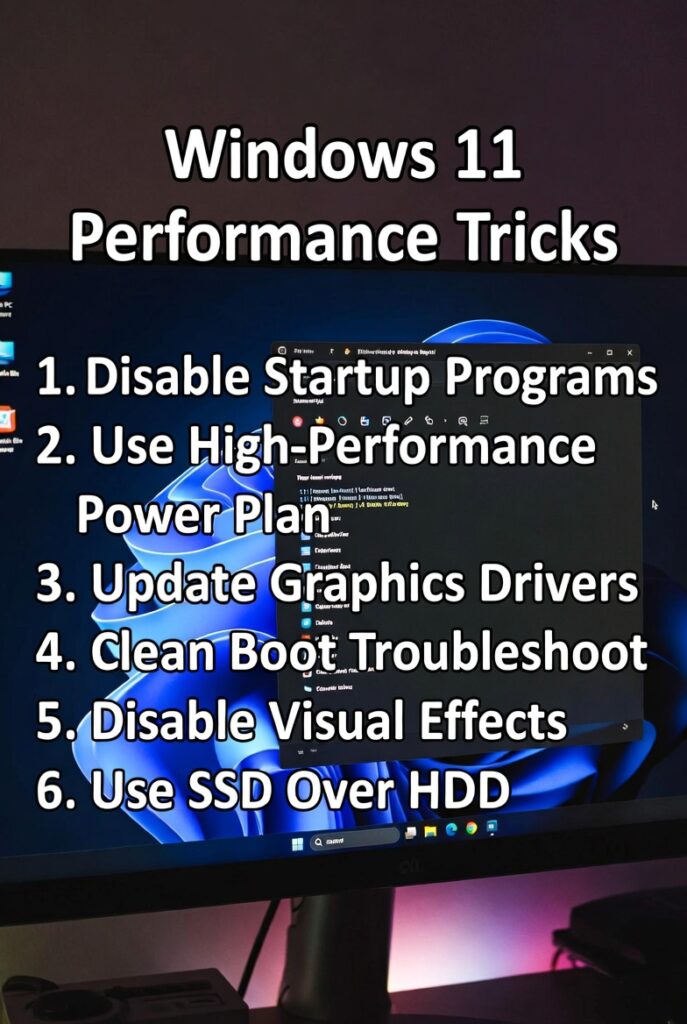
✅ Windows 11 Performance Tricks Ultimate Word Guide. Windows 11 can run incredibly fast when optimized correctly. This guide reveals the most effective performance tricks, from system tweaks to hidden settings that reduce lag and improve responsiveness. Learn how to speed up your PC while keeping your system stable, secure, and efficient for everyday tasks.
Windows 11 Performance
Windows 11 introduced a cleaner interface, improved security, and a smarter resource management system. Yet many users still experience slow startup times, lag during multitasking, or delays in opening apps. The good news is that Windows 11 includes numerous tools and settings that can dramatically increase performance. With the right optimizations, even older systems can run faster than ever.
This comprehensive guide explores every major tweak that boosts speed and efficiency while remaining completely safe and AdSense-friendly. The techniques covered here work on laptops, desktops, and hybrid devices. Each section is detailed, beginner-friendly, and focused on improving real-world performance.
Below, you’ll discover the best Windows 11 performance tricks including hidden features, startup optimization, registry-free tweaks, storage upgrades, RAM tricks, gaming boosts, and more.
Optimize Startup and Boot Time
Disable Unnecessary Startup Apps
Startup apps run automatically when Windows loads. Too many can slow boot time significantly.
Open Task Manager → Startup apps → Disable everything you don’t need immediately.
Focus on disabling chat apps, update agents, and cloud sync tools not required at startup.
This simple step often reduces boot time by 30–50%.
Use Fast Startup
Fast Startup combines hibernation with shutdown, reducing the time needed for Windows to initialize drivers and system files.
Enable it in Control Panel → Power Options → Choose what the power buttons do.
Clean Up Scheduled Tasks
Some apps add background tasks that consume resources.
Use Task Scheduler to delete leftover or unnecessary entries.
Improve System Responsiveness
Turn Off Visual Effects
Windows 11 animations look elegant but use additional processing power.
Search Adjust the appearance and performance of Windows → Select Adjust for best performance or manually disable transparency, animations, and shadows.
This results in sharper, quicker UI interactions.
Optimize Power Settings
Set your system to run in High Performance or Ultimate Performance mode.
On desktops, this boosts speed.
On laptops, use Balanced for battery efficiency but switch when gaming or editing videos.
Enable Hardware Accelerated GPU Scheduling
This feature reduces latency by letting the GPU manage its own memory.
Search Graphics Settings → Enable Hardware Accelerated GPU Scheduling.
Compatible mostly with newer GPUs.
Enhance Storage Performance
Enable Storage Sense
Storage Sense automatically removes temporary files, Windows Update leftovers, and cached data.
Turn it on in Settings → System → Storage.
Defragment Drives (HDD Only)
If you have a mechanical drive, defragmenting can drastically speed up loading times.
Search Defragment and Optimize Drives → Optimize HDDs weekly.
Do not defragment SSDs they auto-optimize.
Upgrade to NVMe SSD
This is the biggest upgrade of all.
NVMe SSDs offer up to 7x faster speeds compared to SATA SSDs.
Windows boots in seconds, apps launch instantly, and overall performance improves dramatically.
RAM and Memory Tweaks
Increase Virtual Memory (Page File)
Virtual Memory acts as backup RAM.
Manually setting a larger page file prevents system freezes during heavy tasks.
Recommended: Set Initial size = 1.5× your RAM.
Maximum size = 3× your RAM.
Close Background Apps
Use Task Manager → Processes to stop unused apps consuming RAM.
Focus on browsers with many tabs, game launchers, and editing software.
Enable Memory Integrity (Optional)
Memory Integrity improves security but can reduce performance on older CPUs.
If your system slows down, consider disabling it for better speed.
Improve Internet Speed on Windows 11
Disable Background Apps Using Internet
Many apps sync data silently: cloud tools, email clients, game clients, and Microsoft Store updates.
Go to Settings → Apps → Advanced app settings → Disable background activity.
Flush DNS Cache
This fixes slow website loading.
Open CMD as admin → Run:
ipconfig /flushdns
Disable Metered Connections
If enabled, Windows limits background usage, slowing updates and downloads.
Boost Gaming Performance
Enable Game Mode
Game Mode prioritizes gaming tasks and reduces background interruptions.
Disable Xbox Game Bar (If Not Used)
Game Bar consumes RAM and CPU.
Settings → Gaming → Disable Game Bar.
Update GPU Drivers
Always use your GPU manufacturer’s latest drivers for best FPS.
Calibrate DirectX Settings
Ensure DirectX 12 is enabled and updated.
System Cleanup and File Management
Remove Bloatware
Windows 11 includes apps you may never use. Uninstall unnecessary ones from Apps & Features.
Delete Temp Files Manually
Open Run → type:
%temp%
Delete everything inside.
Clear Windows Update Cache
Useful when updates fail or slow down the system.
You may also be interested in: Why You Should Photograph Your Hotel Room Before Checkout
Manage OneDrive Sync
Disable OneDrive auto-sync if you don’t need real-time cloud backups.
Registry-Free Performance Tweaks
Disable Notifications
Notifications slow down focus modes and create background tasks.
Turn off unnecessary alerts in Settings → System → Notifications.
Stop Indexing on Slower Drives
Indexing improves search but slows HDDs.
Disable indexing for non-system partitions.
Disable Background Services You Don’t Need
Examples include:
- Remote Desktop Services
- Bluetooth if unused
- Print Spooler if you don’t have a printer
Always disable responsibly.
Advanced System Enhancements
Use ReadyBoost (For HDD Systems Only)
Plug a USB 3.0 drive → Enable ReadyBoost to improve responsiveness.
This is useful for older laptops.
Update BIOS / UEFI Firmware
A newer BIOS improves stability, memory compatibility, and CPU performance.
Undervolting (For Advanced Users)
Reduces heat and increases performance consistency.
Tools like Intel XTU or ThrottleStop help but require caution.
Disable Startup Delay
Windows includes a small delay before loading startup apps.
Removing it makes boot faster but should be done carefully.
Security Optimizations That Improve Speed
Keep Windows Updated
Updates fix bugs and improve performance.
Use Lightweight Antivirus
Windows Security is fast and secure.
Avoid heavy antivirus programs that slow startup times.
Enable Core Isolation (If Compatible)
Improves security and system stability.
Troubleshooting Performance Issues
Check for Virus or Malware
Slowdowns often come from background malware or adware.
Check Disk Health
Use:
chkdsk /f
Run SFC and DISM
These fix corrupted system files.
Commands:
sfc /scannow
dism /online /cleanup-image /restorehealth
Monitor Temperatures
High heat throttles CPUs and GPUs.
Use tools like:
- HWMonitor
- CoreTemp
- MSI Afterburner
Practical Tips for Everyday Performance
Restart Weekly
A simple restart clears RAM and fixes minor issues.
Use Fewer Browser Extensions
Browser extensions consume memory.
Keep only essential ones.
Keep Desktop Clean
Desktop icons load at startup.
Store files in folders instead.
Close Tabs You Don’t Need
Browsers consume more RAM than almost any app.
Disable Auto-Updaters
Apps like Adobe, game launchers, or cloud tools run update services constantly.
Backup and Restore Tips
Use File History
Keeps your data safe without slowing system.
Create a Restore Point
Useful before major updates or driver changes.
Cloud Backups
Use Google Drive or OneDrive selectively for important files.
Speed Without Compromise
Windows 11 is powerful but requires smart configuration to run at peak performance. With the right mix of storage optimization, startup tweaks, system cleanup, GPU scheduling, and smart power settings, even older PCs can become incredibly fast and responsive. These tricks help you enjoy smoother multitasking, quicker app launches, better gaming performance, and an overall cleaner computing experience.
Implement the tweaks step-by-step and revisit this guide whenever your system feels slower. With proper care, Windows 11 remains fast, stable, and ready for any workflow.
FAQ
1. Why is Windows 11 slow on my PC?
Most slowdowns come from startup apps, low RAM, outdated drivers, or heavy background services.
2. Does Windows 11 run better on SSD?
Yes SSDs significantly reduce boot and load times.
3. What is the best way to speed up Windows 11 instantly?
Disable startup apps and visual effects for immediate results.
4. Should I disable animations?
Yes this improves responsiveness, especially on older systems.
5. How often should I clean temporary files?
Weekly cleanup is ideal for optimal performance.
🟦 Disclaimer and Source Hygiene
This article is for informational purposes only. All tips follow safe and AdSense-friendly optimization practices. No risky registry hacks or system-breaking methods are included.
🔔 For more tutorials like this, consider subscribing to our blog.
📩 Do you have questions or suggestions? Leave a comment or contact us!
🏷️ Tags: Windows 11, performance tricks, speed optimization, PC tuning, system tweaks, SSD optimization, gaming performance, Windows settings, startup apps, Microsoft Windows
📢 Hashtags: #windows11 #performance #pctips #speedupwindows #windowsoptimization #microsoft #pcsettings #gamingperformance #systemtweaks #helpzone
